The Awardit Gift Card system offers a flexible and secure way for recipients to pay across a wide network of participating merchants and hotels. Awardit is widely recognized for simplifying corporate gifting and incentive programmes, enabling businesses to issue branded gift cards that can be redeemed seamlessly by customers
Functional aspects
The integration will use the existing Domino voucher implementation to support following functionalities:
Search voucher by number (Scan voucher is not currently supported by Awardit)
Show voucher balance (when activating the voucher and through the check voucher function key)
Validate voucher - check voucher status (Value / expired / blocked…..)
Consume voucher amount through a dedicated voucher paymode.
Voucher paymode can be selected in Bill window to redeem from a voucher
Voucher paymode can be selected from “Fastpay” screen to redeem from a voucher
Multiple vouchers can be used on the same ticket.
Mixed paymodes is supported (ie Voucher paymode + cash)
Onboarding MyTrivec - Trivec Admin User
Add Awardit module to the site. (Add Apps module if not already added)
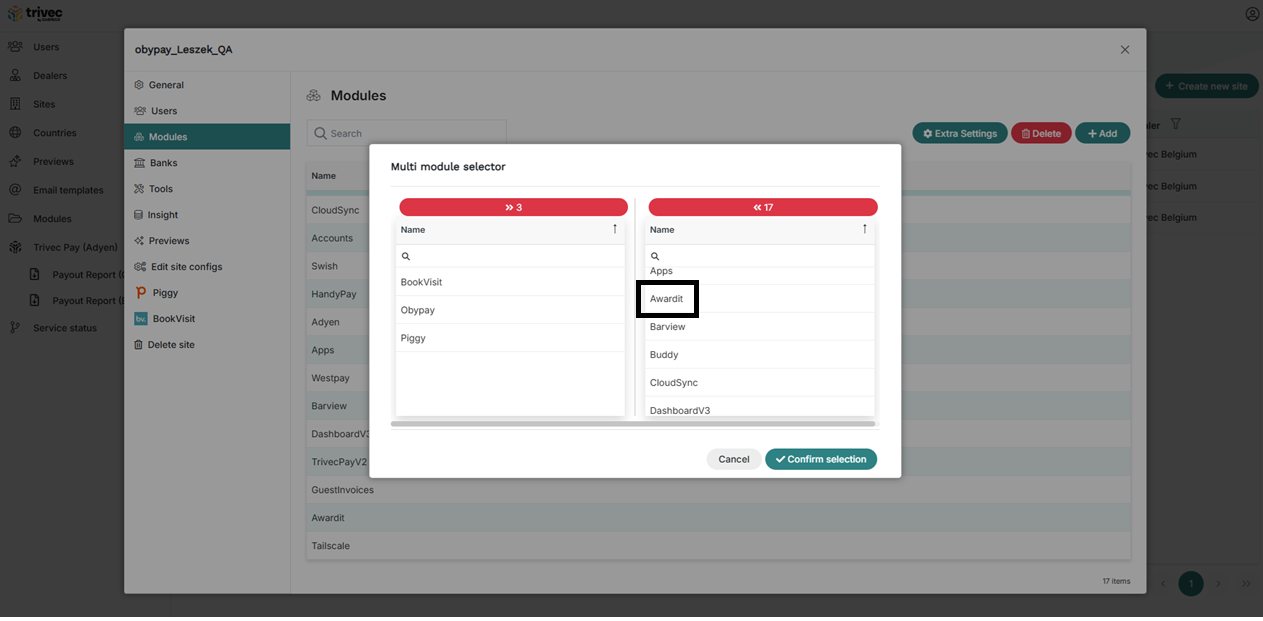
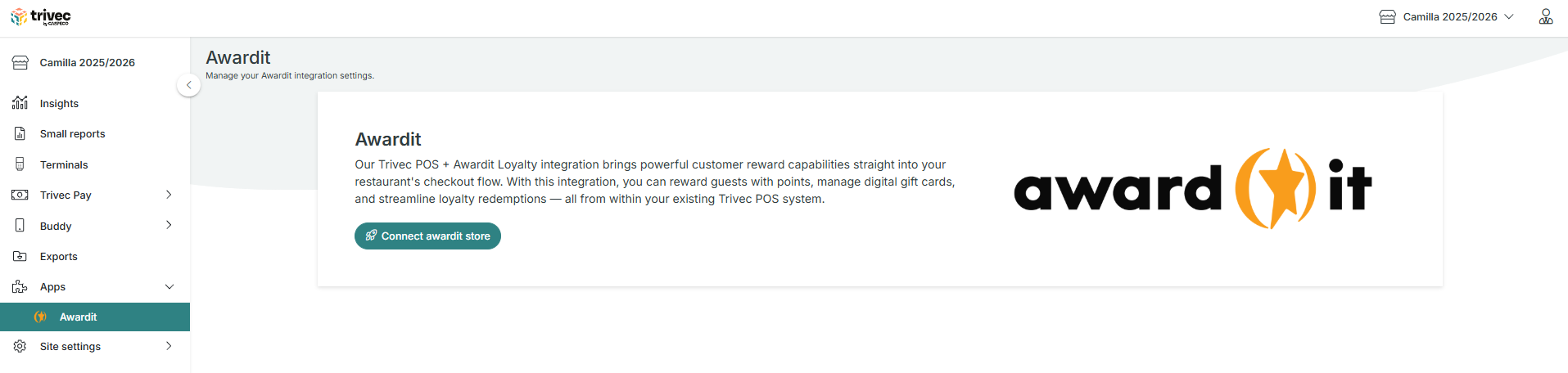
Select Awardit in the menulist on the pop-ups left side and press Connect channel.
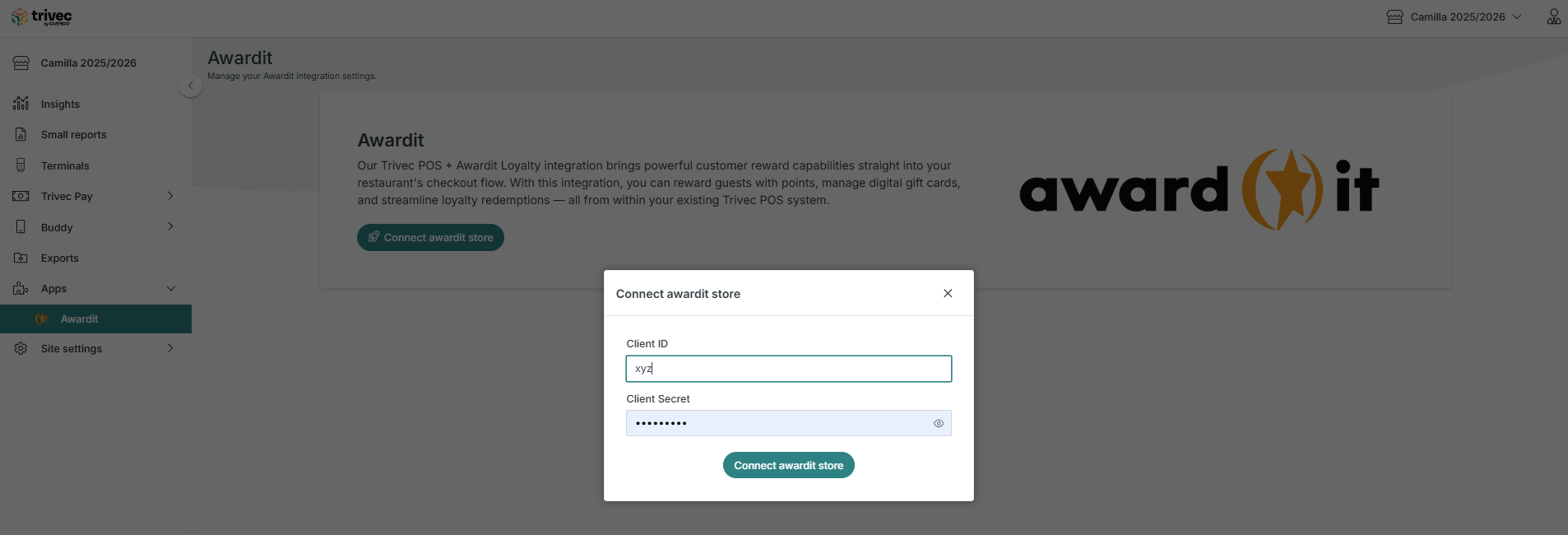
Add Channel ID ( make sure the provided channel id corresponds to the intended site) The channel ID should we provided from the customer or Awardit.
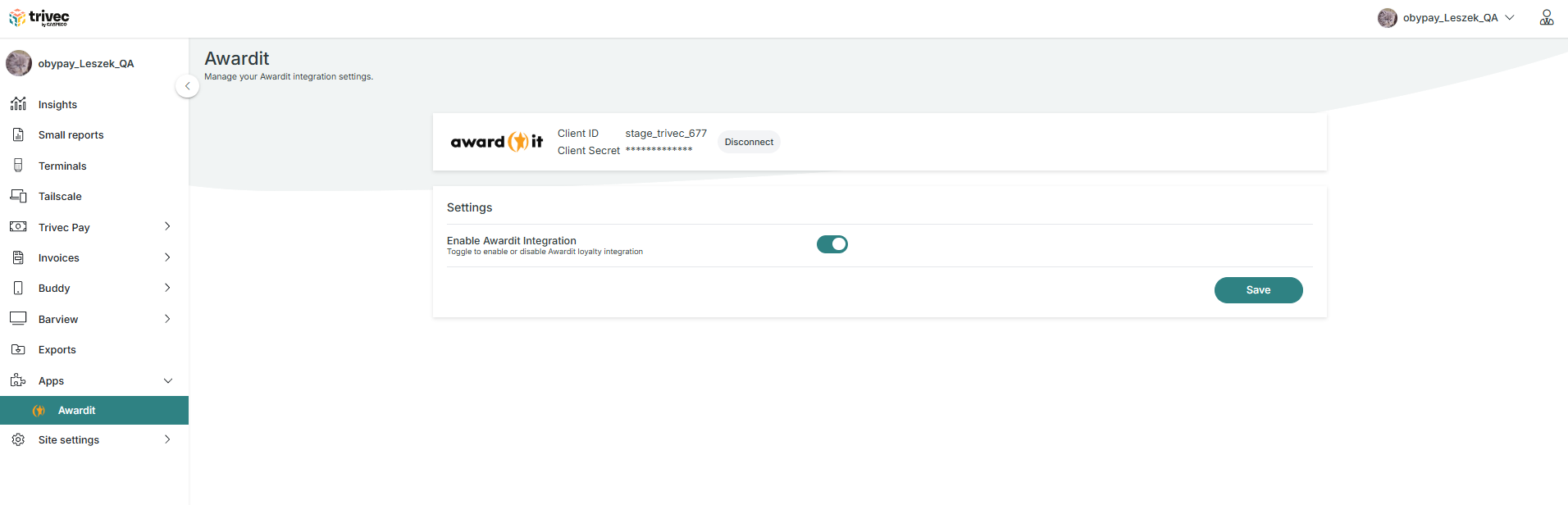
When the site has established the link to Awardit, the ChannelID and masked secret is displayed. If the integration should NOT start immediately, the module status can be disabled (Togglebar off) If the integration should start immediately after configuration, the togglebar next to Module status should be turned on.
Domino configuration is handled by Trivec support. This process requires a valid license and the correct paymode for Awardit. Additionally, settings must be configured to display the gift card balance.
Workflow - Domino
Select order to be paid.
Select the correct configured Awardit Paymode
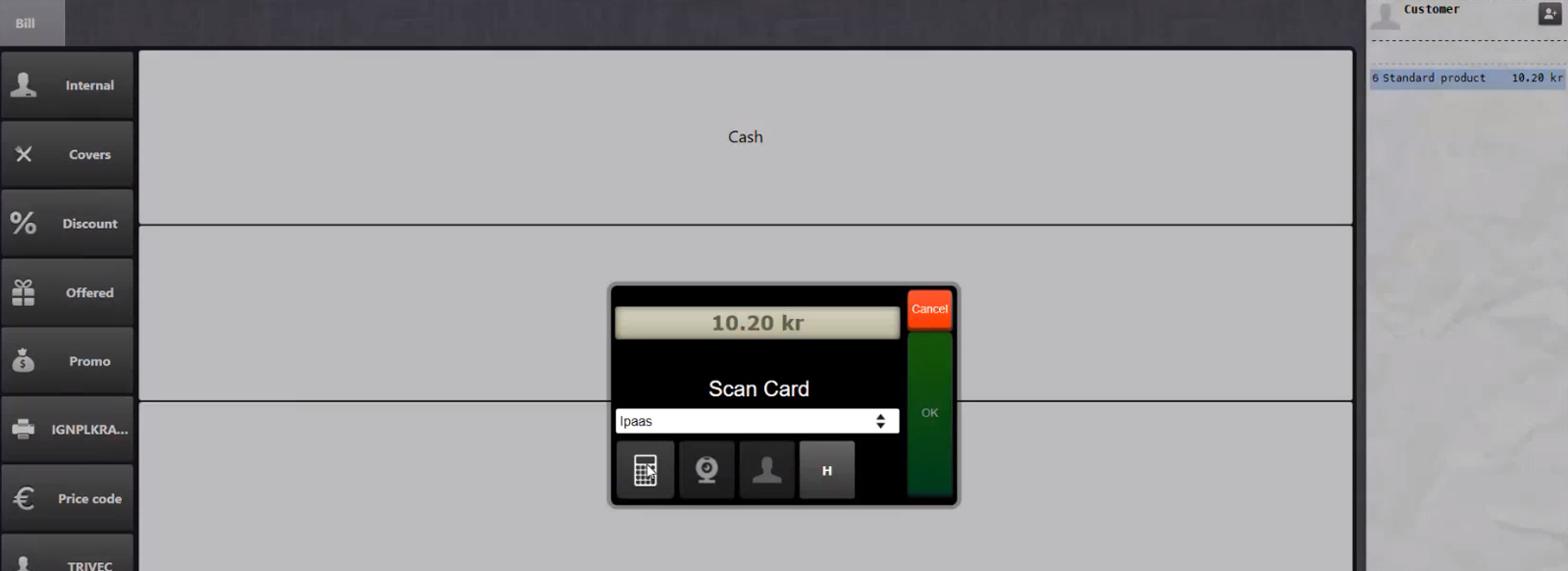
If the value of the vouchers covers the entire cost of the bill, the receipt will be closed. If the value only covers part of the cost, choose the means of payment to pay the remaining amount with. If the value of the voucher is higher than the amount on the bill, the excess will be the new value of the voucher.
- To do a balance check on the Domino POS, press the button Saldo?
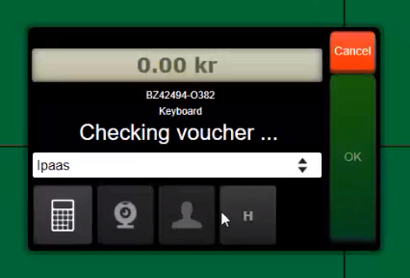
Workflow - Handy
Select order to pay
Choose to pay the whole bill, split or divide
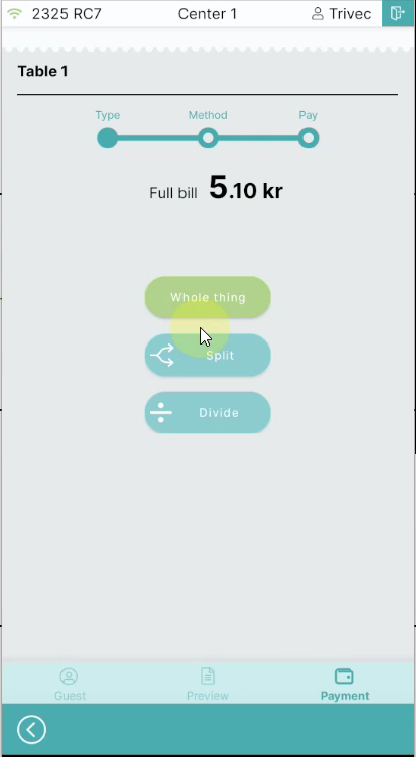
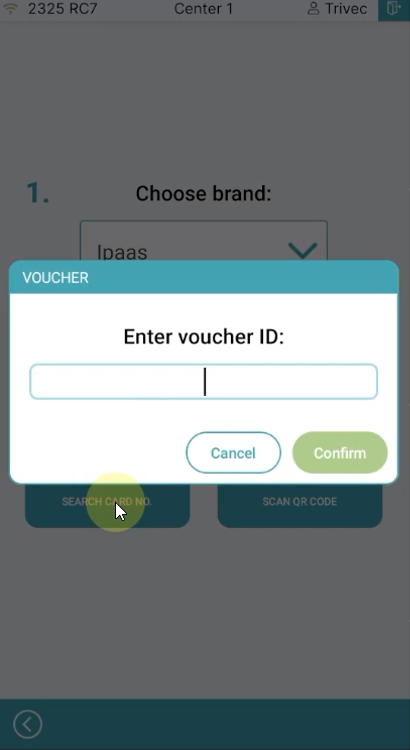
Select the configured Awardit payment method and enter Voucher Id
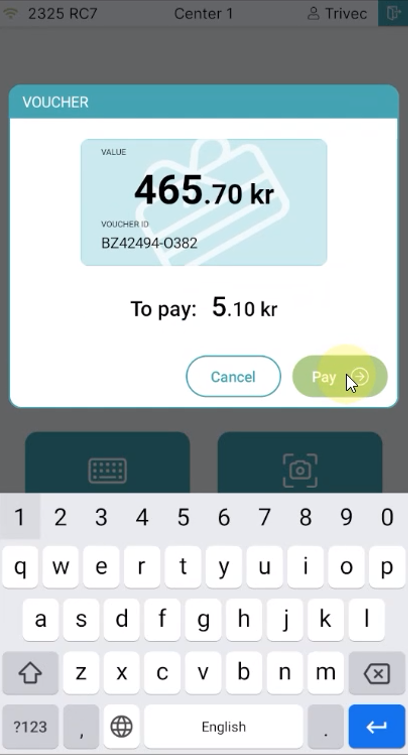
Press Pay
Was this article helpful?
That’s Great!
Thank you for your feedback
Sorry! We couldn't be helpful
Thank you for your feedback
Feedback sent
We appreciate your effort and will try to fix the article