This article explains how to use and manage the Leat Giftcard integration.
Using Leat Giftcards
- First, create the giftcard in the Leat Portal at Store/Giftcards.
Checking the giftcard saldo
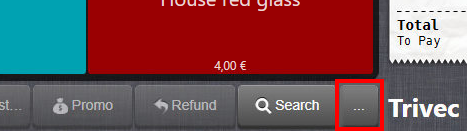
- Select Check voucher in the lower part of the screen:

- In case it's missing, you might have to select the three dots symbol to display the Check voucher function:
- With the Check voucher window displayed, scan the voucher:
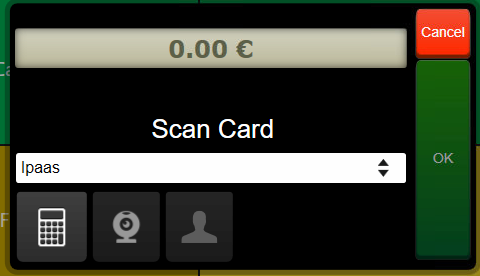
- Alternatively, you can select the calculator symbol to enter the voucher value manually:
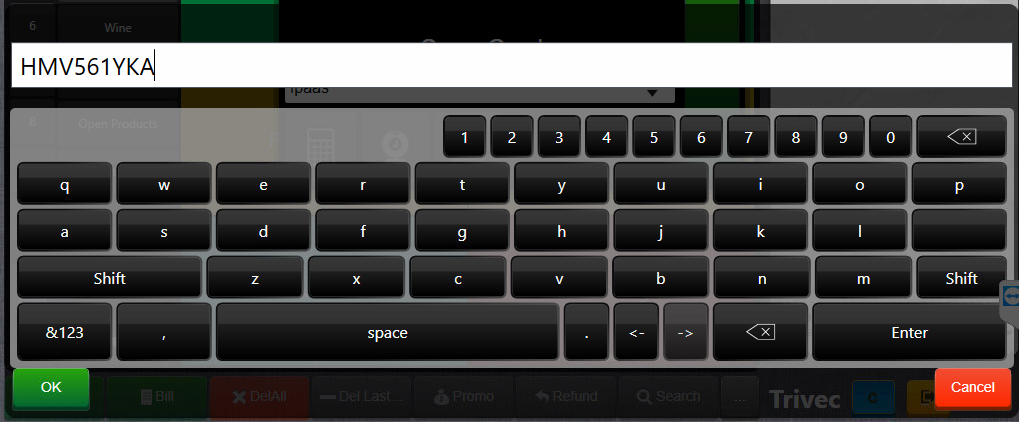
NOTE: The value entered is caps-sensitive.
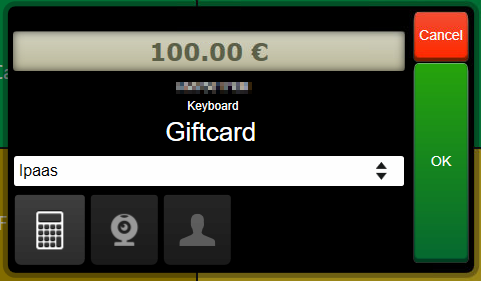
- Voucher is now fetched and the available saldo is displayed:
Using the giftcard for payment
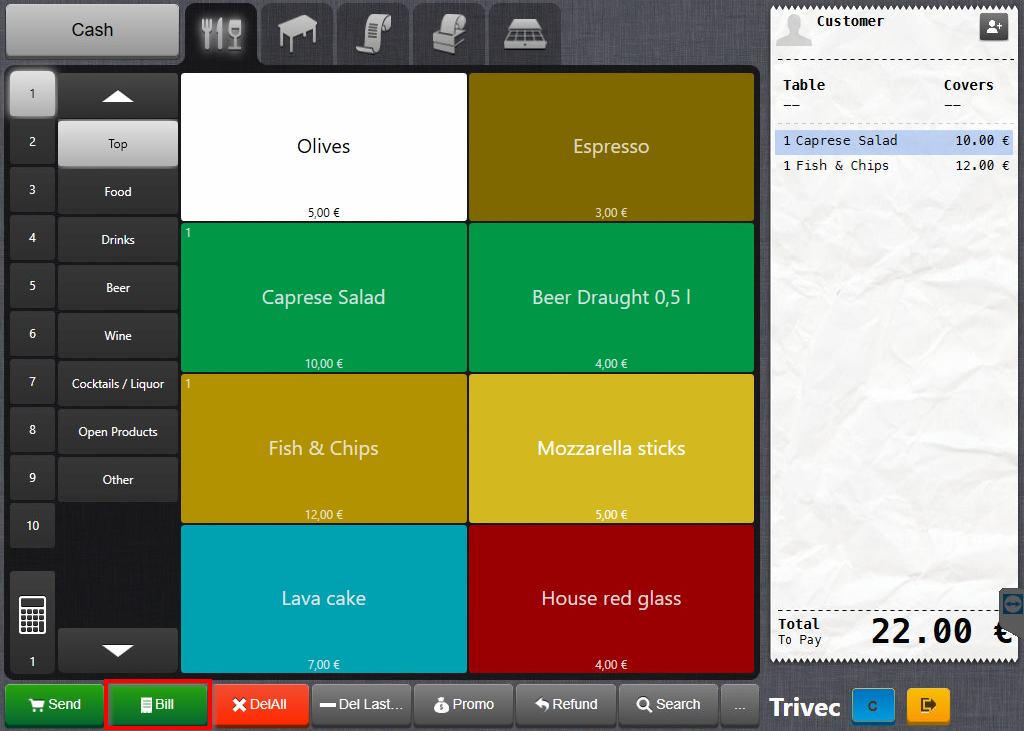
- Add the products to the order and select Bill in the lower left corner of the screen:
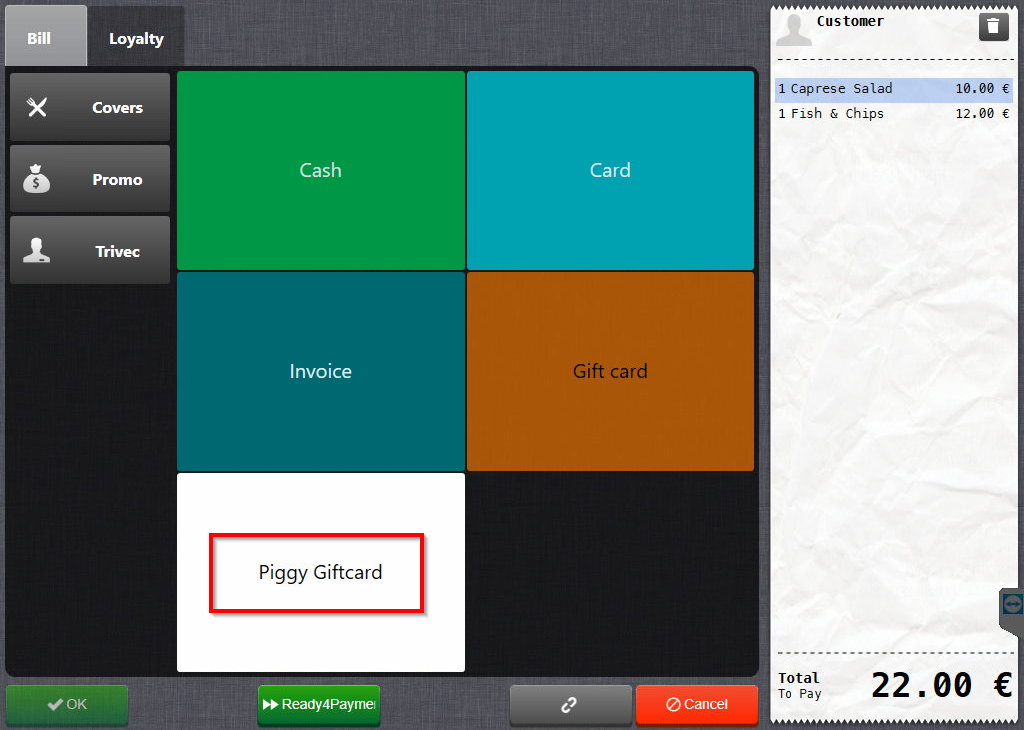
- On the payment screen, select the payment method configured for Leat Giftcards:
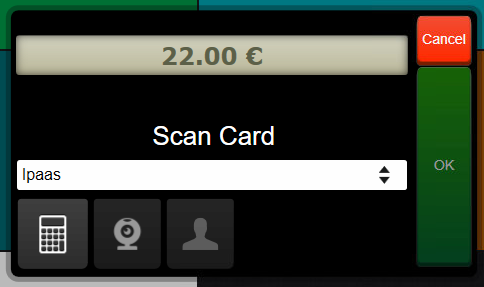
- Scan the voucher or enter the voucher number manually:
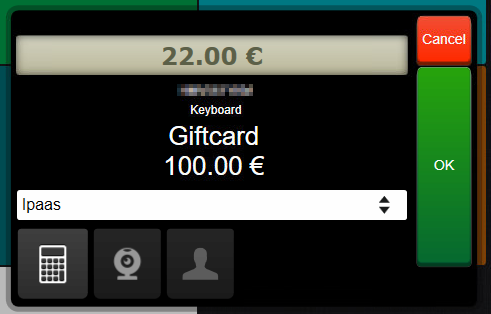
- With the voucher fetched, select OK to confirm the payment:
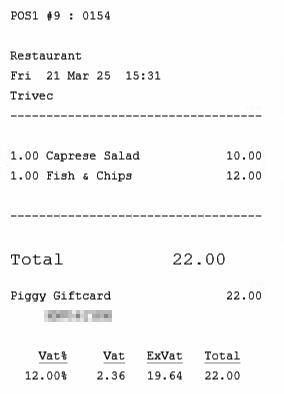
- Payment is now completed using the Leat Giftcard:
Loading funds on the giftcard
NOTE: This functionality is currently not supported in Nordics (Sweden, Denmark, Norway).
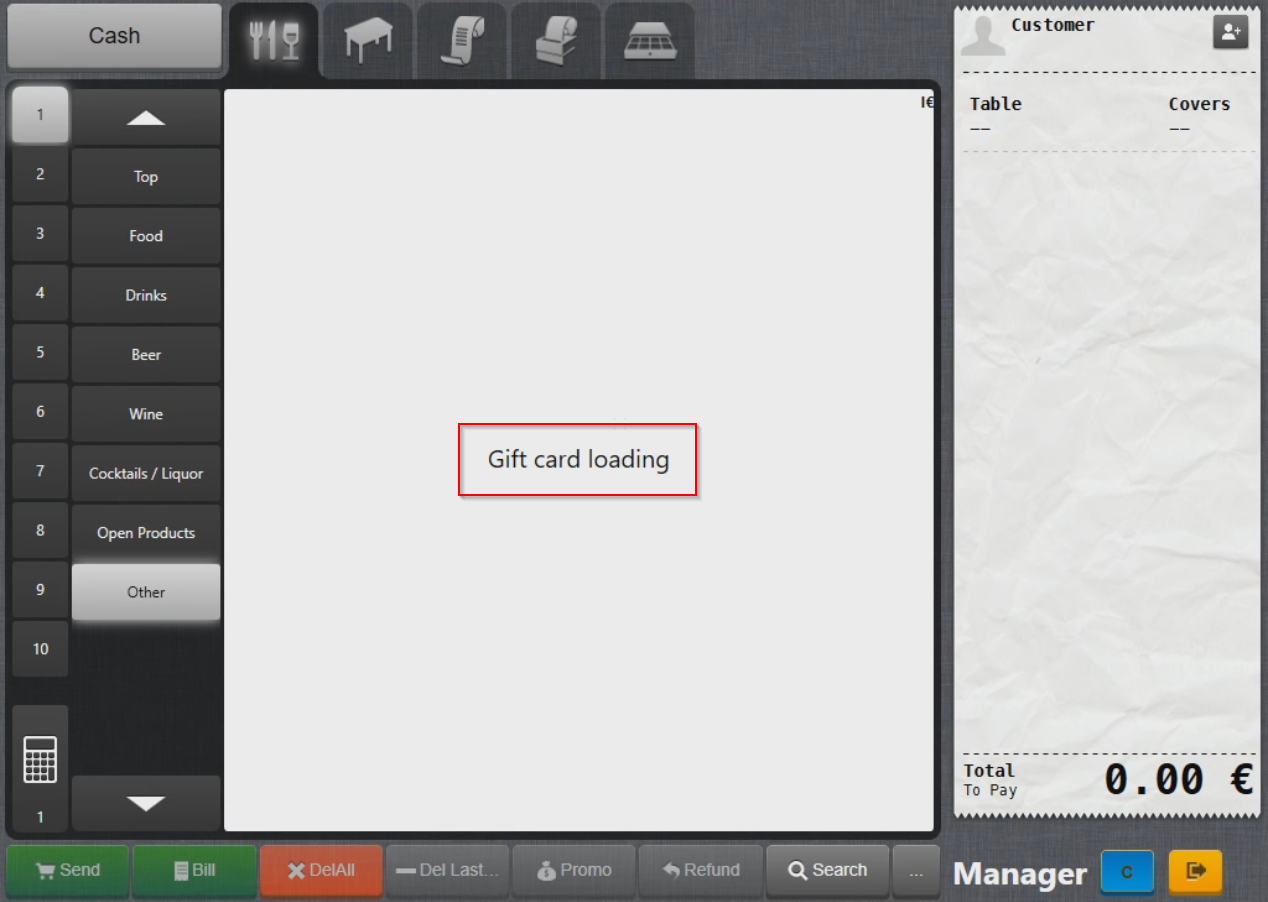
- Select the voucher loading product:
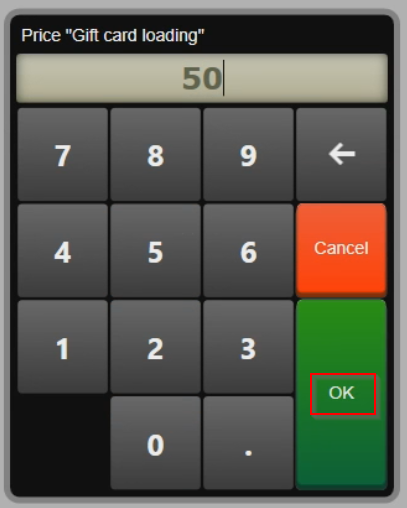
- Enter the amount to load on the voucher and confirm with OK:
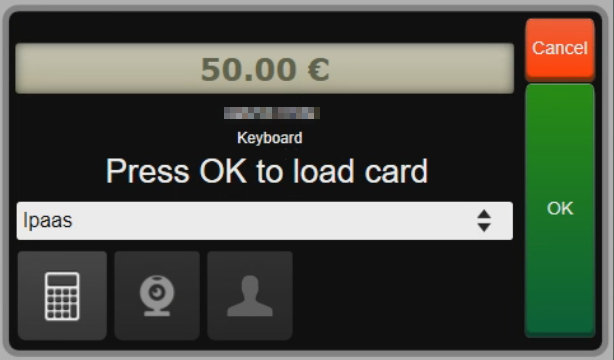
- Scan the voucher or enter the voucher number manually and confirm with OK:
- Voucher loading product is now added to the bill. Close the bill with the payment method the customer prefers and the gift card is loaded:
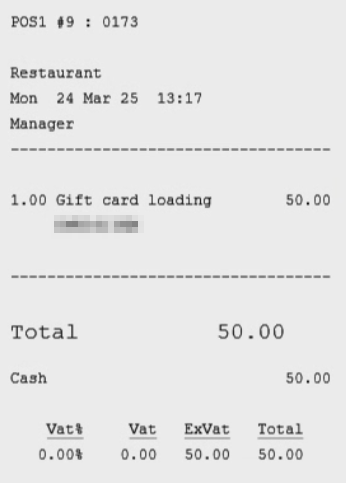
- Transaction is instantly visible in Leat and the leftover amount on the gift card is updated:

Performing cancellations (same day, last ticket only)
NOTE: This functionality is currently not supported in Nordics (Sweden, Denmark, Norway).
Cancellations are only available on the same day in case this functionality is enabled. In case Leat Giftcard cancellations are disabled in Domino, you will get the following notification:
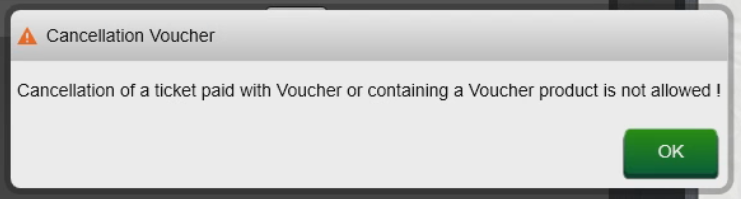
For more info on how to enable this functionality, check out Enabling refunds/reversals.
- Select the ticket you want to cancel in the Tickets view and select Cancellation:
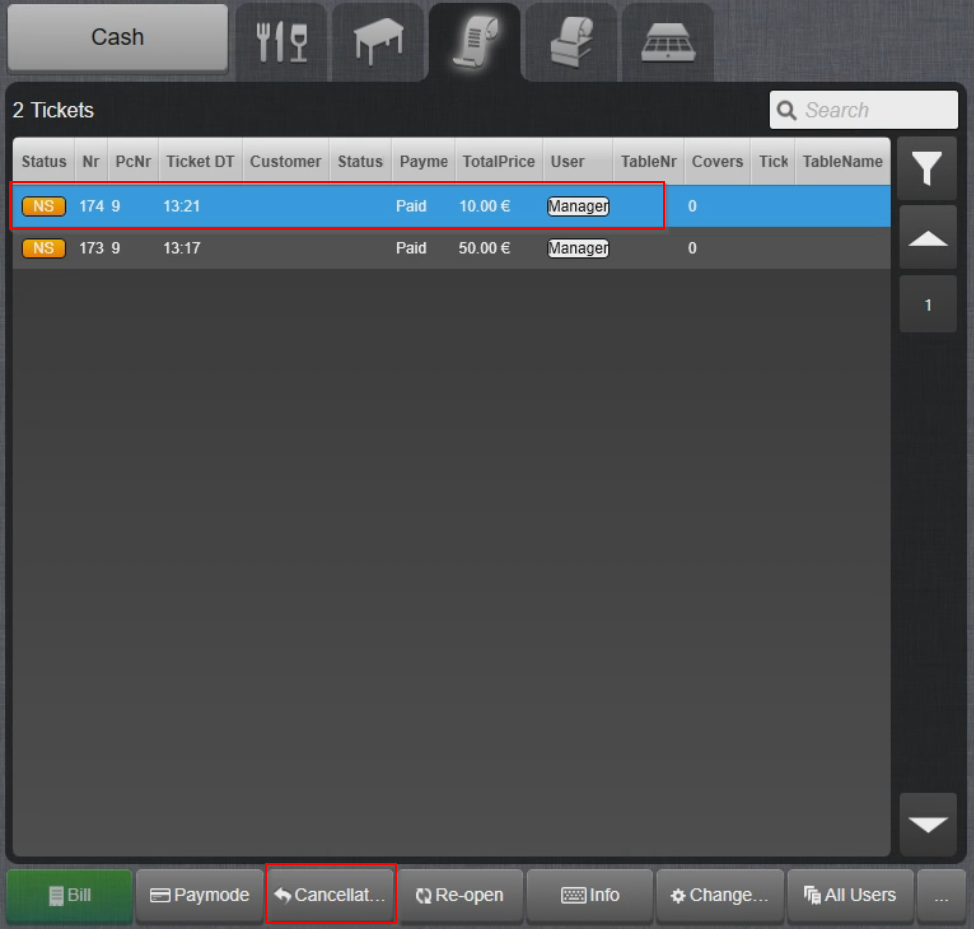
- Confirm with OK and select the cancellation reason:
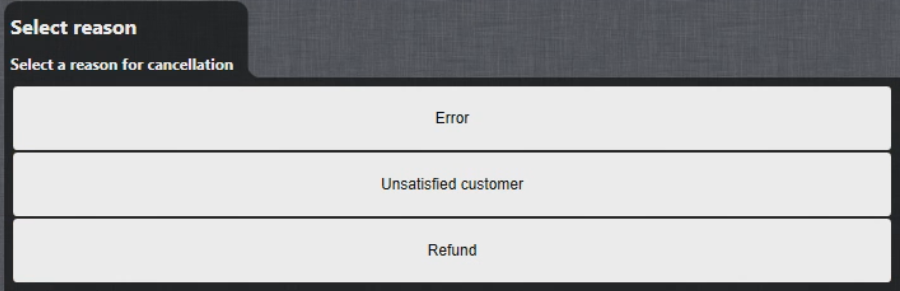
- The transaction is now cancelled:
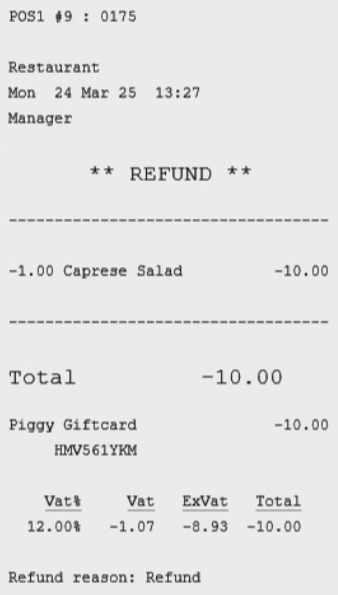
- Cancellation is instantly visible in Leat and the leftover amount on the gift card is updated:

NOTE: This solution should only be used for cancellations of tickets where Leat Giftcard was used as a payment solution. Tickets where Leat Giftcard was loaded with funds (using a product: Loading funds on the giftcard) can not be canceled. Using this solution to cancel such tickets will result in gift card amount in Leat not updating correctly.
Performing refunds (later than one day)
Refunds later than the same day, e.g. after EndOfDay, are not possible with Leat.
Managing Leat Giftcards
Leat giftcards are managed in Leat Portal only. For assistance with that, contact Leat Support.
Enabling cancellations/reversals
NOTE: This functionality is currently not supported in Nordics (Sweden, Denmark, Norway).
Cancellations/reversals of payments with Leat giftcards are disabled by default. If you would like to use this functionality, the following 3 steps need to be done:
Enabling the setting on MyTrivec
- Navigate to MyTrivec,
- Log on with your Site Owner account
- Select Apps and Piggy in the side menu.
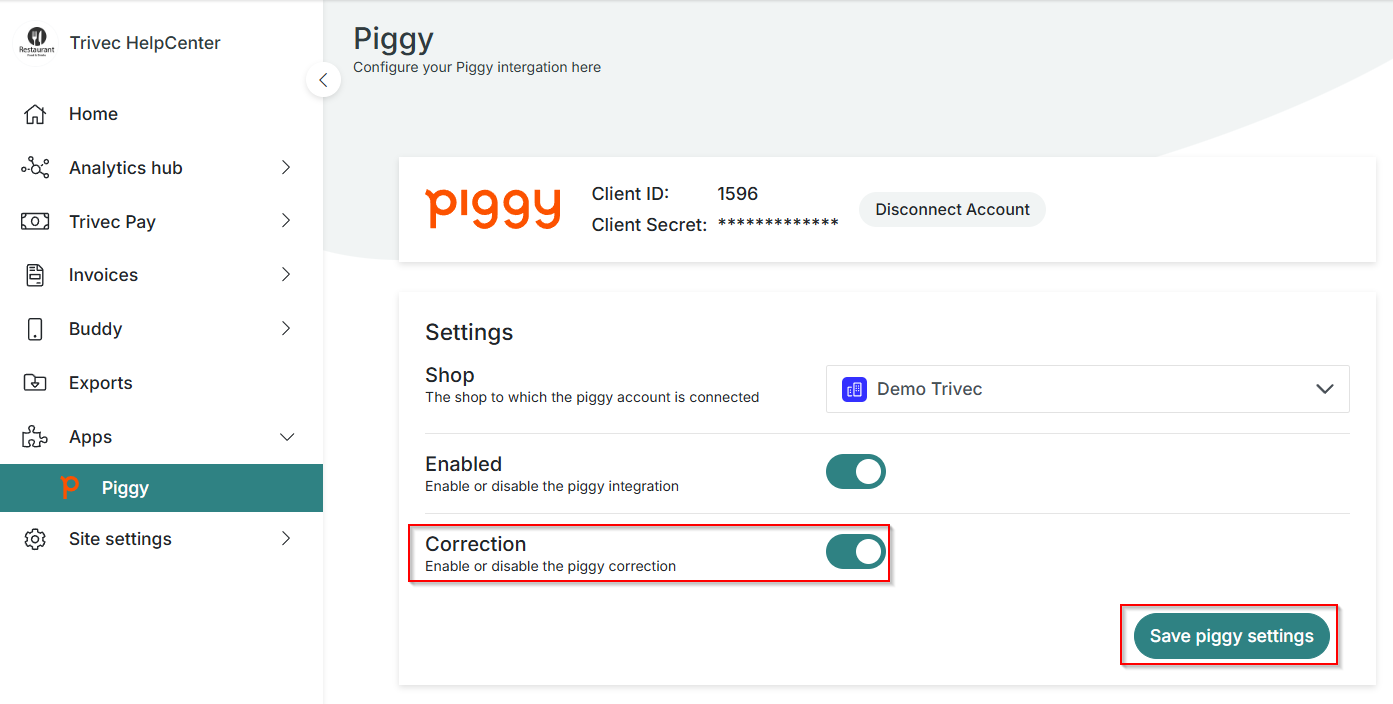
- Enable Correction setting and confirm with Save piggy settings:
Enabling the setting on Leat
- Navigate to Leat Portal and log in with your account.
- Select Store and Giftcards in the top menu.
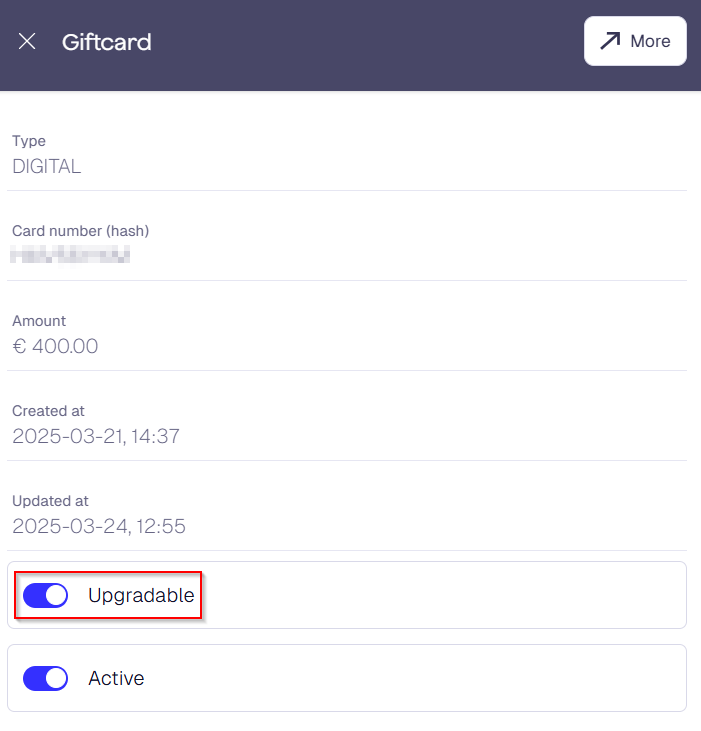
- Select the giftcard amongst the results to access its settings and enable the Upgradeable property:
- Repeat the process for each card where cancellations/reversals should be enabled.
Enabling cancellations in Domino
- Contact Trivec support to have the functionality enabled in Domino.
Configuring maximum gift card amount
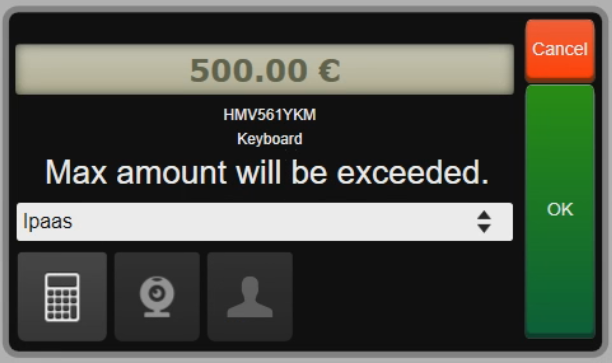
In case you attempt to load the gift card with more funds than what's allowed in Leat, you will get the following notification:
To change the maximum amount allowed for all gift cards:
- In Leat Portal navigate to Store/Giftcards in top menu and select Settings in the left side menu.
- Set Maximum amount to desired level.
Was this article helpful?
That’s Great!
Thank you for your feedback
Sorry! We couldn't be helpful
Thank you for your feedback
Feedback sent
We appreciate your effort and will try to fix the article