This article explains how to use and manage the Leat Discount Vouchers integration.
Introduction
The Leat vouchers feature consists of two concepts: Promotions and Vouchers.
A Promotion defines the basic rules for voucher usage (validity, limitations, discount type, etc.).
A Voucher is the actual code (one-time or multi-use) that is shared with the end customer and gives access to the promotion.
In Leat, vouchers inherit certain settings from the promotion they are generated for.
How to set up Leat vouchers in Leat portal
Setting up a Promotion
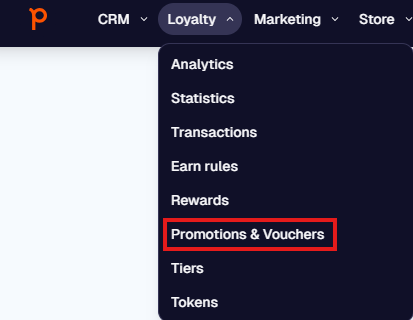
In the Leat menu, go to: Loyalty → Promotions & Vouchers
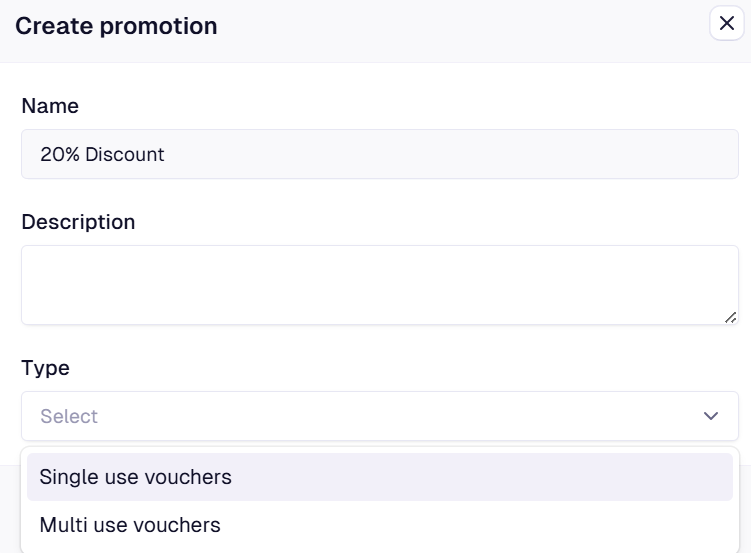
Click New Promotion.
Configure the required promotion fields.
Click Create.
-
Inside the promotion, configure any additional rules such as:
Limitations
Validity period
Usage conditions
To integrate the promotion with Domino, go to the Custom Attributes menu.
Creating Promotion Attributes
To ensure promotions and vouchers work correctly with Domino, three custom attributes can be created.
Create the following attributes with the correct label and data type.
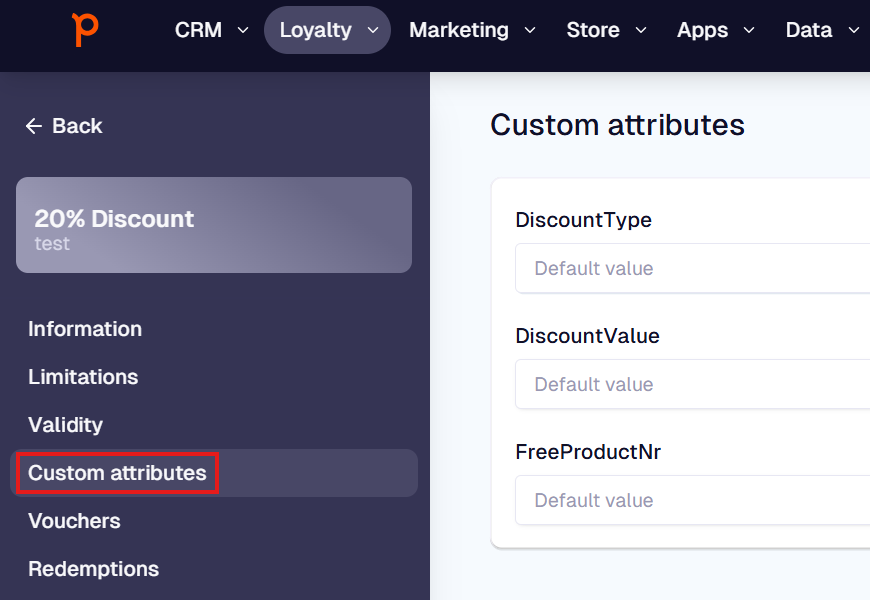
Required attributes
DiscountType
Label: DiscountType
Data type: Text
This attribute defines the type of discount that Domino will apply.
DiscountValue
Label: DiscountValue
Data type: Float (displayed as decimal in the attribute creator window)
This attribute defines the value of the discount and is directly linked to the DiscountType.
FreeProductNr
Label: FreeProductNr
Data type: Text
This attribute defines the product number (PLU) from Domino that will be granted as a free product.
⚠️ The product must exist in Domino for the Leat voucher mapping to function correctly.
Attribute Value Guidelines
DiscountType
Use one of the following values:
FixedAmount → Applies a fixed monetary discount (e.g. 10 EUR).
Percentage → Applies a percentage discount (e.g. 10%).
DiscountValue
The value depends on the DiscountType.
For FixedAmount discounts:
Enter the monetary amount using a dot as decimal separator.
Example:
For a 12.34 discount → enter: 12.34
The currency is handled by Domino.
For Percentage discounts:
Enter the percentage value without the % symbol.
Example:
For 10% → enter: 10
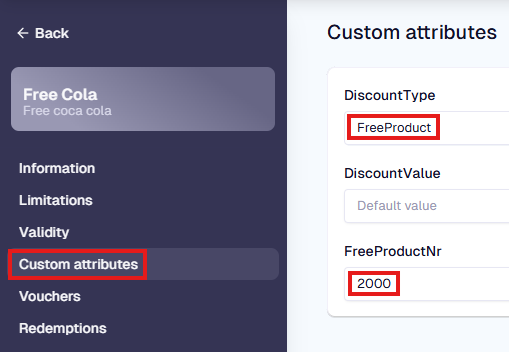
FreeProduct
Enter the Product Number (PLU) from Domino for the product that should be given for free.
To find the desired product number in Domino, go to BackOffice - Sales - Products. Use the search field to find the product you want to give for free, with the correct product number.
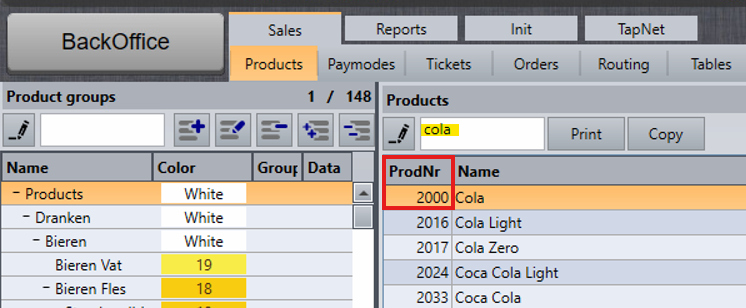
In this example, the product number of the cola is 2000. You must enter this number in the ‘FreeProductNr’ field in Leat.
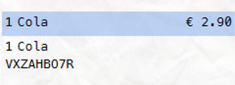
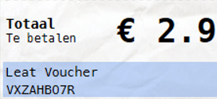
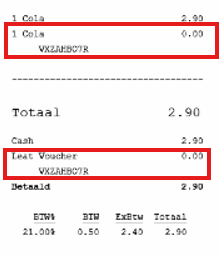
The Free Product wil be added to the ticket:
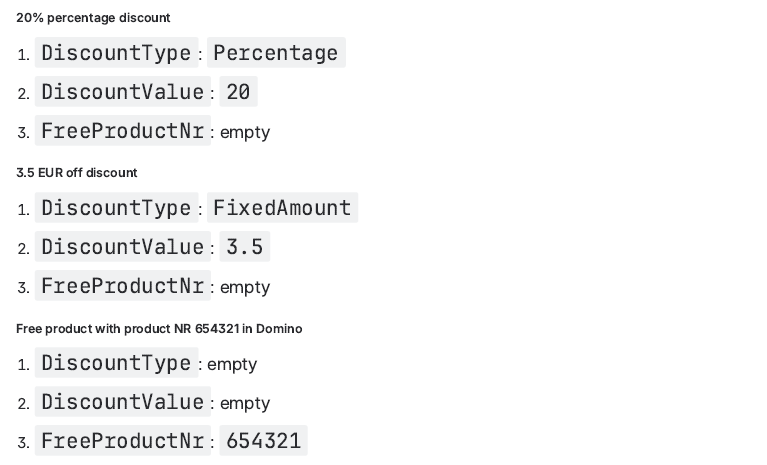
Examples
20% percentage discount
DiscountType: Percentage
DiscountValue: 20
FreeProductNr: (leave empty)
3.5 EUR fixed discount
DiscountType: FixedAmount
DiscountValue: 3.5
FreeProductNr: (leave empty)
Free product (Product NR 654321 in Domino)
DiscountType: (leave empty)
DiscountValue: (leave empty)
FreeProductNr: 654321
⚠️ When setting up DiscountValue, always use a dot (.) as decimal separator.
Adding Vouchers to a Promotion
After creating and configuring a promotion, vouchers must be generated.
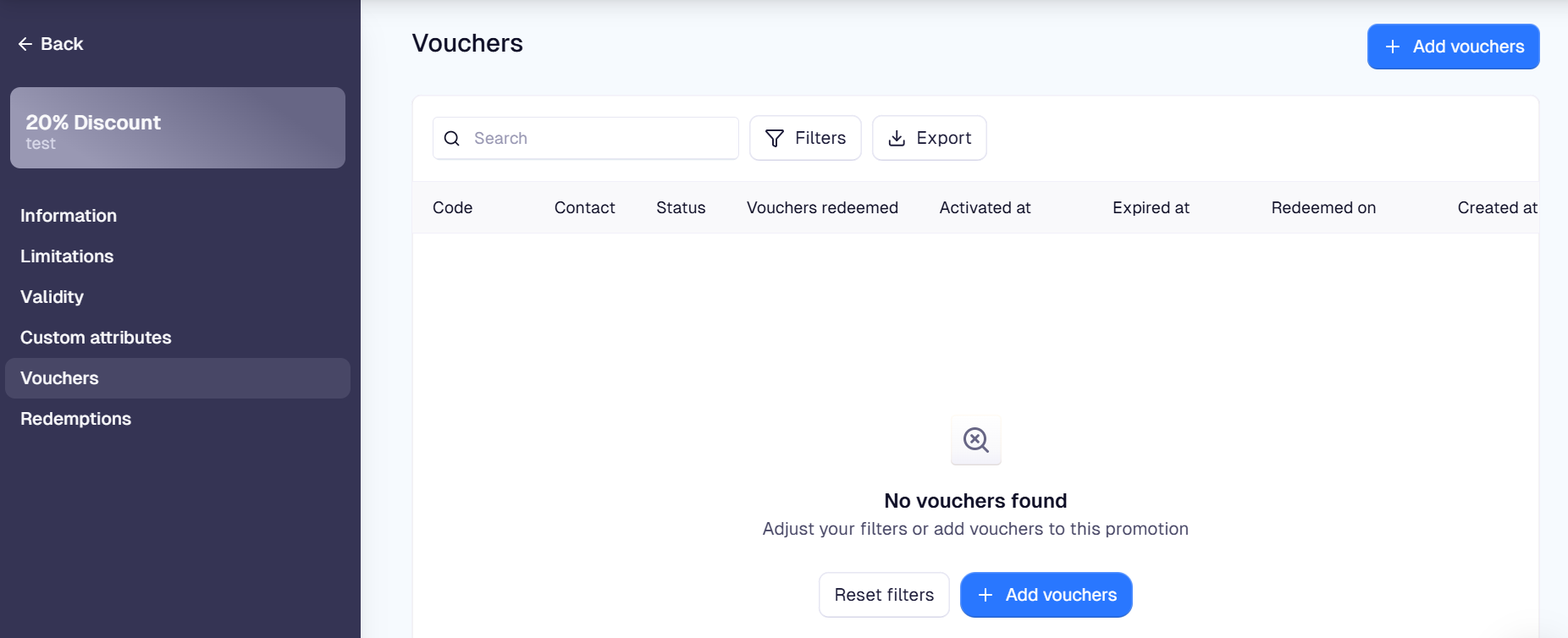
Open the promotion.
Go to Vouchers.
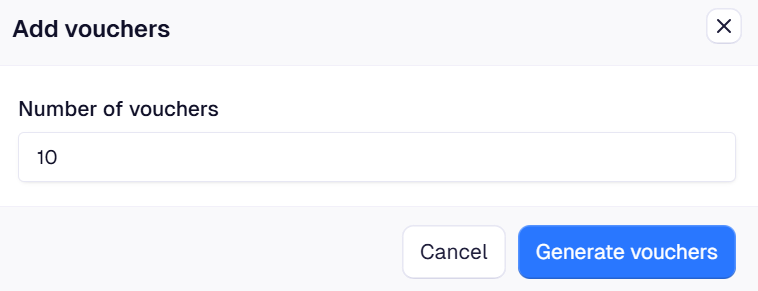
Click Add vouchers.
Enter the number of vouchers to generate.
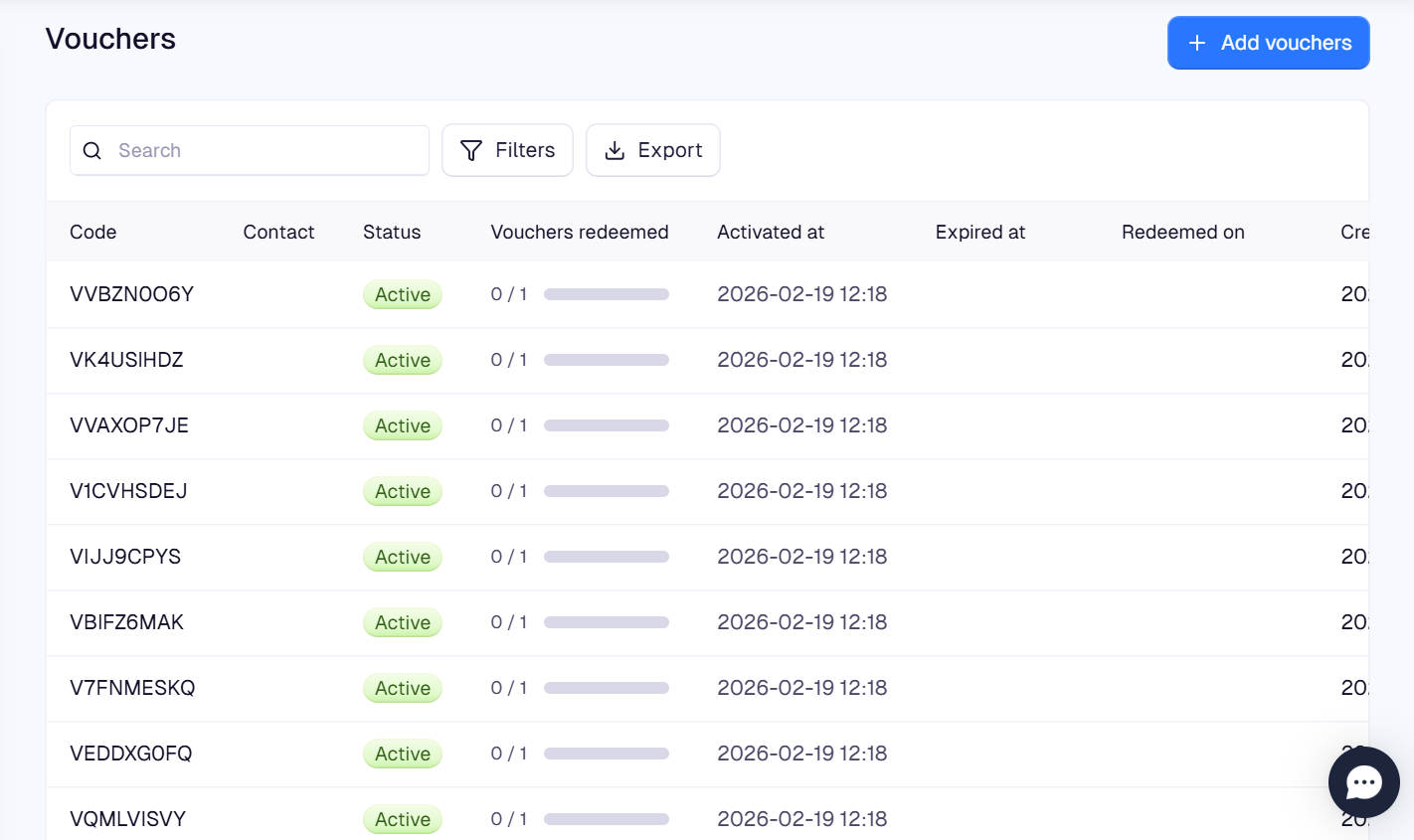
Click Generate.
Refresh the page to see the created vouchers.
Linking a Voucher to a Leat Contact
Each voucher must be linked to a Leat contact to function correctly in Domino.
Open the promotion.
Go to the voucher list.
Select a voucher.
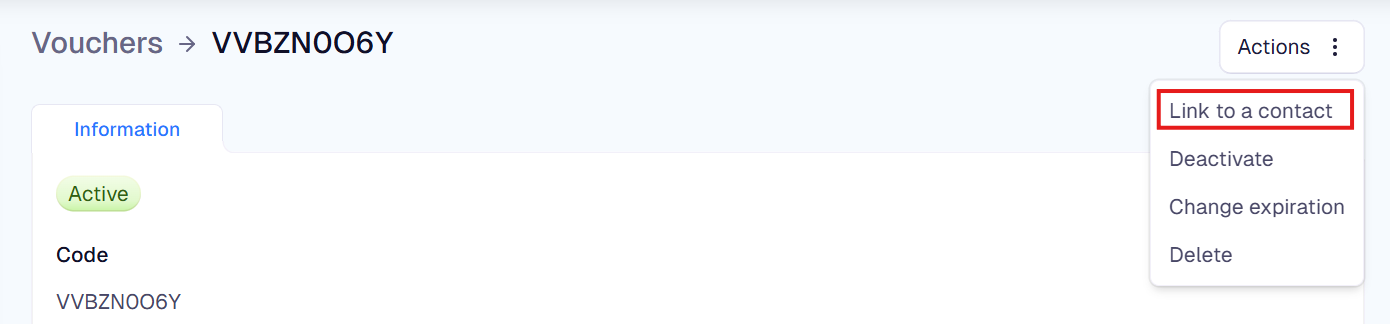
Click Actions.
Choose Link to a contact.
Select the contact.
Click Confirm.
⚠️ If a voucher is not linked to a contact, it will not work correctly in Domino.
Using Leat Vouchers
Requirements
To use Piggy Vouchers in Domino, you must create a Discount Product at €0.01 cents.

Unlike Rewards, Vouchers do not need to be mapped. Once the Discount Product has been linked once to the Ipaas device after using the first voucher, this discount product will always be linked automatically when redeeming a Leat Voucher.
Using Leat Vouchers with Domino
In Domino, there are two ways to work with Leat Vouchers.
- If our customer also works with Leat Loyalty, and the vouchers are correctly linked to a contact, the active voucher will be displayed in the Loyalty screen, where the rewards are also displayed. You can select in the Loyalty screen to add te Voucher to the ticket.
- If our customer does not work with Leat Loyalty, and the loyalty screen is therefore not active in the checkout screen, you will need a Voucher payment method to be able to redeem the vouchers. If the customer also uses Leat Giftcards, create a different payment method for redeeming vouchers, as this is better for subsequent reporting.
Vouchers in the Loyalty screen
- Create an order or select an existing order and either:
- Scan the card or bar/QR code to retrieve the Guest Leat Loyalty account
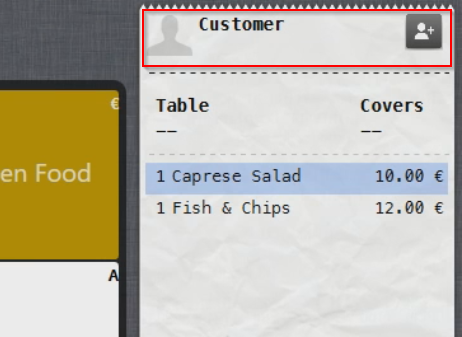
- Alternatively, select the Customer area above the bill to search for the account:
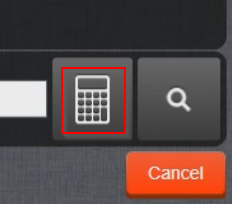
- Select the calculator symbol to search for the Account/Card number:
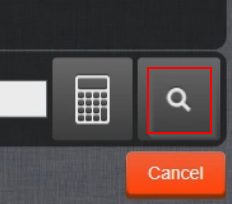
- Alternatively, select the Search symbol to search by Name or Email:
- When an account is found, select it and activate by selecting Activate account:
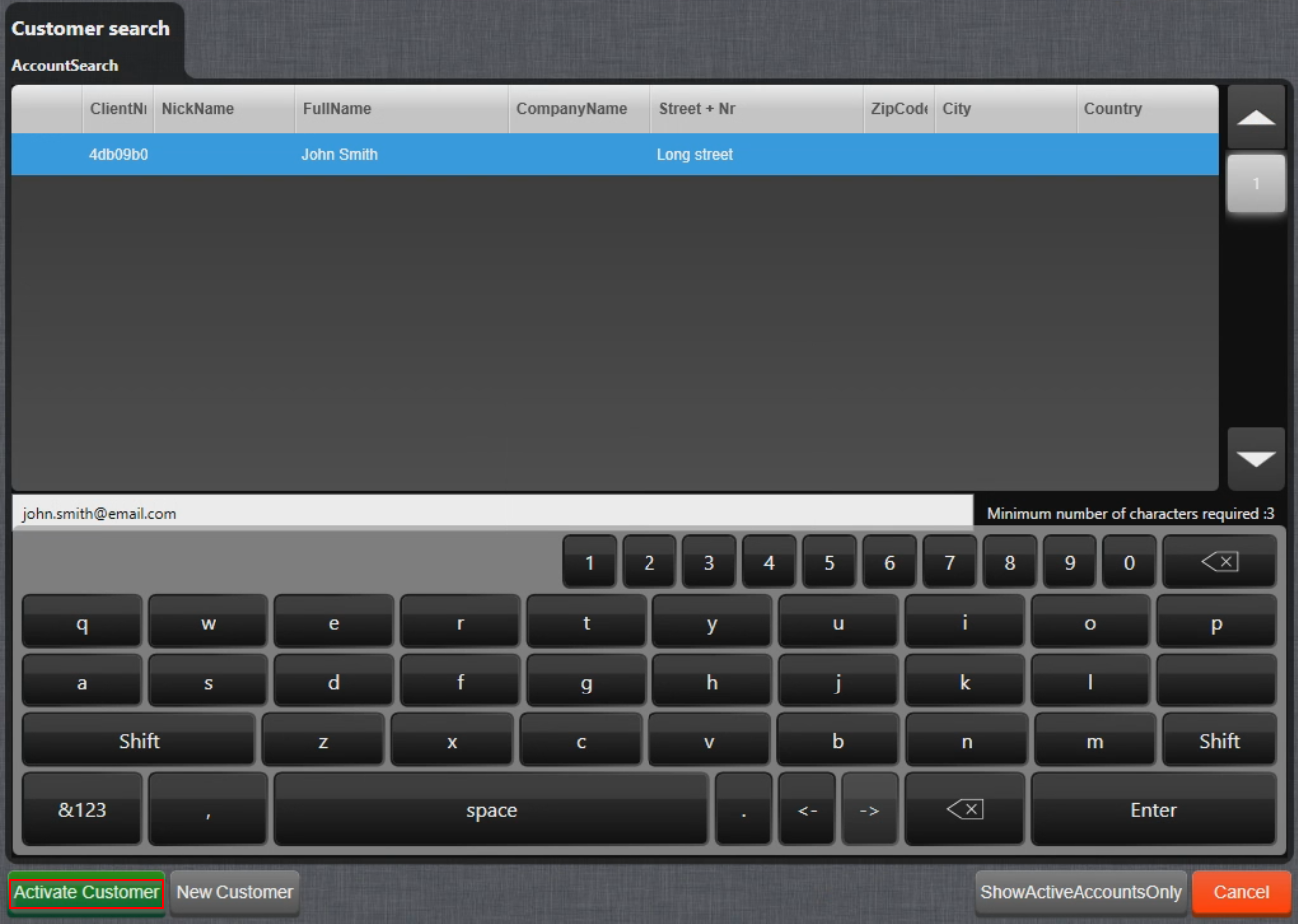
- The Loyalty screen displays the information about the Guest, as well as Points (called Credits in Leat) available:
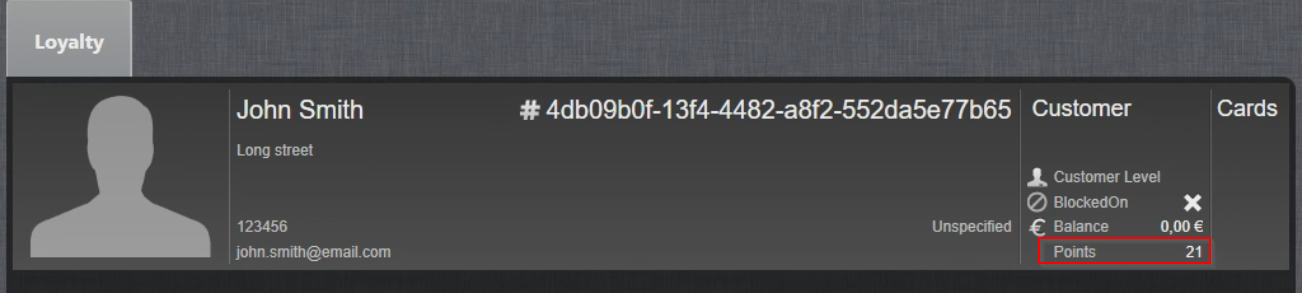
- Select Activate Customer again to activate the account. Guest account is now active and the number of Points collected is displayed as well:
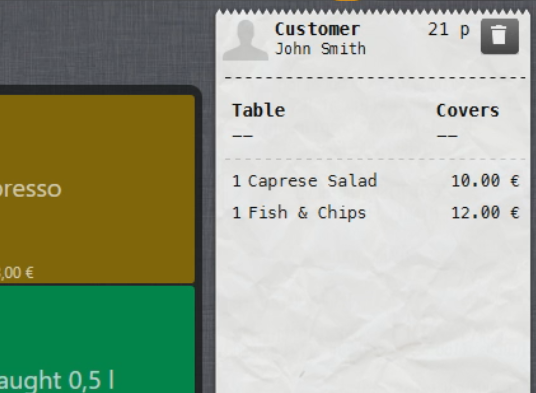
- To activate a Voucher, select Bill:

- Select the Loyalty tab:
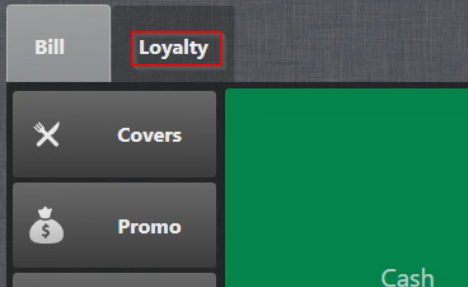
- To activate a Voucher, select it:
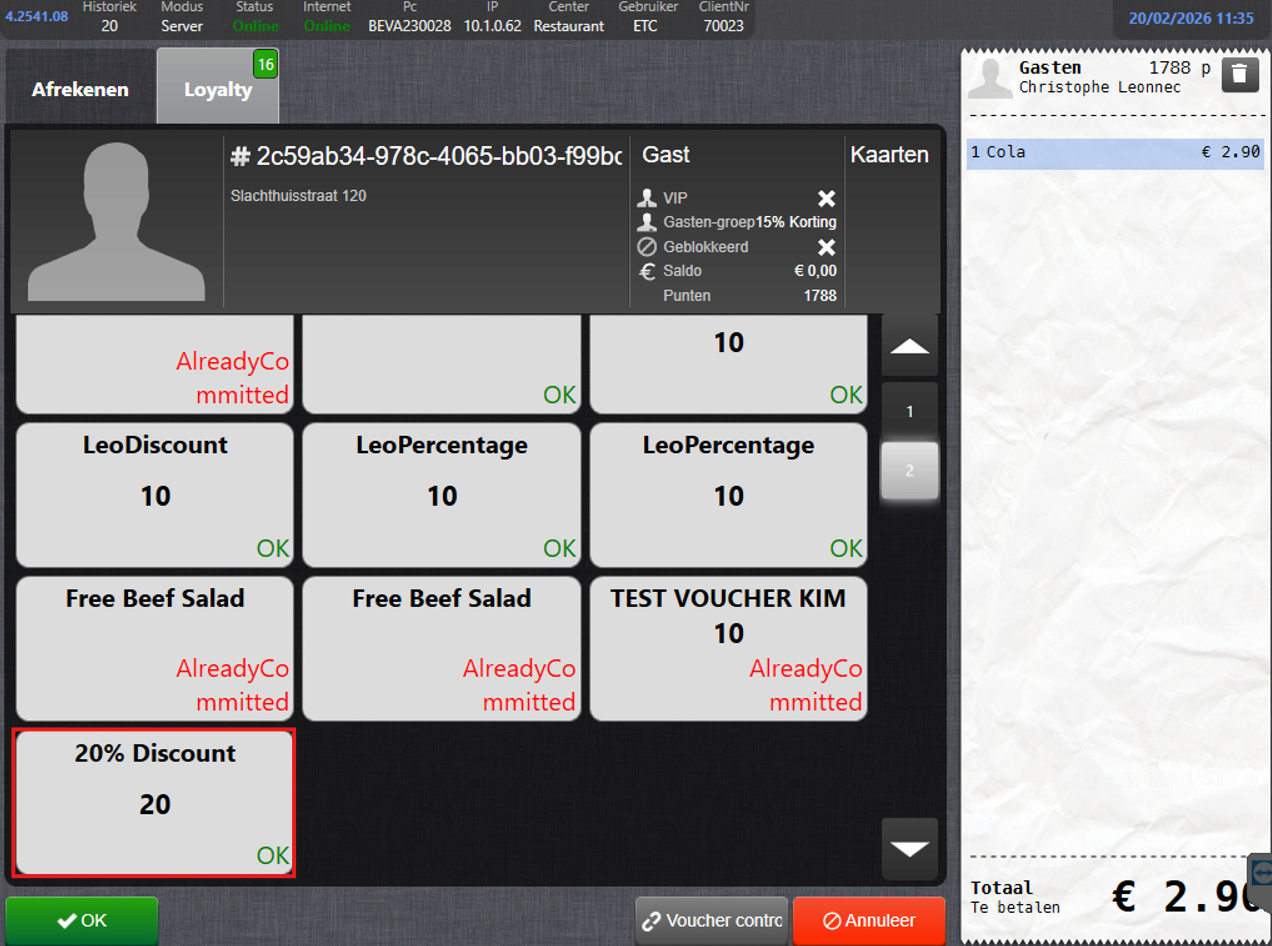
- 20% Discount is now added to the Bill and the Voucher is committed:
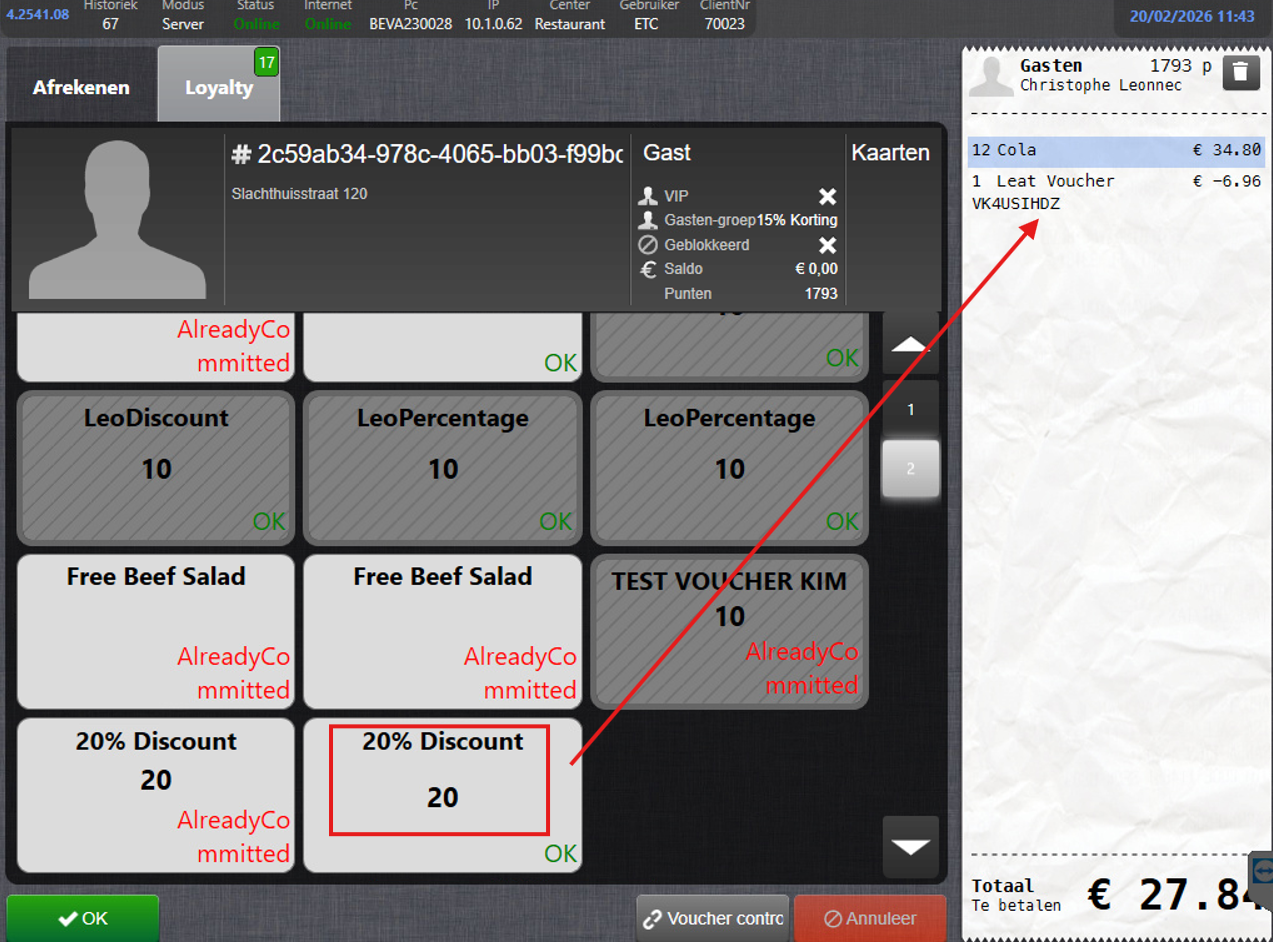
- In case the Voucher is not linked to the Guest account it will not show up in the Loyalty screen.
Vouchers with a Voucher paymode
To create the Leat Voucher paymode, please contact Trivec Support.
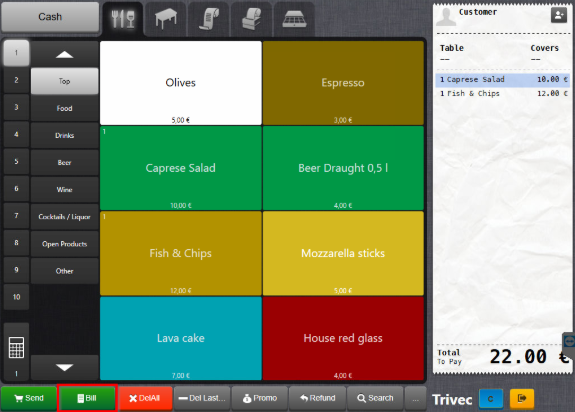
- Add the products to the order and select Bill in the lower left corner of the screen:
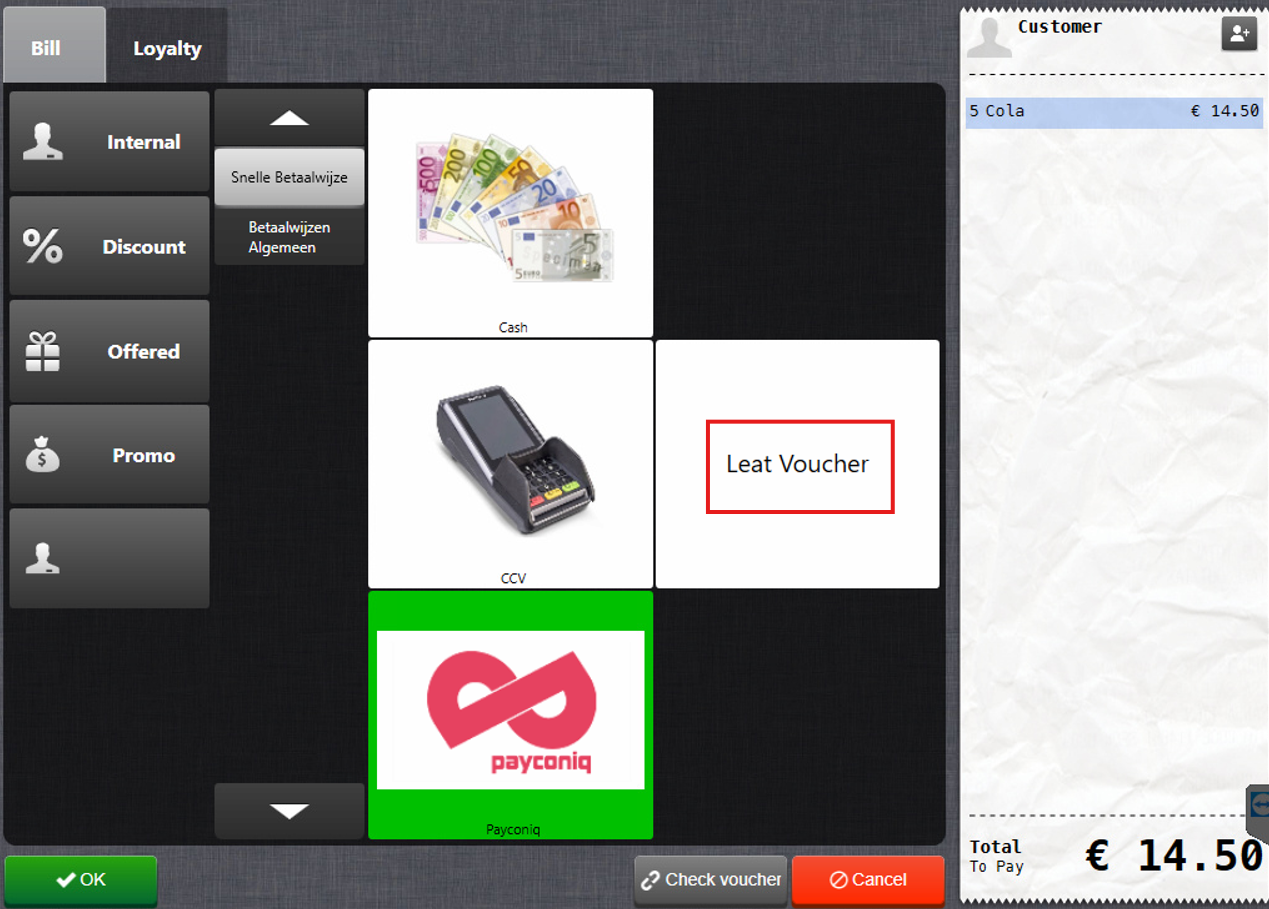
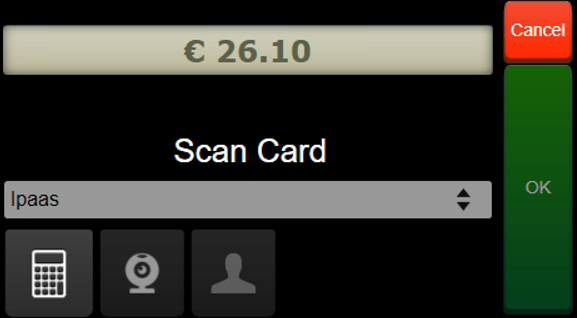
- On the payment screen, select the payment method configured for Leat Vouchers:
- Scan the voucher or enter the voucher number manually:
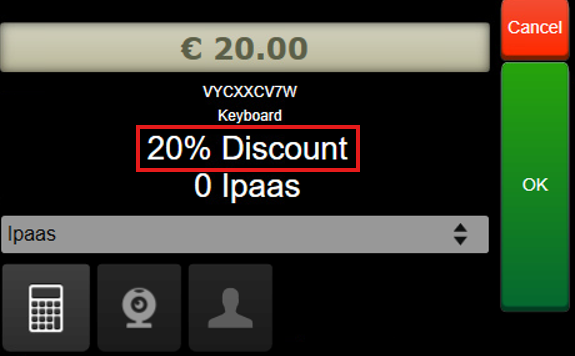
- With the voucher fetched, select OK to add the Discount to the order:
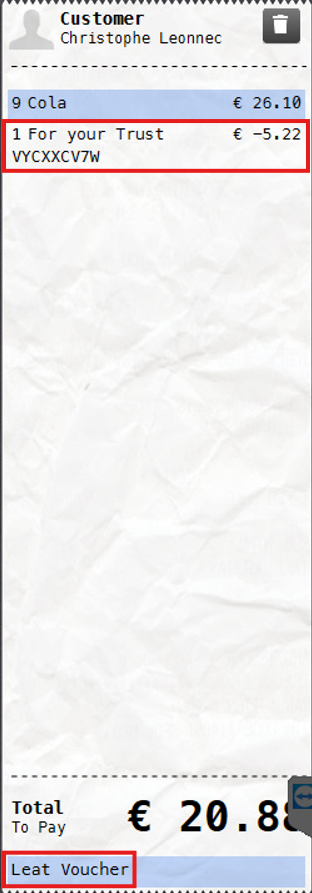
- The Discount is added to the ticket:
Using Leat Vouchers with Handy
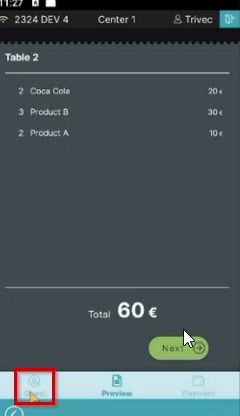
- Select an order and select the Guest symbol in the lower-left corner of the screen:
- Search for the guest account via e-mail or scan the QR code.
When the guest account is activated, the guest's name, email, points, and the guest's available Vouchers are displayed:
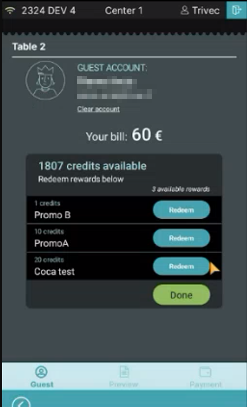
- To redeem an Voucher, select the Redeem button for the desired Voucher:
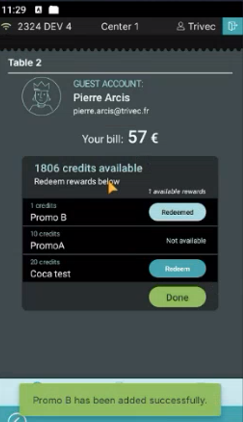
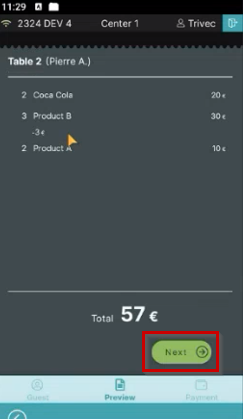
- The Discount is added to the ticket. To complete the payment select Next to select the payment method:
- In Handy, for now, you can't redeem a Leat Voucher with a voucher paymode, only by activating a Guest and using the Loyalty screen.
Managing Leat Vouchers
You can configure your Leat integration with Domino in the following way:
In Leat
The following settings are managed on Leat portal:
- Leat Contact and Identification creation
- Voucher creation
- Voucher reporting & dashboard
For more info on how to do that, check out Leat Help Center.
In Domino
The following settings are managed in Domino:
- Adding a discount product
- Account and voucher history review
Was this article helpful?
That’s Great!
Thank you for your feedback
Sorry! We couldn't be helpful
Thank you for your feedback
Feedback sent
We appreciate your effort and will try to fix the article