This article explains how to use the BTP-S80 thermal printer.
Hutbpost SKU: 701100
Getting started
Printer placement
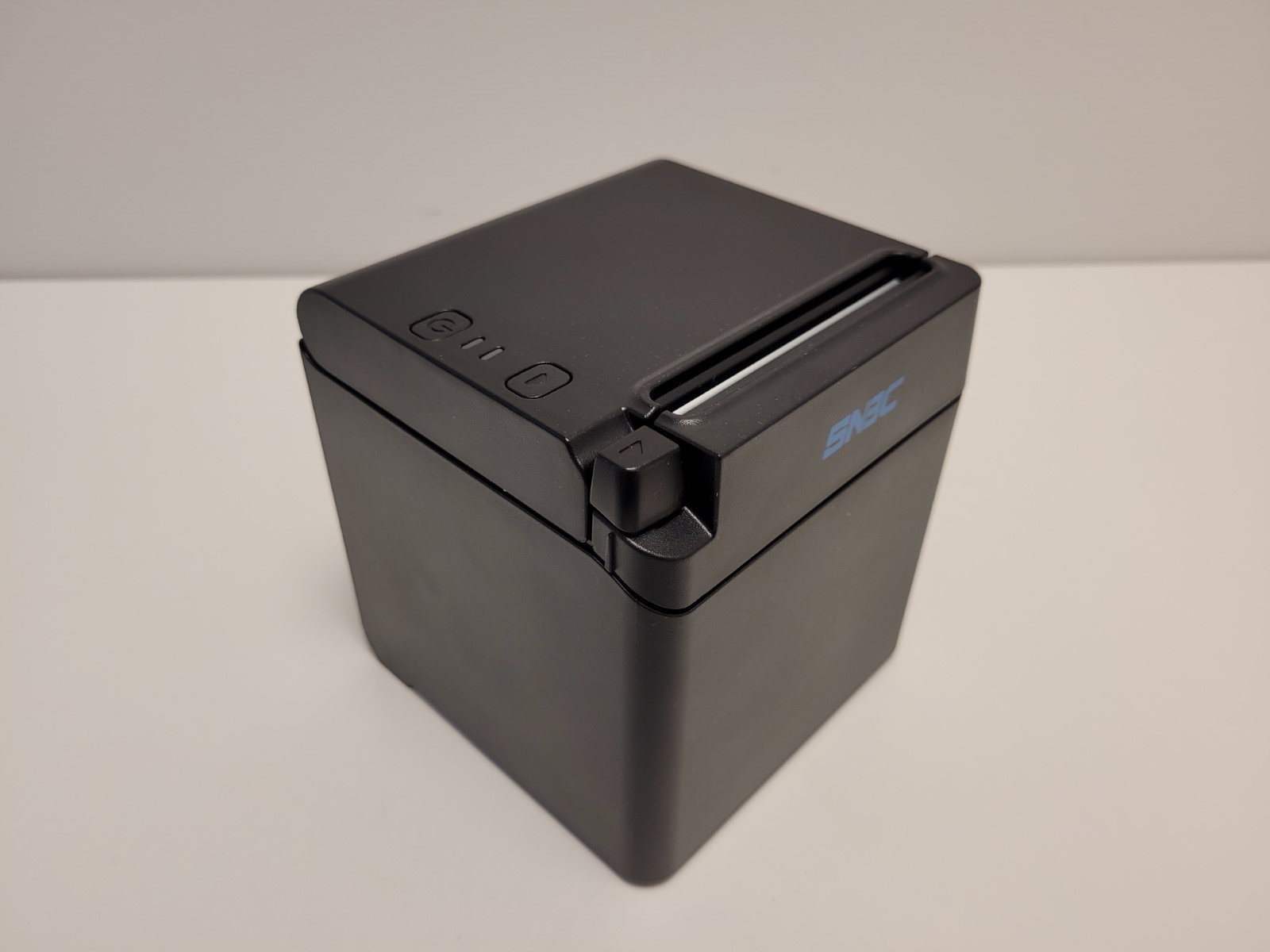
- Printer can be placed in two orientations, with the paper pointing upwards:
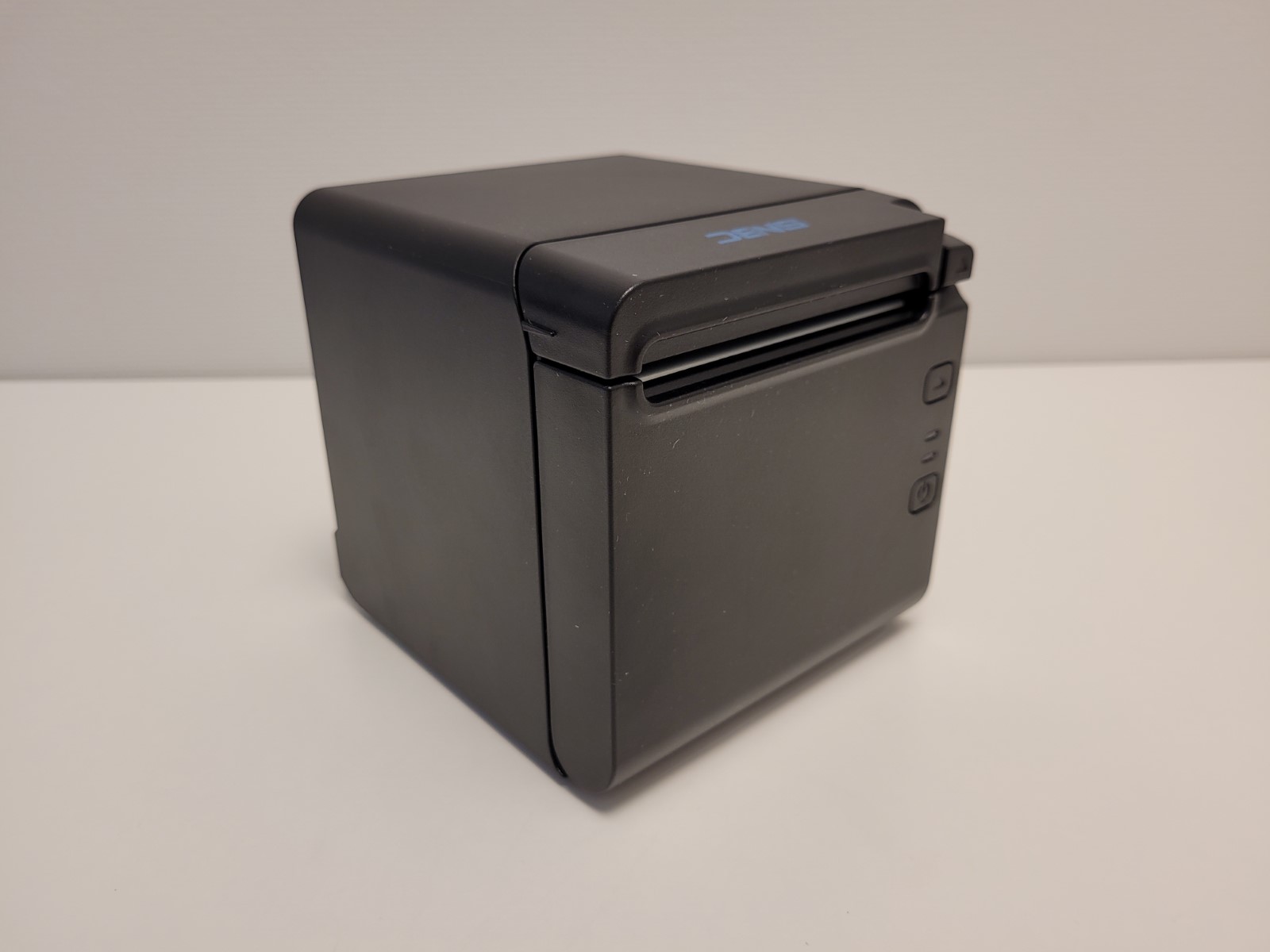
- Or forwards:
Turning the printer on/off
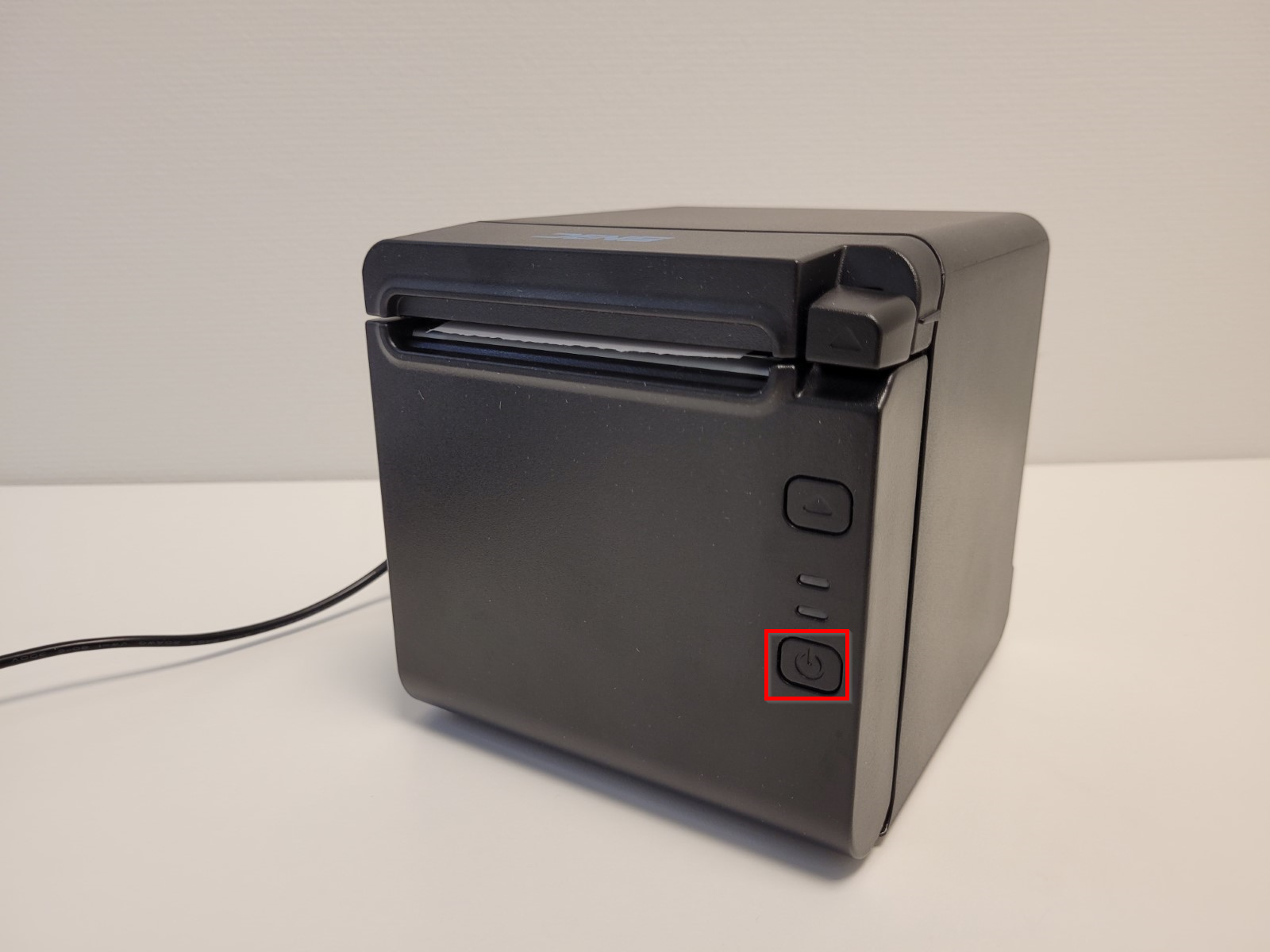
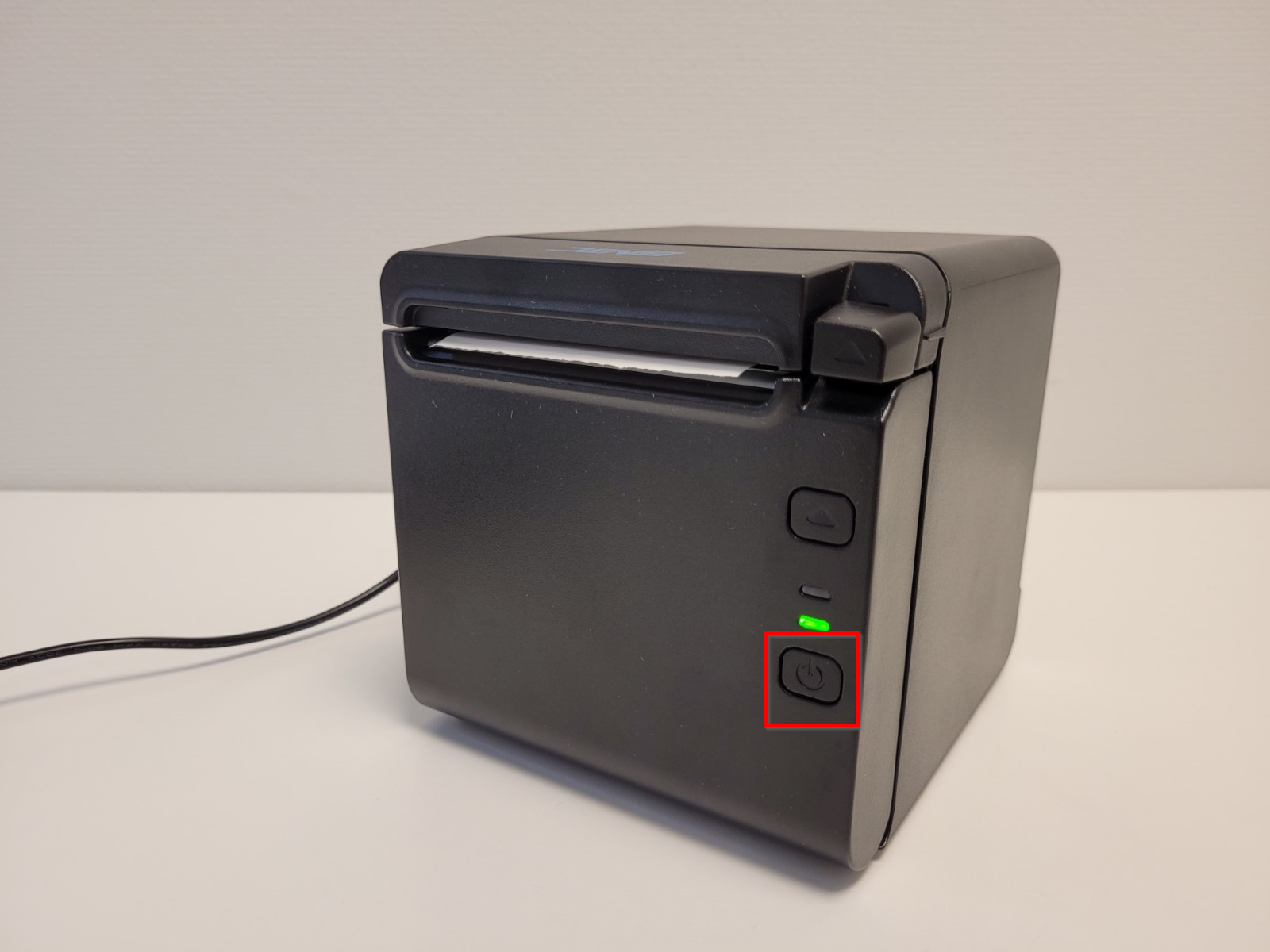
- To turn the printer on/off, press and hold the power switch until the green LED turns on:
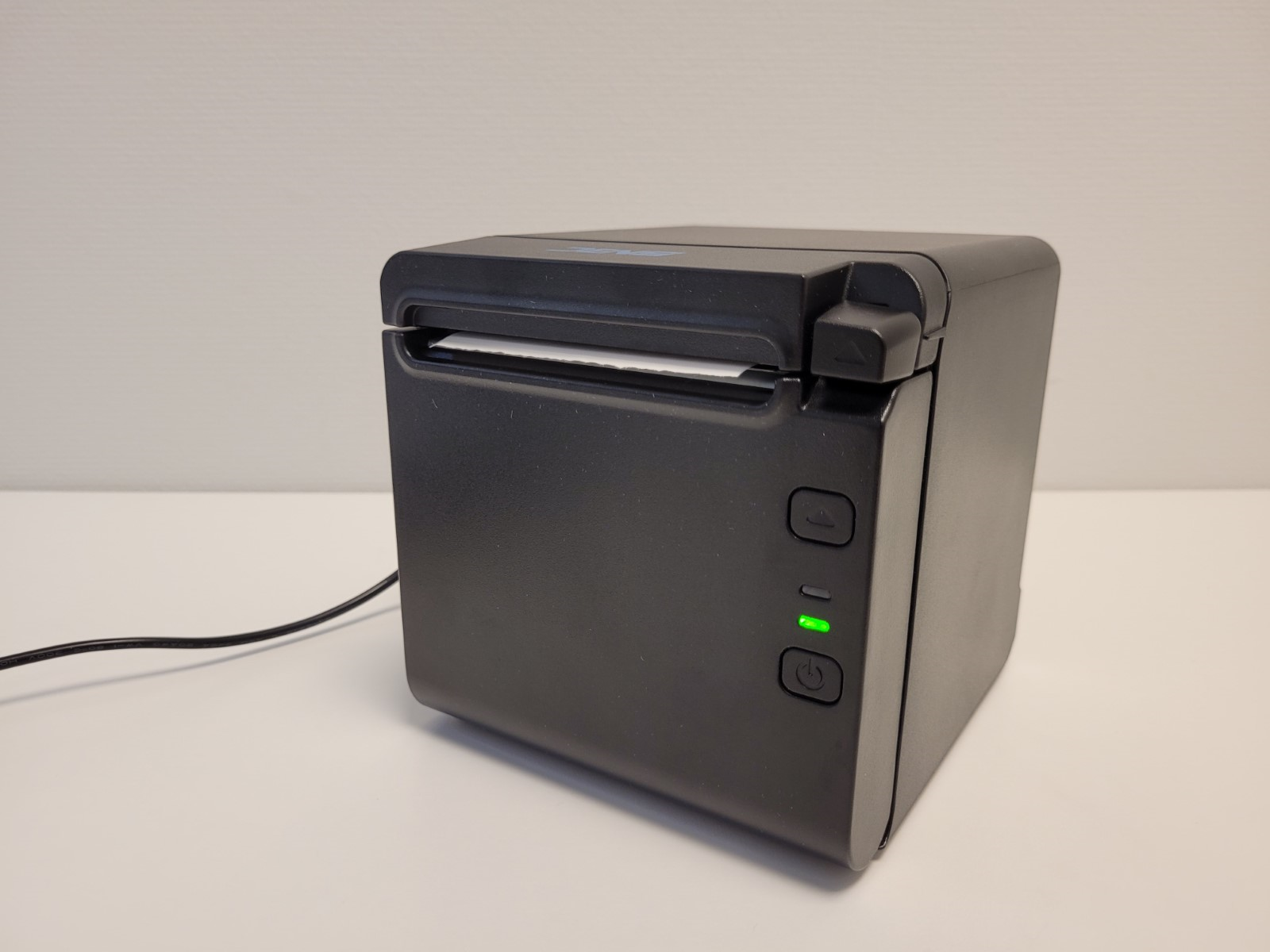
- When the device is turned on, the green LED on the device will also be on:
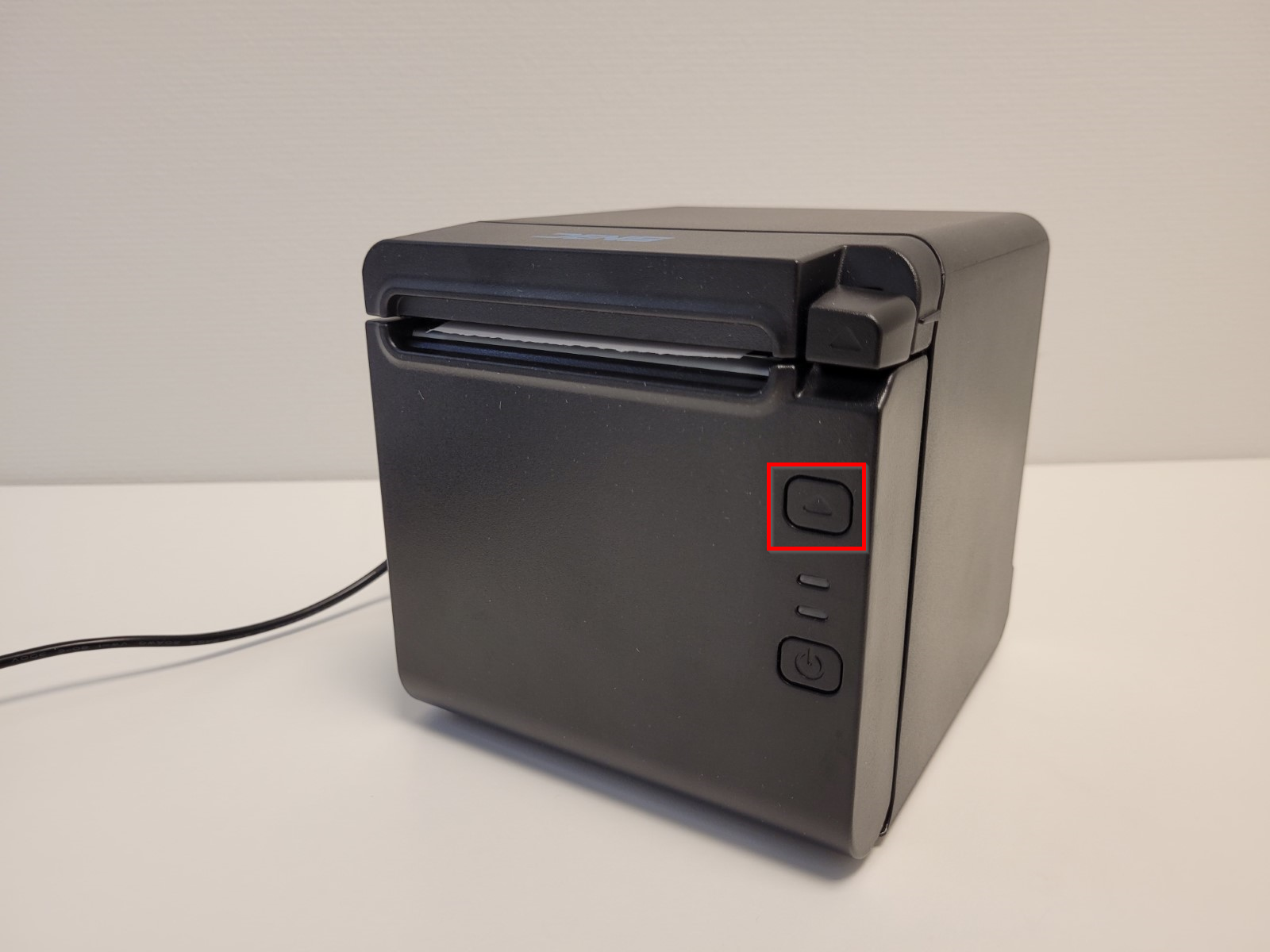
Feeding the paper
- To feed the paper, press and hold the Feed button:
Paper type
BTP-S80 uses a thermal printer paper. Paper width is 80 mm. NOTE: Paper type is not the same as the one used for impact (kitchen) printers, such as BTP-M300.
Replacing the paper
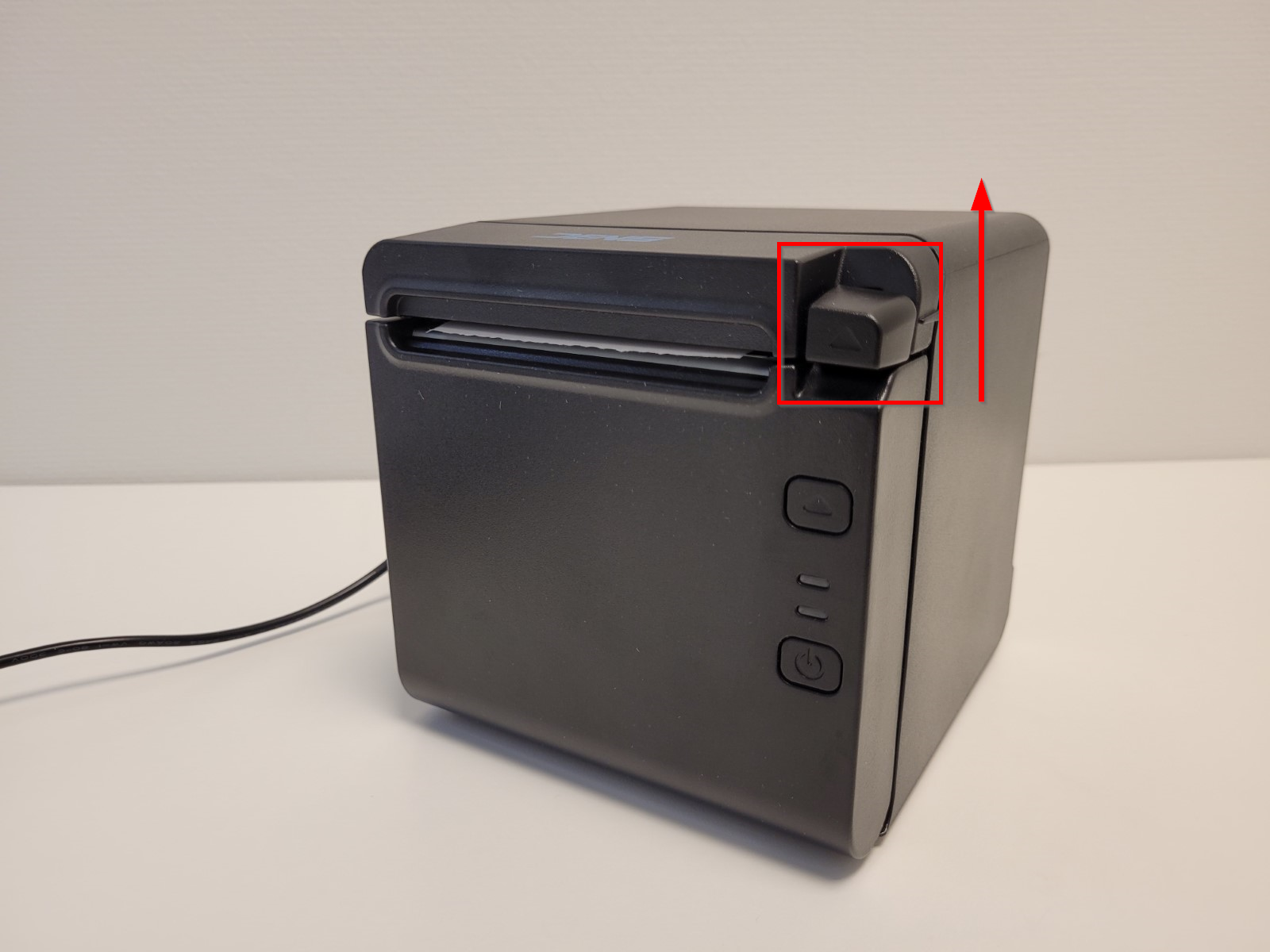
- To replace the paper, open the printer lid using the knob that releases the lid:
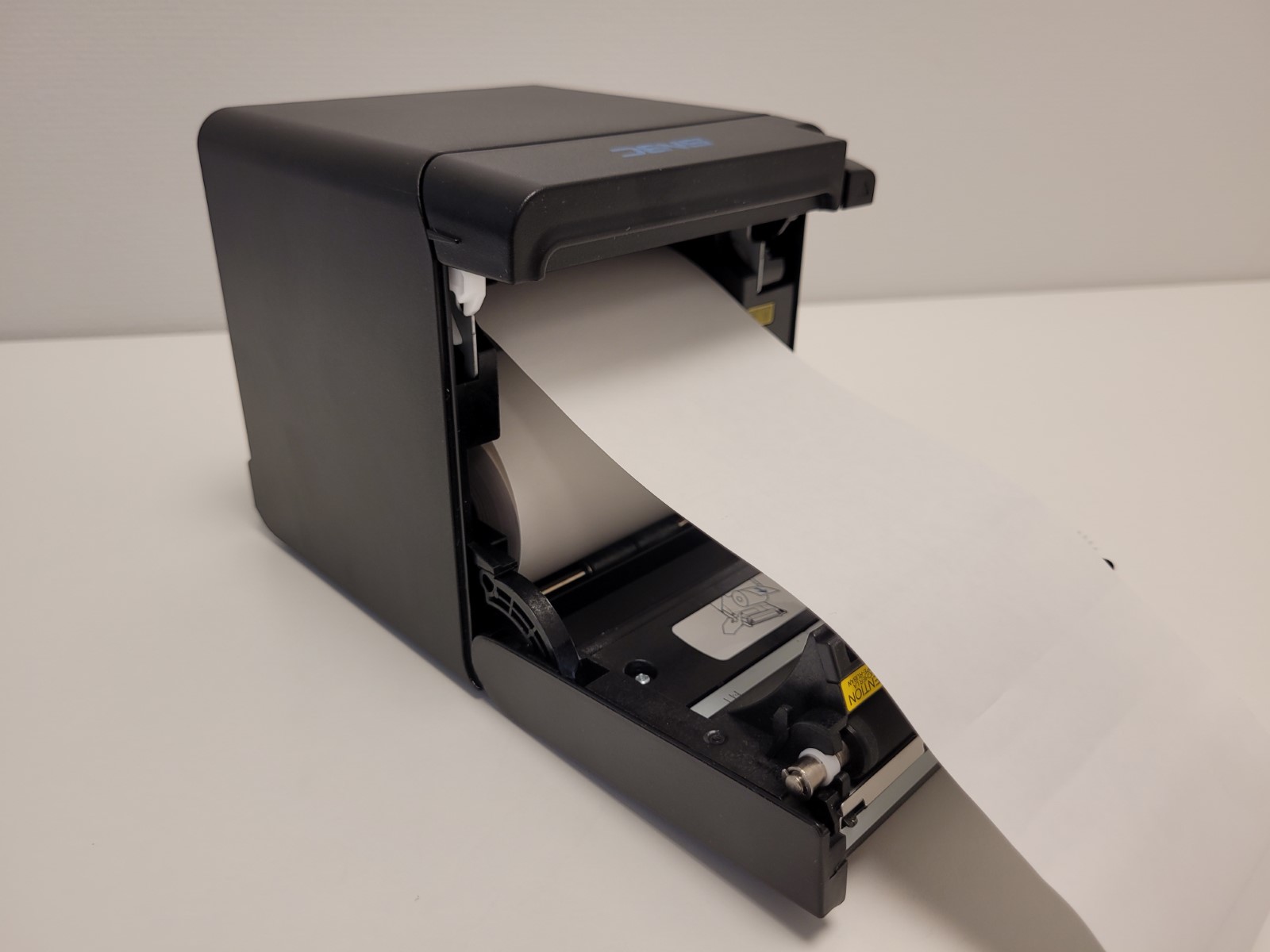
- Insert the paper rollmaking sure it's oriented correctly, and close the lid:
Managing BTP-S80
Types of cables
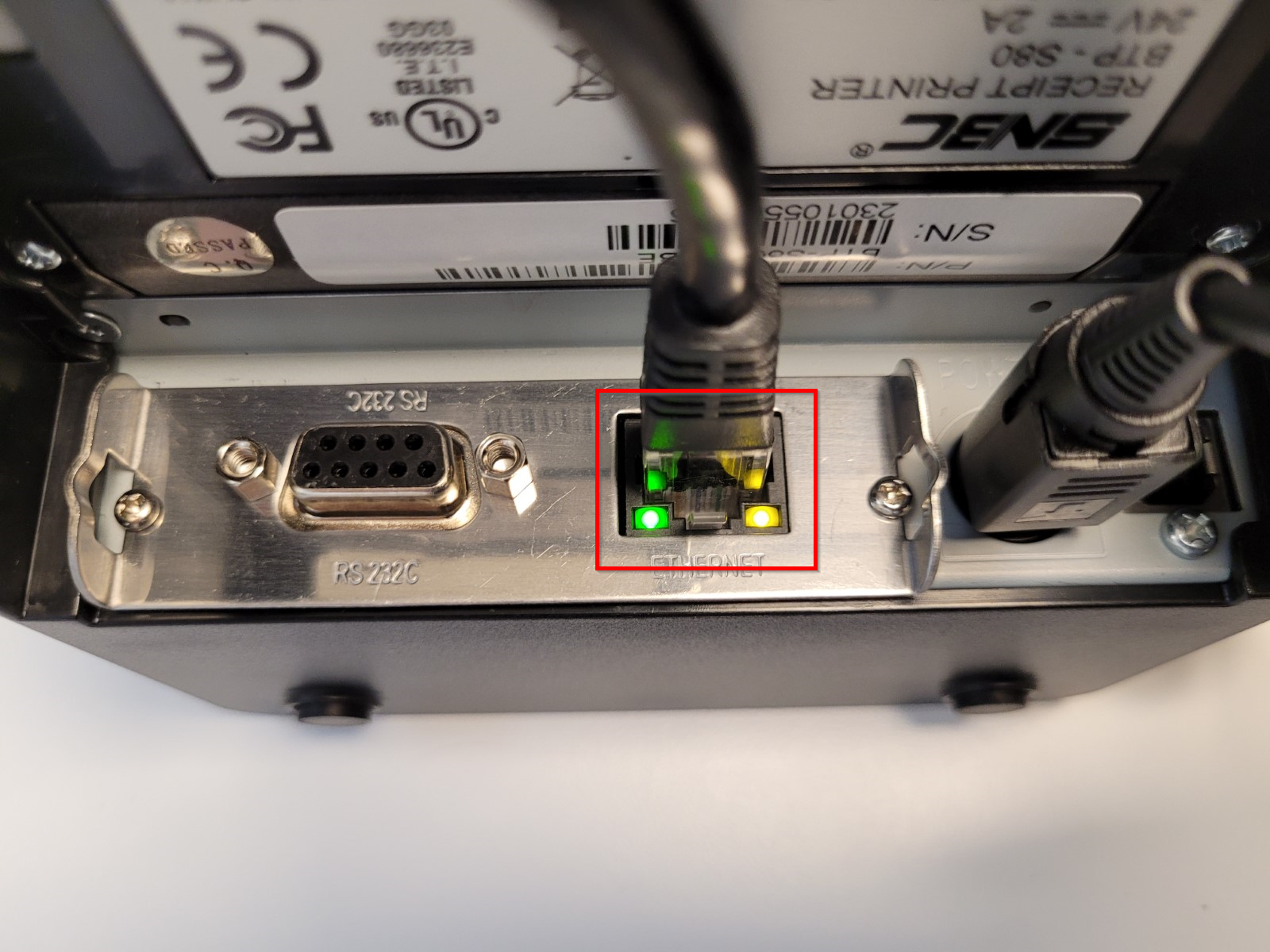
- Ethernet cable:
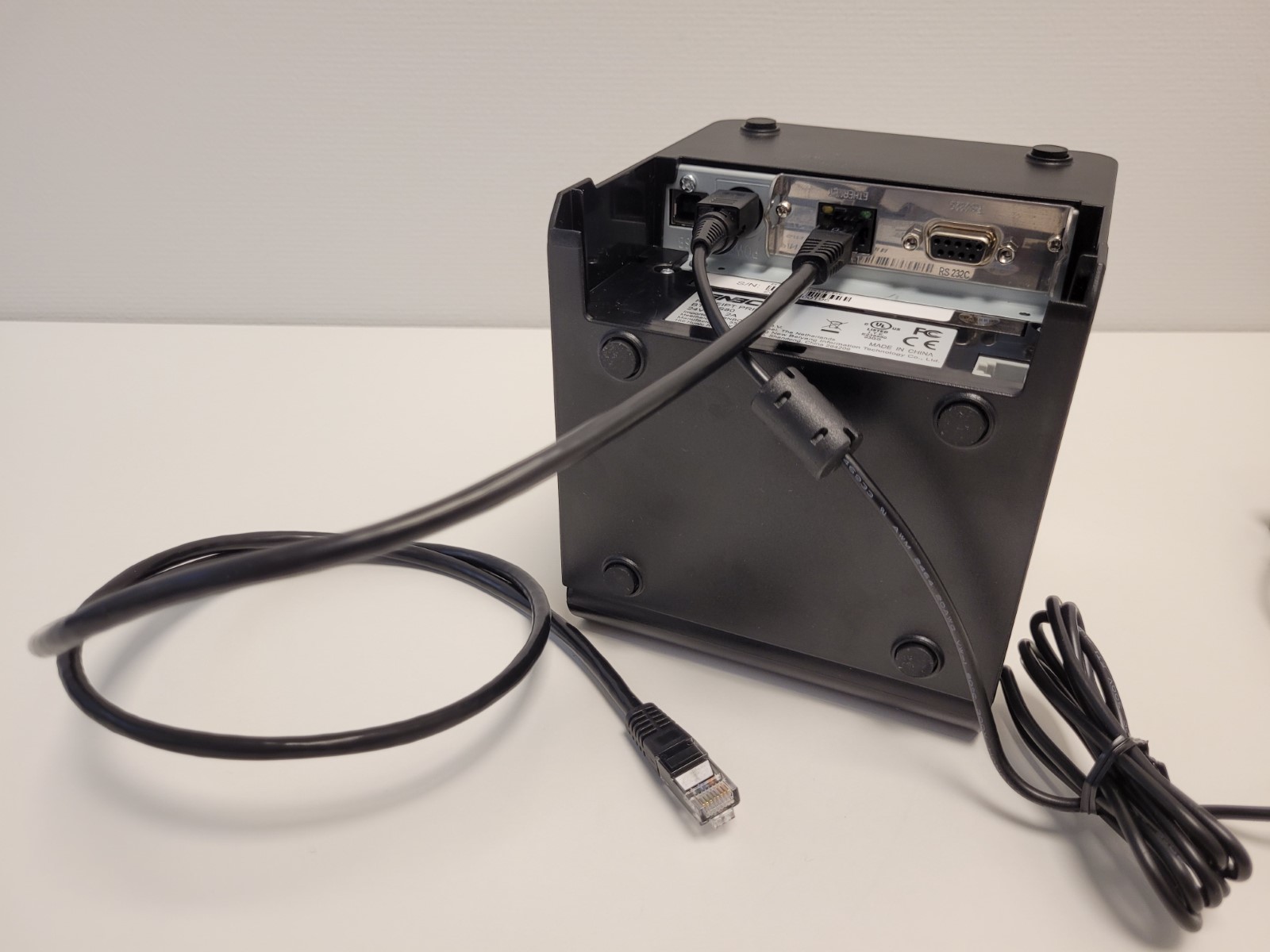
- When connected to network, the green and yellow LEDs on the Ethernet interface will be on/blinking:
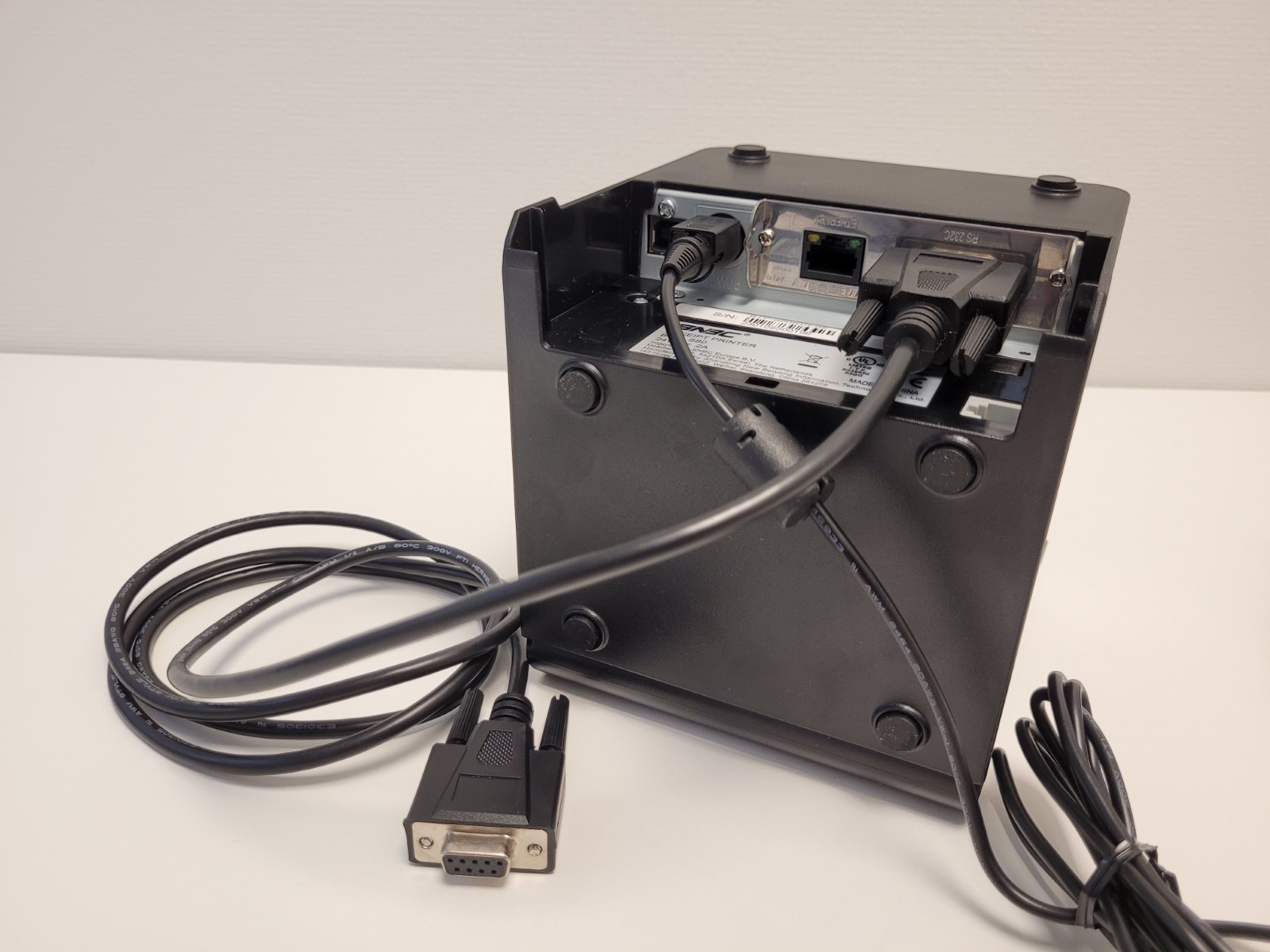
- Serial (COM, RS232) cable:
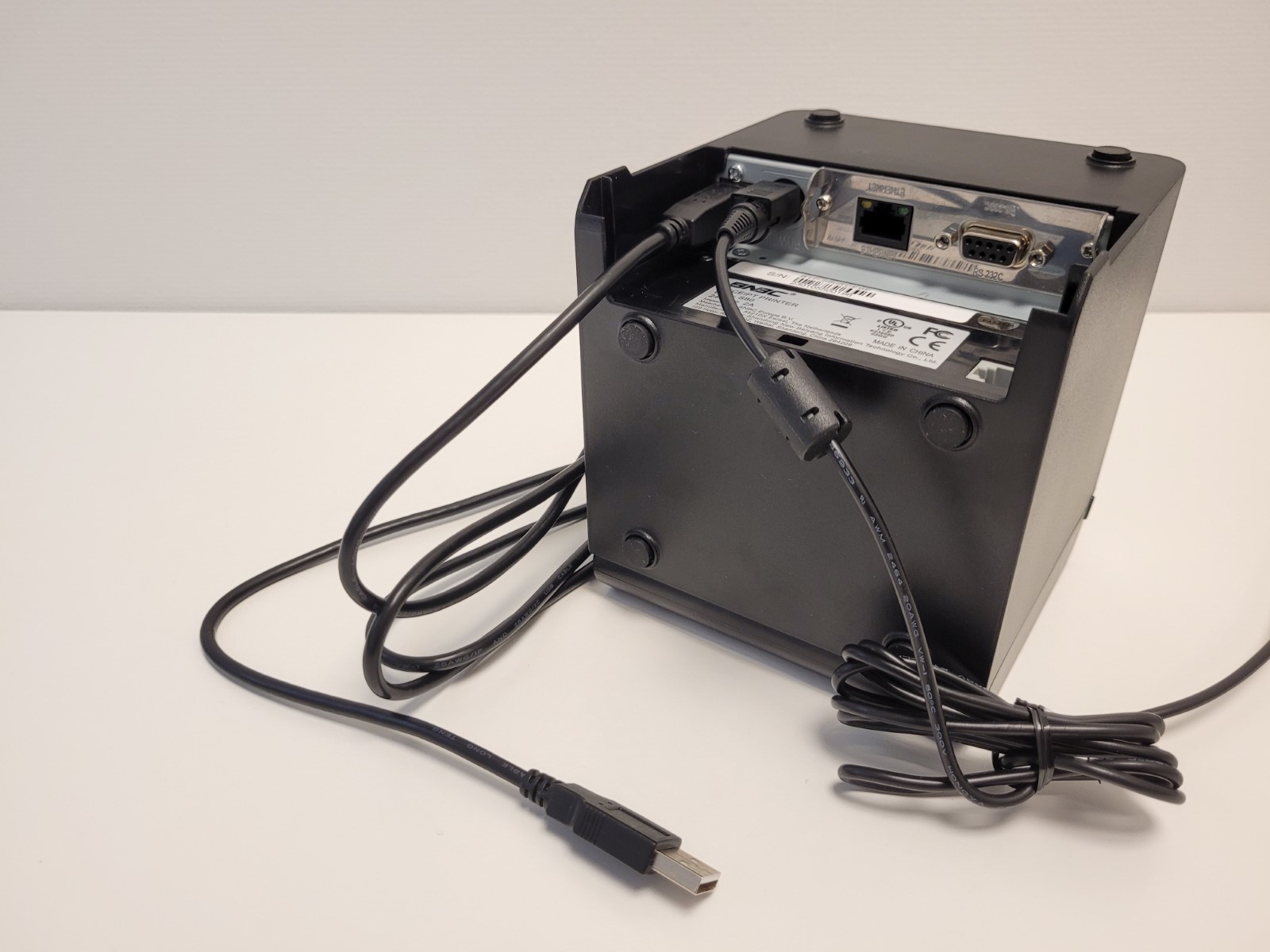
- USB cable:
- Power Supply Unit (PSU):
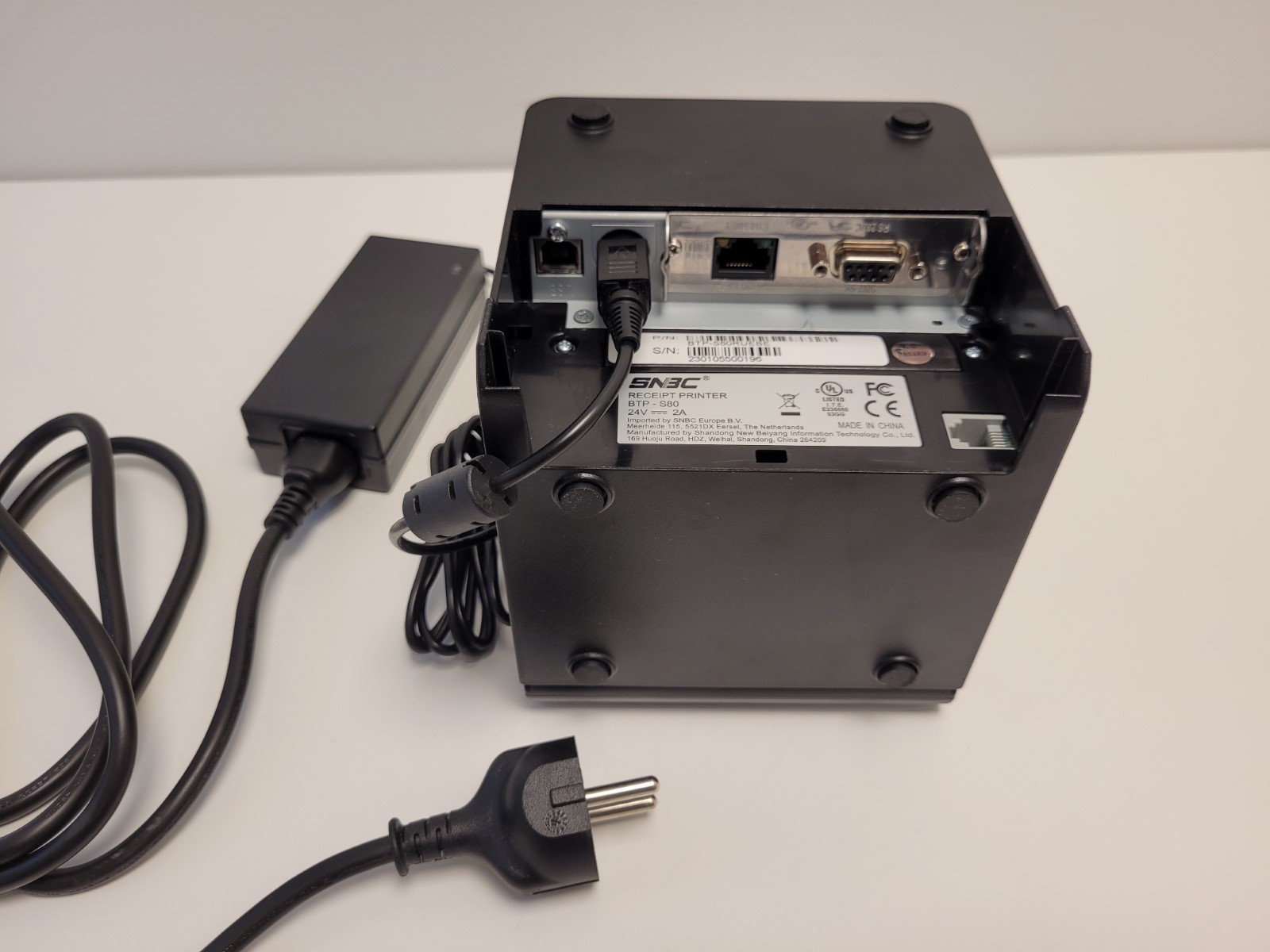
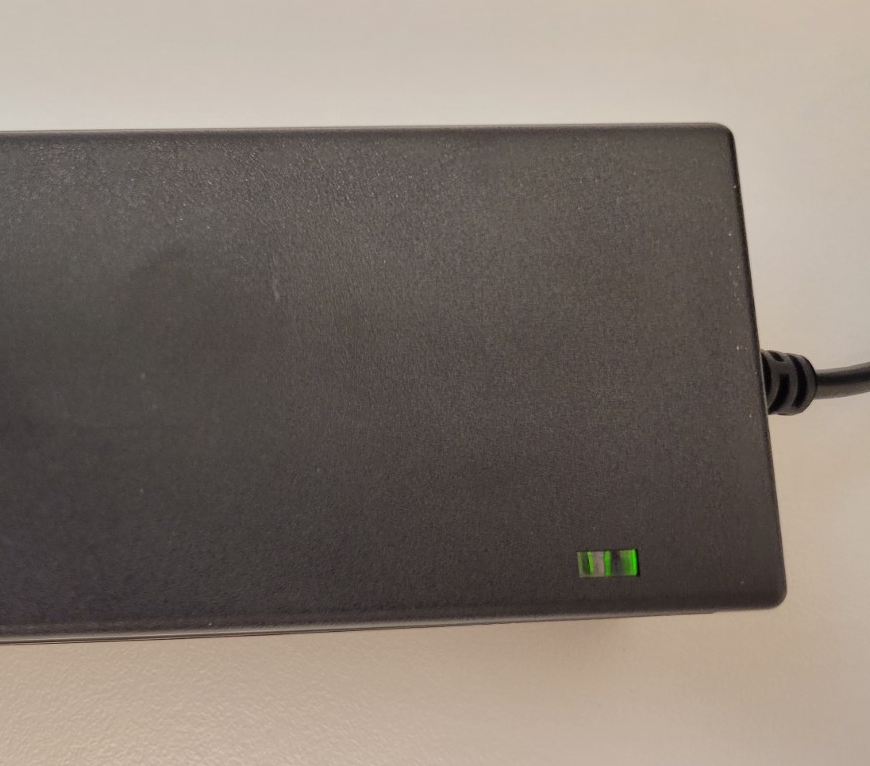
- PSU has a green LED that is on when PSU is connected to power and operational:
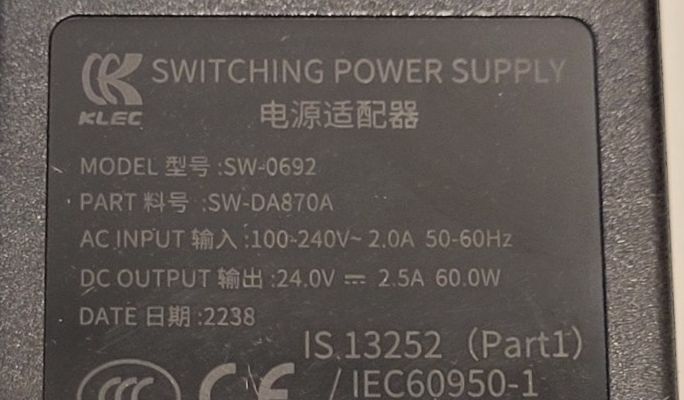
- PSU info:
Printing a test page
Printing a test page is a test to make sure the printer is mechanically operational and can print at all. In case test print works, next step to troubleshoot is connectivity.
- Hold the Power button (the lower one) until the printer turns off:
- Hold the Feed button (the upper one) and at the same time turn the printer on by holding the Power button.
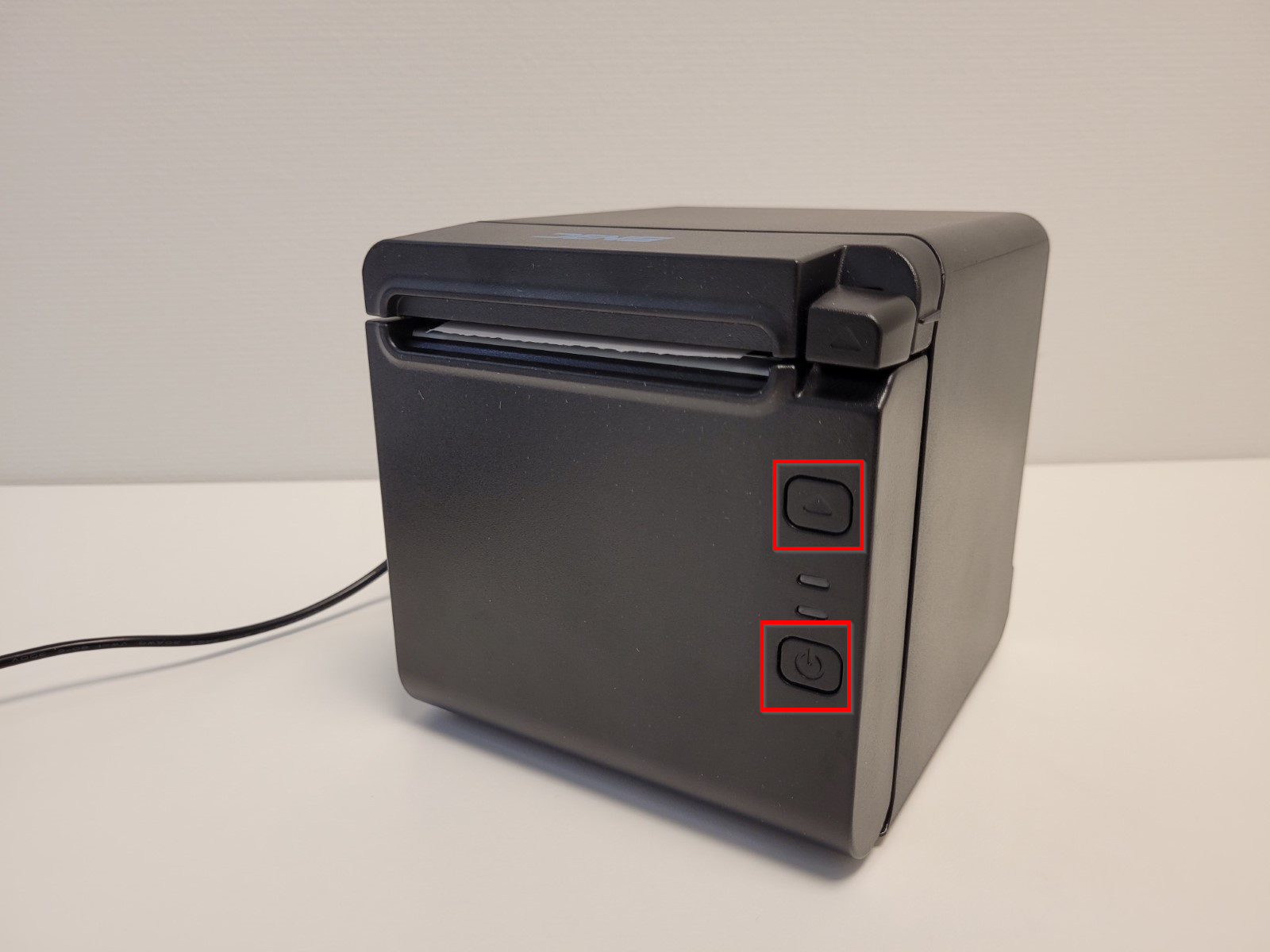
- Release the Feed button when the test page starts printing.
Was this article helpful?
That’s Great!
Thank you for your feedback
Sorry! We couldn't be helpful
Thank you for your feedback
Feedback sent
We appreciate your effort and will try to fix the article