This guide explains how to log in to Domino and navigate the tabs.
Logging in
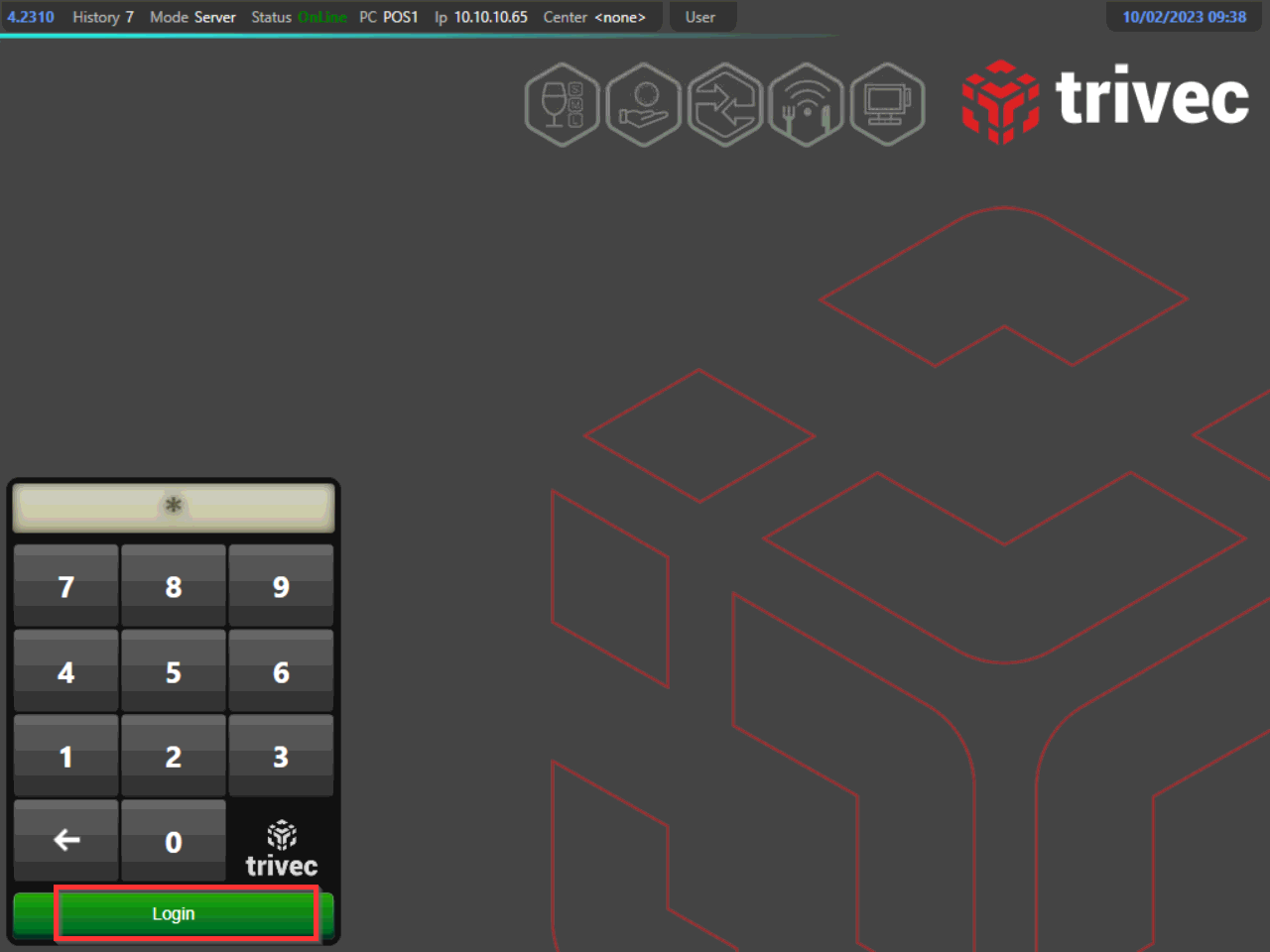
- To log in, enter your login key and select the green Login symbol:
Navigating Domino
Switching tabs
- After logging in, you will enter the Sales mode. This mode is used for working with products and tables. Sales mode is divided into several tabs, to switch between tabs select the tab icon in the upper part of the screen:
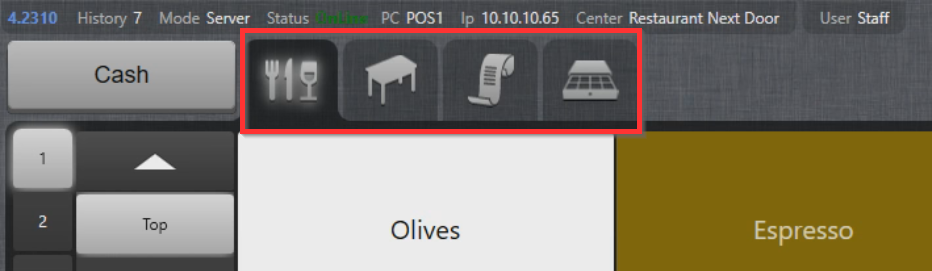
- Commonly used tabs are:
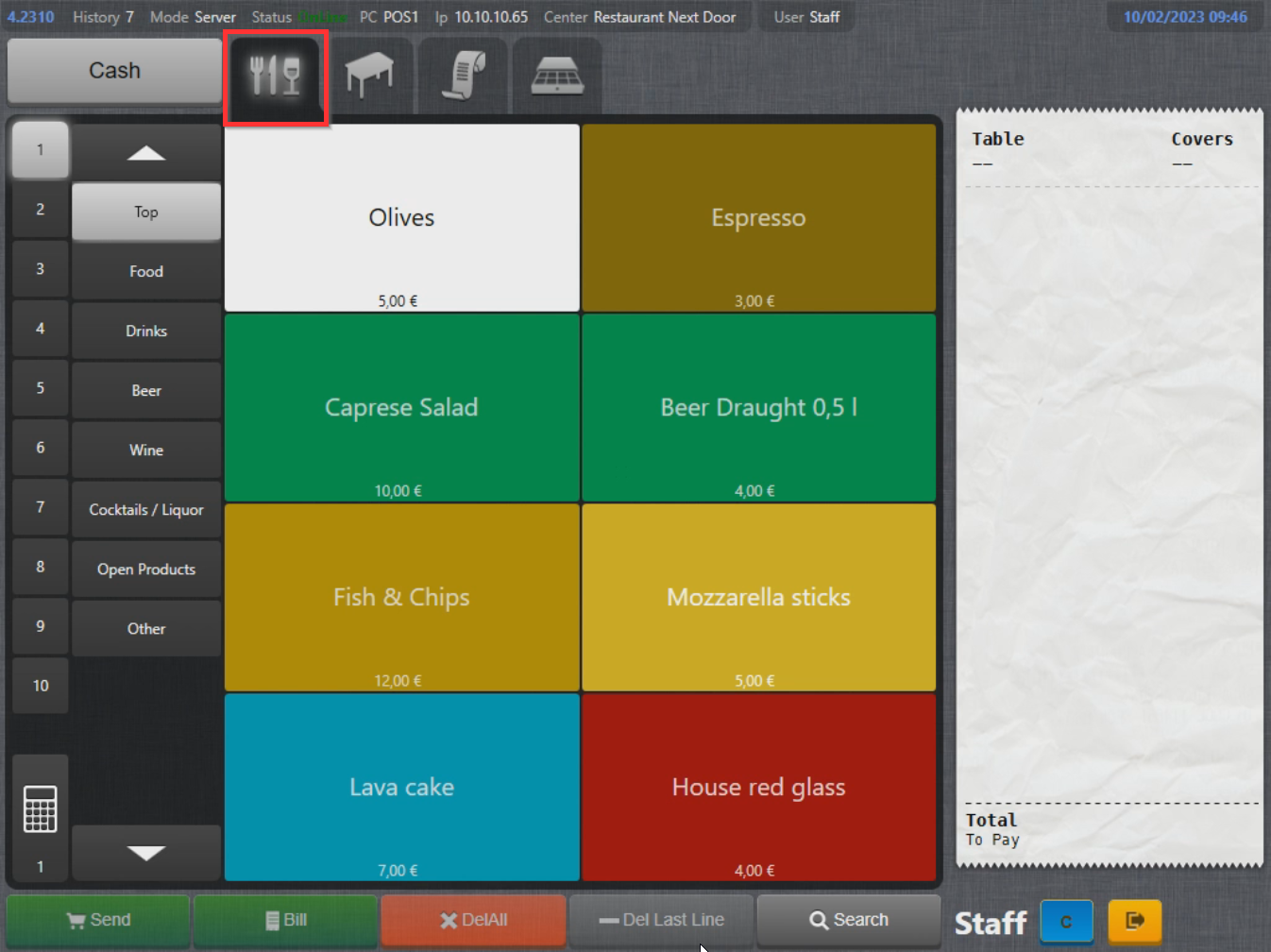
- Products tab, where products and product pages are displayed:
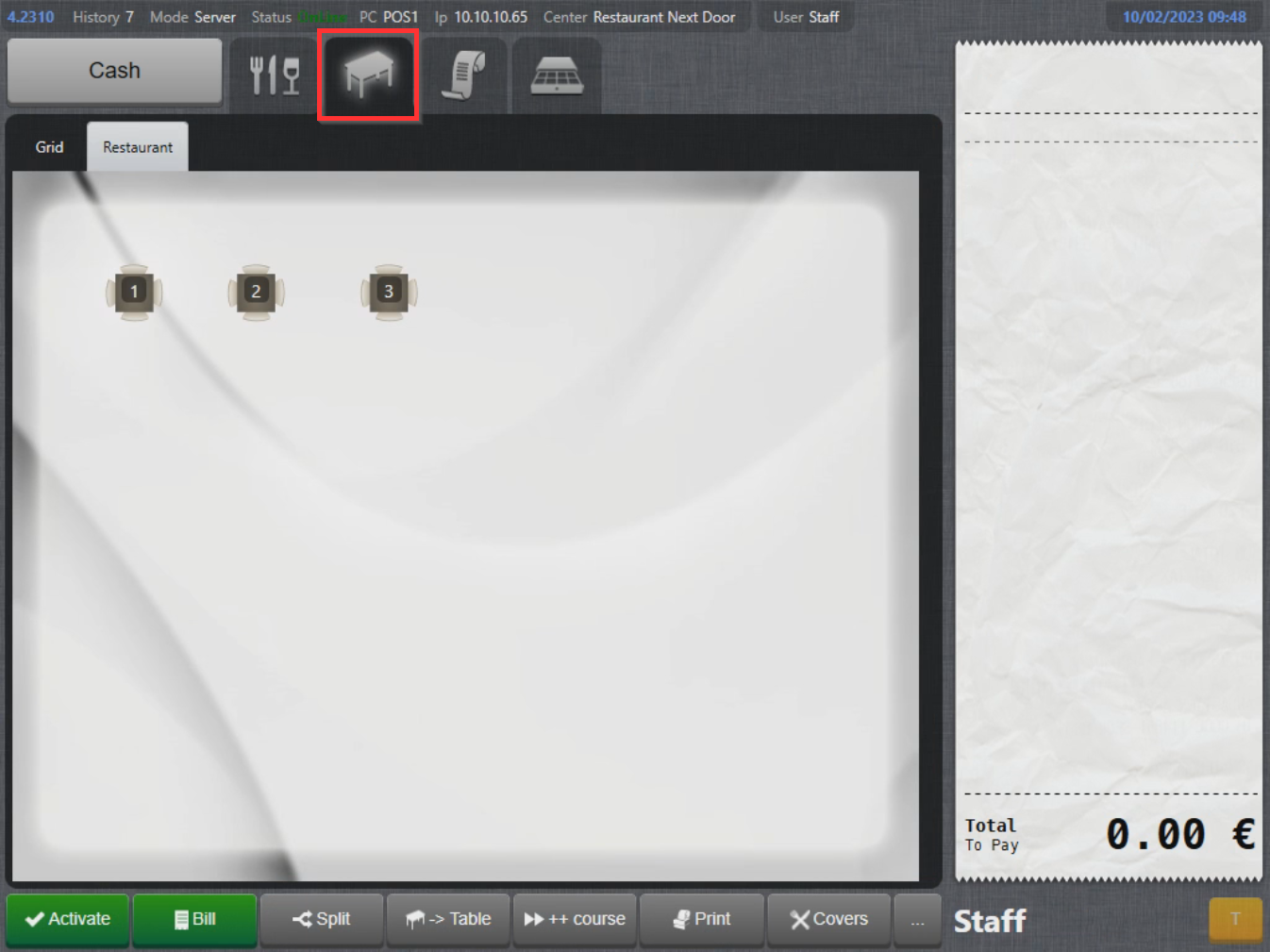
- Tables tab, used for working with tables:
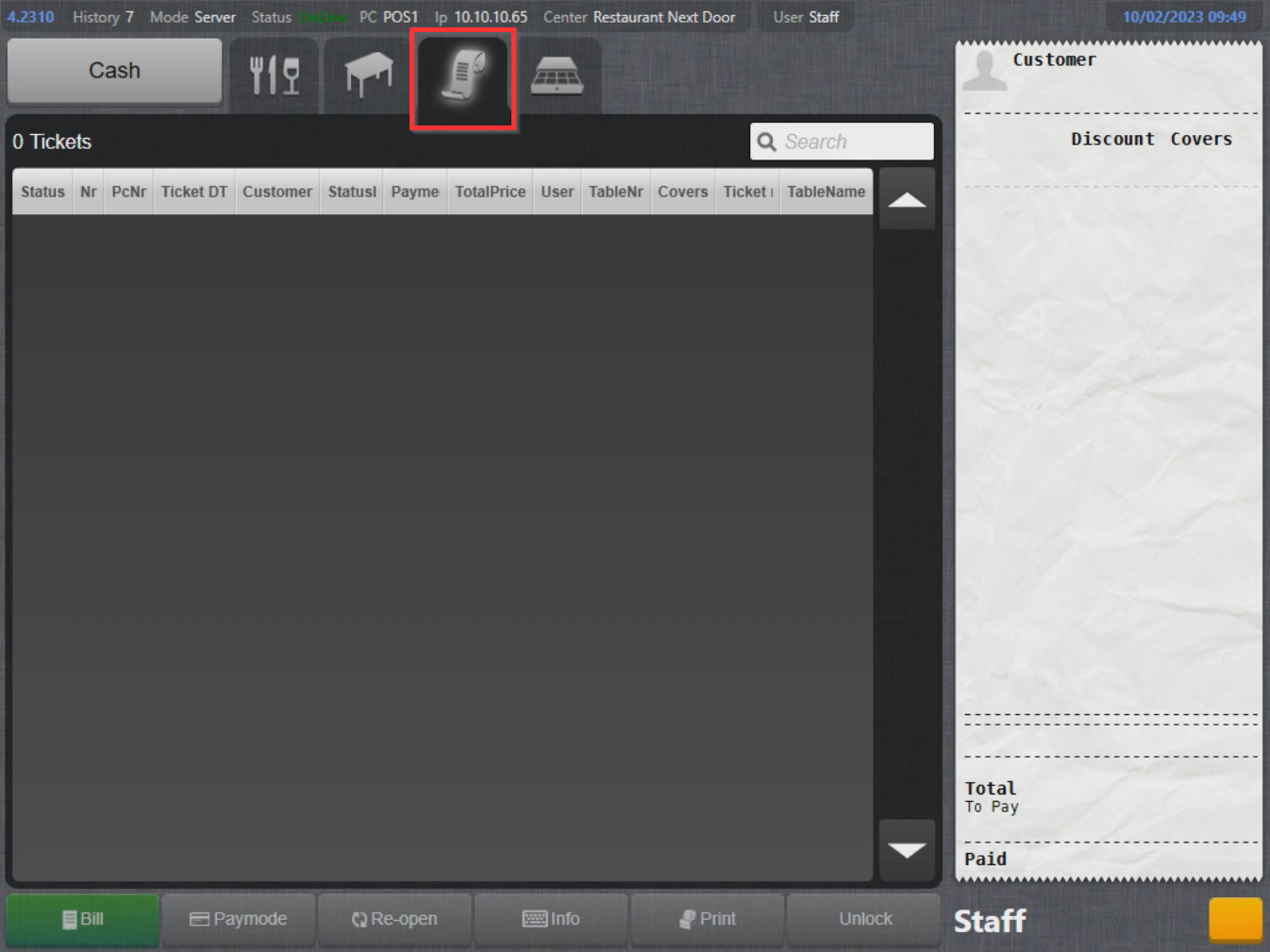
- Tickets tab, where tickets are displayed:
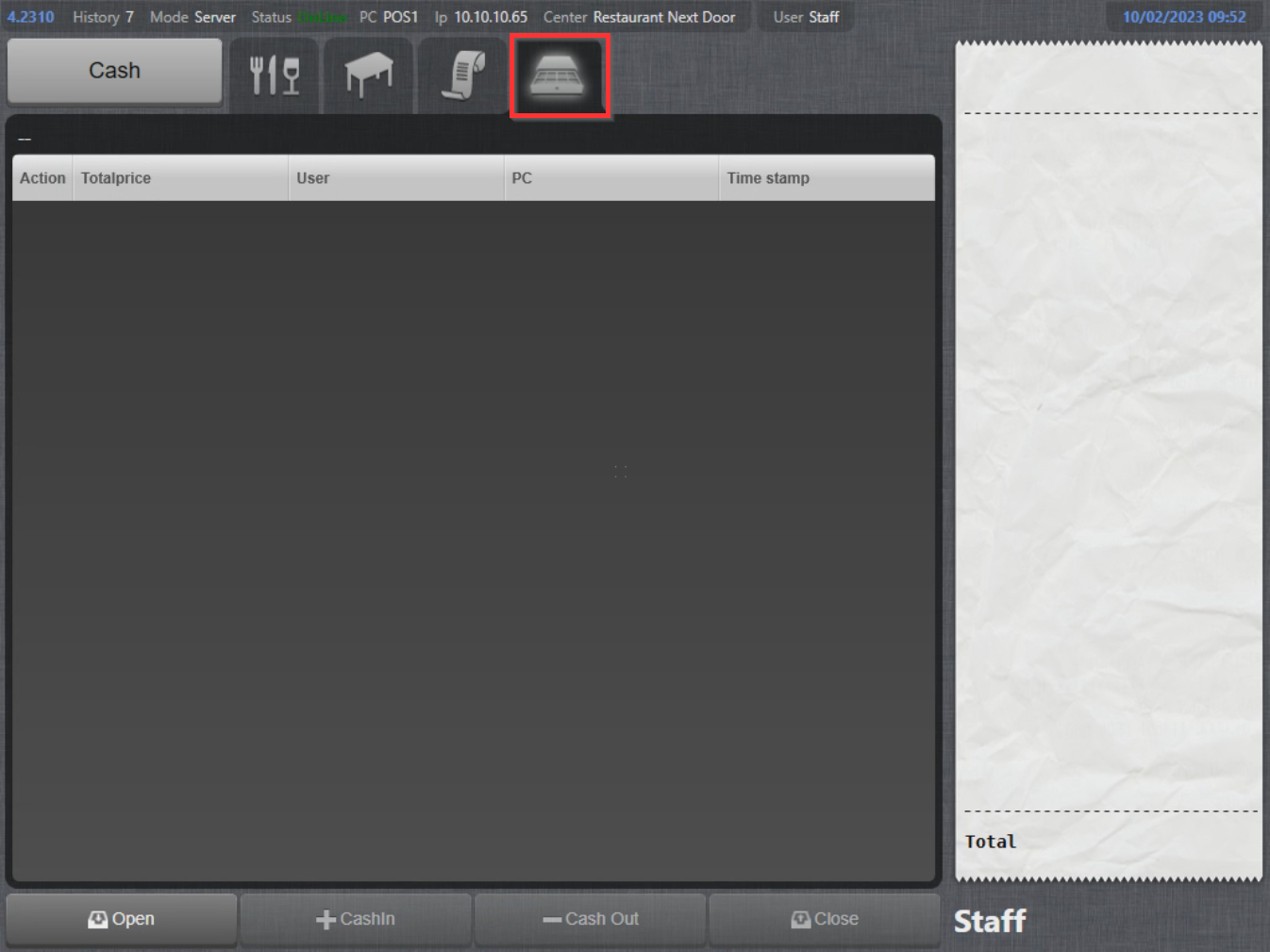
- Wallets tab, where open wallets are displayed:
- Depending on system setup and user permissions, other tabs can also be visible, such as receipts, hotel, routing etc.
Switching to Backoffice
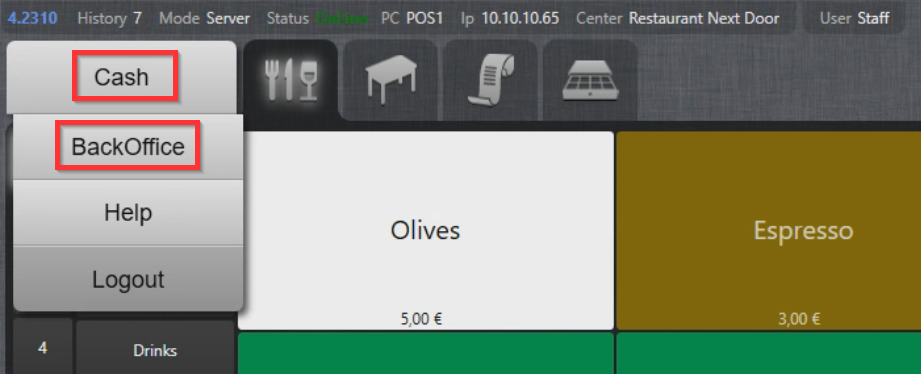
- To switch from Sales to Backoffice mode, select Cash in the upper left corner to open the menu and select Backoffice:
Logging out of Domino
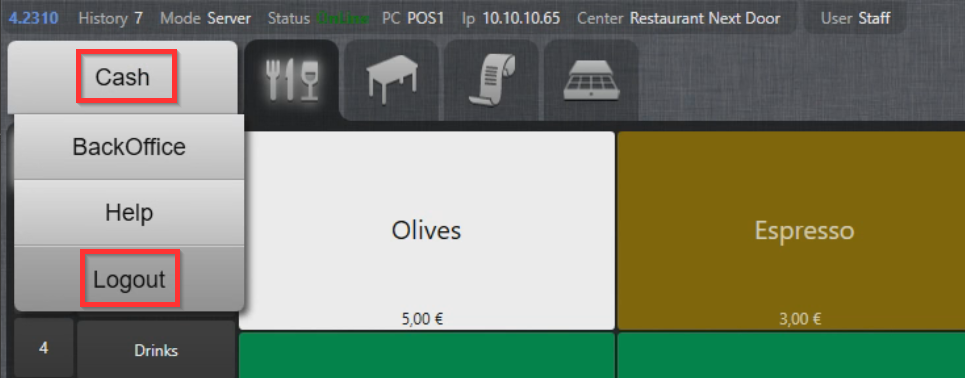
- To log out of Domino and return to the login screen, select Cash in the upper left corner and select Logout:
What's next?
To place an order, check out Direct sales - working without a table.
Was this article helpful?
That’s Great!
Thank you for your feedback
Sorry! We couldn't be helpful
Thank you for your feedback
Feedback sent
We appreciate your effort and will try to fix the article