This guide explains how to add or edit Domino users.
Users list
To find the existing Domino users:
- Log in to Domino with an account that has manager- or owner-level permissions and navigate to BackOffice/Init/Users:
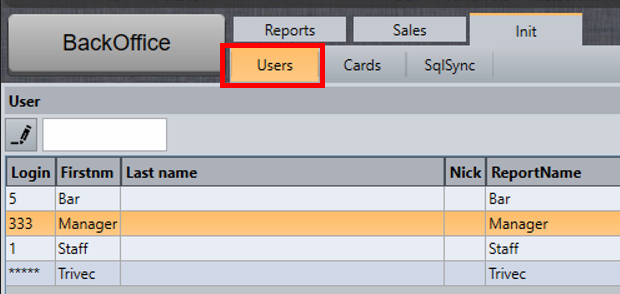
The list will display all users along with the login codes. Only the login codes of the users with the same or lower-level access are displayed.
Quick-edit basic user settings
Some basic settings can be configured directly in the user list:
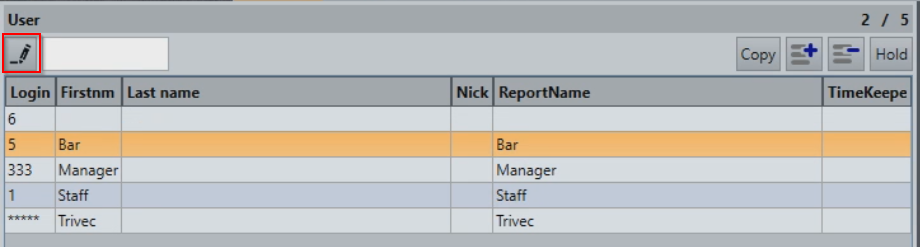
- Select the Edit symbol in the upper left corner of the user list:
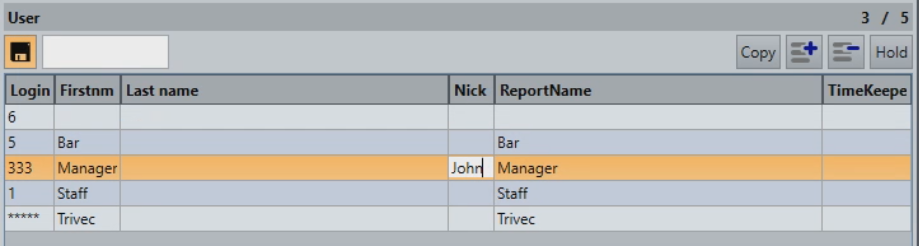
- Edit the property:
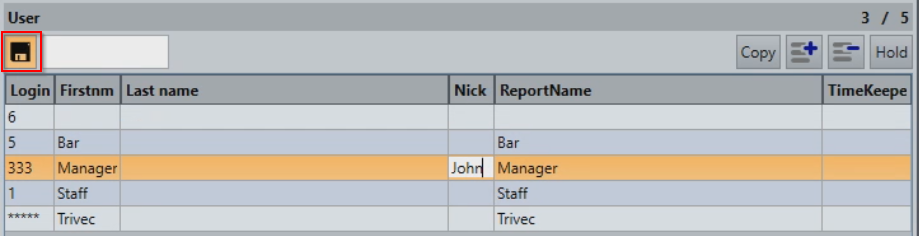
- When you're done, save the changes by selecting the Edit symbol again:
For an explanation of what each property does, check out User properties.
Create Domino users
The easiest way to create a new Domino user is to copy an existing one with the same level of access as the one you want to make.
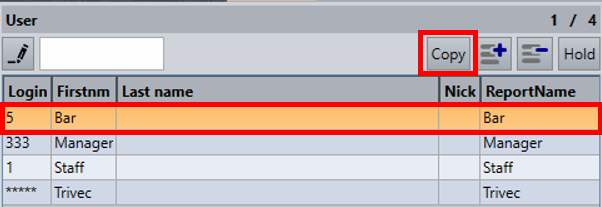
To create a new "Bar" login:
- Select the User you want to copy and select Copy:
- A new user is created automatically with the next available login code, in this case 6:
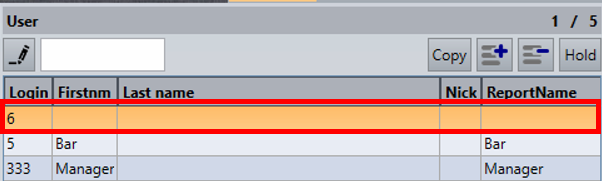
For info on how to edit the user properties, check out Quick Edit Domino User and Configure all user settings.
Configure all user settings
- Select the user you want to configure and select the Edit symbol on the right edge of the screen:
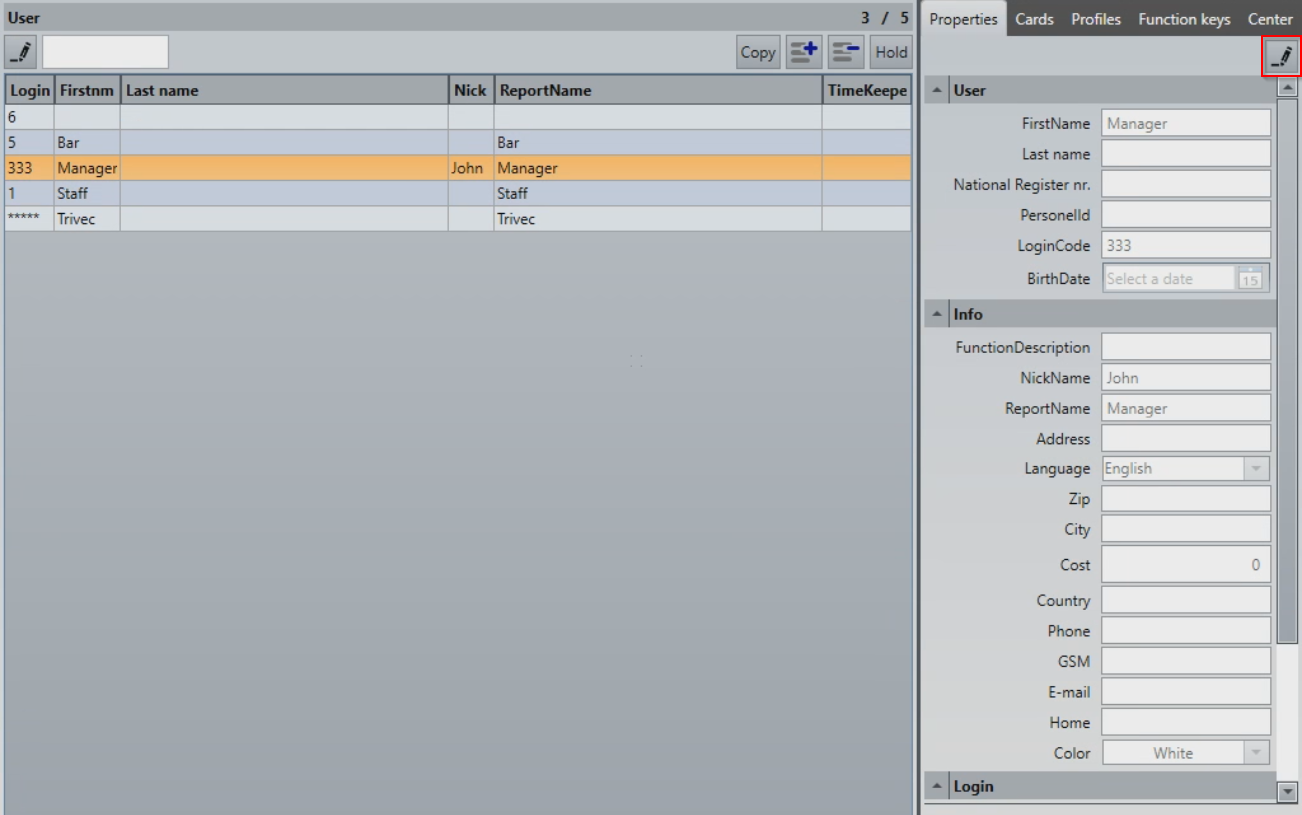
- Use the tabs to navigate through all available user settings.
- Configure any of the properties on the right side of the screen and save the settings by selecting the Edit symbol again.
For info about different user properties, check out User properties.
User properties
User properties are divided into tabs: Properties, Cards, Profiles, Function keys, and Center.
Properties tab
Used for configuring the general properties of the user.
- User
- FirstName: First name of the user.
- Last name: Last name of the user (optional).
- National Register nr: Mandatory for Belgium if a customer uses the DominoBel version (Blackbox version). Not used in Nordics and France.
- PersonelID: Used if a customer uses another program for staff management and the staff number is different from the one used in Domino (optional).
- LoginCode: Used to login to Domino.
- BirthDate: Birth date of the user (optional).
- Info
- FunctionDescription: Allows you to enter information relating to a user's function ("Accounting department" for example) (optional).
-
NickName: The name of the user that is displayed on the receipt.
NOTE: It is recommended that Nick be configured for all users to avoid having employee personal information visible on the receipt. - ReportName: The name of the user shown in small reports.
- Address: Address of the user (optional).
- Language: The Domino menu language, if set to default the Domino default language will be used. Language options are (Default), Dutch, English, French, German, Greek, Spanish, Norwegian, Danish, Catalan.
- Zip: Postal code or postal number (optional).
- City: (optional)
- Country: (optional)
- Phone: (optional)
- GSM: Mobile phone number of the user (optional).
- E-mail: (optional)
- Color - Allows you to configure a color for each employee that will be visible in the "All users" tab so that it's more visual (optional).
- Login
-
- Timekeeper - The timekeeper login menu, if configured as default, the rules defined in Domino will apply. Timekeeper login options are (Default), Automatically, Required, Off. (optional)
- Password - For additional security, a login password can be configured in addition to the login code (optional).
-
- Wallet
- Wallet - Allows you to activate the wallet only on specific users. Not used in Nordics (optional)
- Drawer (Physical) Nr - Allows to assign a default wallet number to a user when the "Wallet: by number" and "Wallet: one user per number" options are enabled. Not used in Nordics (optional)
- Options
- Card Only - If enabled, the user can only log in to Domino using a staff card (optional).
- Administrator - If enabled, the user will have admin access to Domino (only used by Trivec staff, optional).
- Assign lower roles - If enabled, the user can only assign access roles lower than their role.
-
Trainee - If enabled, the user will be defined as a trainee, and all sales will be registered as Training.
NOTE: Sales registered in training mode will not be registered as revenue in Domino. However, if payments are exported via integrations such as external Invoice service or sent to a credit card terminal, the payment might become a live payment without registered revenue in Domino.- Not available in FR version due to fiscal laws applied in this country.
- ShowLogins - If enabled, the user will be allowed to see login codes of the same or lower access level users.
Cards tab
Used for managing cards associated with the user.
If you have card readers configured in Domino, it is possible to use staff cards to log in to Domino. Here, you can list, add, or remove cards assigned to a user.
Profiles tab
Used for managing the permission profiles of the user.
The profiles will be named differently depending on your particular Domino configuration.
Function keys tab
Used for viewing the function keys available for the specific user, this view is dynamic and will change depending on what profiles are selected for the user. If any key is unavailable for a specific user it needs to be added to the user profile.
Center tab
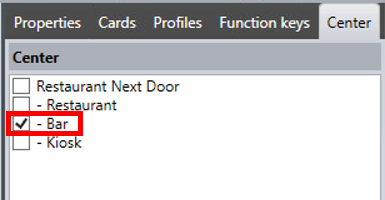
Used for restricting a user to a specific center. If all centers are left unchecked, the user will have access to all of them. For example, this user only has access to the "Bar" center:
Was this article helpful?
That’s Great!
Thank you for your feedback
Sorry! We couldn't be helpful
Thank you for your feedback
Feedback sent
We appreciate your effort and will try to fix the article