This guide explains how to use the reporting in MyTrivec.
Creating Reports
Reports section generates detailed sales reports.
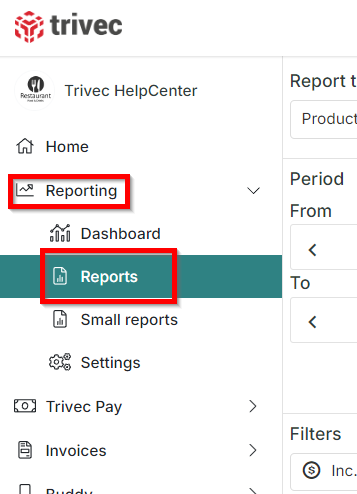
- On the left-side menu, select Reporting and Reports:
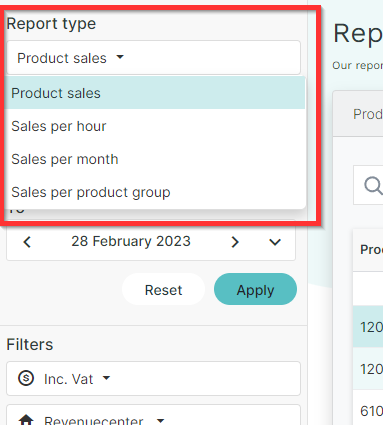
- To generate a report, first select a Report type (Product sales, Sales per hour, Sales per month, Sales per product group):
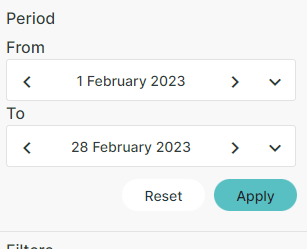
- Select a Period by choosing a From and To date and select Apply:
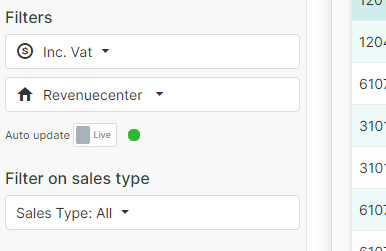
- If desired, filter by VAT, Center or Sales type (All, Sales, Booked sales):
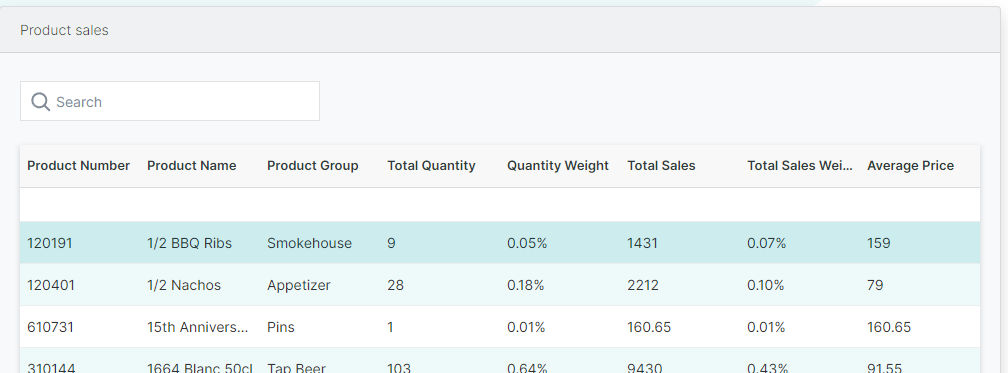
Product sales
Displays detailed info on sold products, such as Total Quantity, Total Sales Value, and Average Price, amongst others:
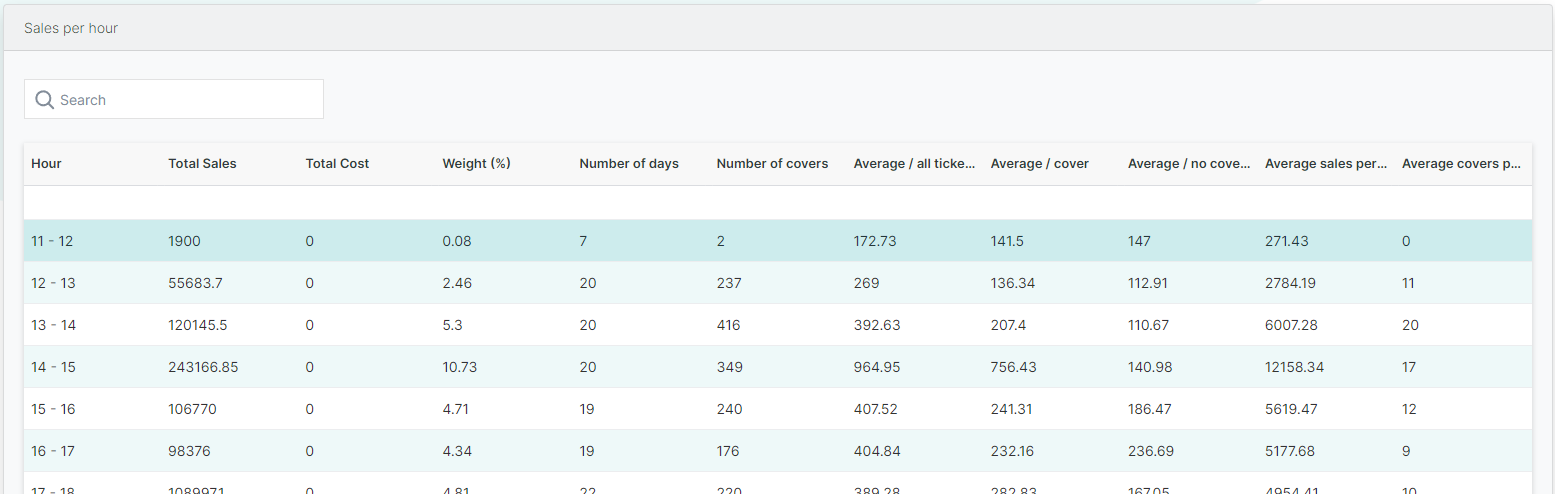
Sales per hour
Displays sales results per 1 hour periods, with info such as average/ticket, number of covers, etc:
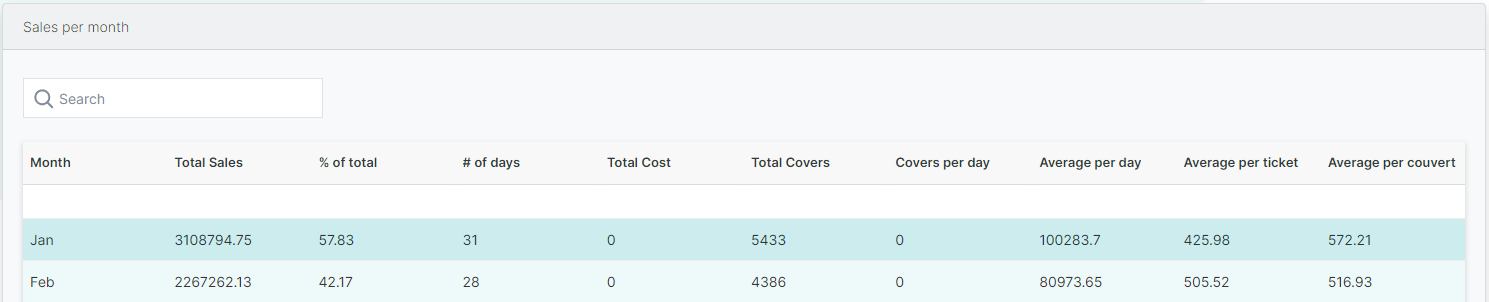
Sales per month
Displays sales results per month, such as ¤of total sales, Total Covers, Average per Day/Ticket, etc:
Generating Small reports
Small reports section generates the same type of reports that can be printed on POS devices using Domino. For more info on how to use Small reports in Domino, check out Reports: Managers - Small reports.
- In the left-side menu, select Reporting and Small reports:
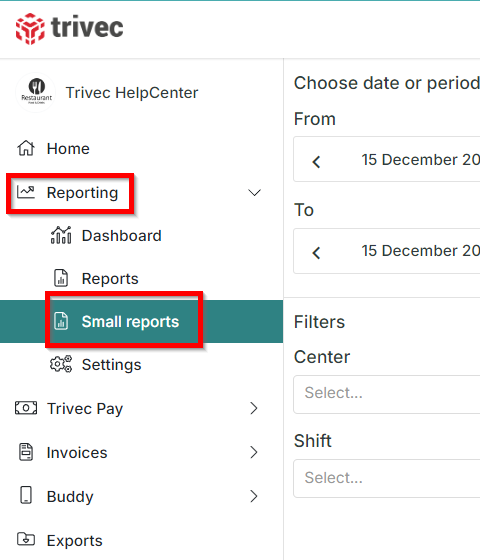
- Select a Date or Period and filter by Center or Shift if desired:
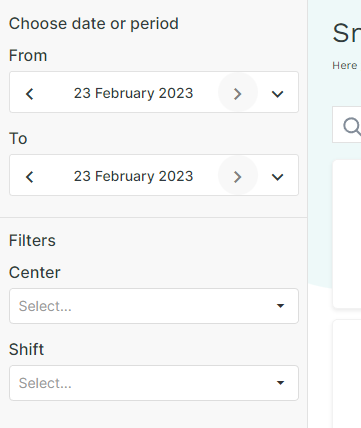
- Select a report to print:
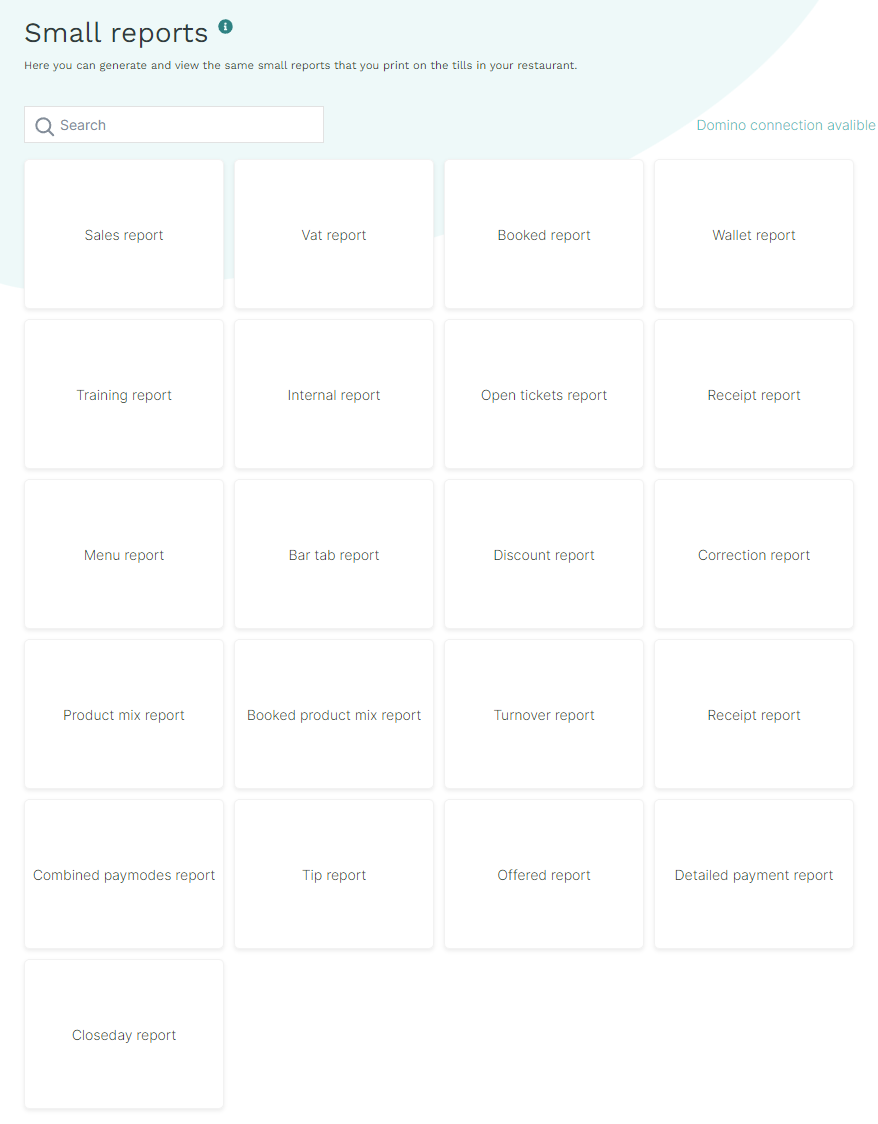
- For more info on what each report displays, check out Reports: Managers - Small reports.
Was this article helpful?
That’s Great!
Thank you for your feedback
Sorry! We couldn't be helpful
Thank you for your feedback
Feedback sent
We appreciate your effort and will try to fix the article