This guide explains how to upload logos and banners for your Buddy site.
To be able to complete this step, your MyTrivec username has to be registered as Site Owner. To request a change in site ownership, contact Trivec Support.
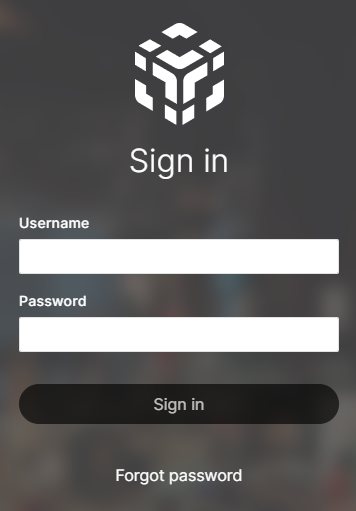
- Navigate to https://mytrivec.com/login.
- Enter your email address as Username and your Password:
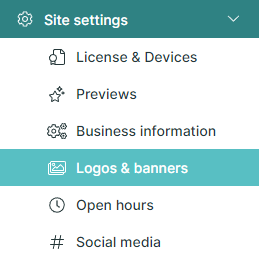
- In the left-side menu, select Site settings and Logos & banners:
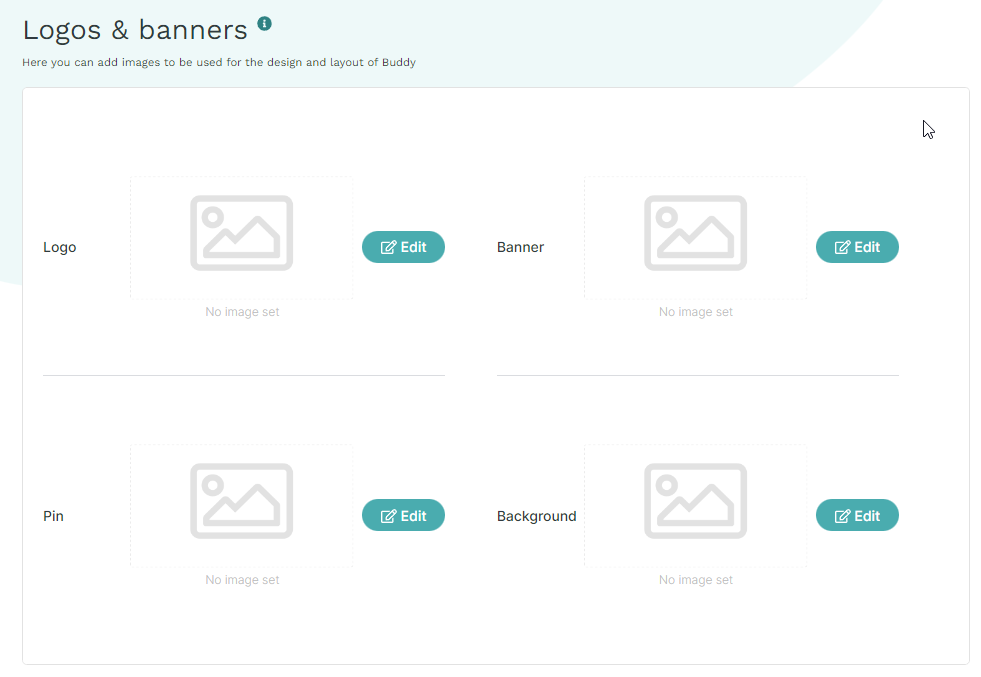
- Upload the following files (.jpg or .png):
- Logo: 120 x 120 px - displayed when the store is closed and as a pin on the map
- Banner: 1140 x 690px - displayed on top of Buddy product list
- Background: 1625 x 1080 px - displayed when the store is closed
- Pin: not used
- For best Buddy performance, try to keep the file size to a maximum of 400 kB. You can use a site like TinyPNG.com to compress the images.
- The banner & background is dependent on the device used, try to have some space without text on the sides of these files.
Was this article helpful?
That’s Great!
Thank you for your feedback
Sorry! We couldn't be helpful
Thank you for your feedback
Feedback sent
We appreciate your effort and will try to fix the article