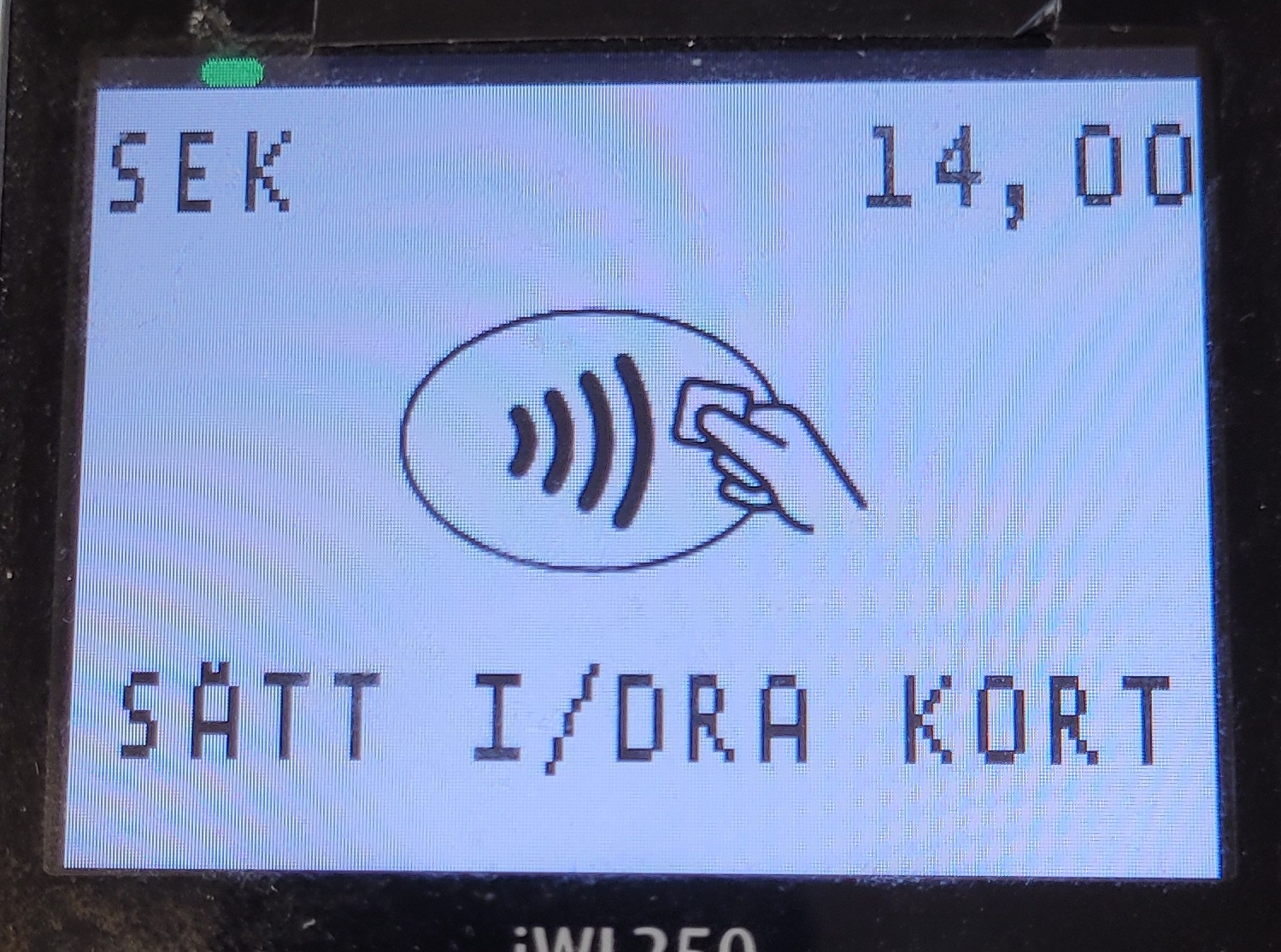
This article explains how iWL250 is used.
Direct payment (Baxi)
Baxi: is used when sending a transaction to the terminal from Domino or Handy.
- In Domino or Handy, enter the payment menu (For info on navigating to payment menu, check out Payment for Handy and Payment for Domino),
- Select the payment method associated with the card terminal (Card1, Card2 / Kort1 , Kort2):
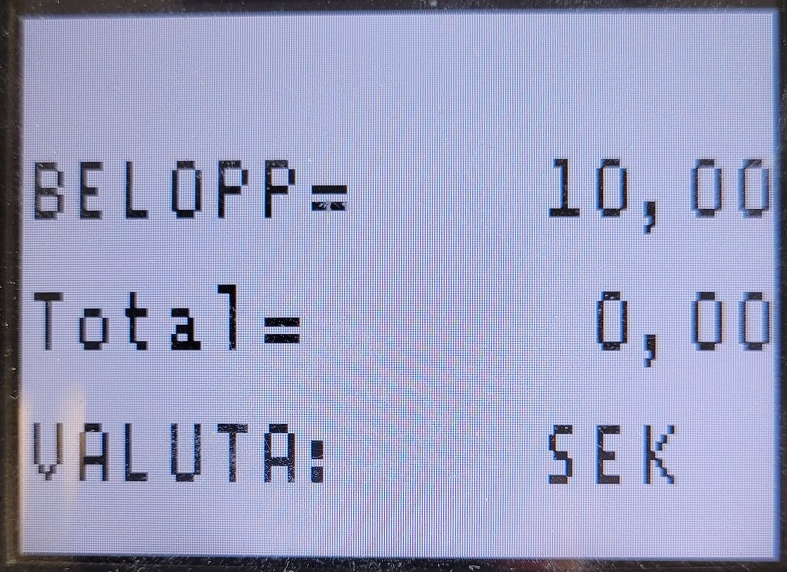
- Follow the instructions on the device:
|
 |
Tableside payment (Pay@Table)
Pay@Table mode is used when fetching a table to complete a payment.
Working with tables
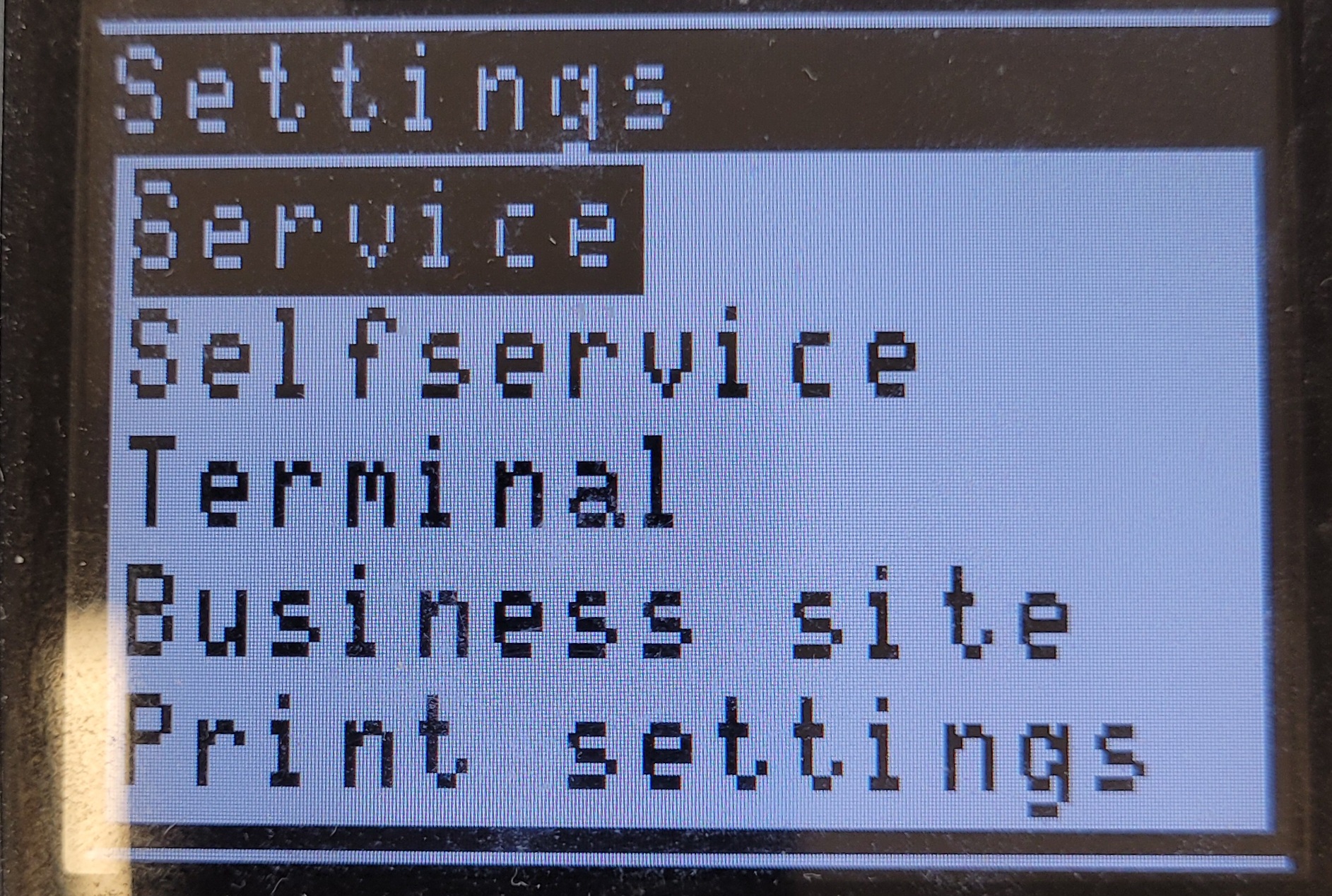
- If the following is displayed on the screen, select Service:
|
 |
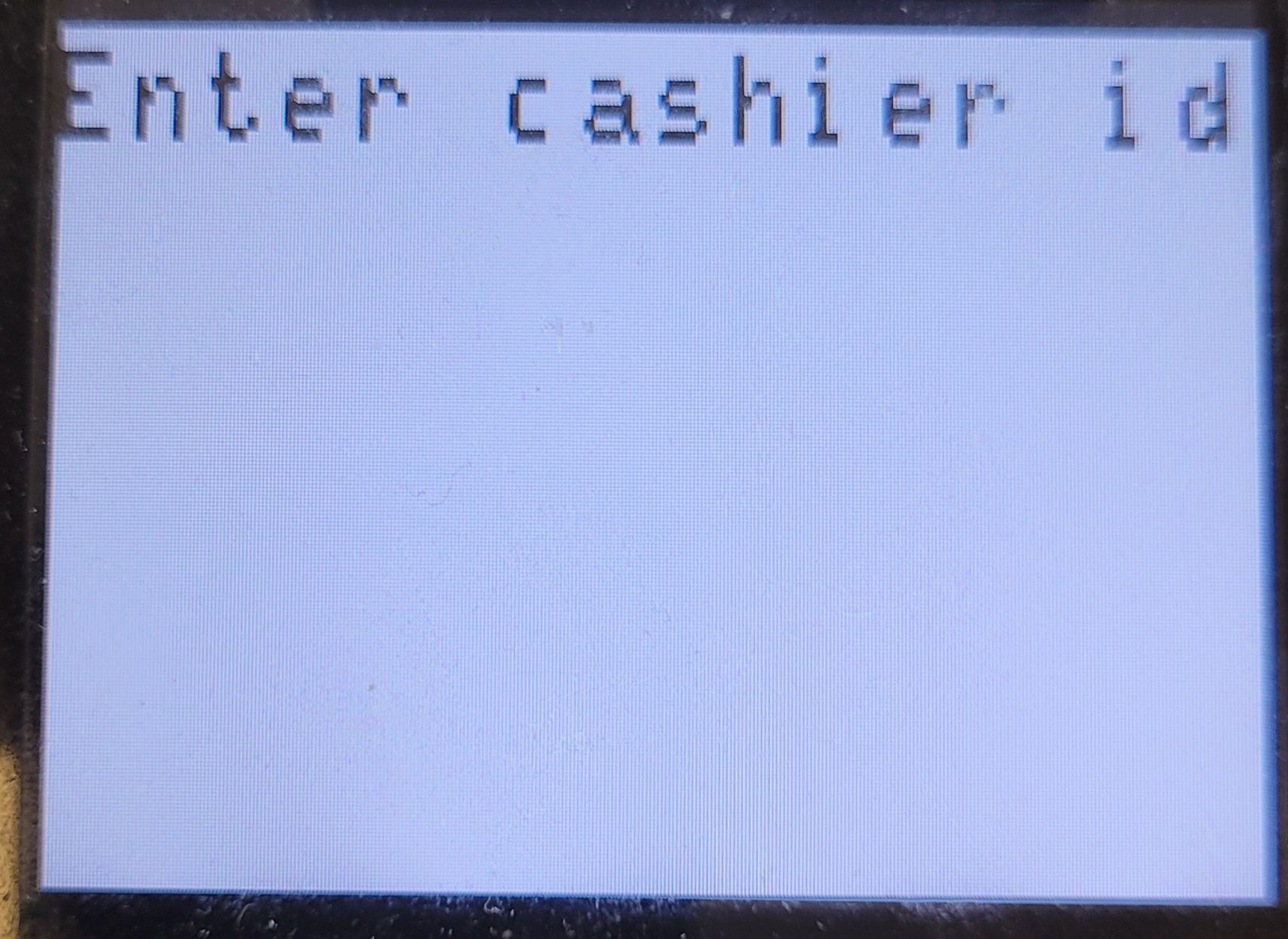
- Log in on the Nets device by entering your Domino/Handy login key:
|
 |
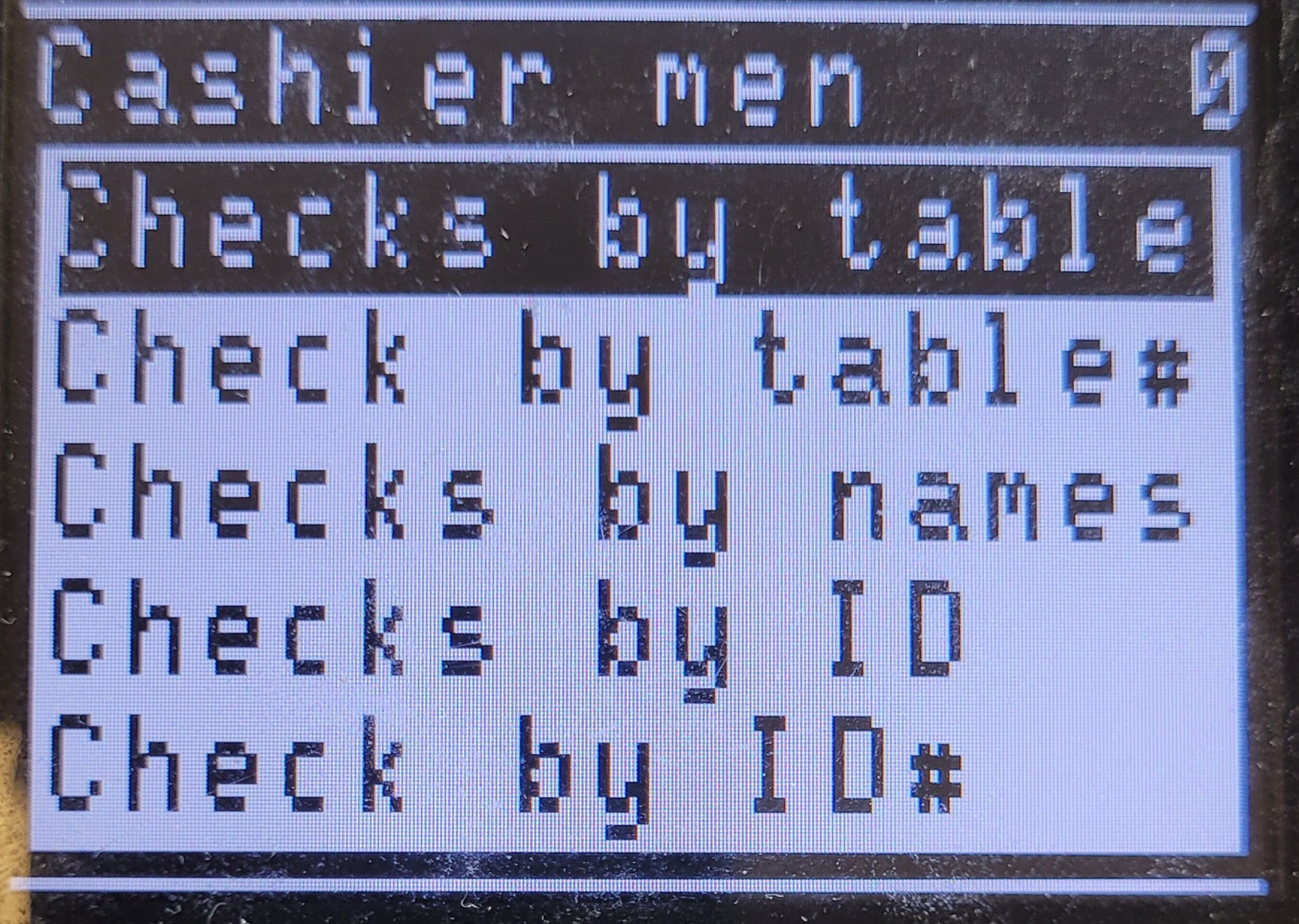
- To display all tables with orders, select Checks by table (Sök bord):
|
 |
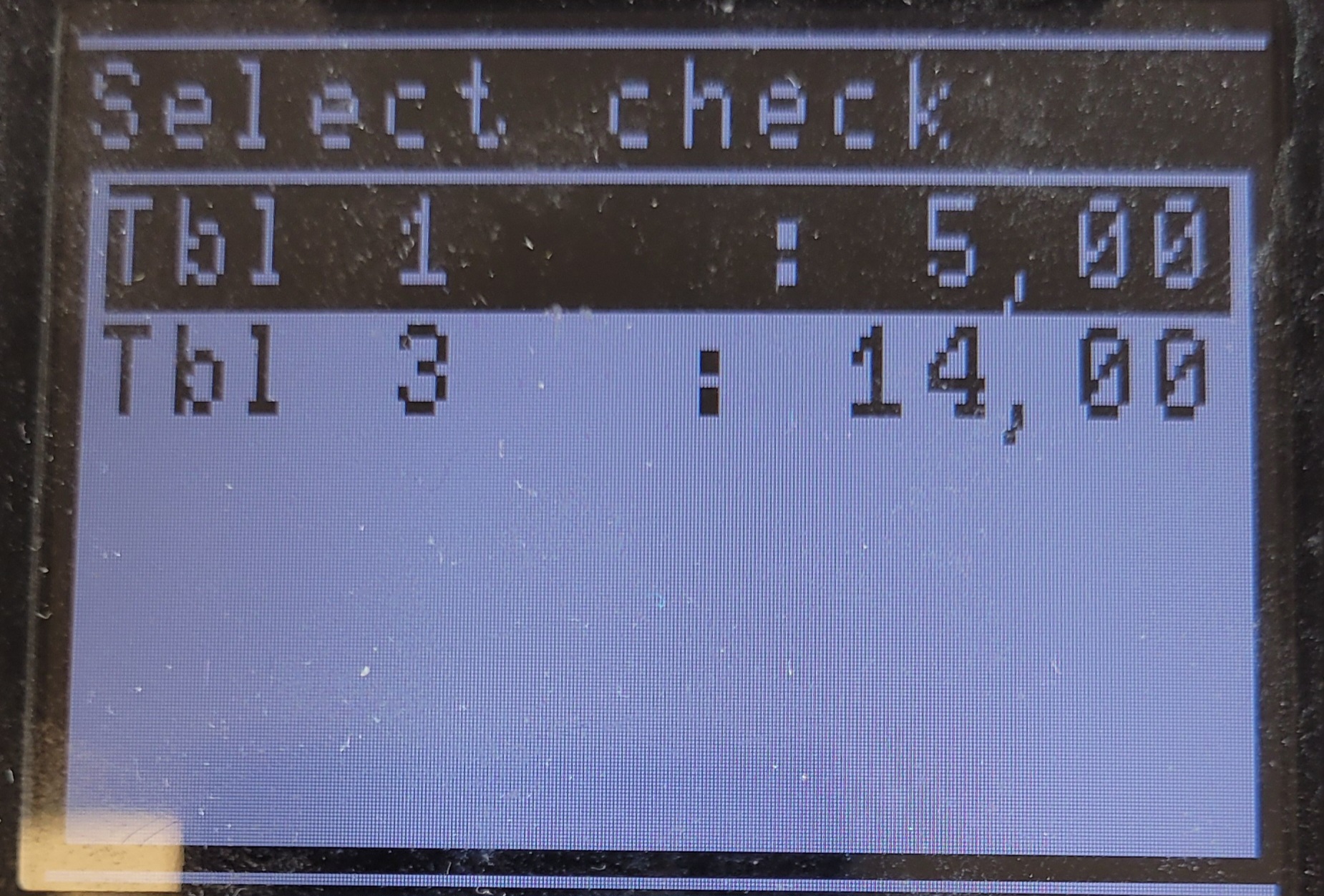
- List of existing tables (with orders) will display. Select a table:
|
 |
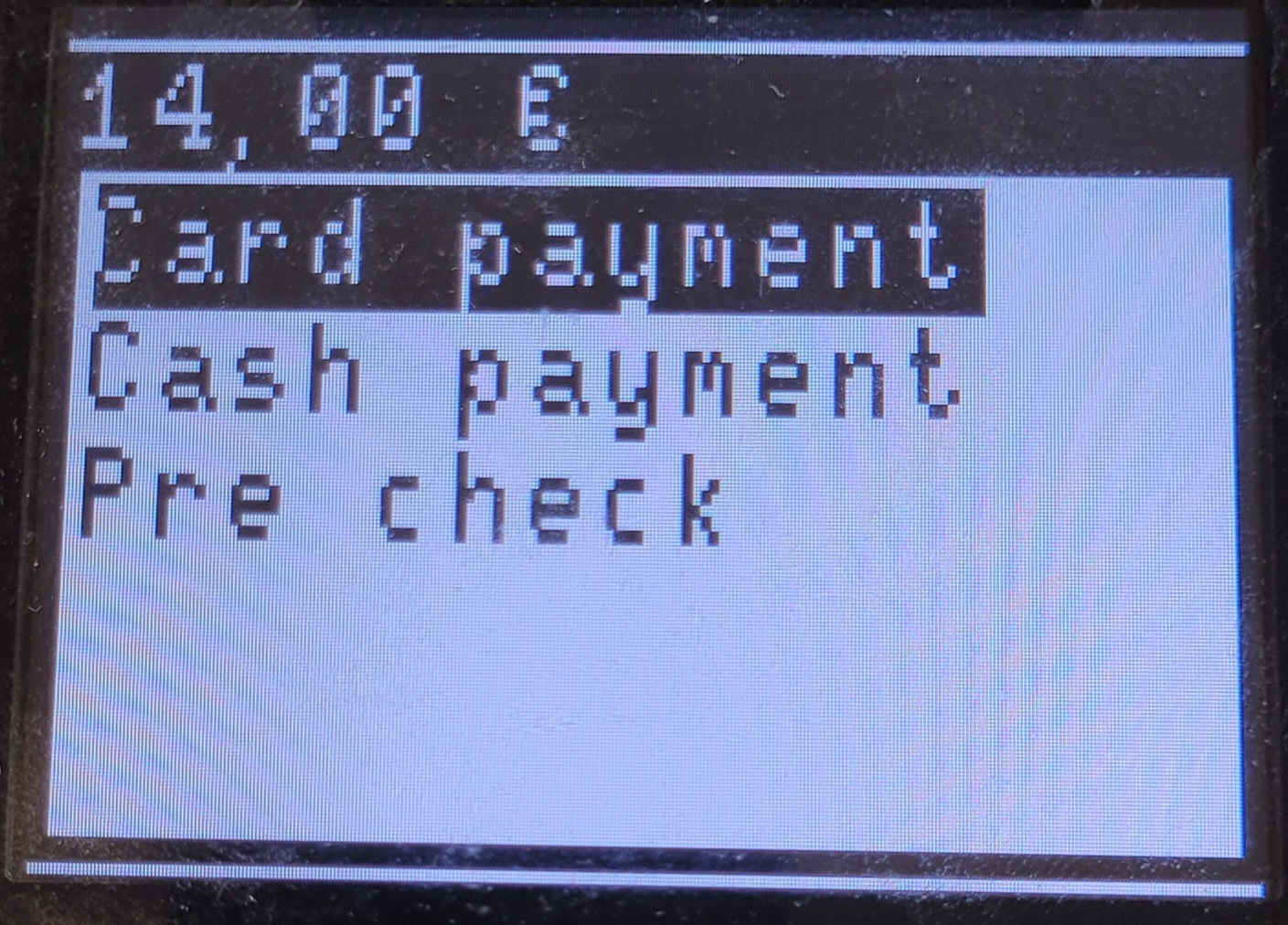
- Payment options will be displayed, select Card payment:
|
 |
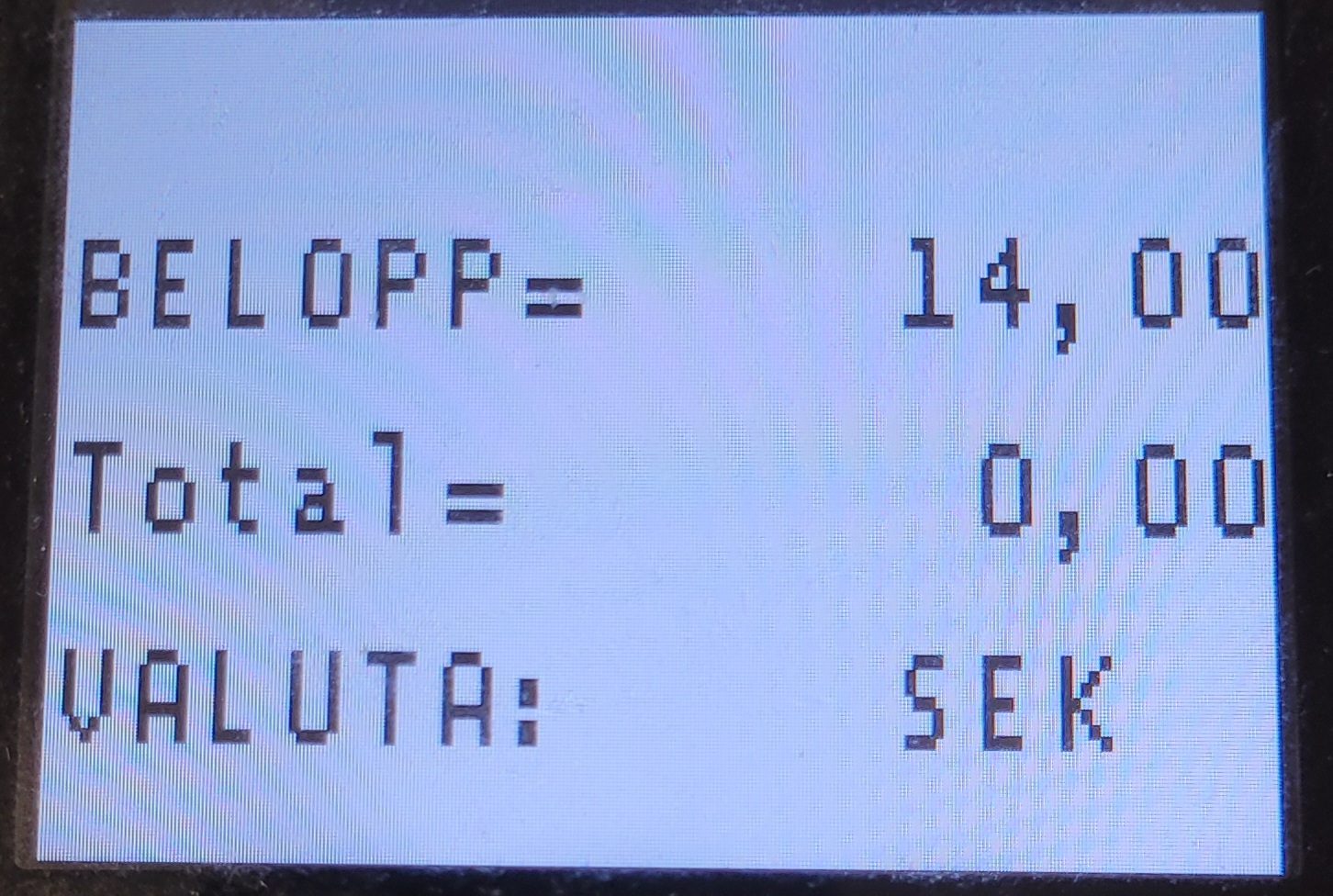
- If Tip is enabled, you will be prompted to enter total amount:
|
 |
Searching for a table
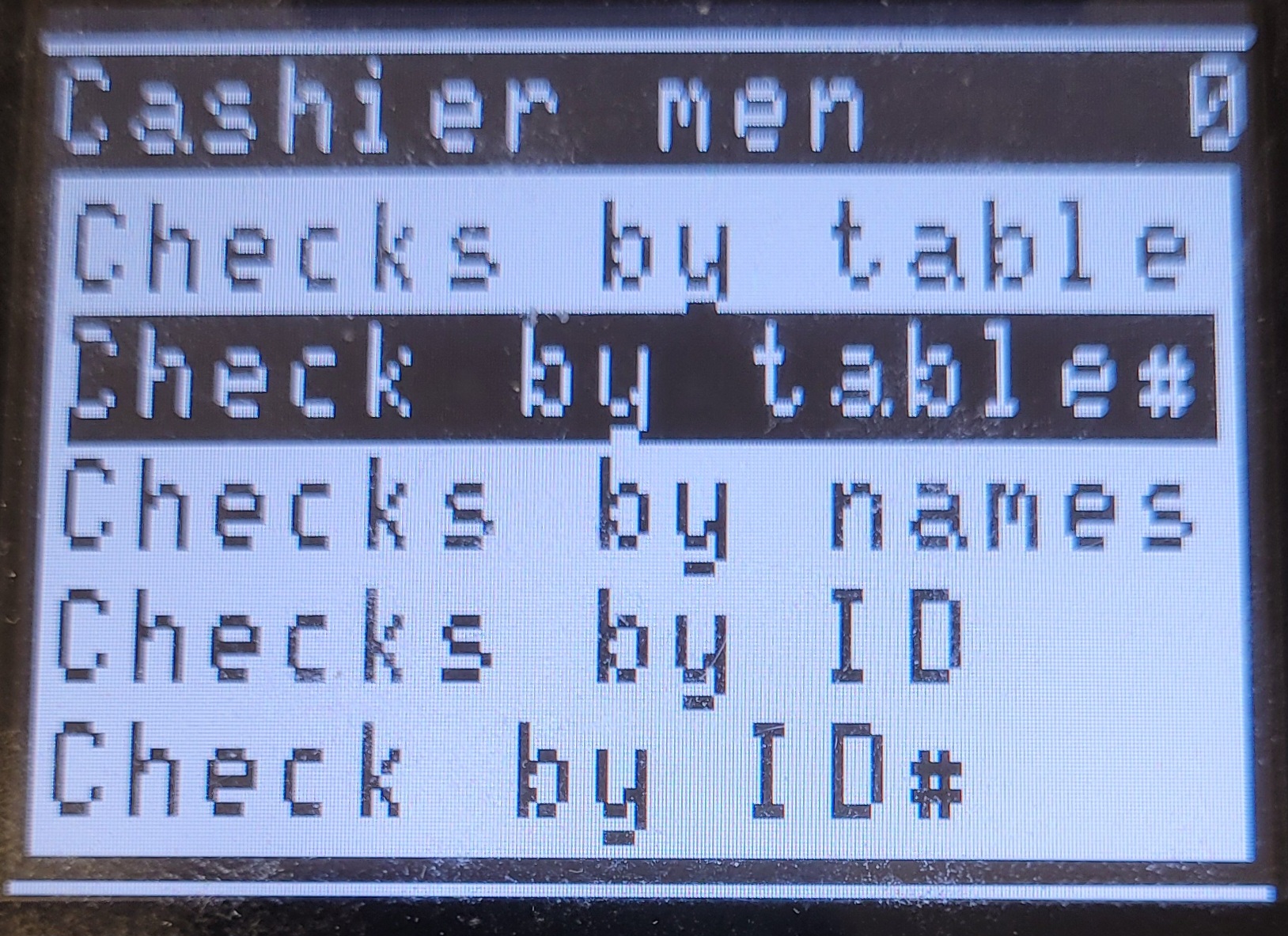
- In the Cashier menu, select Check by table# (Sök bordsnummer):
|
 |
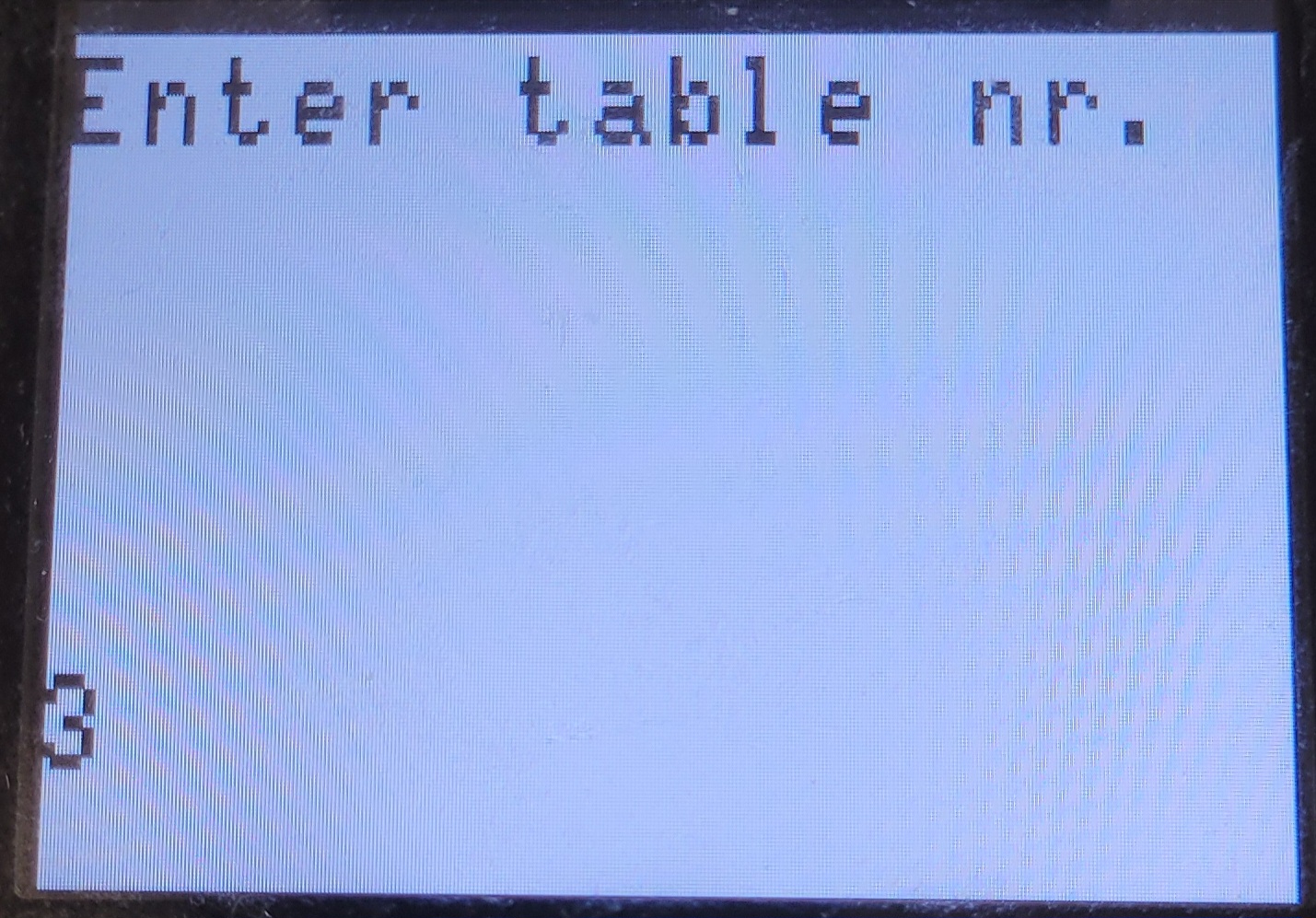
- Enter a table number to search for:
|
 |
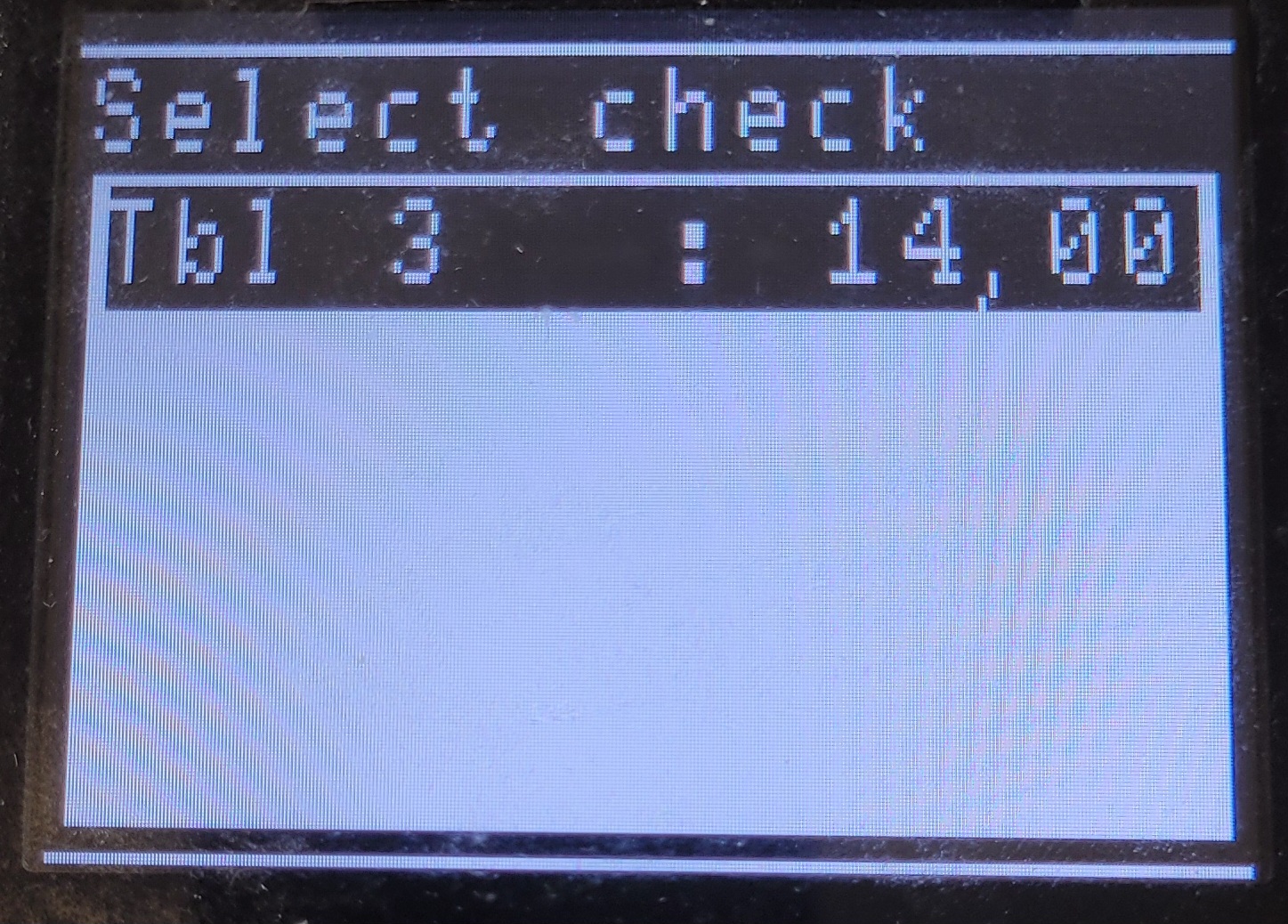
- Matching tables are displayed:
|
 |
Searching for bartabs
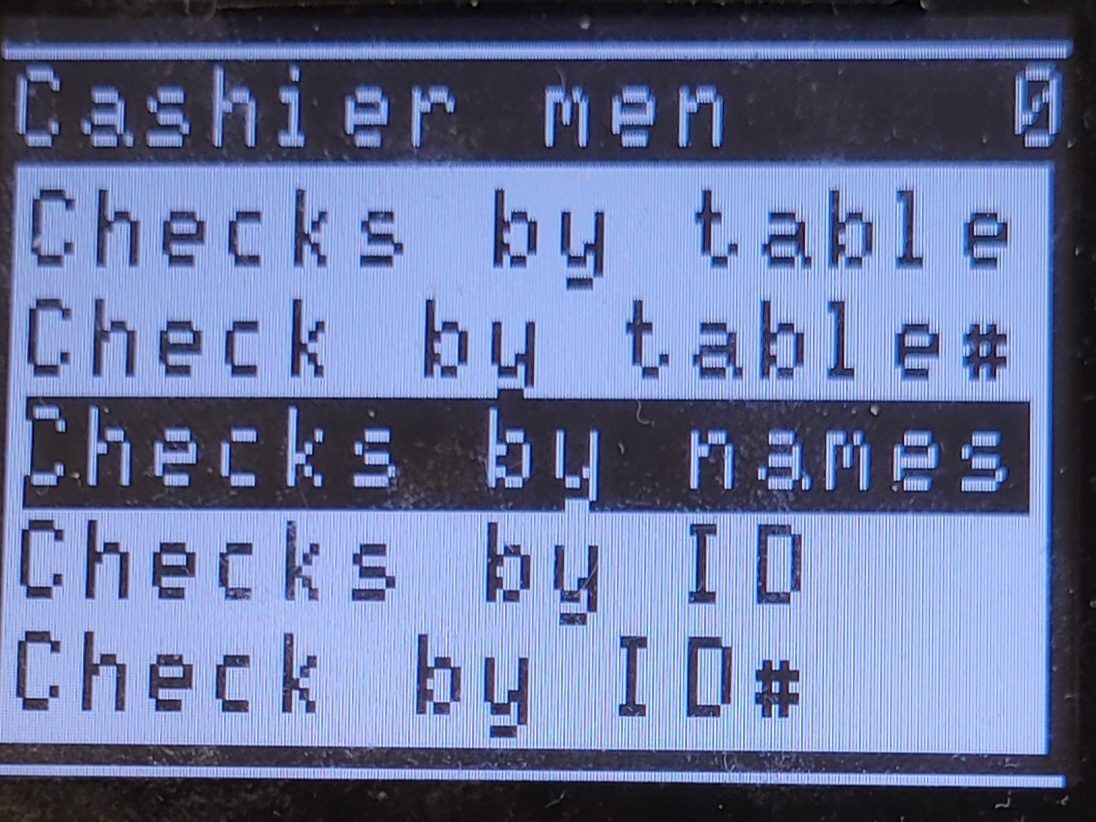
- To display bartabs, select Check by names (Sök namn):
|
 |
Working with queue
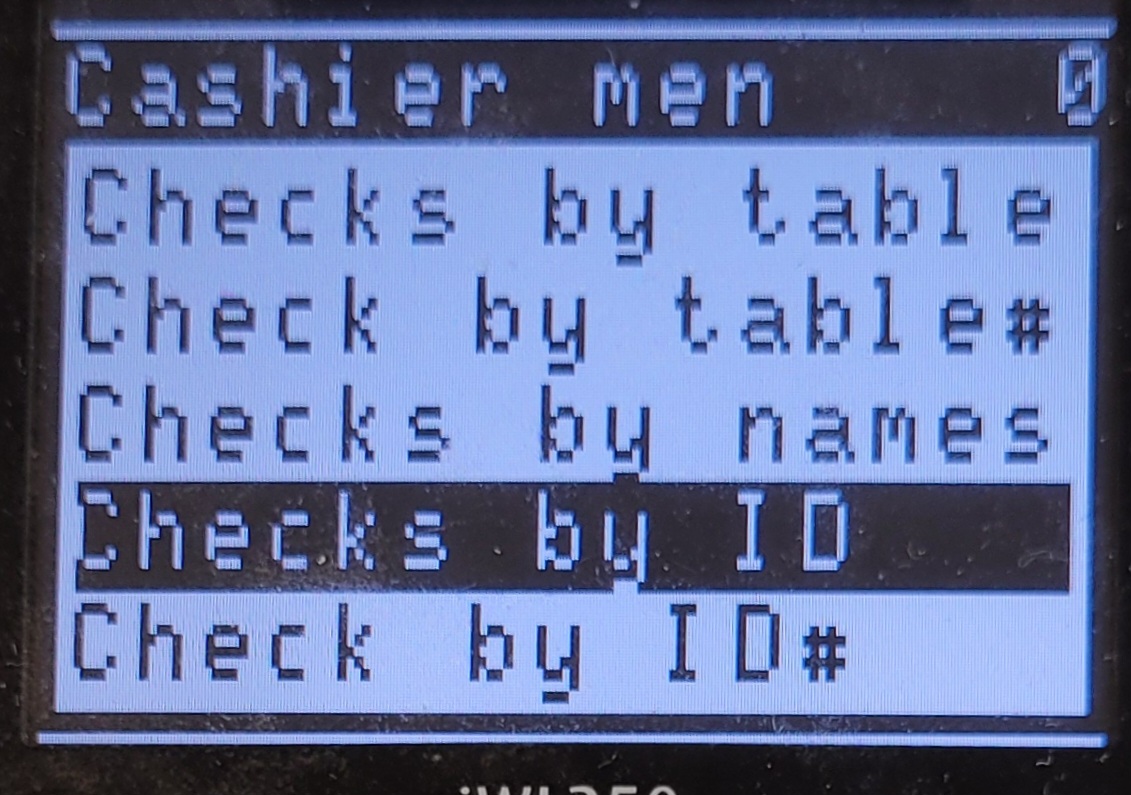
- To display all queue orders, select Checks per ID (Nota per ID):
|
 |
Searching for queue orders
- To search for a queue order, select Check by ID# (Nota per ID#):
|
|
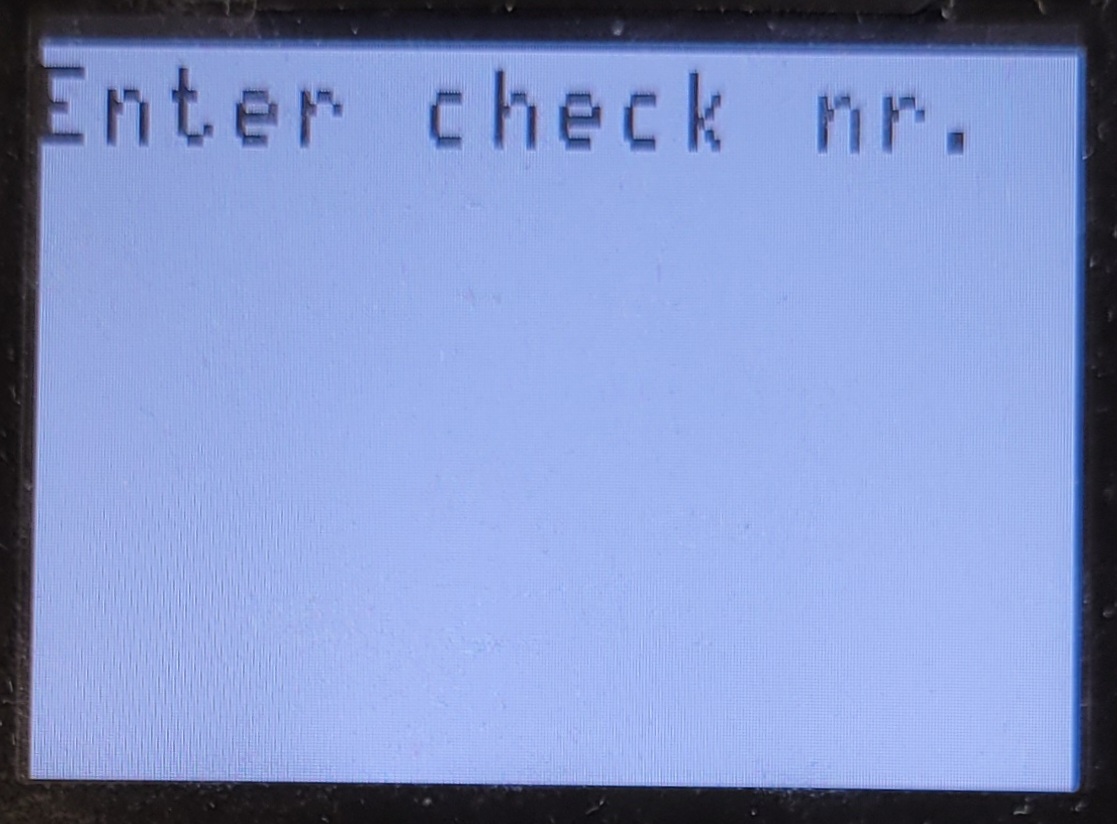
- Enter Check Nr (order number):
|
 |