This guide explains how to complete the payment process on an order placed on a table.
Payment menu
- Select a table (for info on how to select a table, check out Selecting a table).
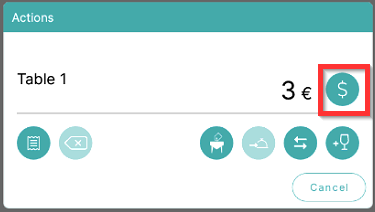
- To open the payment menu, select the Cash symbol on the table menu:
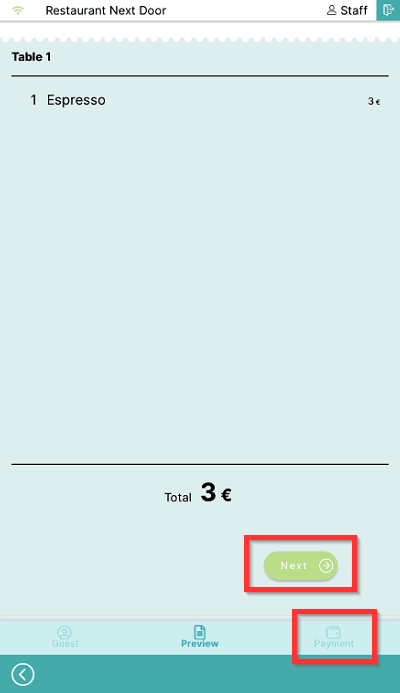
- Review the order and select Next or Payment symbols:
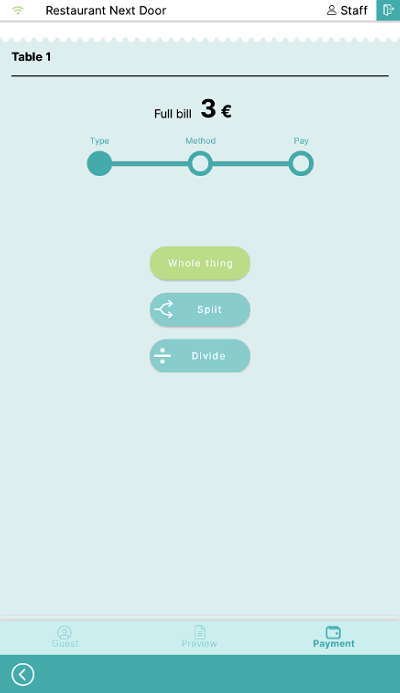
- Select the type of payment:
- Whole thing: single payment to cover the total amount.
- Split: split payment by the products.
- Divide: split payment by amount or the number of customers.
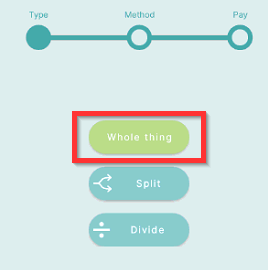
- To complete the whole payment at once, select Whole thing (for info on how to split orders, check out Split payments by the products and Divide payments by amount or number of customers):
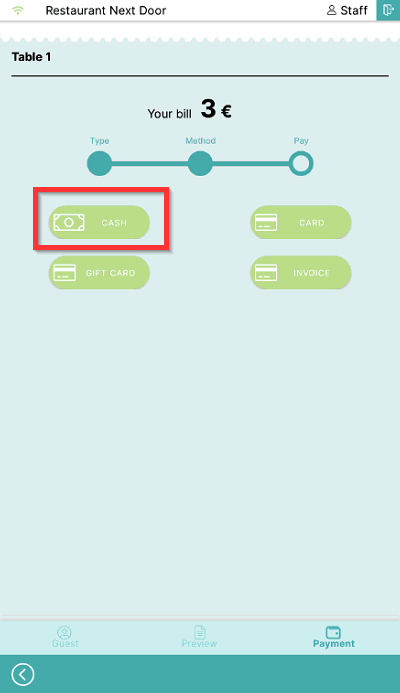
- Select a payment method to finalize the payment:
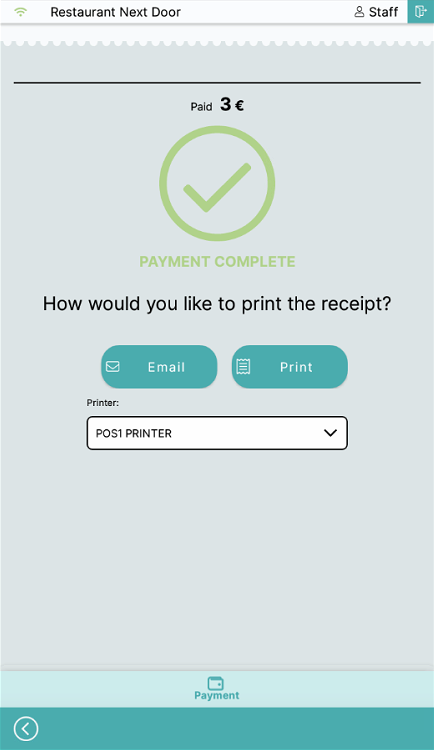
- Now choose how you want to print the receipt, either Email or Print:
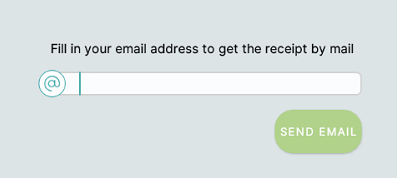
- If you select email, you will be prompted to enter an email address:
- If you select Printer, the receipt will be printed on the chosen printer. To change the printer used select the printer to open the drop-down menu.
What's next?
To split orders by products, check out Split payments by the products
To divide payments by amount and number of customers, check out Divide payments by amount or number of customers
Was this article helpful?
That’s Great!
Thank you for your feedback
Sorry! We couldn't be helpful
Thank you for your feedback
Feedback sent
We appreciate your effort and will try to fix the article