This guide explains how to split and move products form one table to another.
Move table to different table number
- Select a table (for info on how to select a table, check out Placing an order).
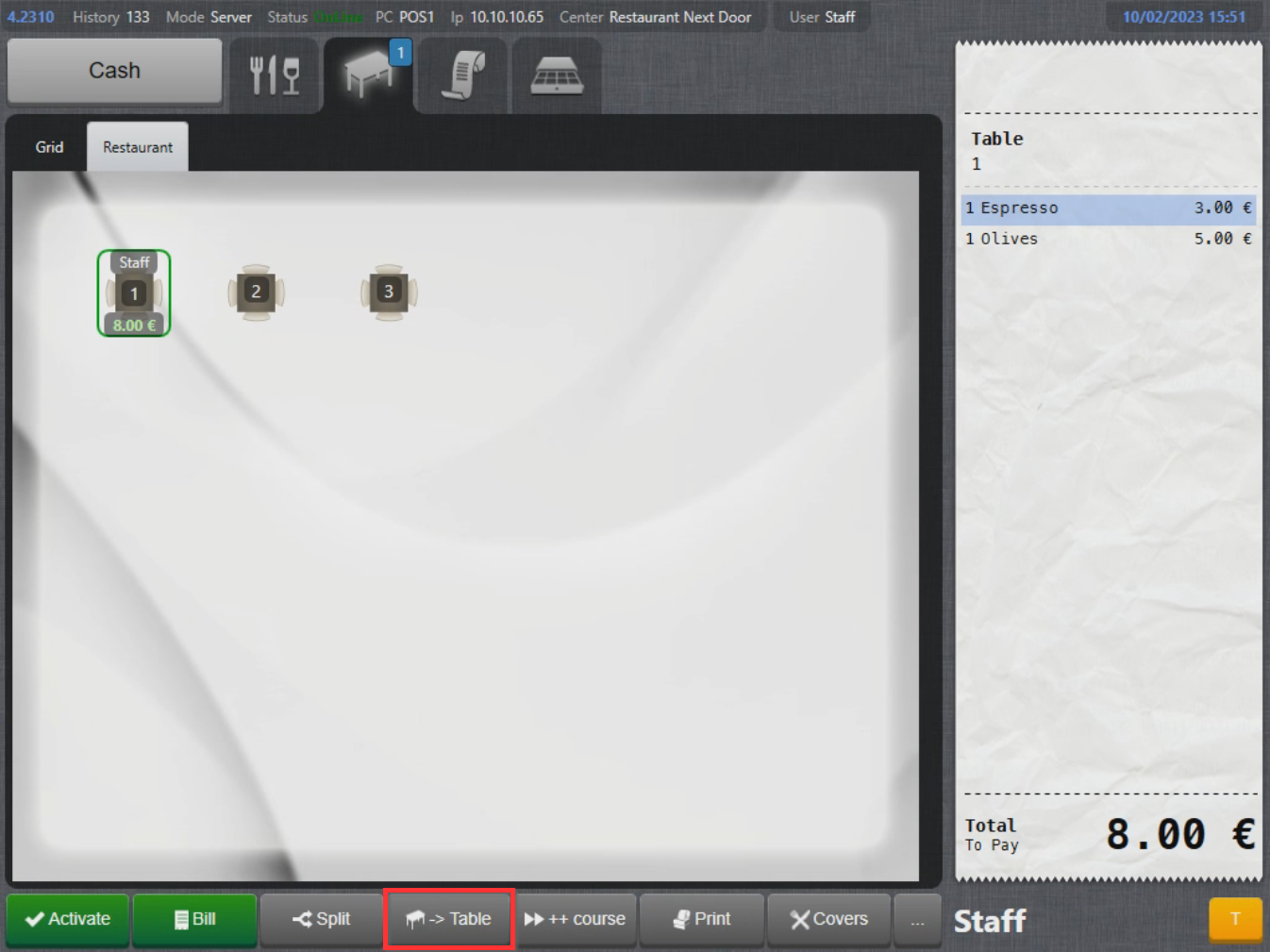
- With the table selected, select Table on the lower part of the screen:
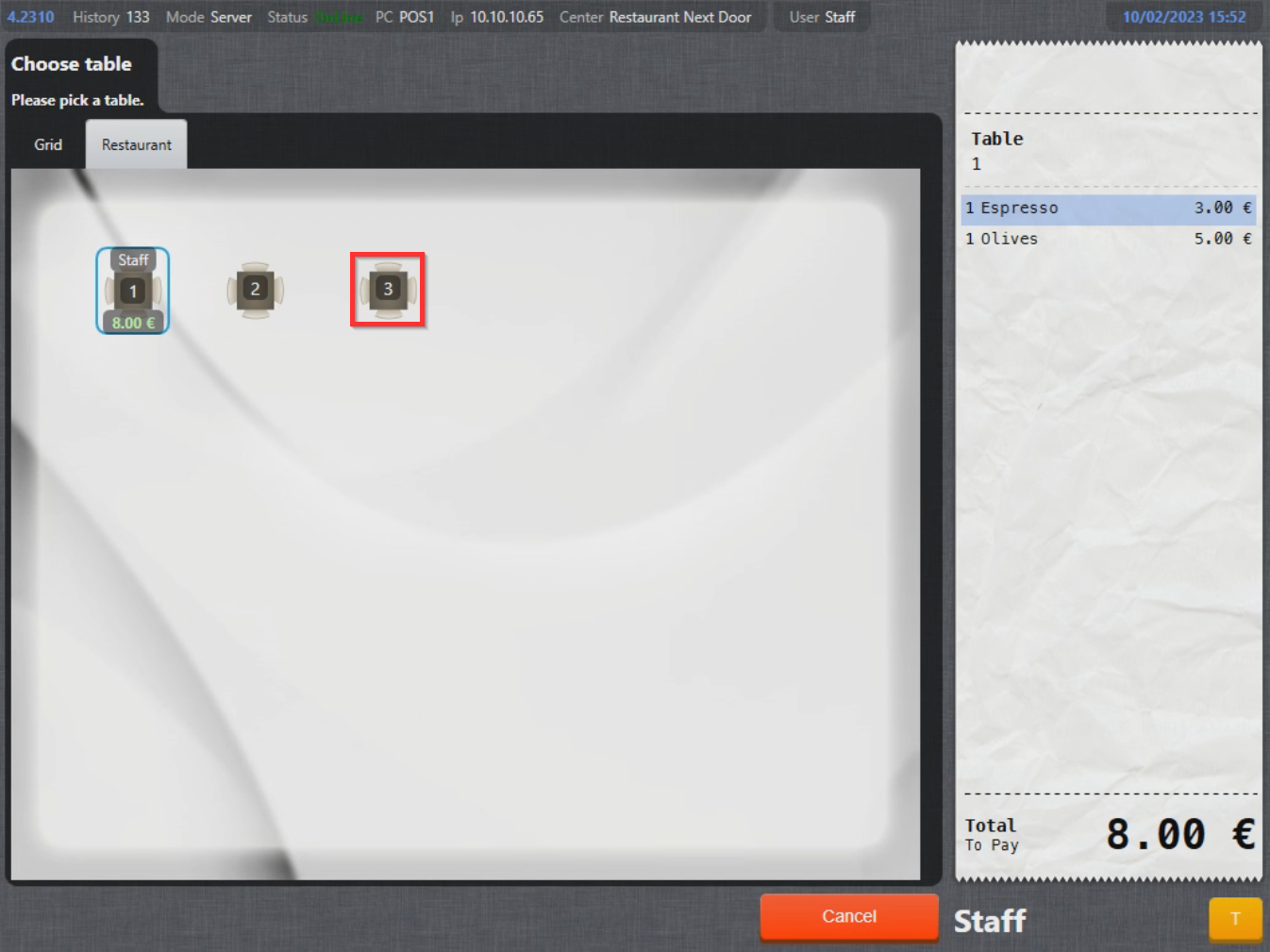
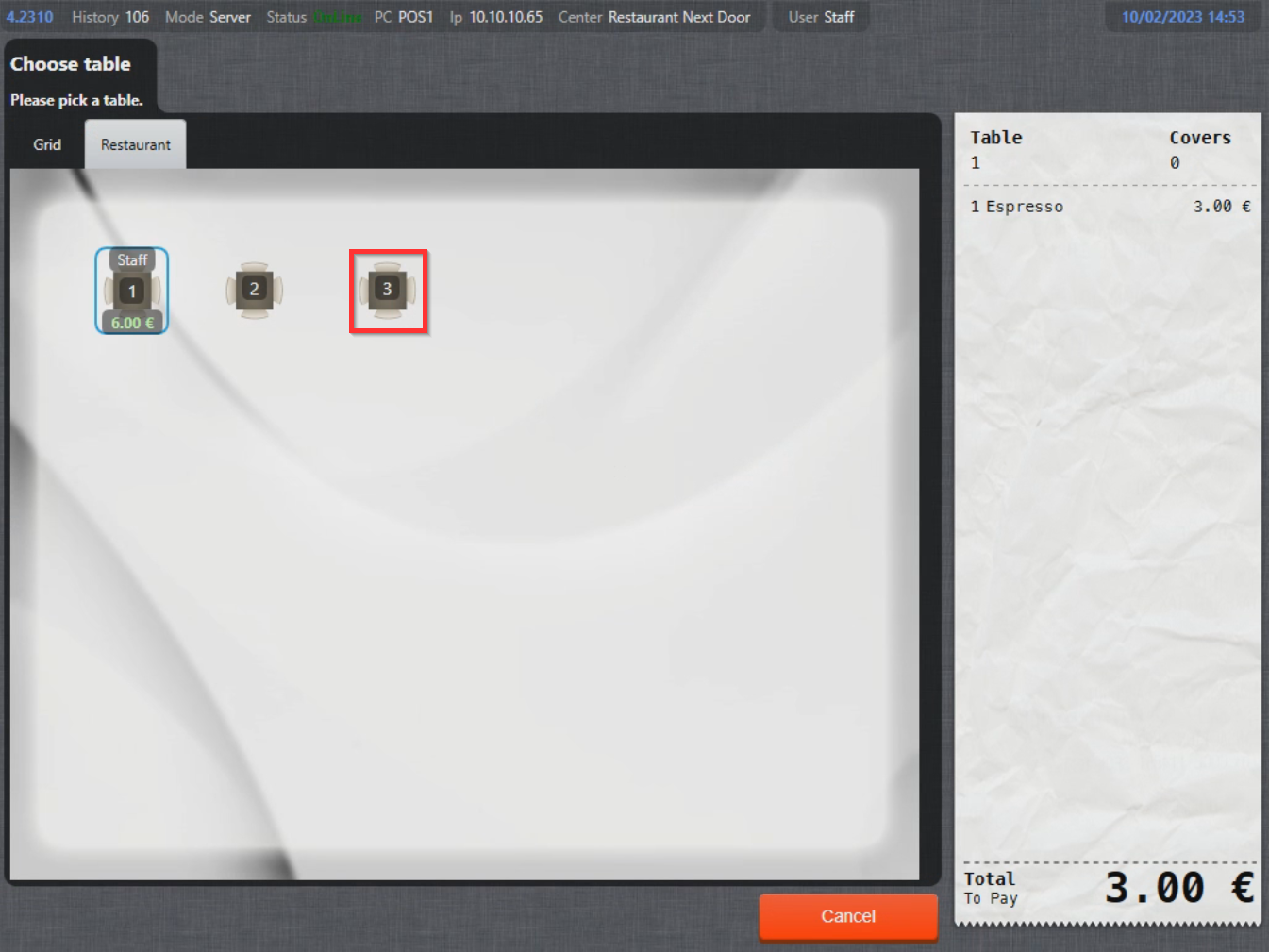
- Table plan window will display, select the table to move the table to:
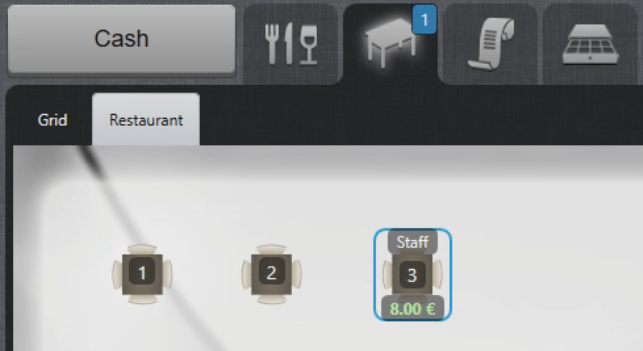
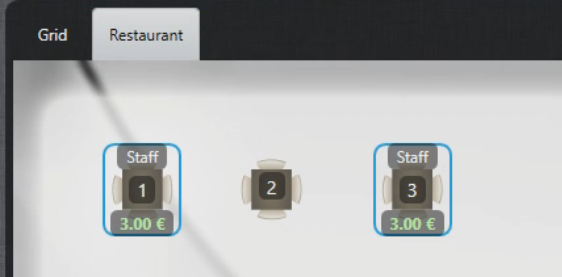
- Table has now been moved:
Split products on table
- Select a table with 2 or more products (for info on how to select a table, check out Placing an order).
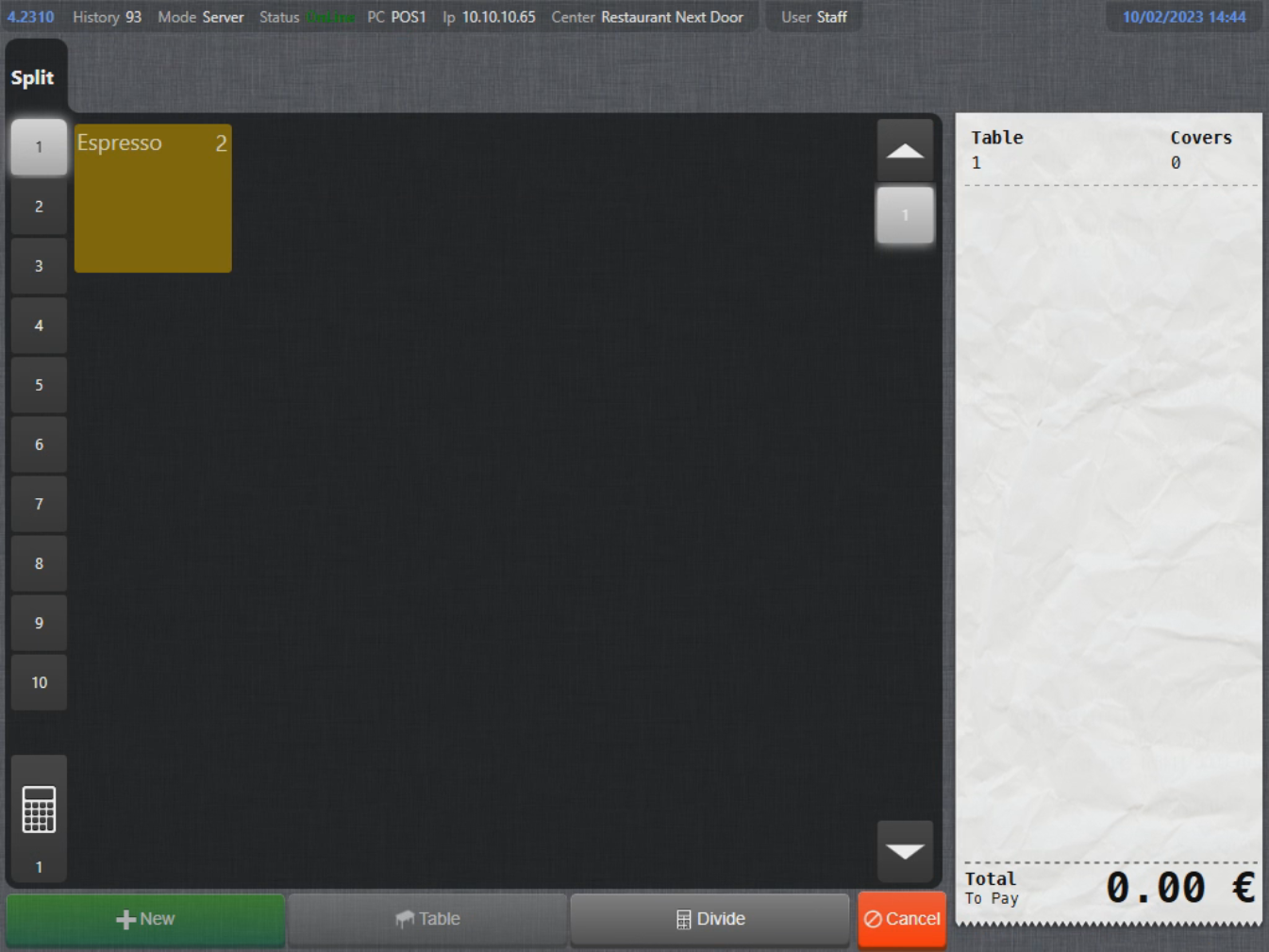
- With the table selected, select Split on the lower part of the screen:
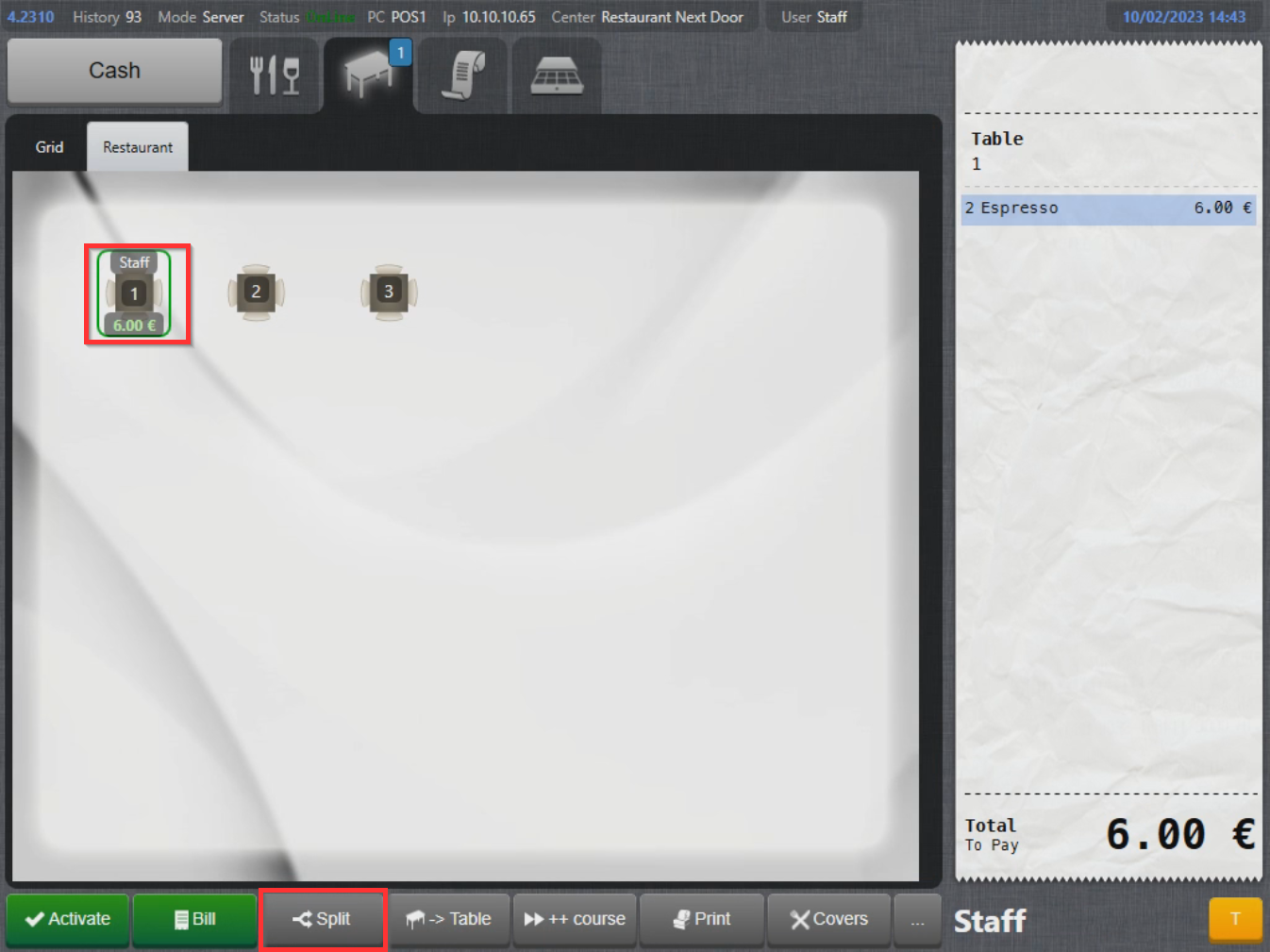
- Split menu will display where you select which and many products to split.
Split to payment
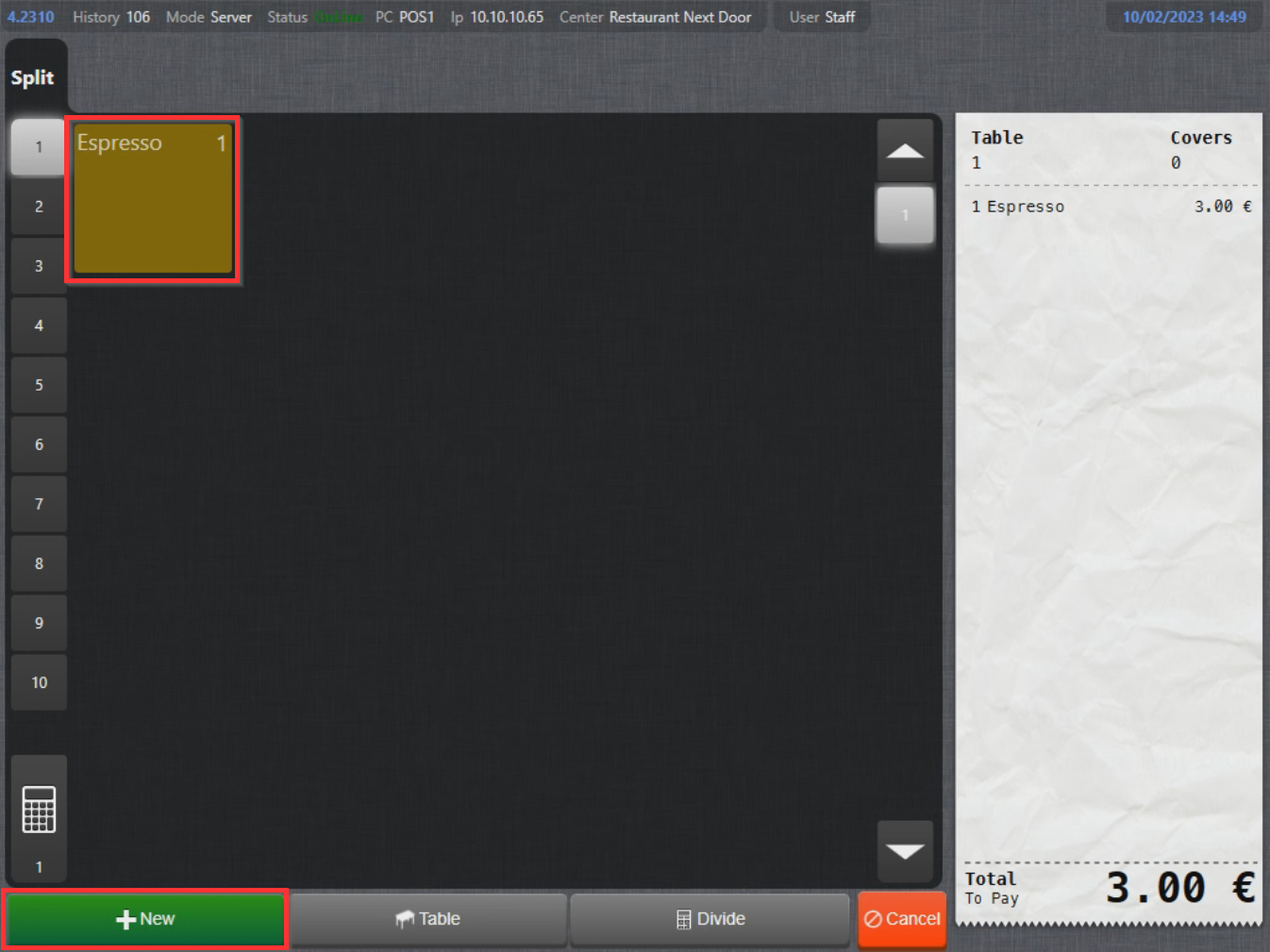
- To split products and continue with payment for those products, select the products and select New:
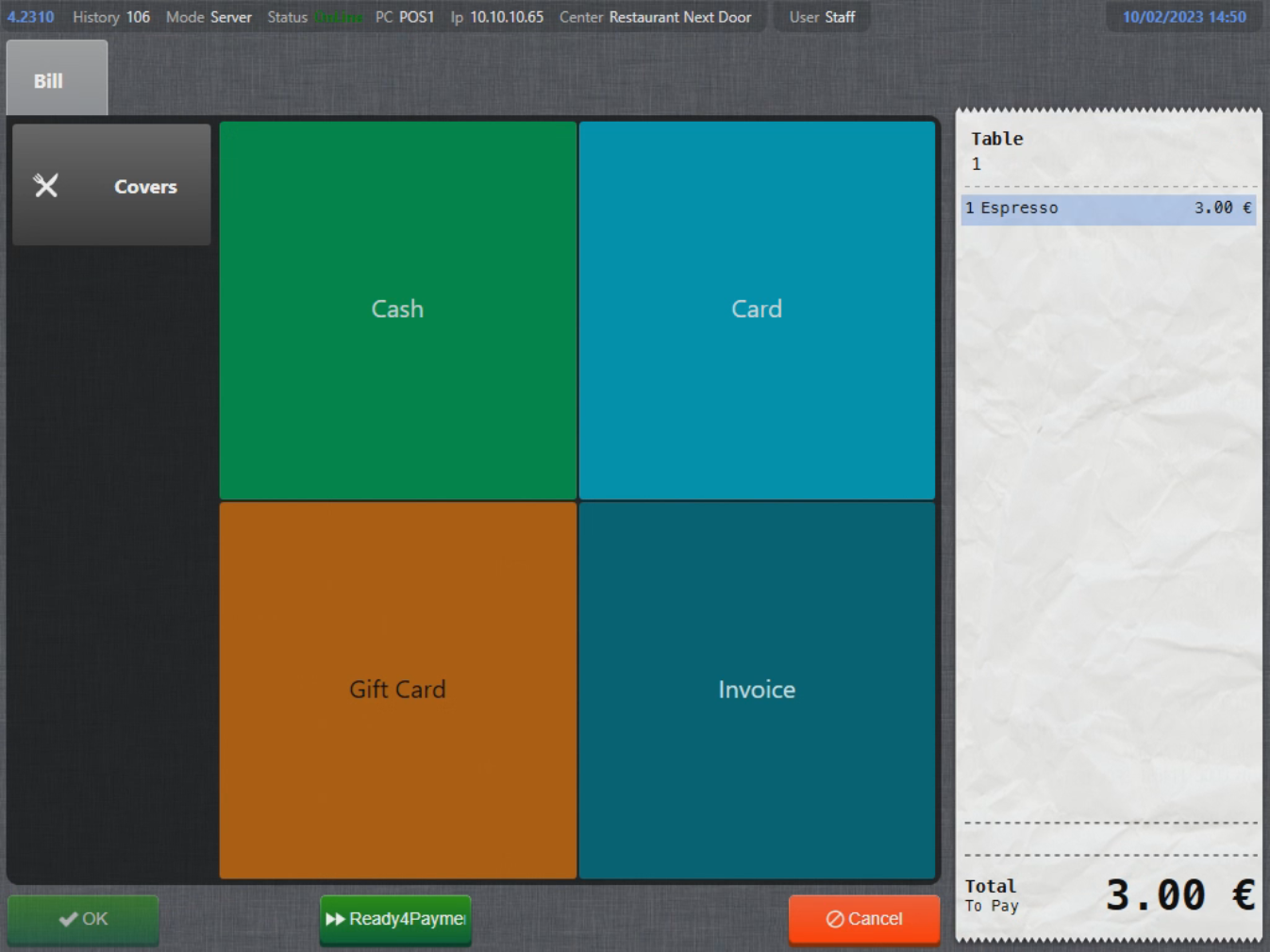
- Payment menu will display where you can choose a payment method and complete the payment:
Split to another table
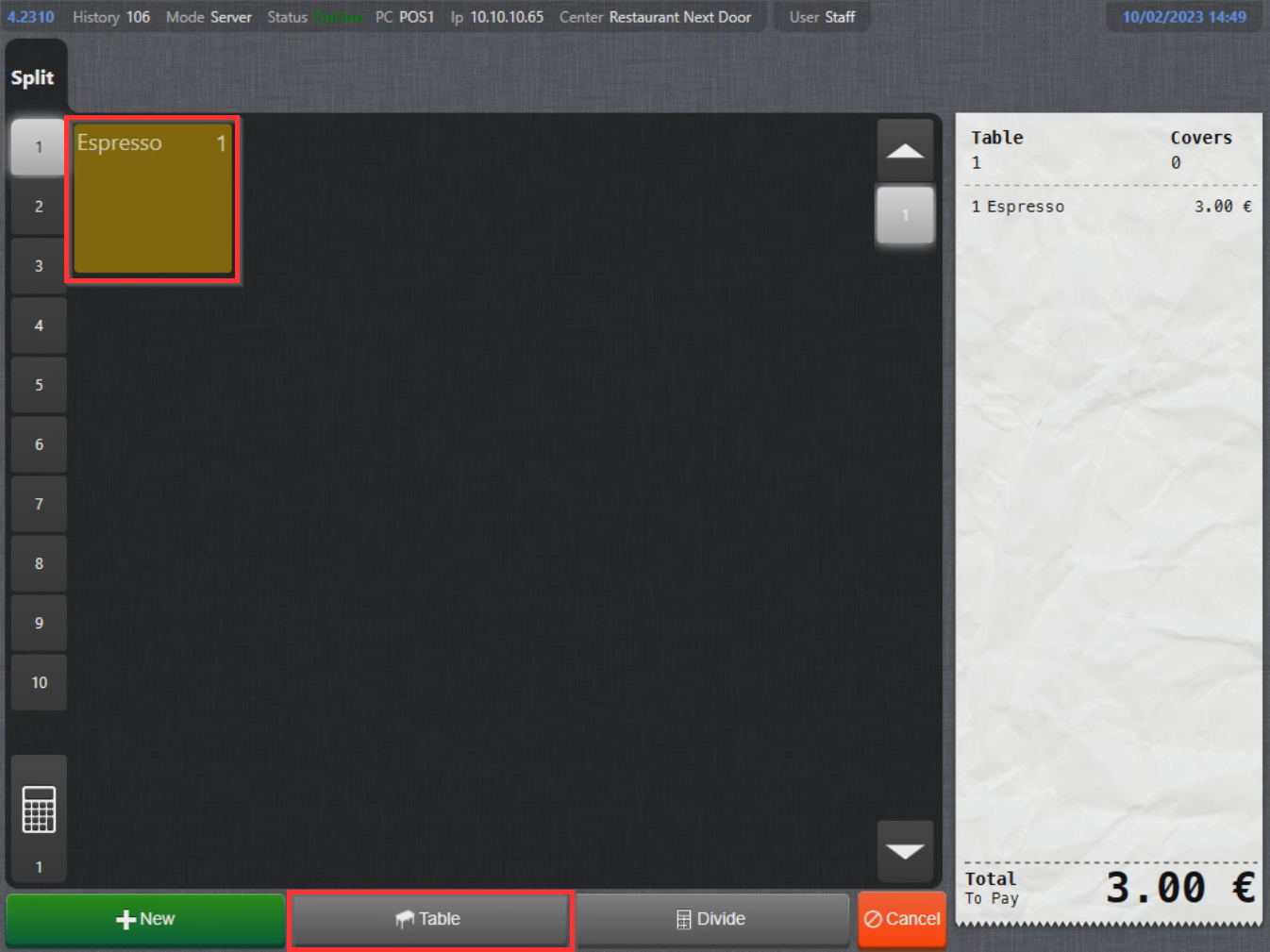
- To split products to an another table, select the products and select Table:
- Table plan menu will display, select the table to move the chosen product to:
- Product has now been moved to the chosen table:
Divide products on a table
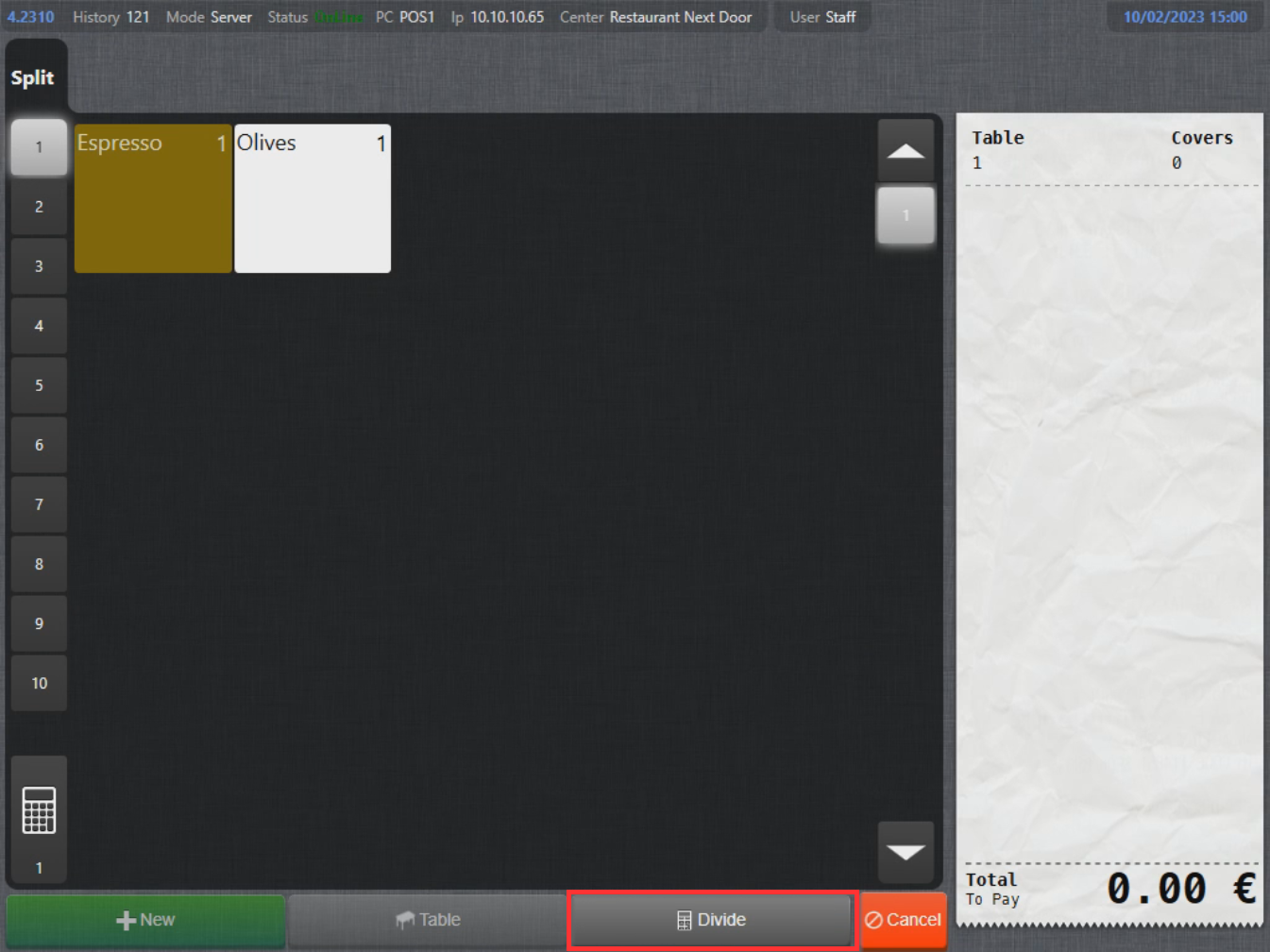
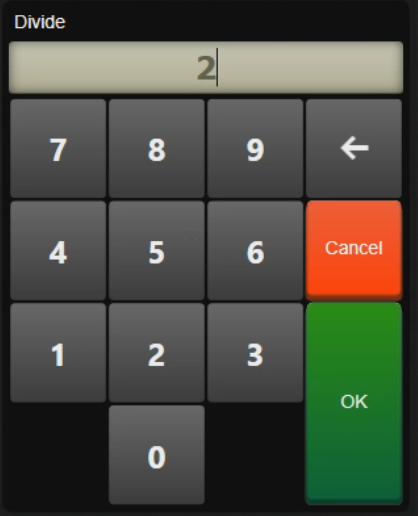
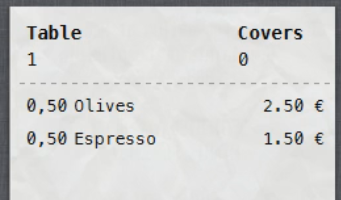
- To divide all products on a table by a numerical value (for example 2), don't select any products and select Divide:
|
 |
|
 |
What's next?
To complete a payment, check out Payment.
Was this article helpful?
That’s Great!
Thank you for your feedback
Sorry! We couldn't be helpful
Thank you for your feedback
Feedback sent
We appreciate your effort and will try to fix the article