This guide explains how to apply discounts that are associated with accounts in Handy.
Handy can apply discounts via accounts only if orders are sent to a table. To apply discounts via accounts in Direct Sales, use Domino (for more info on how to do that, check out Using accounts to apply discounts).
- Log into Handy (for info on how do that, check out Logging in to Handy).
- Add products to the table (for info on how to do that, check out Placing an order).
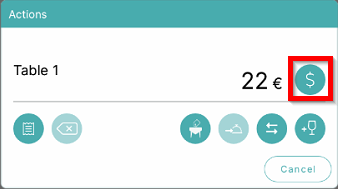
- Select a table and select the Payment symbol:
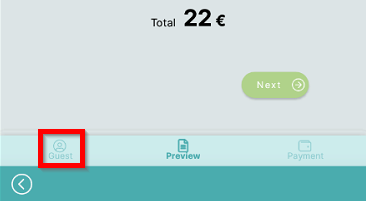
- Select the Guest symbol in the lower left part of the screen:
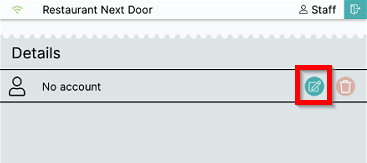
- Account menu will display. Select Add to add an account:
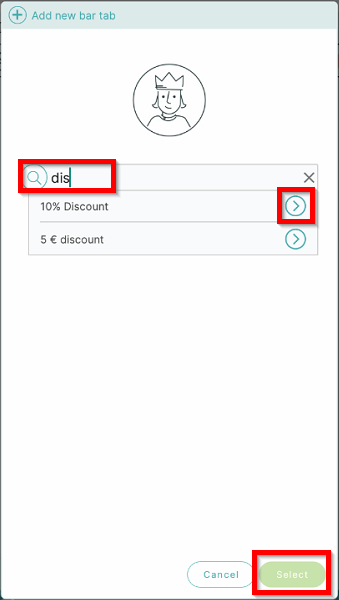
- In the Account search menu enter something from the account name, e.g. "dis", select the Add symbol to add the account and confirm with Select:
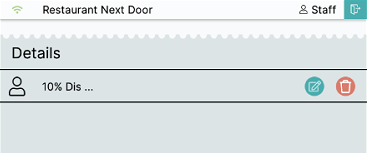
- Account has now been added:
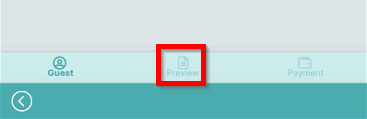
- Select Preview to return to preview screen:
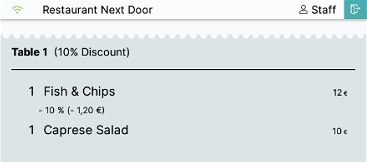
- Discount has now been applied:
Was this article helpful?
That’s Great!
Thank you for your feedback
Sorry! We couldn't be helpful
Thank you for your feedback
Feedback sent
We appreciate your effort and will try to fix the article