This article explains what the Blackbox (FDM/Fiscal Data Module) is, who is obligated to use it, how to register it and how to resolve the most common error messages.
What is a GKS and Blackbox (FDM – Fiscal Data Module)
A GKS (Registered Cash Register System) is a legally required certified cash register system in Belgium for businesses that fall under the applicable fiscal legislation.
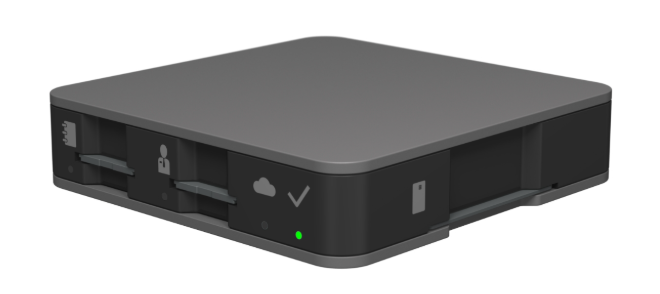
To be considered a valid GKS, your POS system must be connected to an FDM (Fiscal Data Module) — commonly referred to as the “Blackbox.”
The FDM (Blackbox) is a secure hardware device that connects directly to your POS system and:
Registers and encrypts all relevant fiscal transactions
Ensures data integrity and authenticity
Prevents manipulation of fiscal records
Guarantees compliance with Belgian fiscal legislation
Without an active and certified FDM, a POS system cannot legally operate as a Registered Cash Register System (GKS) in Belgium.
For official information about the legislation and certification requirements, please consult the Belgian GKS information pages (available in Dutch and French). GKS website.
Who is obligated to use a Blackbox?
Not all hospitality businesses are required to use a Blackbox.
To verify whether your business is obligated, please consult the official government guidelines via the GKS information channels (NL or FR).
Registration process
The full registration procedure must be completed through the official government process.
Make sure to correctly:
Register the device
Activate and link the VSC card
Register the POS system
Always follow the official government steps to ensure compliance. Registration Procedure
Errors & Troubleshooting
The most common Blackbox-related error messages are:
BlackboxError – Sign Ticket Failed
BlackboxError – Blackbox Offline
BlackboxError – Printer Offline
Below you will find the possible causes and solutions for each error.
BlackboxError – Sign Ticket Failed or Blackbox Offline
When does this error appear?
This error appears when you try to:
Send an order
Create a bill
Print a fiscal ticket
You will receive one of the following pop-ups:
BlackboxError – Sign Ticket Failed
BlackboxError – Blackbox Offline
Check the LED lights
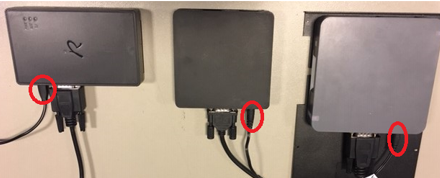
The Blackbox is usually mounted underneath the POS terminal.
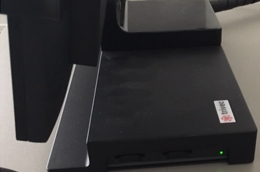
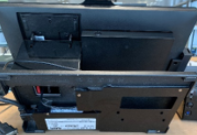
Normal situation:
Only the green LED light is active
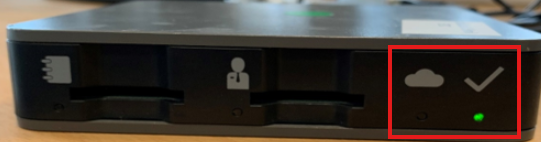
Error situation:
One or more red LED lights are active
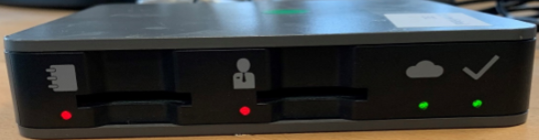
If a red LED is on, the Blackbox needs to be reset.
How to reset the Blackbox
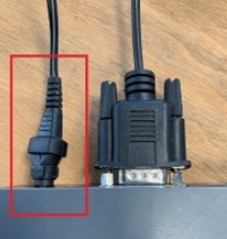
Two cables are connected to the Blackbox:
One fixed cable connected to the POS (DO NOT disconnect this one)
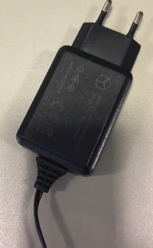
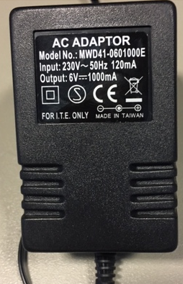
One power cable
⚠️ Never disconnect the fixed cable connected to the POS.
Follow these steps:
Disconnect the power cable from the Blackbox or unplug the power supply.
Leave the device without power for at least 15 minutes.
Reconnect the power cable or plug the power supply back into the outlet.
Completely restart the POS software (fully close and reopen the application).
Test after resetting
Create and pay a test order.
If you can successfully create and print a ticket again, the issue is resolved.
If the issue persists
Check the following:
Are all cables properly connected on both ends?
Is the VSC card correctly inserted into the Blackbox?
Is only the green LED active?
If the error remains after these checks, please contact our Support, we can run a diagnostic tool to further investigate the issue.
BlackboxError – Printer Offline
When does this error appear?
When creating a bill, the following message appears:
BlackboxError – Printer Offline
This means that there is a problem with the ticket printer.
Check the printer status
Normal situation: A green light is active
Error situation: A red light is active
These are our most commonly used standard ticket printers:
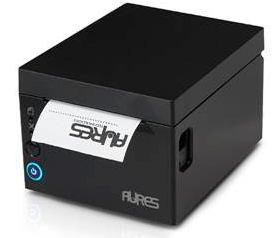
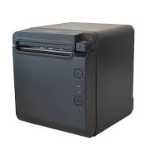
AURES ODP333 BTP-S80
Possible causes & solutions
1. Is the printer powered on?
If no lights are visible:
Turn the printer off and on again
Check all cables on both ends
Make sure the power cable is securely connected
2. Is there enough paper?
Check whether paper is loaded
Ensure the paper roll is inserted correctly
Verify that the printer cover is fully closed
An open cover will trigger an error message.
3. Print a test ticket via the POS
Go to: Backoffice → INIT → PC
Select the correct pc (bold)
Open the list of connected devices
Select the Ticket Printer (usually COM1)
Click TEST (bottom right)
If a ticket prints successfully, the printer should function normally again.
If no test ticket prints, the connection between the POS and printer is likely the issue.
4. Print a self-test via the printer
Turn the printer off
Hold down the FEED button
Turn the printer back on while holding the FEED button
A self-test ticket should be printed.
Results:
If the self-test prints but the POS test does not → The issue is most likely the cable between the POS and the printer.
If the self-test does not print → There may be a hardware issue with the printer.
5. Full reset of POS and printer
As a final step:
Shut down both the POS/PC and the printer completely
Disconnect both from power for at least 30 seconds
Restart both devices
Print a test ticket via the POS
In most cases, this resolves the issue.
Still experiencing issues?
Please contact our Support and provide:
The exact error message
The status of the LED lights
The troubleshooting steps already performed
This will allow Support to assist you more efficiently.
Was this article helpful?
That’s Great!
Thank you for your feedback
Sorry! We couldn't be helpful
Thank you for your feedback
Feedback sent
We appreciate your effort and will try to fix the article