Connecting to Wi-Fi

Modified on Thu, 4 Jun at 6:29 PM

This guide explains how to connect a Handy device to WiFi.

For more info on Handy hardware, check out Handy devices.

Unitech EA510

Connecting to WiFi

  • Make sure Handy is not running, if it's running, shut down the program first.
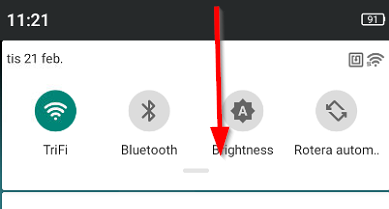
  • Swipe the screen from the top down to display the settings:
mceclip0.png
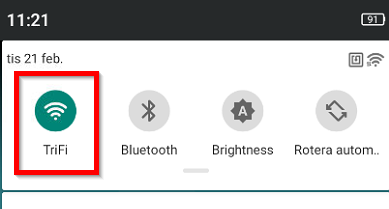
  • Select and hold the WiFi symbol to enter the settings menu:
mceclip1.png
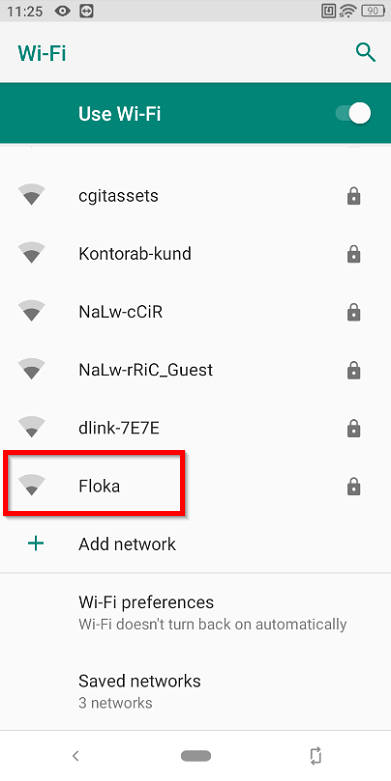
  • Select the WiFi network to connect to:
mceclip8.png
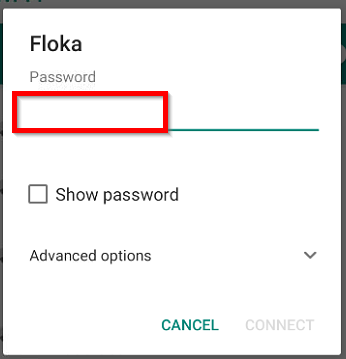
  • Enter the Password and select Connect:
mceclip11.png

Using a Static IP address

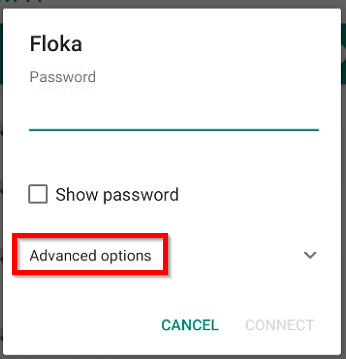
  • Select Advanced options to open up more settings:
mceclip10.png
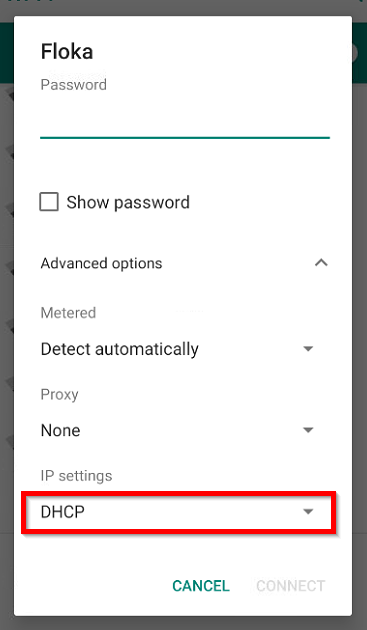
  • Scroll down, select IP settings: DHCP, and switch to Static:
mceclip12.png
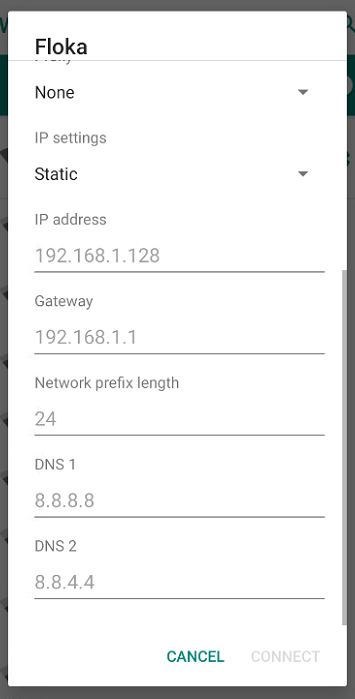
  • Scroll down again and enter the following values:
    • IP address
    • Gateway
    • Network prefix length
    • DNS 1
    • DNS 2
mceclip14.png
  • Select Connect to apply the settings. 

Connecting to a hidden network

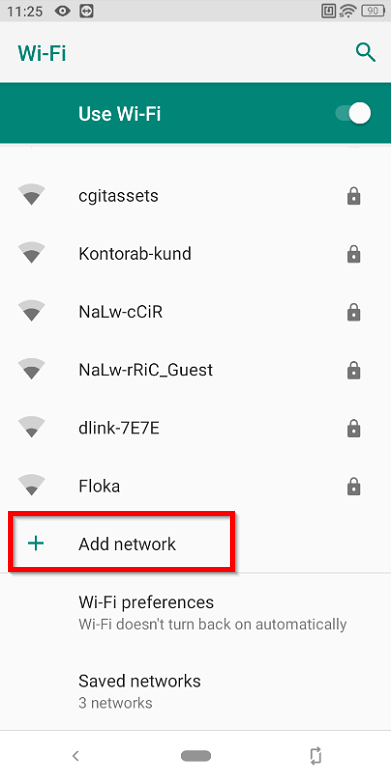
  • Select Add network (in case there is a large number of WiFi networks available, you might have to scroll down to the end of the list):
mceclip3.png
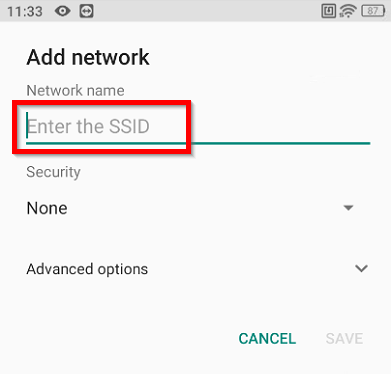
  • Enter the SSID:
mceclip6.png
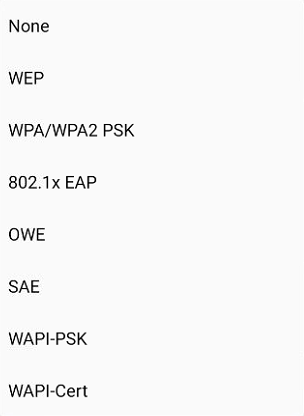
  • Select the Security protocol:
mceclip5.png
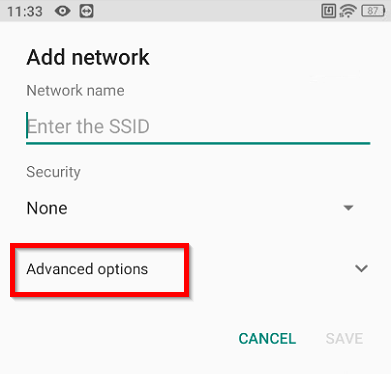
  • Select Advanced options:
mceclip7.png
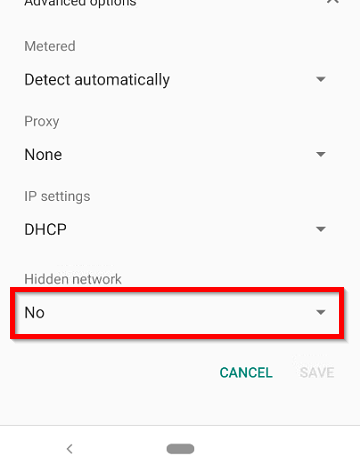
  • Scroll down to Hidden network, select it, set it to Yes and select Save.
mceclip15.png


Was this article helpful?

That’s Great!

Thank you for your feedback

Sorry! We couldn't be helpful

Thank you for your feedback

Let us know how can we improve this article!

Select at least one of the reasons
CAPTCHA verification is required.

Feedback sent

We appreciate your effort and will try to fix the article