This guide explains how to use Event POS device. For an introduction to the device, check out About Event POS (Nordics). For info on troubleshooting the device, check out Troubleshooting Event POS (Nordics).
Getting started
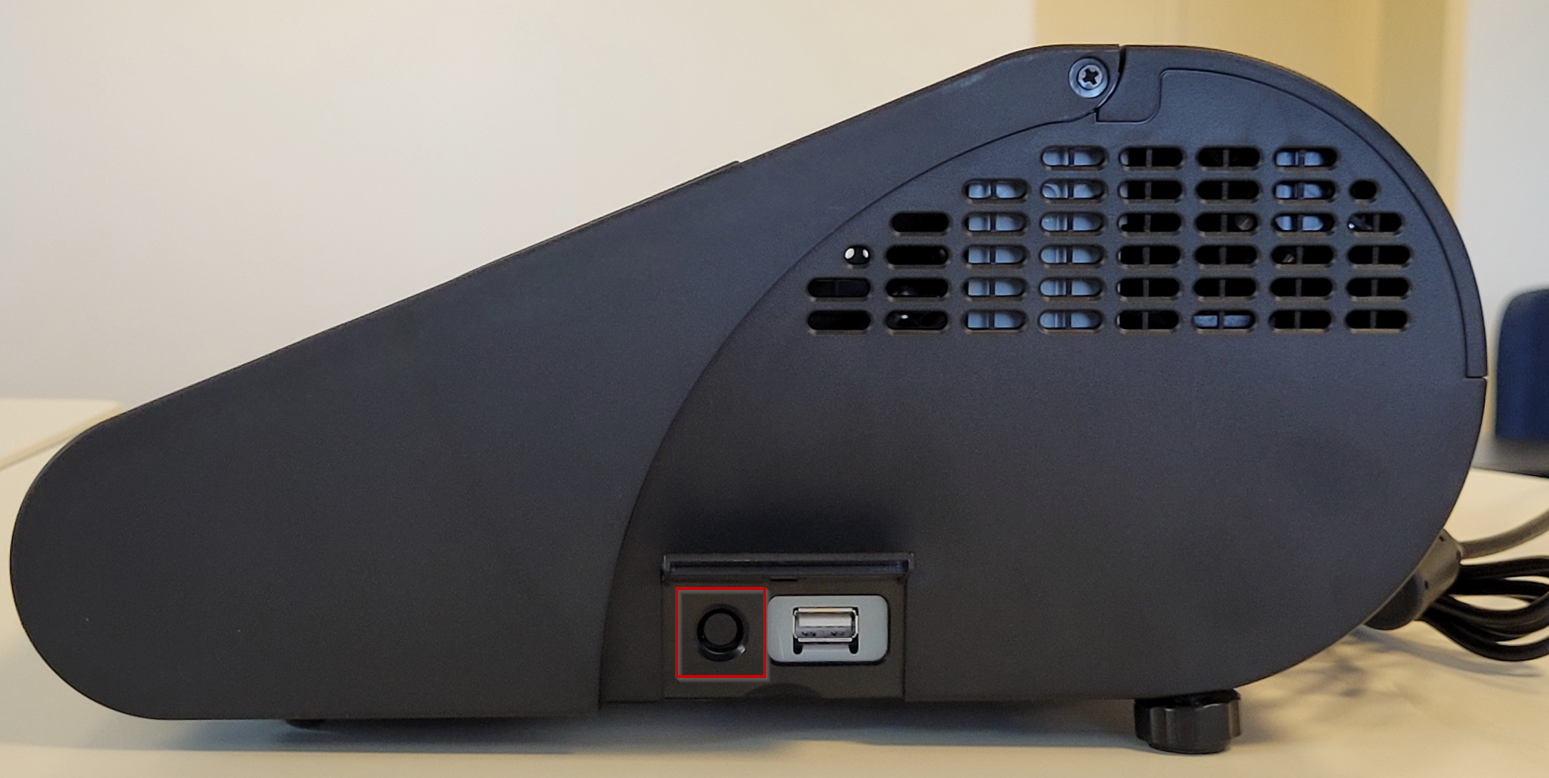
Turning on the device
The power button is located under the plastic lid on the side of the device:
Managing Event POS
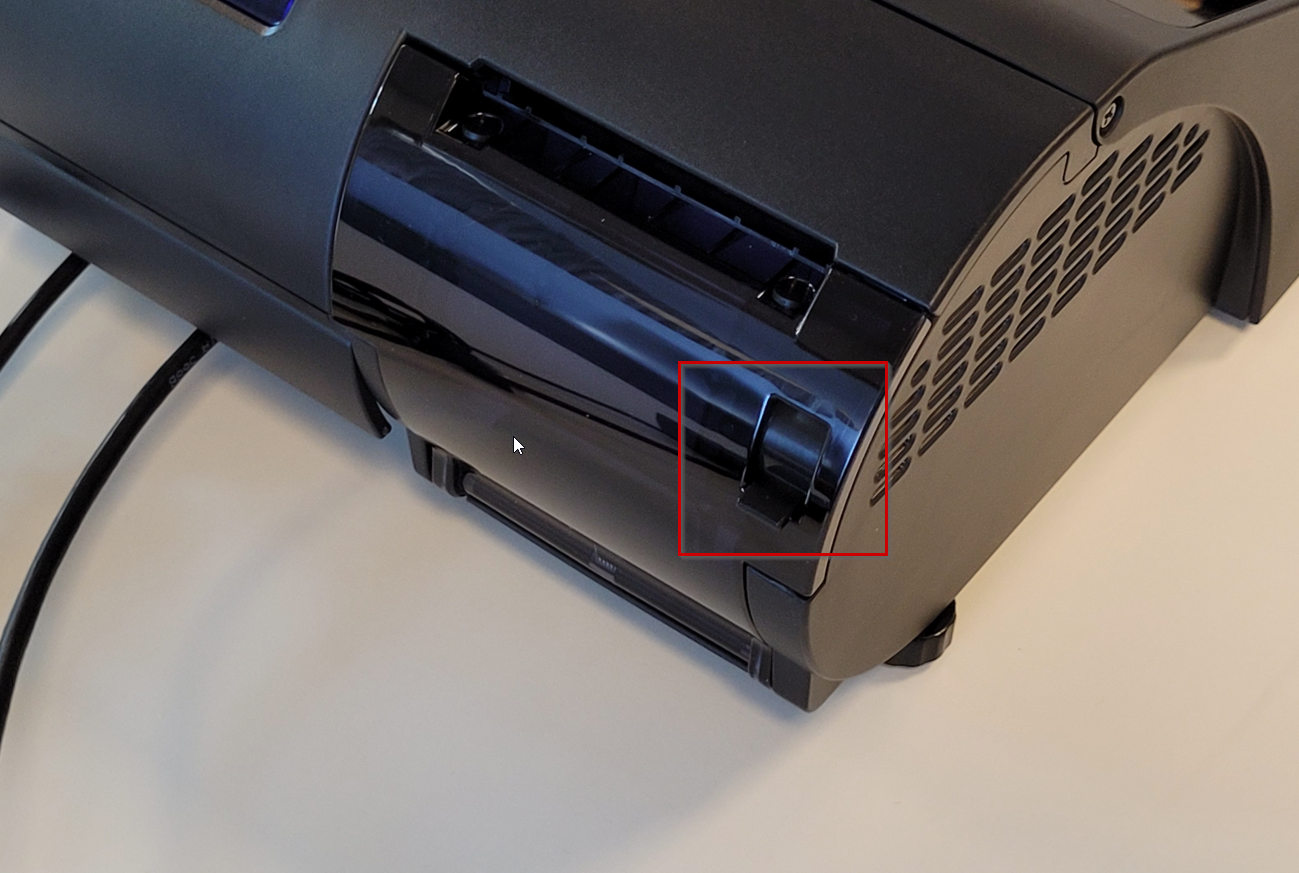
Replacing the paper roll
- Pull the small lever on the printer lid upwards to open the lid:
- Insert a new roll of paper, making sure it's orientation is correct:
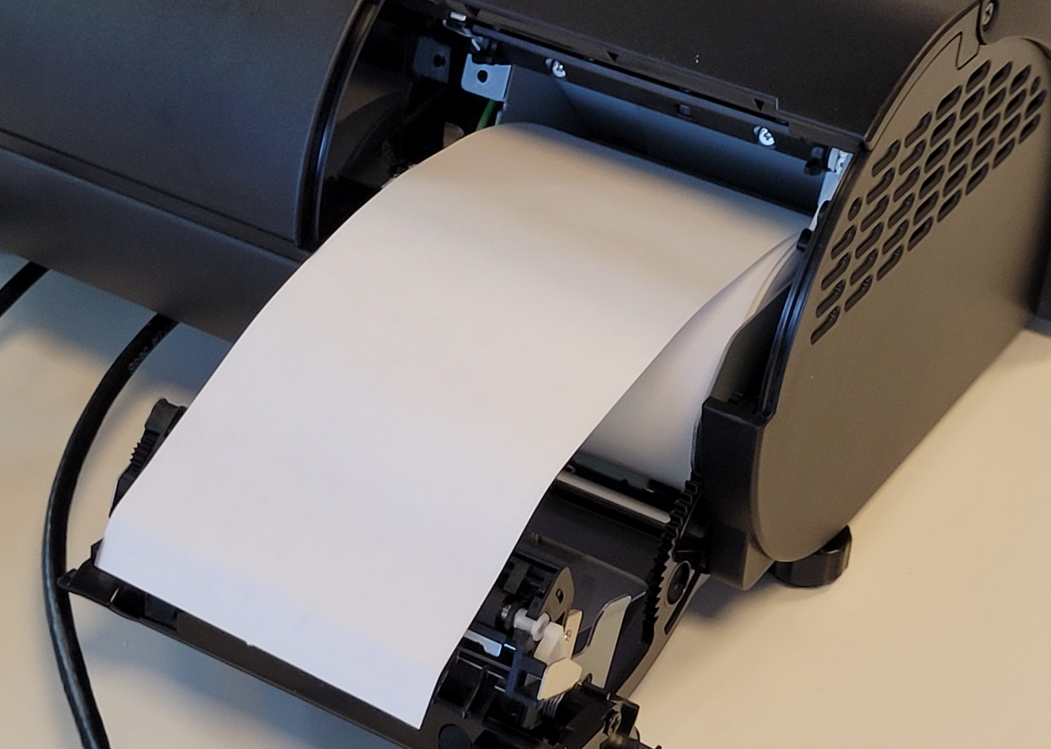
- Close the lid, you should hear a click when it is fully closed.
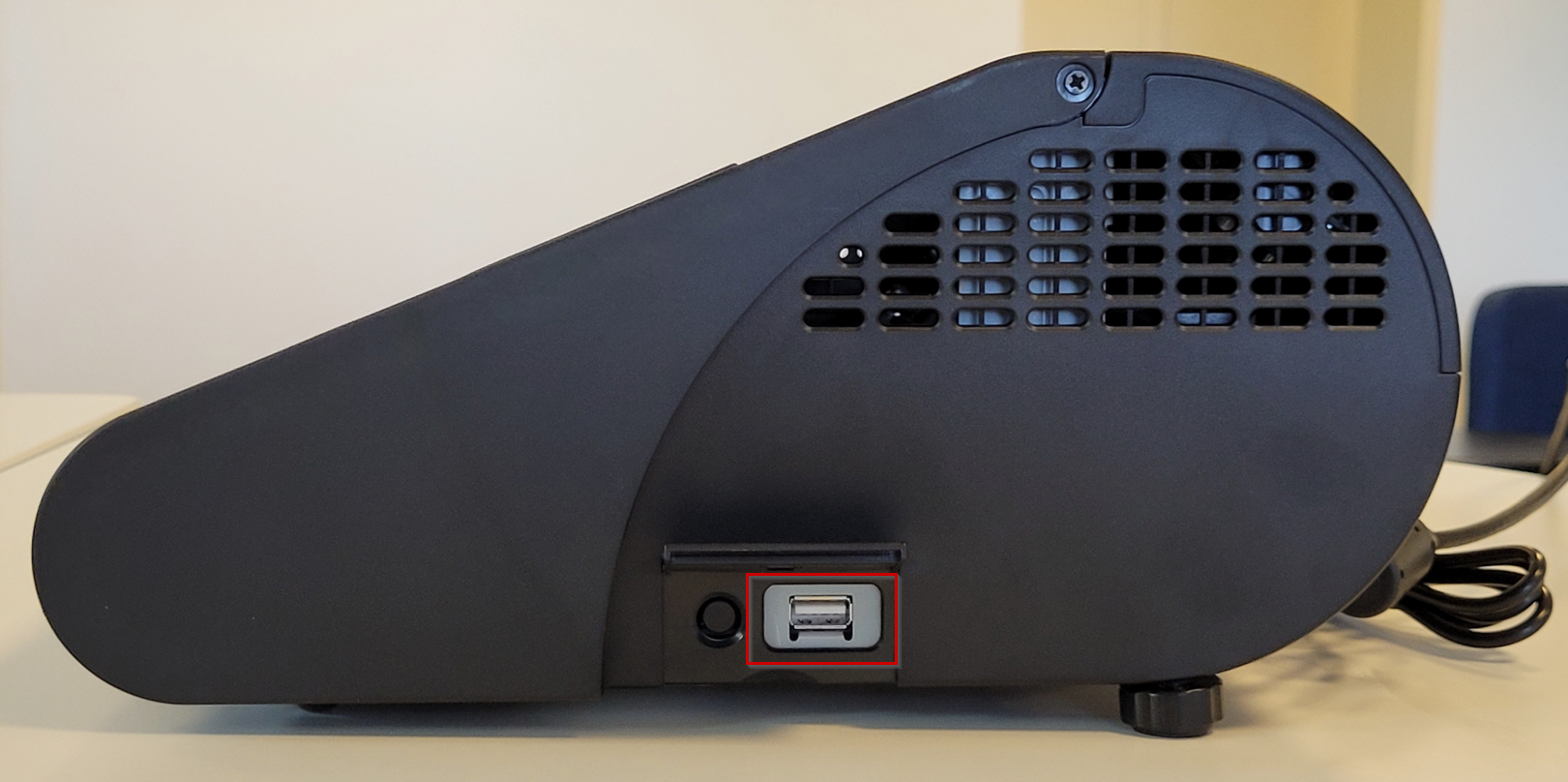
Connecting a mouse or keyboard
- Use the USB port next to the power button:
Was this article helpful?
That’s Great!
Thank you for your feedback
Sorry! We couldn't be helpful
Thank you for your feedback
Feedback sent
We appreciate your effort and will try to fix the article