This article explains how to set a PT6500 device to static IP and back to DHCP.
Internal article
Introduction
This guide requires that you are familiar with basic networking concepts, such as DHCP, static IP, netmask, gateway, and similar. For a refresher, check out:
If setting a device to Static IP, it is also required that you have the following info ready:
- Which IP address to use.
- Which Subnet mask, Gateway and DNS1/DNS2 to use.
If unsure, check out: Which static IP address to use?
DHCP to Static IP
Windows 7 (Embedded)
Majority of PT6500 devices run Windows 7 (Embedded). In case you run across one with Windows 10, follow the Setting VPOS to static IP / DHCP /i guide.
In Windows 7 (Embedded):
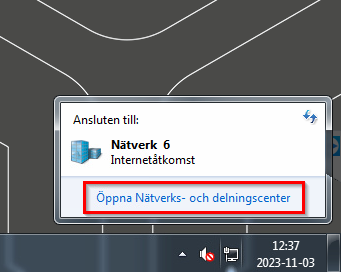
- Press the Windows key on the keyboard (or close Domino) and select the Networking icon:

- Select Open network and sharing center:
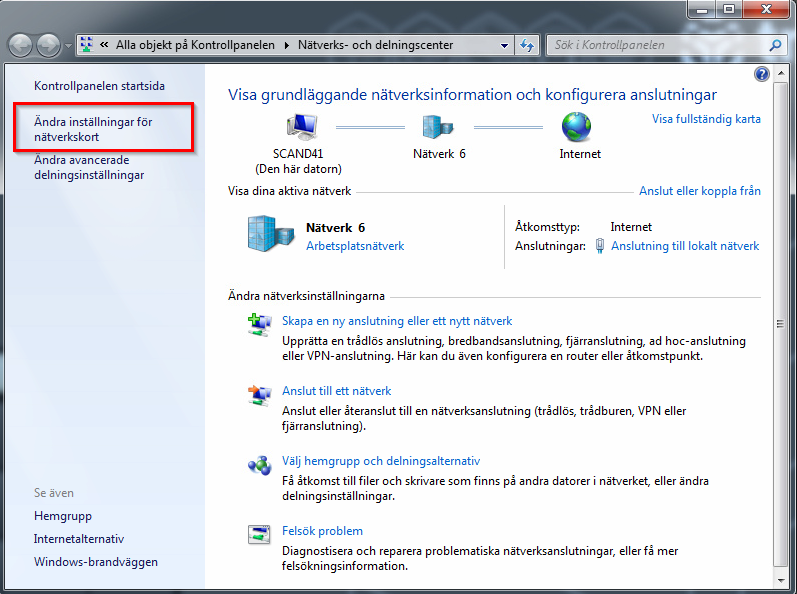
- Select Change network adapter settings:
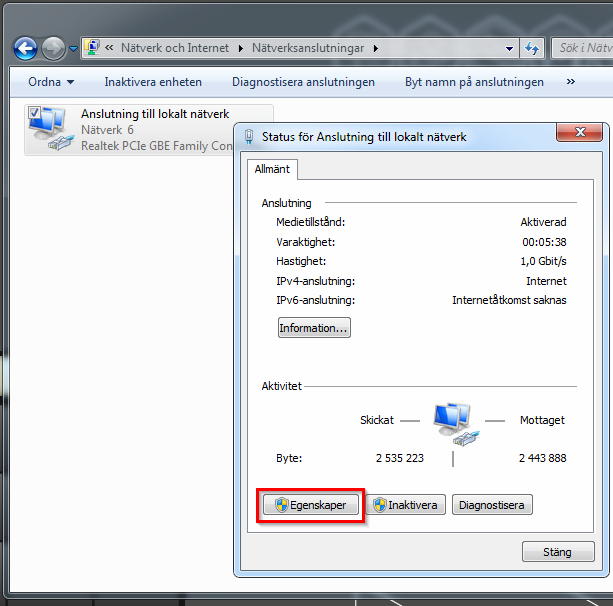
- Double-click the network adapter and select Properties:
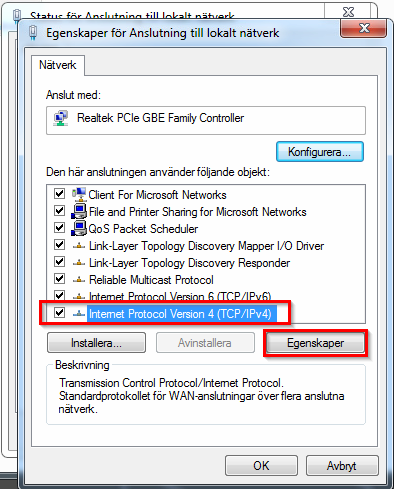
- Select Internet Protocol Version 4 and Properties:
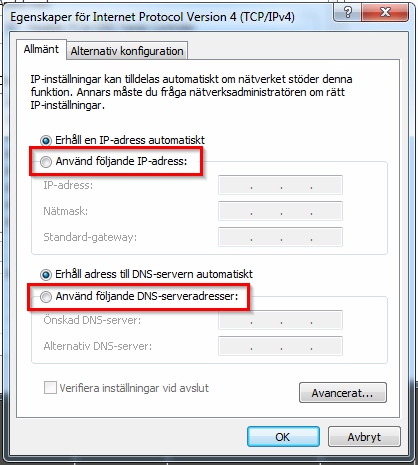
- Select Use the following address and Use the following DNS server addresses:
- Enter the networking information (below is only an example!) and confirm with OK:
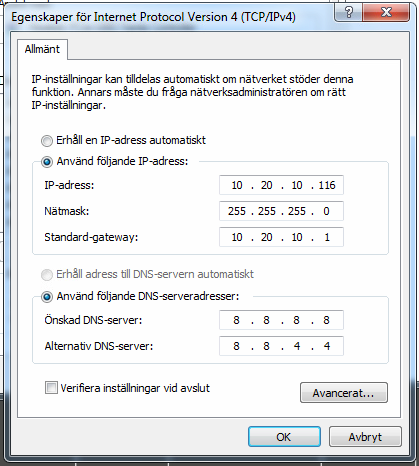
- If the networking information you entered is incorrect, the device will lose connectivity. To restore connectivity, set it back to DHCP or enter the correct networking info.
Windows 10 LTSC
A small number of PT6500 devices have been upgraded to Windows 10. In that case, follow the Setting VPOS to static IP / DHCP /i guide.
DHCP to Static IP
Windows 7 (Embedded)
The majority of PT6500 devices run Windows 7 (Embedded). In case you run across one with Windows 10, follow the Setting VPOS to static IP / DHCP /i guide.
In Windows 7 (Embedded):
- Follow the DHCP to Static IP guide above to access Internet Protocol Version 4 (TCP/IPv4) Properties.
- Select Obtain an IP address automatically & Use the following DNS server addresses and confirm with OK:
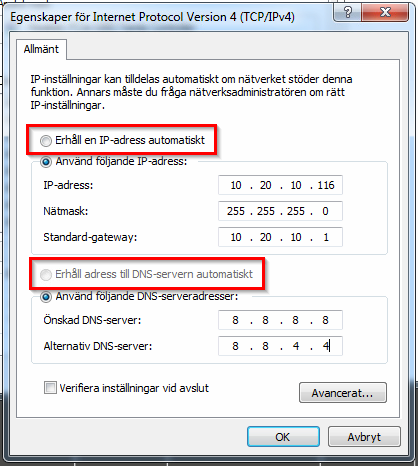
- If DHCP is available on the network, device will switch over to it.
Windows 10 LTSC
A small number of PT6500 devices have been upgraded to Windows 10. In that case, follow the Setting VPOS to static IP / DHCP /i guide.
Was this article helpful?
That’s Great!
Thank you for your feedback
Sorry! We couldn't be helpful
Thank you for your feedback
Feedback sent
We appreciate your effort and will try to fix the article