This article explains how to enable DHCP on a VPOS device.
This is a common step required when troubleshooting the connectivity of POS devices in cases where network interface LED is on/blinking but device is unable to connect to local network.
- Log into Domino with a user profile that has permission to shut down Domino.
- Select Cash and Exit in the upper left corner.
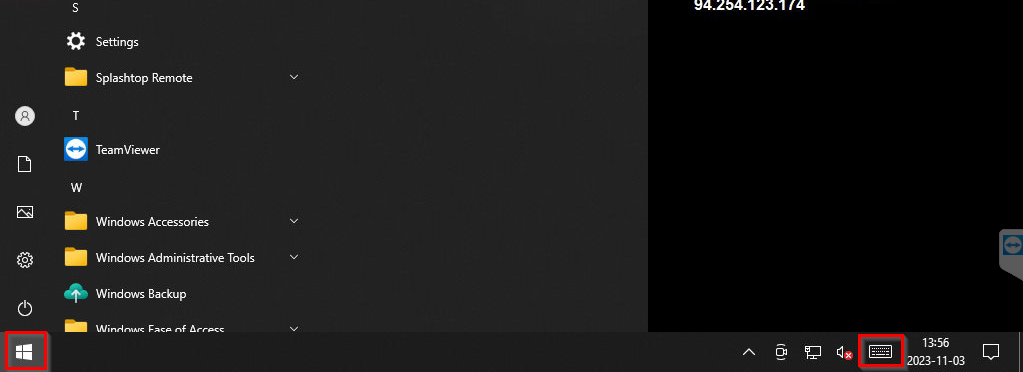
- Click the Start button in the lower left corner and then click the On-Screen Keyboard symbol in the lower right corner (alternatively, connect a USB keyboard):
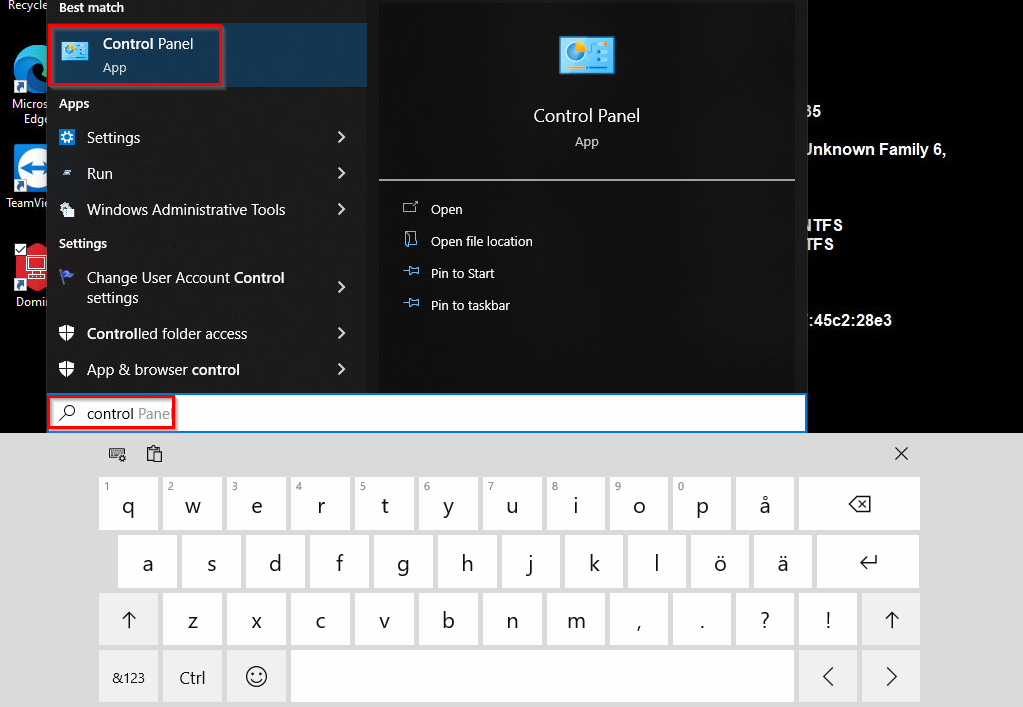
- Use your On-Screen keyboard (or external USB keyboard) to type "control". Select Control Panel app when it appears as a result:
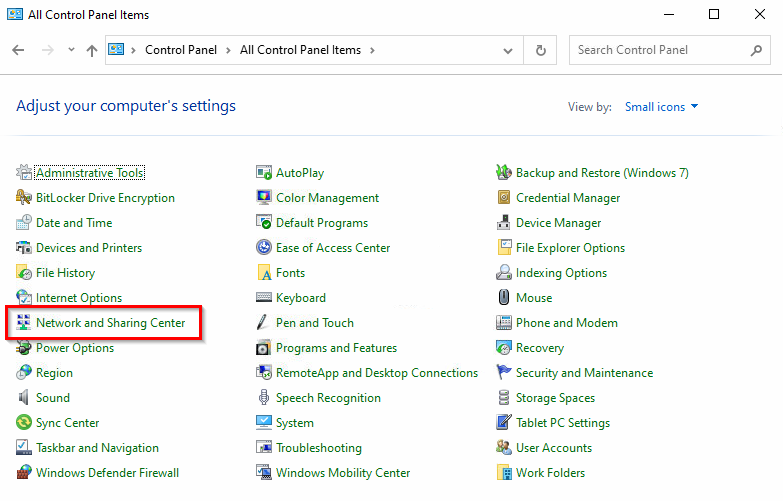
- If your Control Panel looks like this, select Network and Sharing Center:
- Alternatively, if your Control Panel looks like this, select Network and Internet:
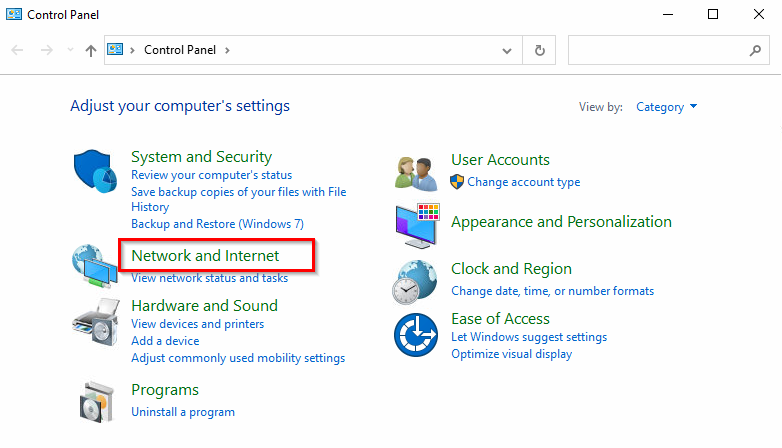
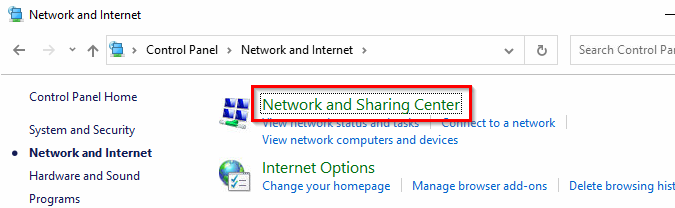
- And then select Network and Sharing Center:
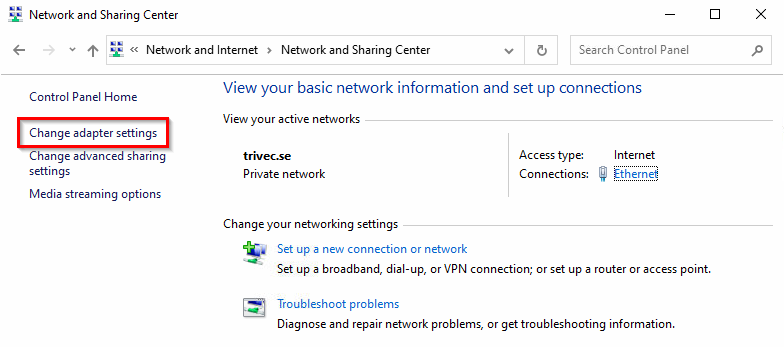
- When inside Network and Sharing Center, select Change adapter settings:
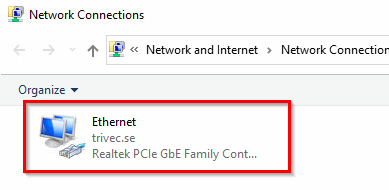
- Double-click the visible network connection:
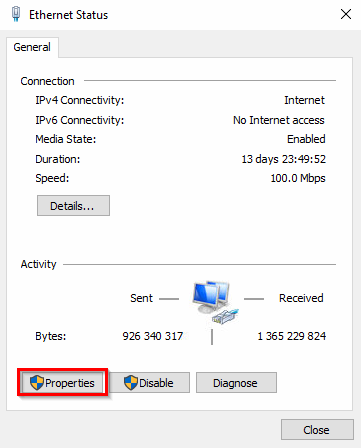
- Select Properties:
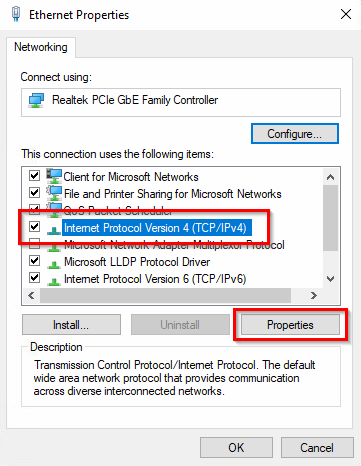
- Select Internet Protocol Version 4 and Properties:
- Select Obtain an IP address automatically and Obtain DNS server address automatically and confirm with OK:
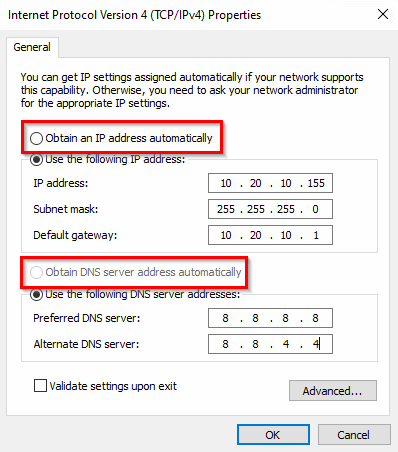
- If DHCP is available on the network, the device will switch over to it and regain connectivity.
Was this article helpful?
That’s Great!
Thank you for your feedback
Sorry! We couldn't be helpful
Thank you for your feedback
Feedback sent
We appreciate your effort and will try to fix the article