This article introduces Trivec's integration with Zenchef and provides information on how it is used and managed.
About Zenchef
Zenchef is a restaurant management and payment solution. It is available in two options: Zenchef Booking Info and Zenchef Pay. Zenchef is integrated with both Domino and Handy.
Functionality
Zenchef Booking Info
When the table is opened in Domino, the booking status in Zenchef is updated as ongoing. When the table is billed, ticket information is sent to Zenchef, and the table reservation is updated.
Zenchef Pay
When it's time to pay the bill, the Guest can scan the QR code in the mobile phone browser on Zenchef. Each QR code is table-specific, so the correct table is billed. Splitting the bill is possible and Domino/Handy will update the remaining amount.
Regions
Available in all regions.
Onboarding
- Customer contacts Zenchef and order integration.
- Customer signs an agreement with Trivec.
- Zenchef trains the customer in how their product is used.
- Customer does the preliminary config in Zenchef.
- Trivec prepares the Domino environment for Zenchef
- Trivec shares Ngrok URLs + Secret with Customer
- Customer enters Ngrok URLs + Secret on Zenchef partner site to activate Zenchef Booking Info:
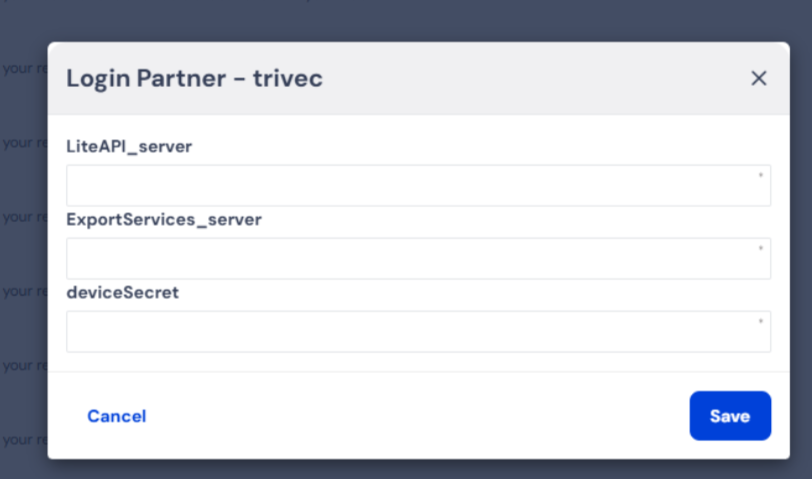
LiteAPI_server: For example, https://trivecLICNR-13006.eu.ngrok.io
ExportServices_server: For example, https://trivecLICNR-13007.eu.ngrok.io
deviceSecret: Domino ApiLite device secret
NOTE: Exact info is provided to Customer by Trivec. - Trivec shares Ngrok URLs + Secret with Zenchef to activate Zenchef Pay (if required).
- Customer starts using Zenchef
Using
Zenchef table info
Reservation is updated in Zenchef completely automatically and doesn't require any interaction from the user.
Zenchef Pay
For Guests: Guests scan the QR code and pay the bill as they wish. They can pay only for what they’ve consumed, split the bill or a specific article, pay a specific amount, and so on, using any payment method (credit card, Google Pay, Apple Pay, luncheon vouchers, etc.). Customers immediately receive their bill and proof of payment that they can present whenever they need to.
For Restaurant owners: Payment appears directly on the cash register under the correct table number, and if all payments have been finalized, the table can be automatically closed or manually closed.
Maintaining
Creating/modifying table plans
Every time a table is added or removed in Domino, the change has to be done in Zenchef as well.
For info on how to manage the table plans, check out Modifying tables and table plans. The same applies to creating or removing table plans (called "Rooms" in Zenchef).
For assistance with creating new tables or table plans in Zenchef, contact Zenchef support.
QR codes for tables
QR codes are table-specific so new QR codes need to be created and printed for each new table created in Domino and Zenchef.
Was this article helpful?
That’s Great!
Thank you for your feedback
Sorry! We couldn't be helpful
Thank you for your feedback
Feedback sent
We appreciate your effort and will try to fix the article