This guide explains how to work with Courses in Domino.
Defining courses for products
- Add the products to the order list (for info on how to add products, check out: Direct sales - working without a table)
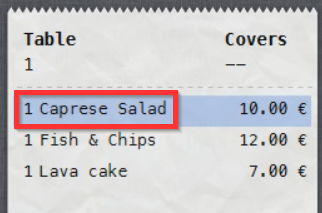
- Select the first product on the order list:
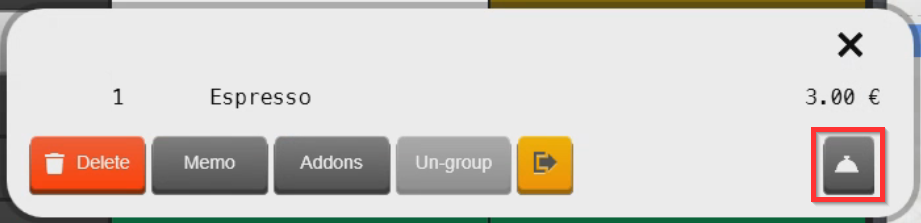
- Select the Course symbol:
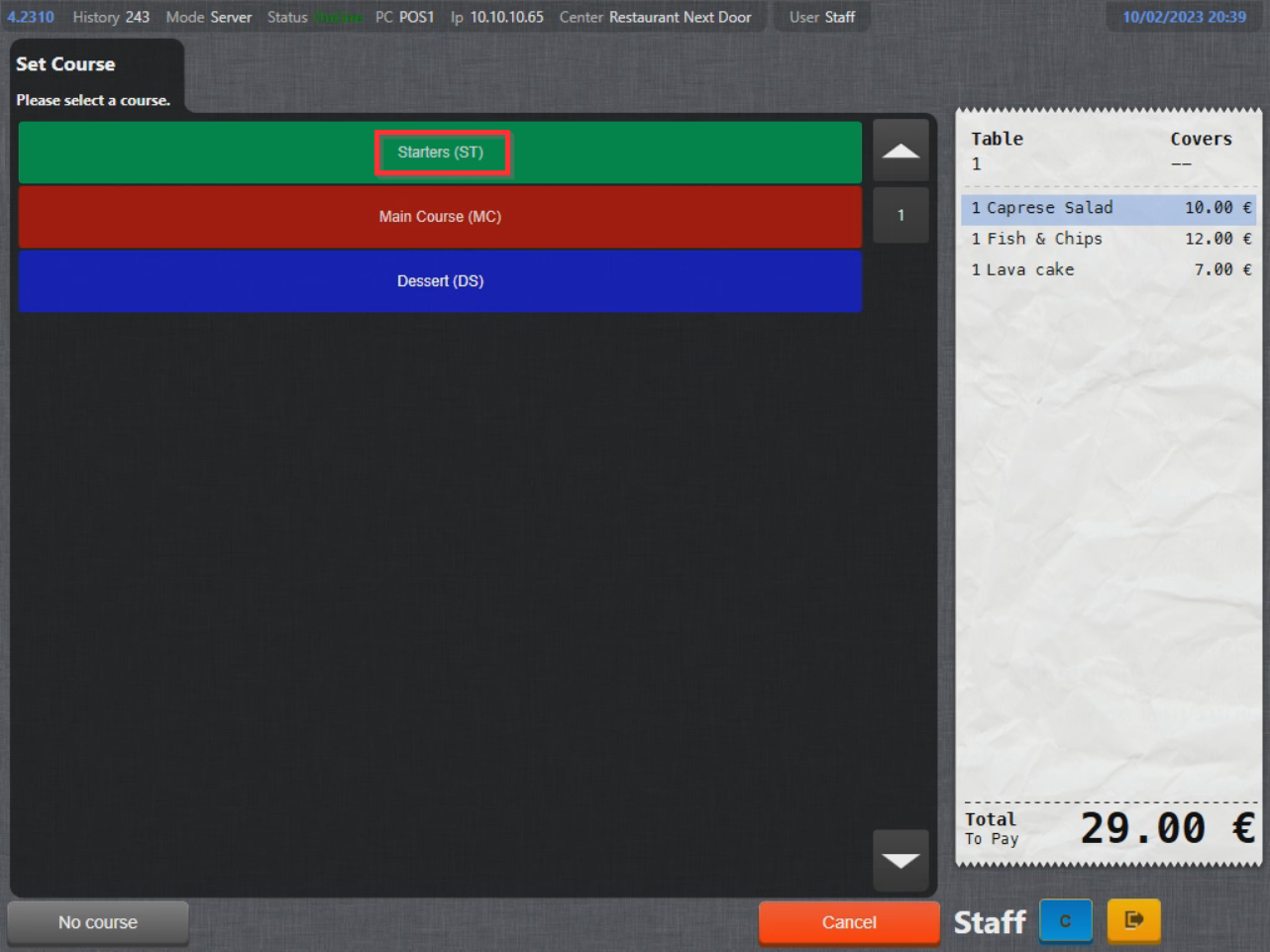
- Select the course:
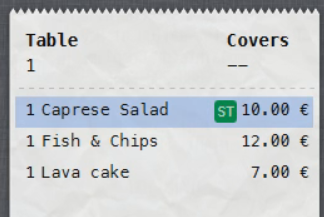
- Product course has now been updated:
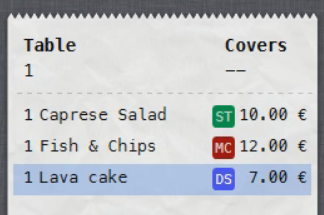
- Repeat the process until course is assigned to all products:
- Select Send to send the order:
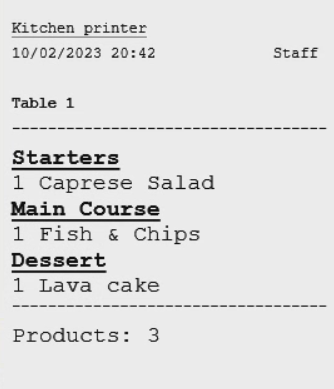
- Prep ticket is printed on the prep printer / displayed on the kitchen display:
Requesting next course
- To request next course on a table (notify staff to begin preparing a course), select a table.
- With the table selected, select Course:
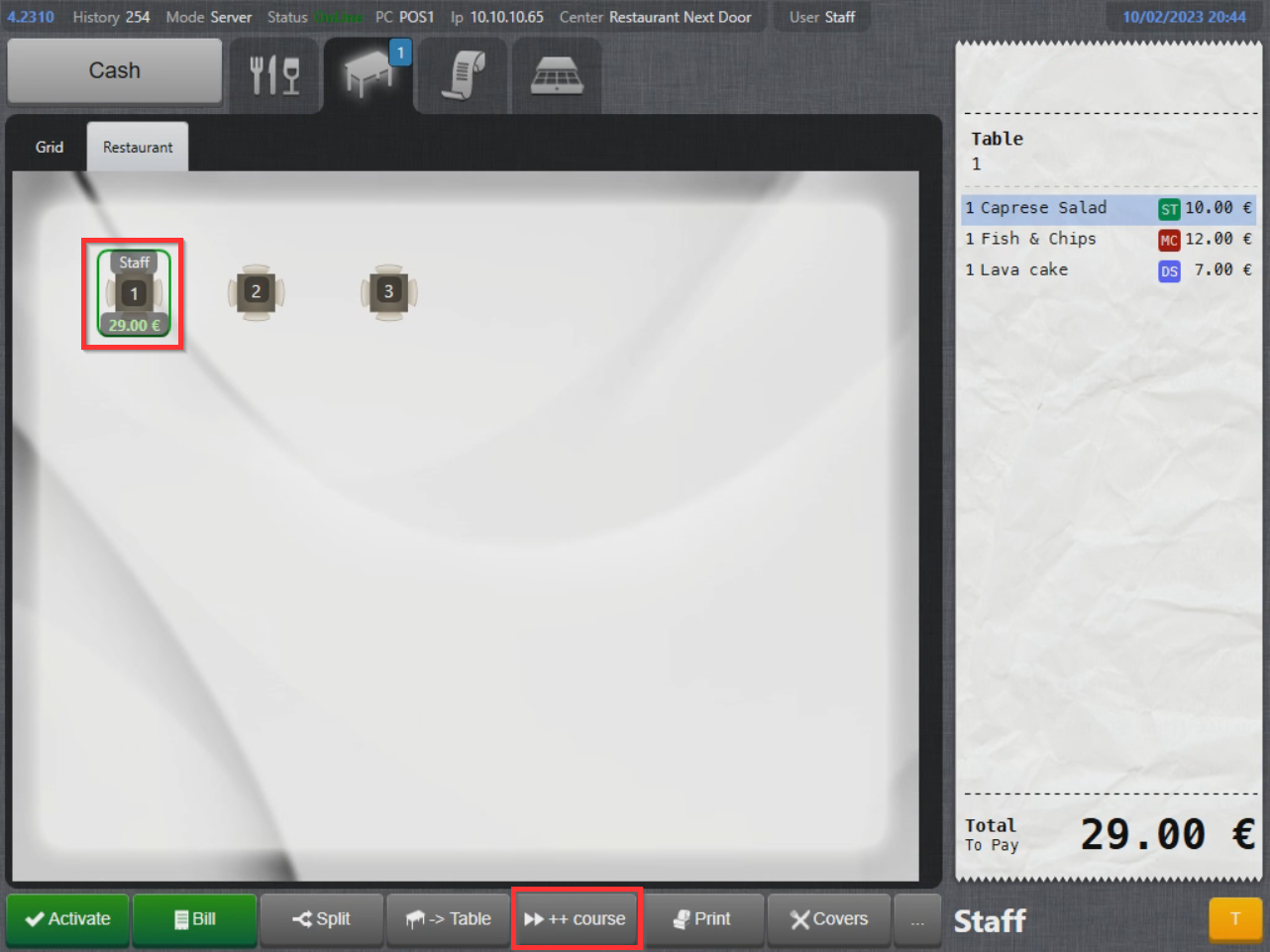
- Select which course to request:
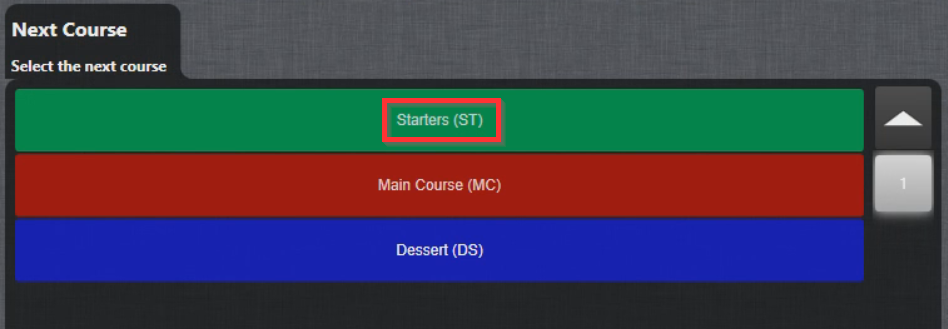
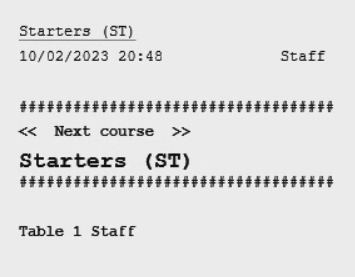
- Next course ticket is printed on the prep printer / displayed on the kitchen display:
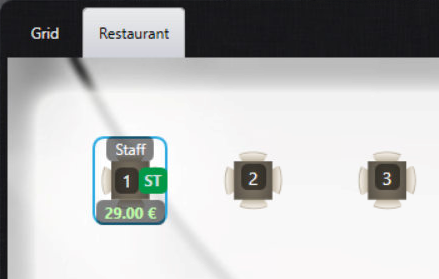
- Table status is updated as well to indicate last course requested:
- Repeat the process with the remaining courses on table.
Removing course property from table
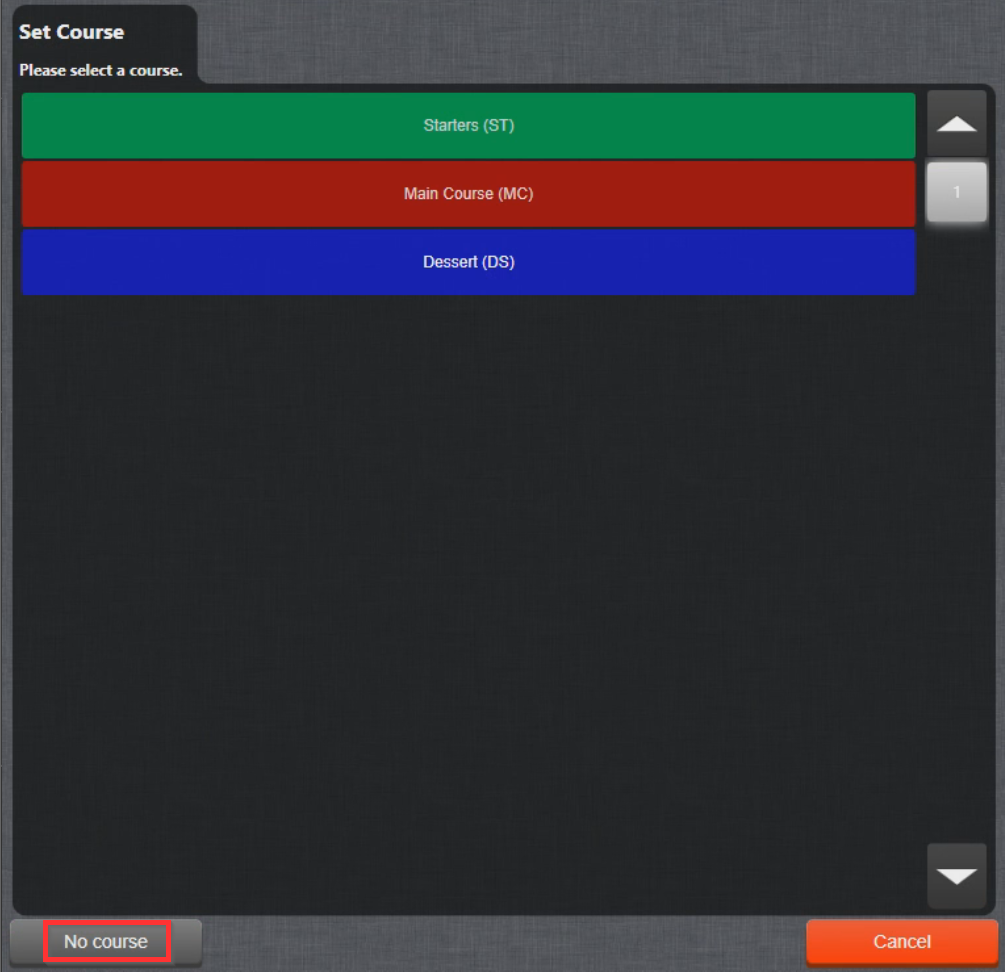
- To remove the course property from the product, select the product (either in Product or Table tab), select the Course symbol and No course:
Was this article helpful?
That’s Great!
Thank you for your feedback
Sorry! We couldn't be helpful
Thank you for your feedback
Feedback sent
We appreciate your effort and will try to fix the article