This guide explains how to manage Product groups in Backoffice.
For easier management and overview, Products are placed in groups, displayed in the Product groups window:
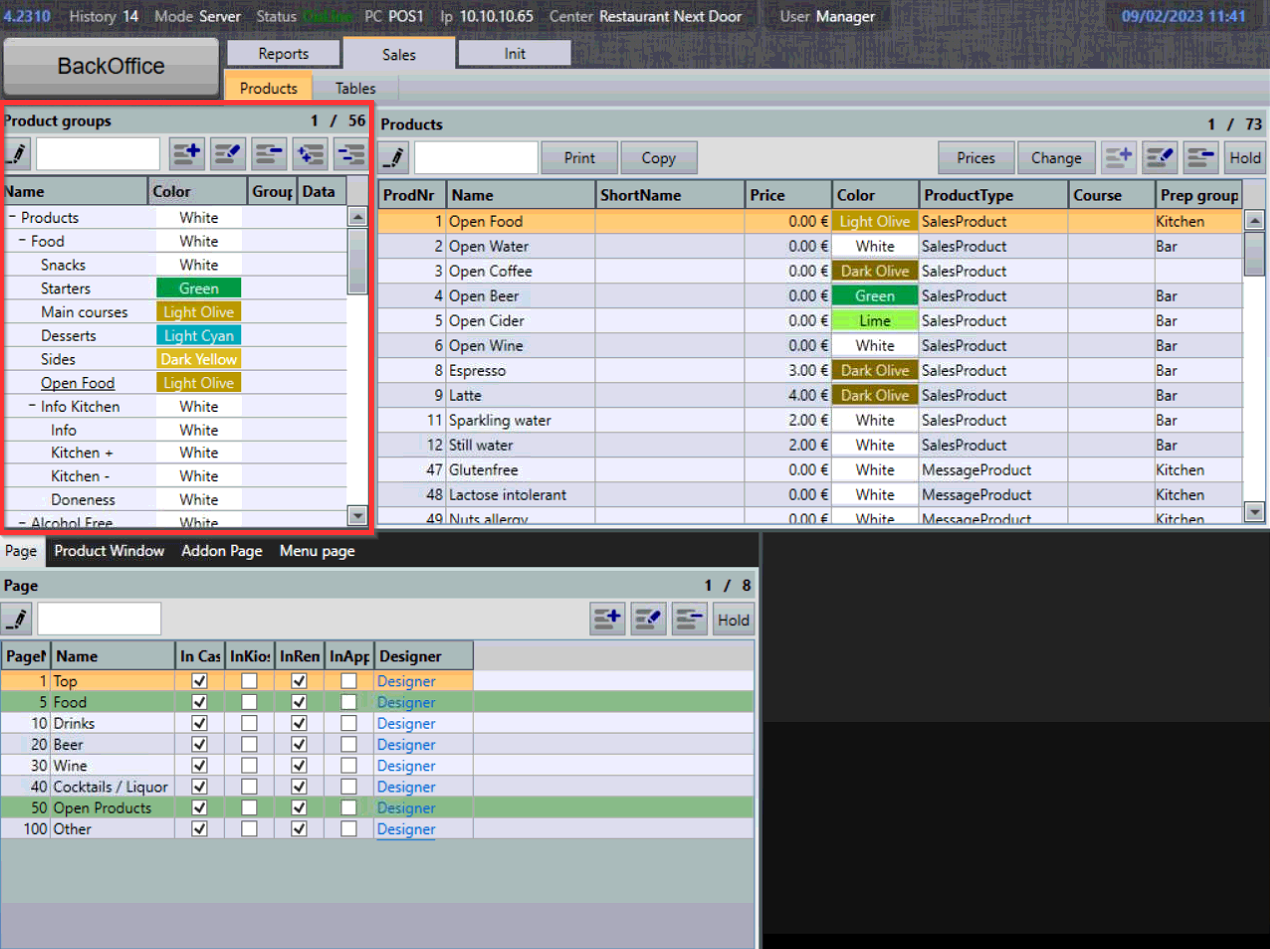
Displaying group content
- To display products within a group, select a product group from the list:
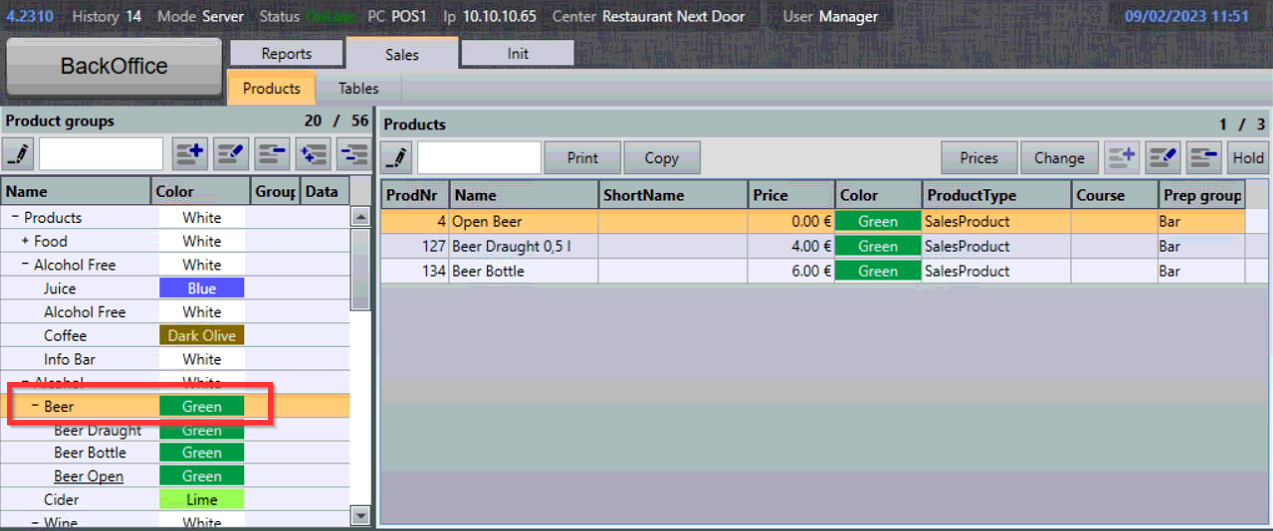
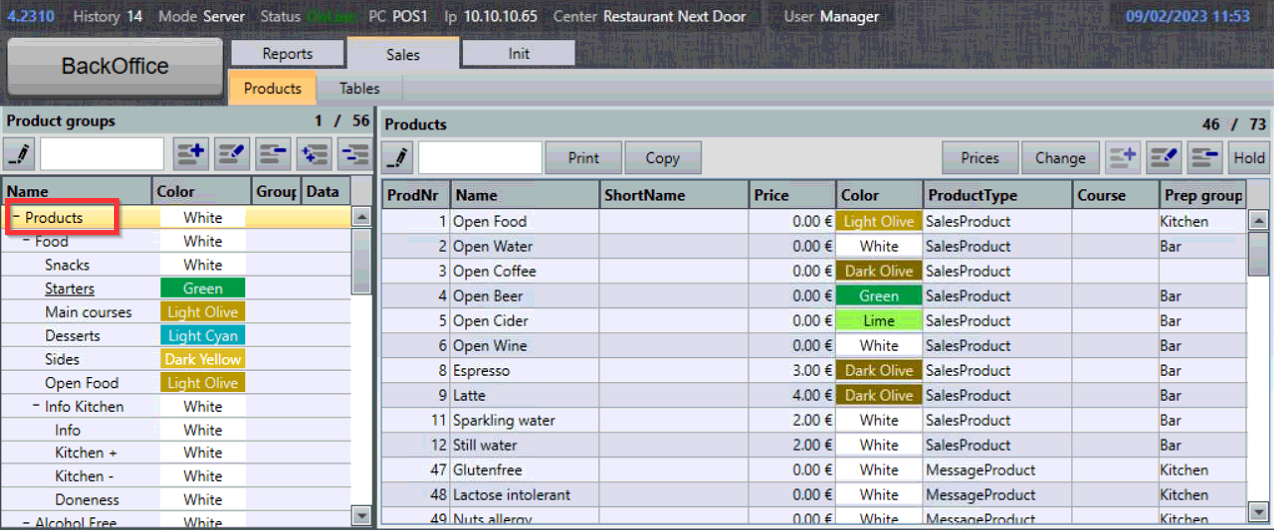
- To display all products again, select the root group, in this case, "Products":
Expanding and collapsing groups
Groups are organized hierarchically, sometimes called a product group tree.
- To collapse or expand product groups select the "+" and "-" symbols:
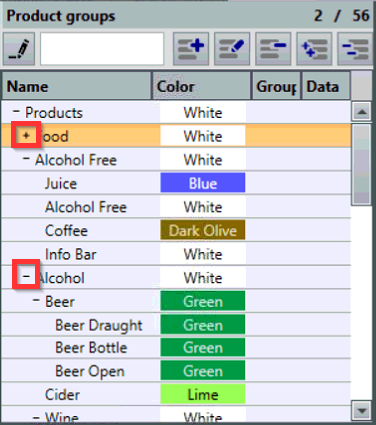
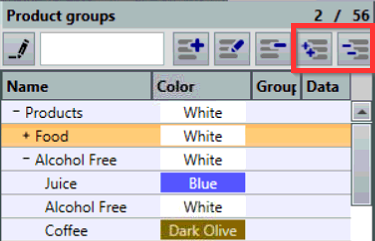
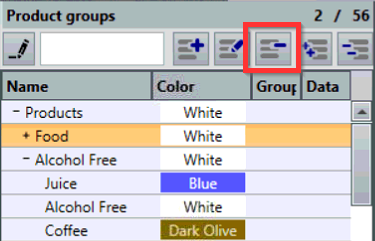
- To expand or collapse all groups, select the Expand All or Collapse All symbols:
Creating new groups
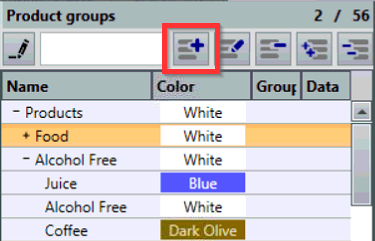
- To create a new group, select the Add Group symbol:
- New Group menu will display:
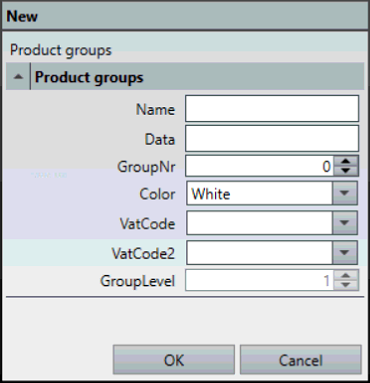
- In the New Group menu, the following values can be configured:
- Name - what's displayed in the Product groups window
- Data - used for bookkeeping purposes to identify product group
- GroupNr - used by hotel systems to identify product group
- Color - configures the color of the group
- VatCode - configures the primary VAT percentage for the group
- VatCode2 - configures the secondary VAT percentage for the group (most often TakeAway)
- GroupLevel - displays the group level in the group tree. To change this value, select a lower or higher level group and then select the Add group symbol.
Editing existing product groups
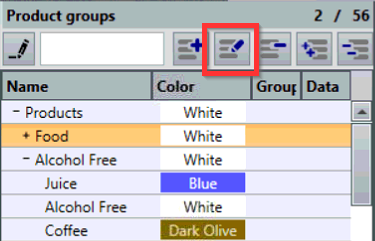
- To edit a group, select a group and then select the Edit Group symbol:
Deleting product groups
- To delete a group, select a group and then select the Delete Group symbol:
What's next?
To learn how to manage products, check out: Managing products.
Was this article helpful?
That’s Great!
Thank you for your feedback
Sorry! We couldn't be helpful
Thank you for your feedback
Feedback sent
We appreciate your effort and will try to fix the article