This article demonstrates an advanced scenario of four Kitchen Display System (KDS) devices working in sync, complemented by a physical printer.
Info
In this scenario, there are four Stations with their own screens in the kitchen:
- Grill section with Grill screen.
- Salad section with Salad screen.
- Dessert section with Dessert screen.
- Pass section, with Pass screen, responsible for completing and sending orders.
Restaurant uses three Courses:
- Appetizers
- Main courses
- Desserts
This scenario uses the following advanced functionality:
- Summary: Enables the users to have an overview of all products in all active PrepTickets.
- Pass: Enables information to be synced across several KDS sreens.
- Transit: A view where tickets are placed between courses. Tickets are moved to Transit automatically when a single course on a PrepTicket is complete.
- Info: Enables the Grill and Salad stations to be aware of which orders are served together with the other station.
- Courses: Enables the tickets to appear when certain courses are requested, otherwise they are out of the view (for more info, check out Working with Courses).
- Print: When tables are complete and ready for pickup, paper ticket is printed automatically as reference for the waiting staff.
- CurrentCourseOnly: On Dessert Screen, ticket is only displayed when Dessert as course is requested.
- PriorityTables: Some tables are displayed ahead of others on the KDS screens.
This represents, for example, a fine dining restaurant with a VIP section and a head chef sending the orders.
Introduction to KDS
For an introductory demo of KDS, check out Demo: Single Kitchen Display Screen (KDS) device.
Advanced KDS
For an introduction to KDS tickets with Courses and different KDS views, check out Demo: Two KDS devices with Pass and Info.
Workflow
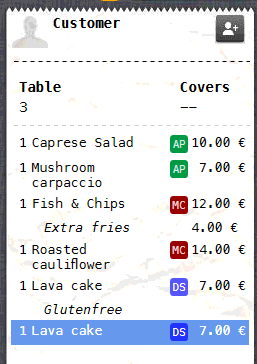
- The following is ordered in Domino on a POS device:
- Appetizer: 1 Caprese Salad and 1 Mushroom carpaccio (Salad)
- Main Course: 1 Fish & Chips /with Extra Fries and 1 Roasted cauliflower (Grill)
- Dessert: 1 Lava cake /Glutenfree and 1 Lava cake (Dessert)
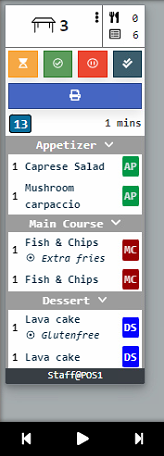
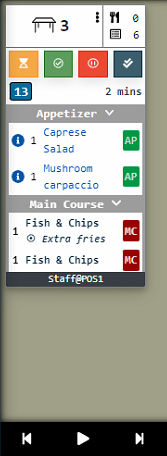
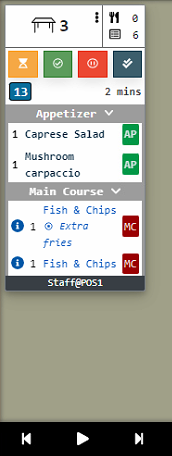
- Let's assume all screens except Pass are in My Active view. All screens (except Dessert) display the new order.
- Dessert doesn't display the new order, since it is configured not to display anything until Dessert course is requested (CurrentCourseOnly setting).
| Pass | Grill | Salad | Dessert |
 |
 |
 |
 |
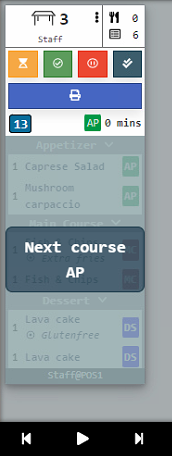
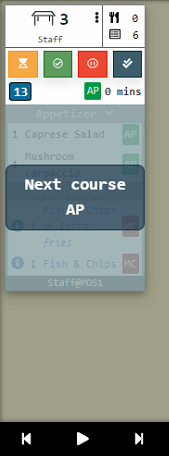
- Next course is requested by waiters (Appetizers) and "Next course AP" message is displayed on Pass and Salad devices:
| Pass | Grill | Salad | Dessert |
 |
|
 |
|
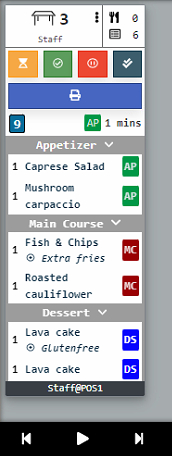
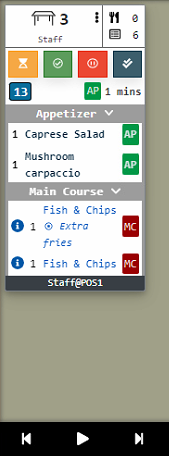
- After tapping away the "Next course AP" message, Salad screen sees its orders.
| Pass | Grill | Salad | Dessert |
 |
|
 |
|
- Salad chef selects the orange Preparing button:
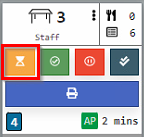
- Ticket status change is updated on the Pass and Grill screen.
| Pass | Grill | Salad | Dessert |
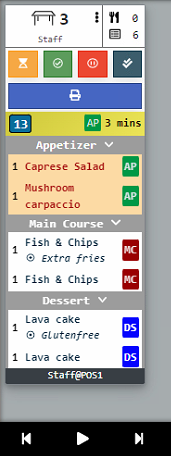 |
|
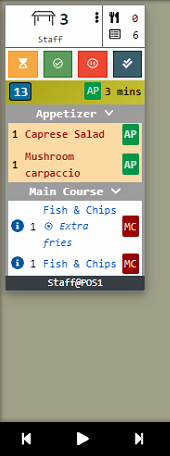 |
|
- If at any point Grill screen would like to revise the ticket, they can switch the view from MyActive to Active and the ticket will be displayed:
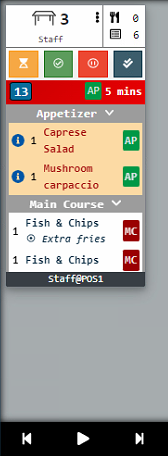
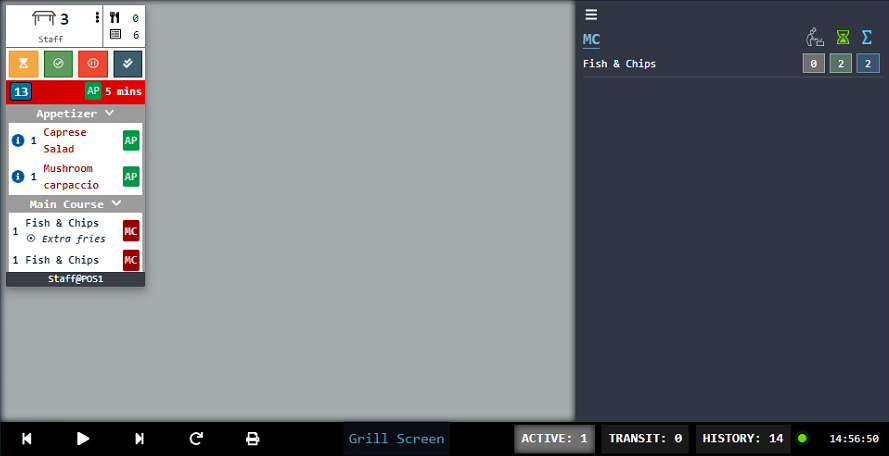
- Same applies for Summary, even if the ticket is hidden away from view in MyTicket for better overview, products are displayed in the Summary view:
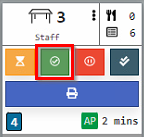
- Salad has prepared their plate and selected the green Prepared button:
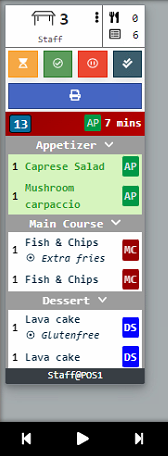
- This change is updated on the other screens:
| Pass | Grill | Salad | Dessert |
 |
|
|
|
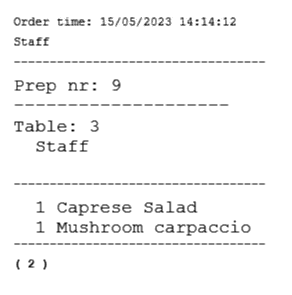
- Paper ticket is printed automatically:
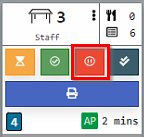
- Head chef selects the red Transit button:
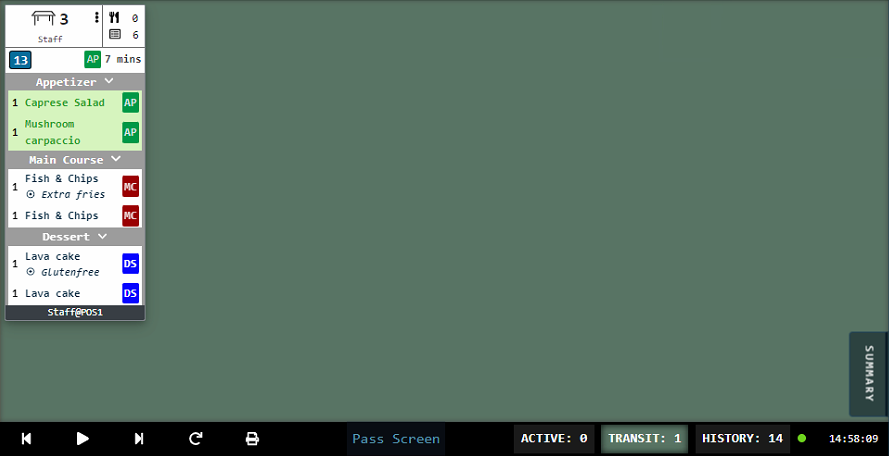
- Ticket is moved from Active view to Transit view:
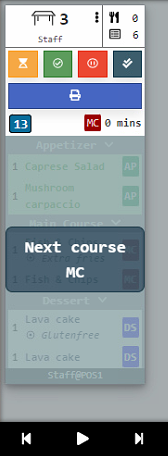
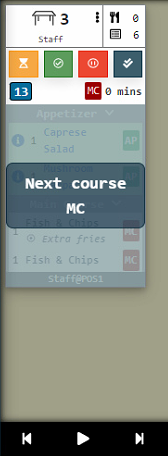
- Next course is requested by waiters (Main course). Tickets reappear on all screens (except Dessert):
| Pass | Grill | Salad | Dessert |
 |
 |
|
|
- Same as with Appetizer course, Grill chef prepares the products and marks the ticket as Prepared.
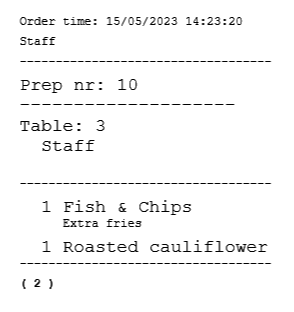
- Paper ticket is printed:
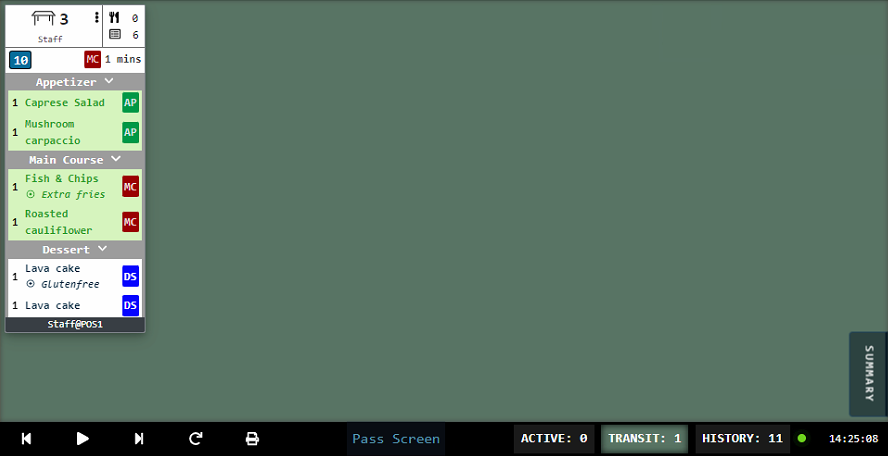
- and Head chef moves the ticket to transit:
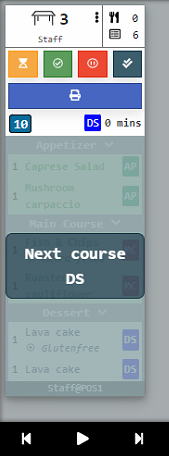
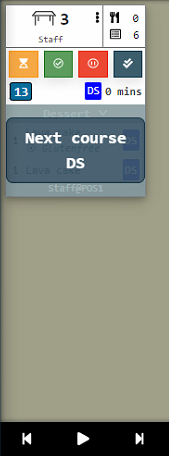
- Next course is requested by waiters (Dessert). Tickets reappear on Pass and Dessert screens only:
| Pass | Grill | Salad | Dessert |
 |
|
|
 |
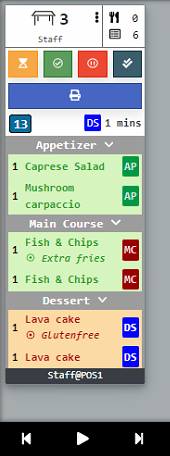
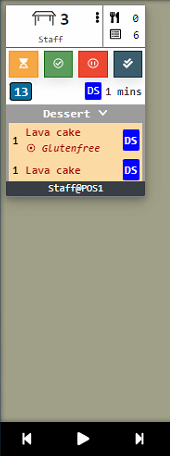
- After tapping away the "Next course DS" message, dessert chef selects the yellow Preparing button and ticket status is reflected on the Pass screen:
| Pass | Grill | Salad | Dessert |
 |
|
|
 |
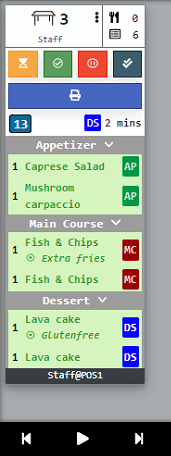
- When Dessert have prepared their product, they select the green Prepared button and the Dessert course is completed:
| Pass | Grill | Salad | Dessert |
 |
|
|
|
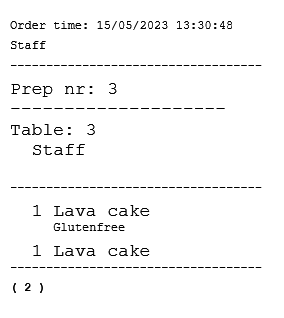
- Paper ticket is printed automatically:
- After the plates have been picked up, Head chef selects the grey Completed button and ticket moves to History.
Was this article helpful?
That’s Great!
Thank you for your feedback
Sorry! We couldn't be helpful
Thank you for your feedback
Feedback sent
We appreciate your effort and will try to fix the article