This article is an introduction to Fortnox Invoice integration.
Introduction
Fortnox Invoice is an add-on to the Fortnox Accounting integration that enables Domino to upload invoices created in Domino as orders directly to Fortnox. If your company uses invoices, this feature can further reduce the manual workload for your accounting department.
Key benefits
- Invoices do not have to be created manually in Fortnox
- Customer accounts are created in Domino and uploaded to Fortnox together with the invoices
- Completely automatic process
- Elimination of human error
Region availability
Fortnox Invoice is available in Sweden only.
Requirements
Fortnox Invoice only works with Domino and Windows 10 or newer.
Onboarding with Fortnox Invoice
Onboarding process - new Customer
- The onboarding process is the same as with Fortnox Accounting.
Onboarding process - Customer already uses Fortnox Accounting
- Customer contacts Trivec Sales representative and signs a contract.
- Trivec Sales sends the information template to the Customer, requesting invoice-related information to be provided.
- Customer provides the information and sends back the document to Sales.
- Trivec prepares the Domino environment for Fortnox Invoice.
Using Fortnox Invoice
Creating new invoices
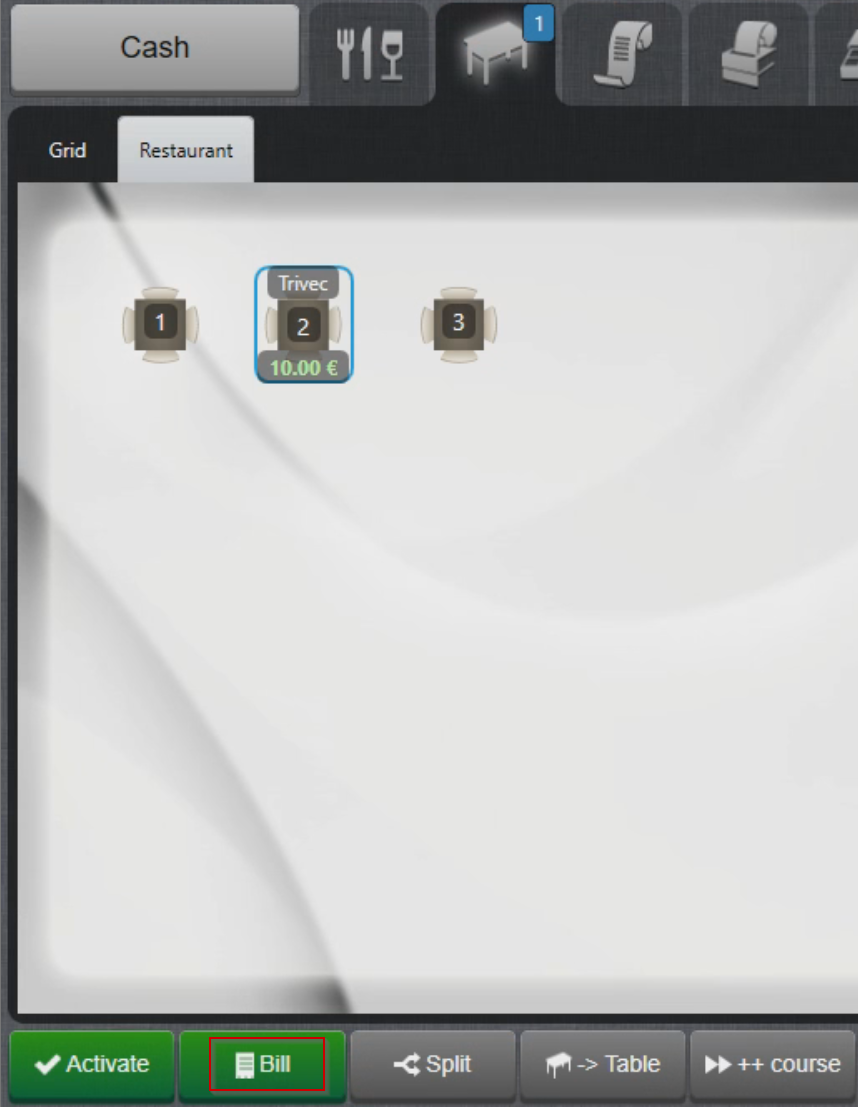
- Select a table and Bill:
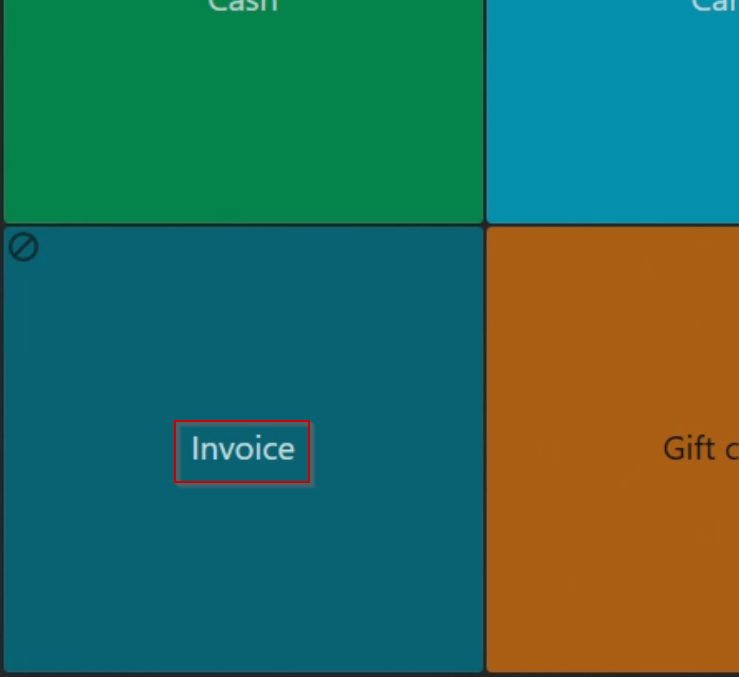
- Select Fortnox invoice payment method:
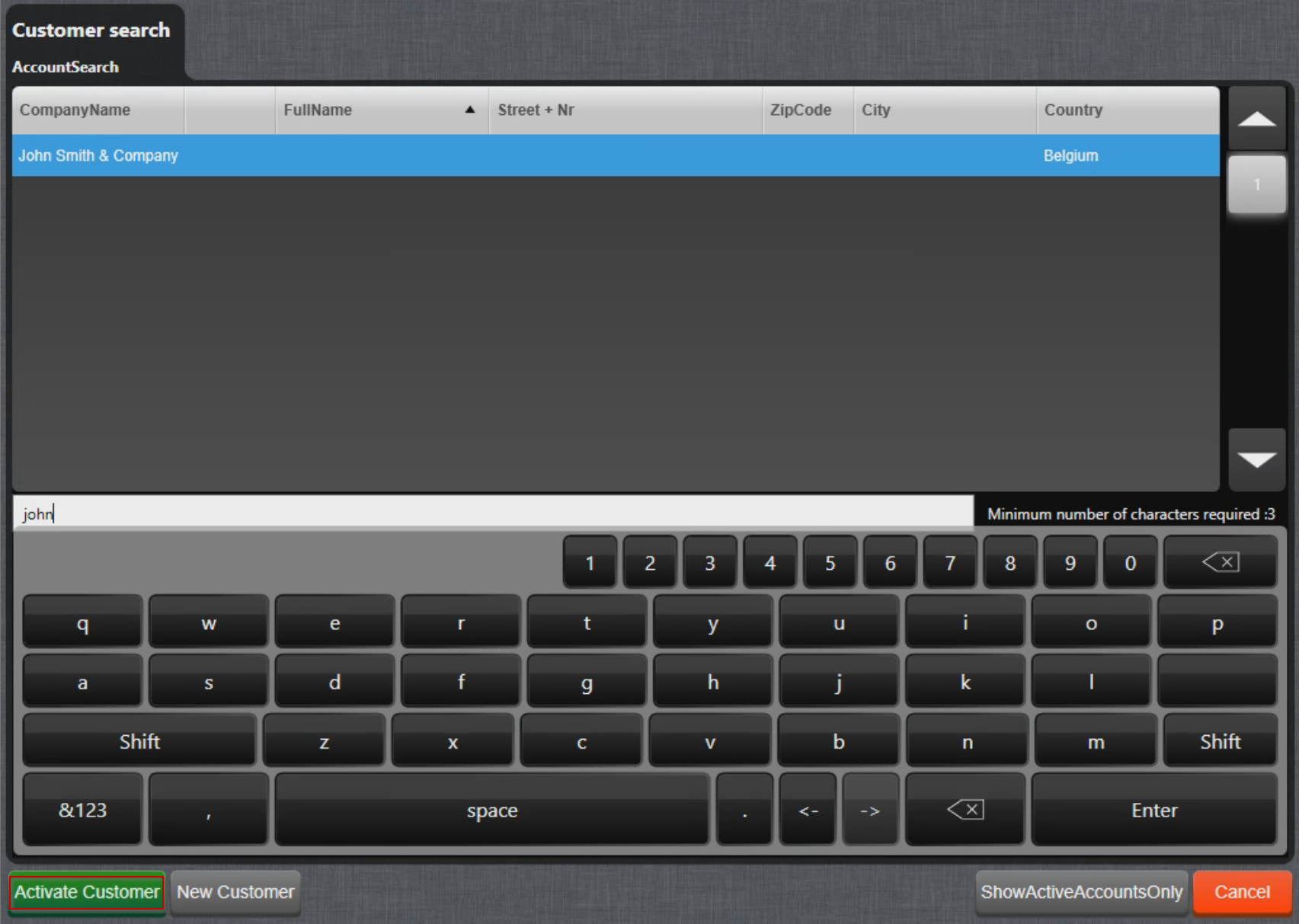
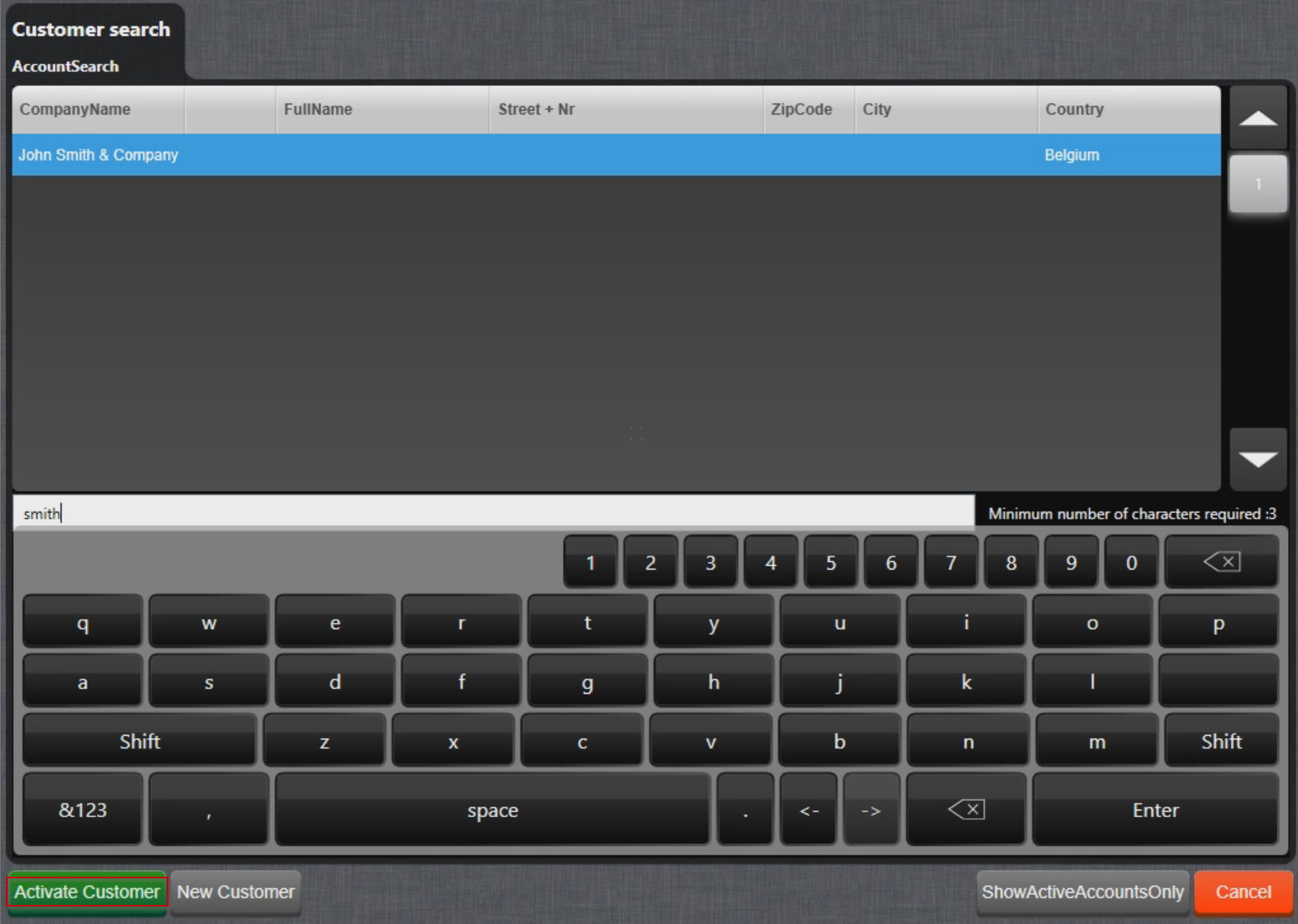
- Search for the invoicing account and select Activate Customer:
- If an new account needs to be created, select New Customer and follow the Creating new accounts guide.
Creating new accounts
To create an account in Domino:
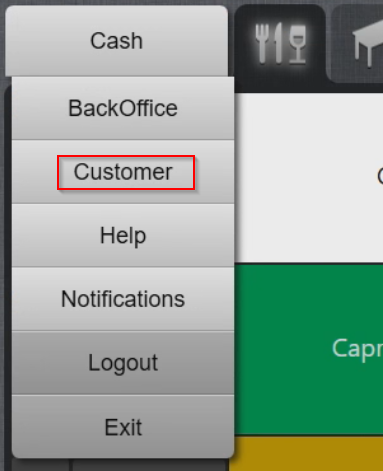
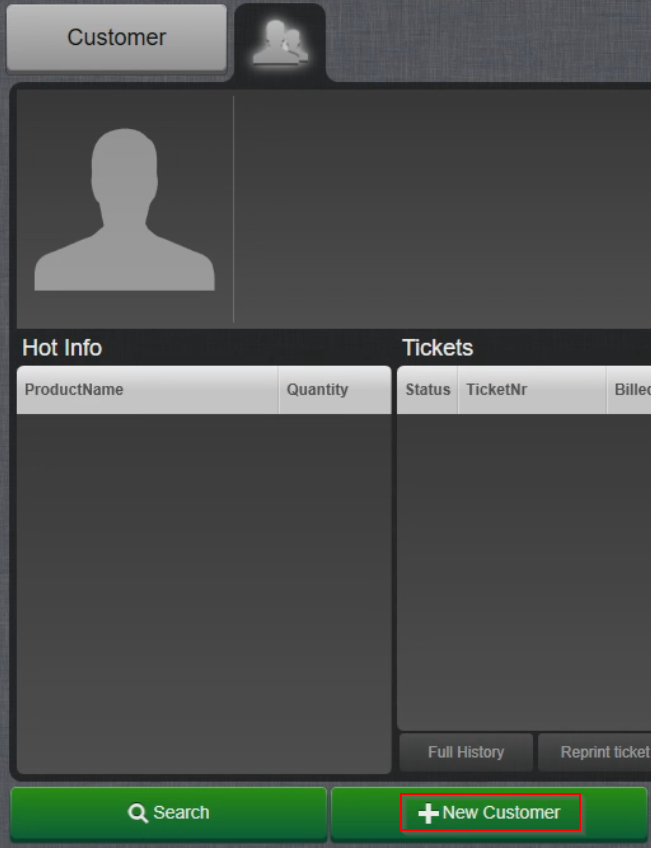
- Navigate to Customer page:
- Select New Customer in the lower part of the screen:
- Enter the necessary information (FirstName is necessary) and confirm with OK. You can scroll through the additional account information by using the arrow symbols:
- Exactly which information needs to be entered (except FirstName) is something that your accounting department decides about.
NOTE: Accounts can be created in Fortnox. However, it is recommended to create accounts in Domino only since they will be uploaded to Fortnox together with the invoice. If they are created in Fortnox first, they must be created manually in Domino as well, with exactly the same information. It makes much more sense to do it only on Domino.
Account properties in Domino
Make sure that the information you enter in the Account properties is compatible with Fortnox.
These are the Domino account properties most often used, their Fortnox counterparts and their format and character restrictions:
|
Domino |
Fortnox | Format | Example | Required | Comment |
| FirstName | Namn | 50 characters |
John Smith or John Smith´s Company |
YES | Personal or company name. |
| E-post | 50 characters | john.smith@email.com | NO | ||
| Street + Nr | Fakturaadress | 50 characters | Long street 5 | NO | |
| ZipCode | PostNr | 5 numbers |
123 45 or 12345 |
NO | No text characters allowed. |
| City | Stad | 50 characters | Springtown | NO | |
| Phone | Telefonnummer | Numbers and dash only | 010-1502300 | NO | |
| VAT-number | Numbers and dash only |
1234567-9999 or |
NO | No text characters allowed. | |
| Memo | Er referens | 50 characters | NO | Used for additional information. | |
| ClientNr | Kundnummer | Numbers only | 123456 | (YES) | Only required if the Customer is created in Fortnox first. |
Invoicing with tips
Invoice payment with tips are handled by invoicing the tips in a separate invoice:
- Complete the invoice payment as described in Creating new invoices.
- Select the exsale product Invoice Tip and enter the tip amount.
- Close the bill using the Invoice payment method and select the same account as the one used for the first invoice.
These two invoices can then be invoiced towards the end Customer together in Fortnox (samlingsfakturering).
Managing Fortnox Invoice
Updating product groups/bookkeeping accounts in Fortnox
If you create new product groups in Fortnox or decide to change bookkeeping accounts, you must contact Trivec Support to update the changes in Domino.
Triggering product upload
Before you can invoice newly added products in Domino, the product upload must be triggered. To do that:
- Log in with an account that has a Manager permission level and account and navigate to Backoffice/Sales/Invoices.
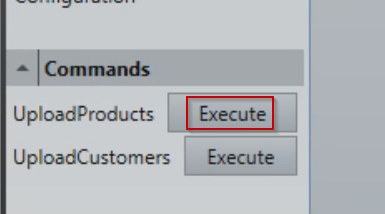
- Select UploadProducts in the left part of the screen:
Modifying account information
To modify the account information in Domino:
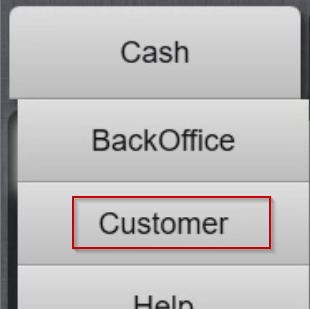
- When logged in, select Cash in the upper left corner and then select Customer:
- Select Search in the lower left corner:

- Enter the info to search for, select the result and Activate Customer:
- With the account activated, select Edit:
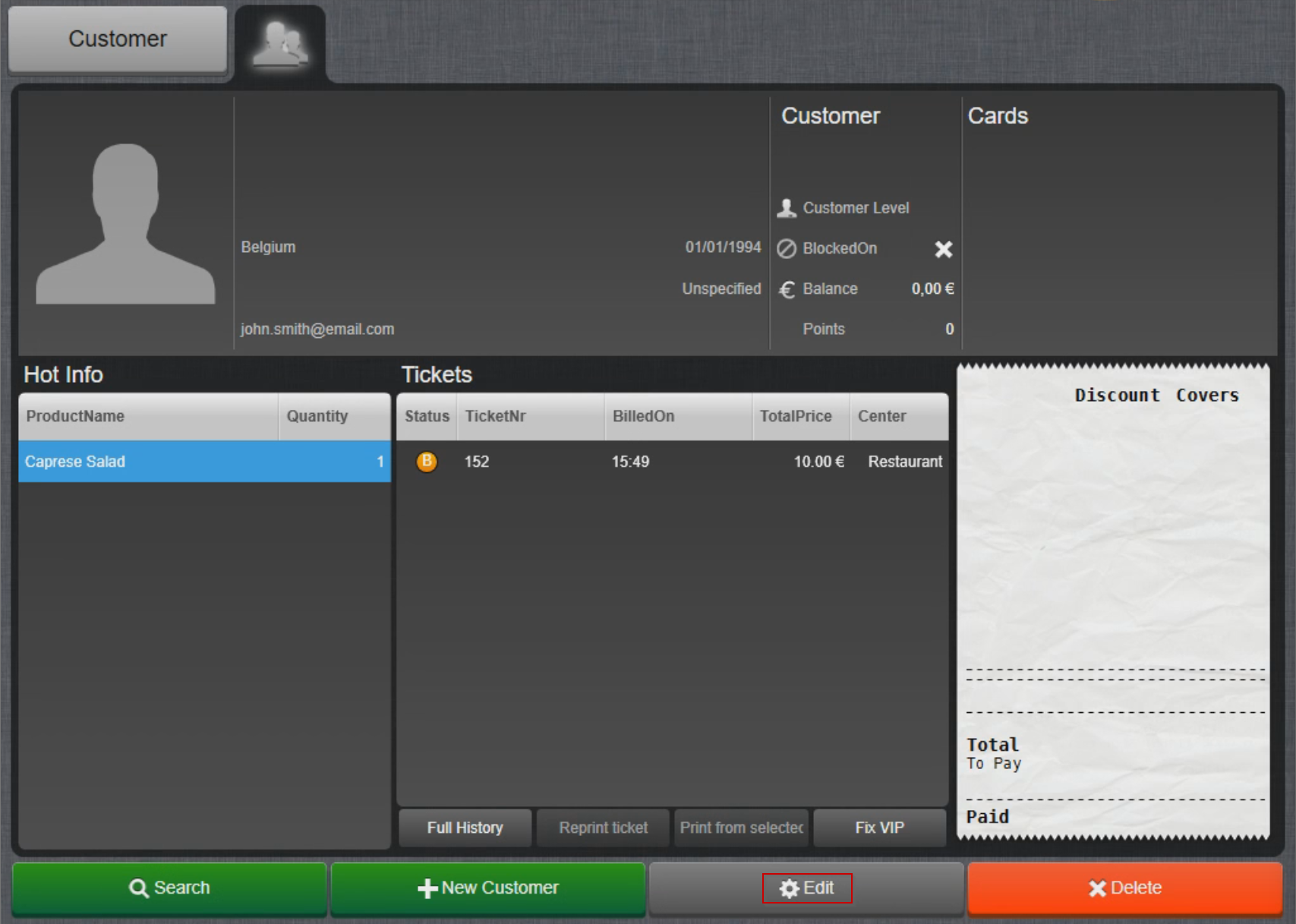
- Update the account information and confirm with OK.
Was this article helpful?
That’s Great!
Thank you for your feedback
Sorry! We couldn't be helpful
Thank you for your feedback
Feedback sent
We appreciate your effort and will try to fix the article