This article explains how the Customer manages the Jamezz integration in the Jamezz backoffice.
Using Jamezz backoffice
Configuring the visuals
Preparing the graphic material for the kiosk
Prepare the required visual materials with the help of this pdf with guidelines.
Uploading/replacing the graphic material
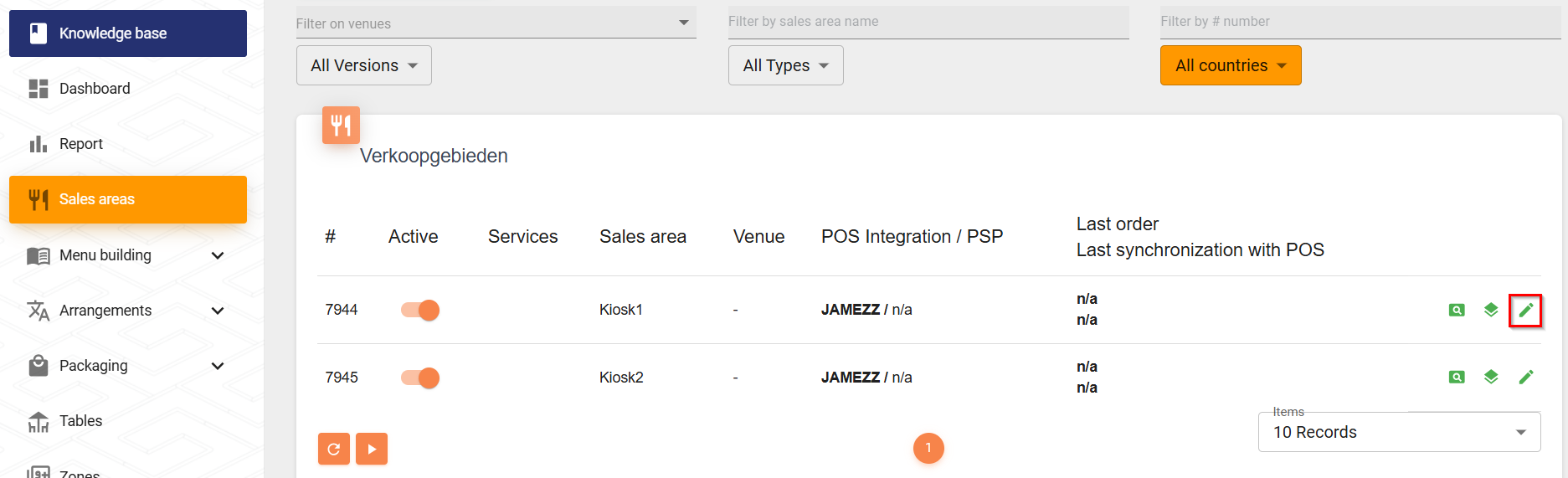
- Select Sales areas in the sidebar menu and select Kiosk1 Edit symbol:
- Select LAYOUT & STYLE tab:
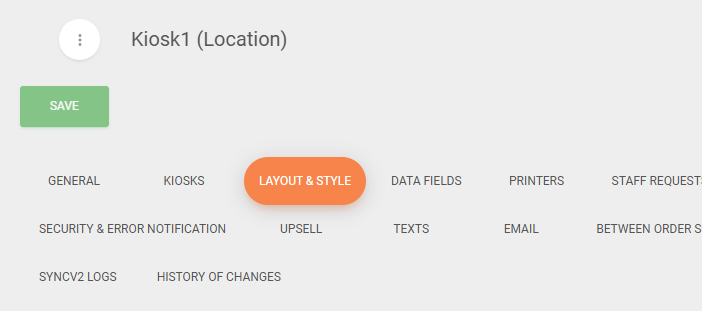
- Upload the files into the correct object.
NOTE: Kiosk1 is by default configured as a master for all the other kiosks on the same site, meaning they will inherit the settings from it and don't have to be configured individually.
Creating a new user
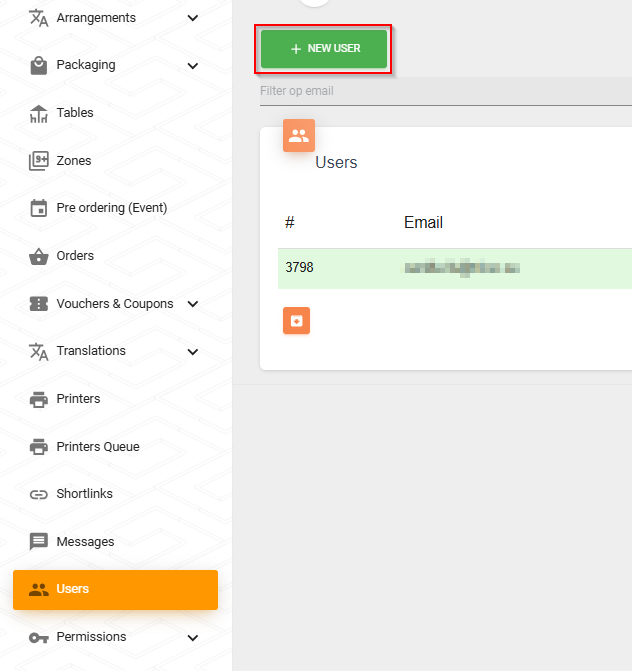
- Navigate to Users on sidebar menu and select NEW USER:
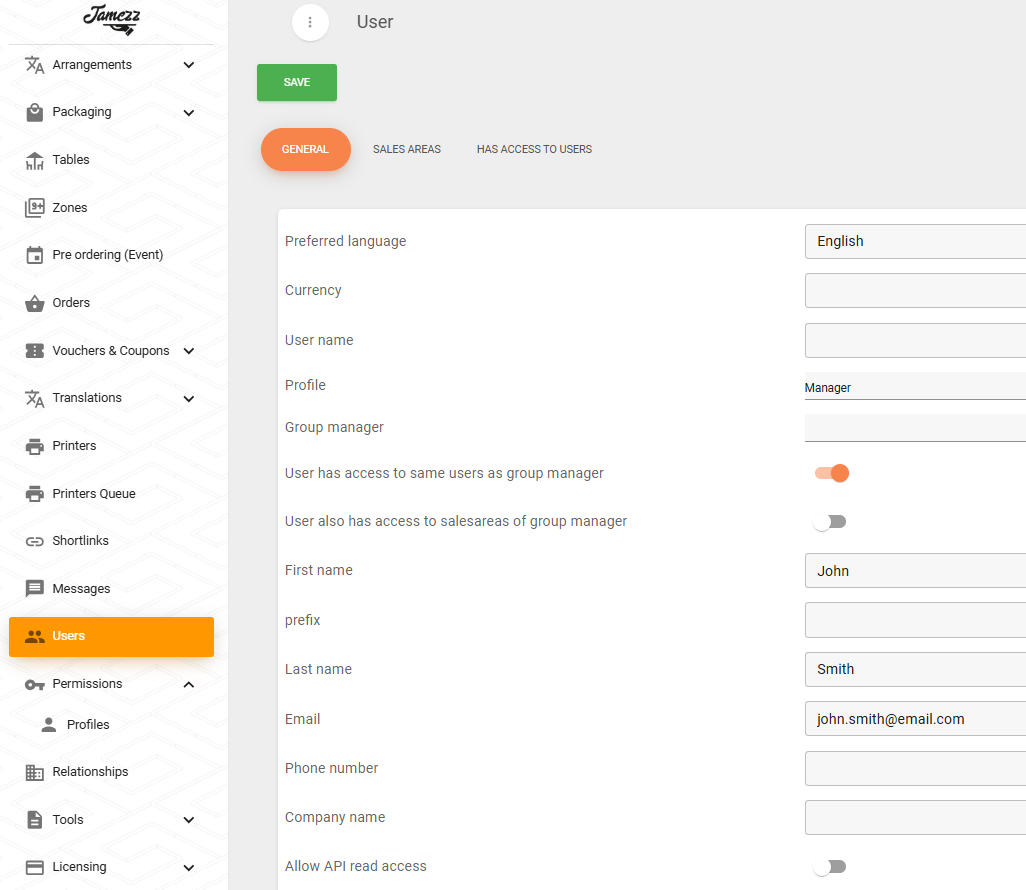
- Configure the following properties in the Generaltab:
- Preferred language
- Profile
- Email address
- First name
- Last name
- Switch to SALES AREAS tab and select which Sales area (kiosks) the user will have access to. This is useful when one Jamezz backoffice is used for several restaurants (One Jamezz for several restaurants):
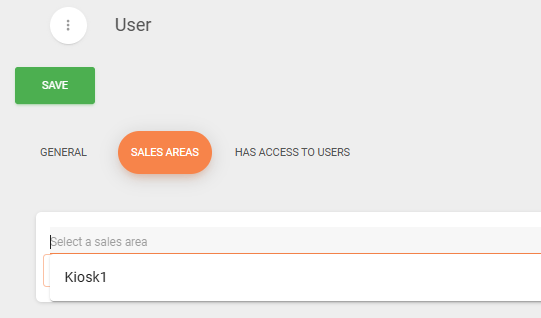
- Select SAVE, and the user will receive an activation email.
Importing POS data
Everytime products are created or modified in Domino, they need to be re-imported in Jamezz. This process can be automated, for help with that, contact Jamezz.
To import products manually:
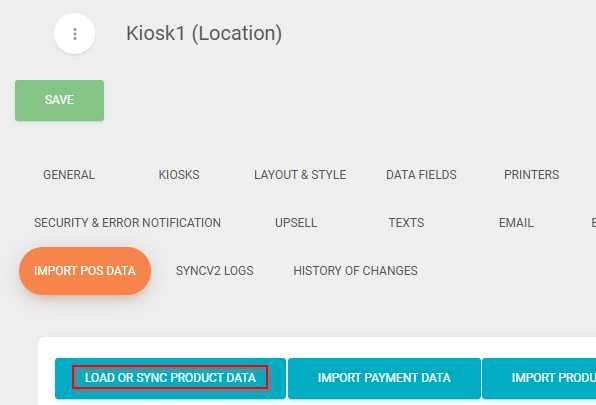
- Select IMPORT POS DATA tab and select LOAD OR SYNC PRODUCT DATA to import products from Domino:
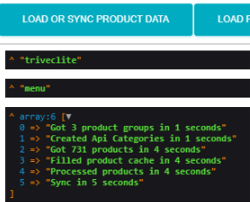
- You should get the following result:
Configuring category visibility
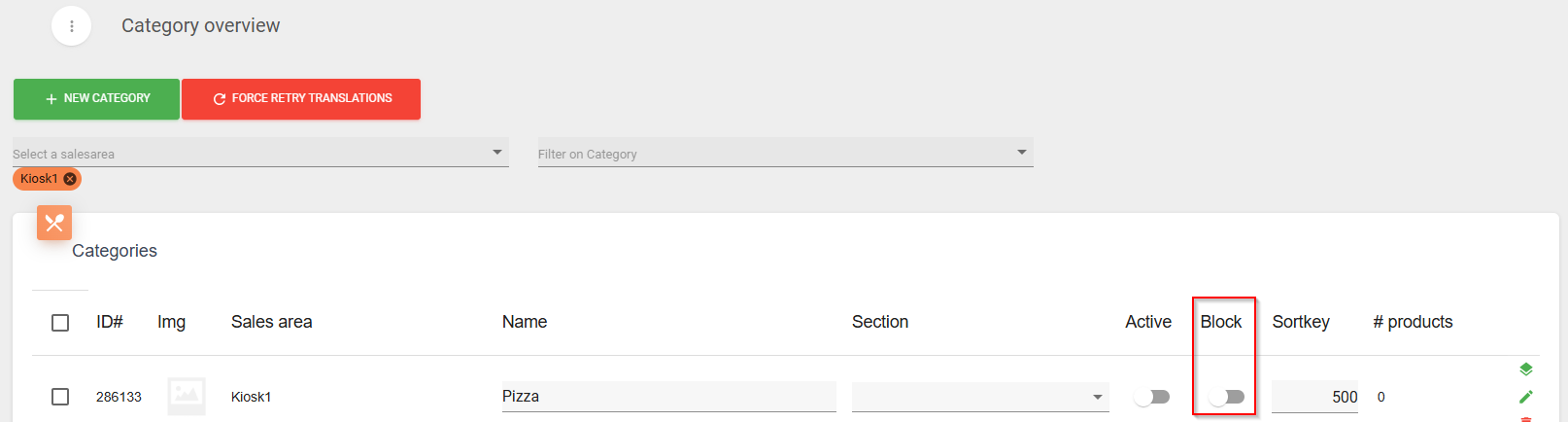
ProductPages in Domino are imported to Jamezz as Categories, their visibility can be toggled on and off in a Jamezz kiosk.
- Navigate to Menu building/Categories
- If desired, disable a product page in Jamezz by enabling the Block property on a category:
Configuring category images and nr of columns
- Select the Edit symbol next to the category:
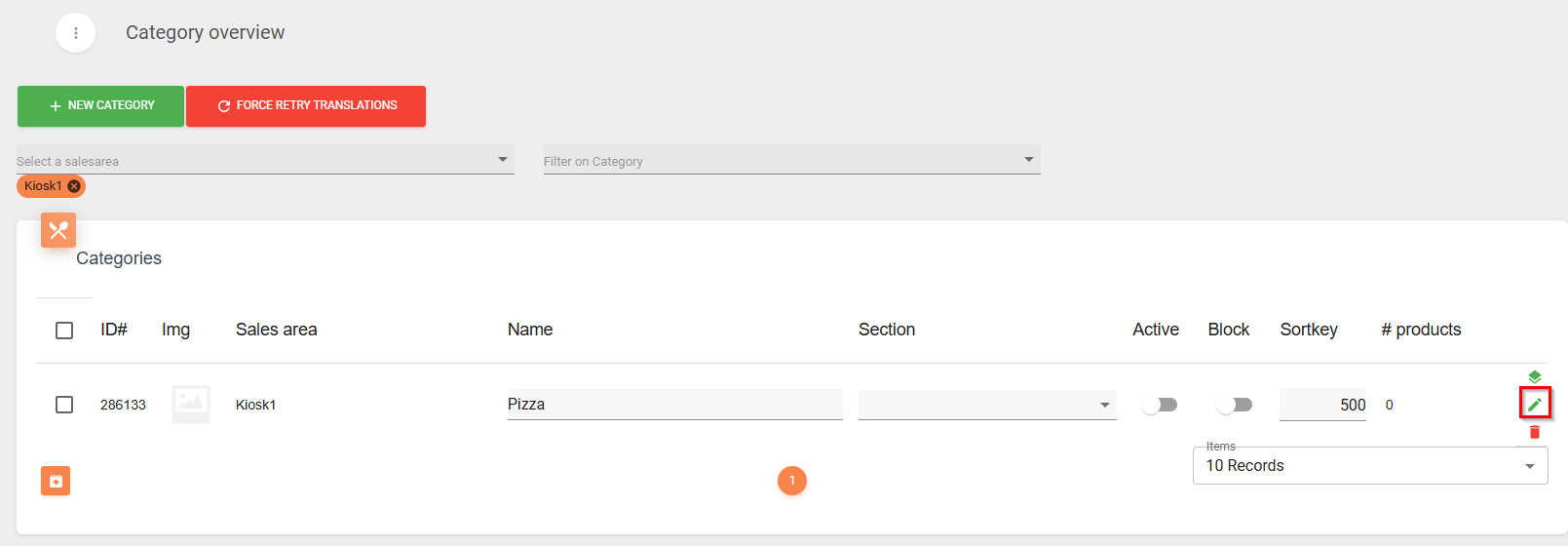
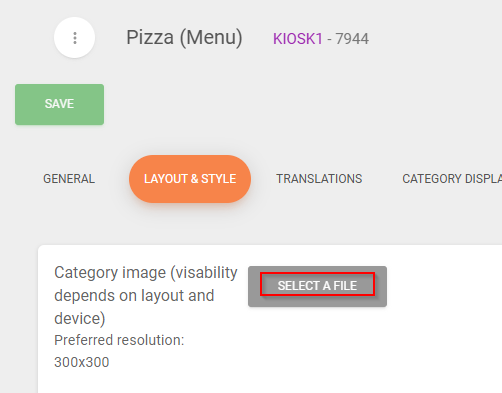
- Switch to LAYOUT & STYLE tab and select SELECT A FILE to upload the category image:
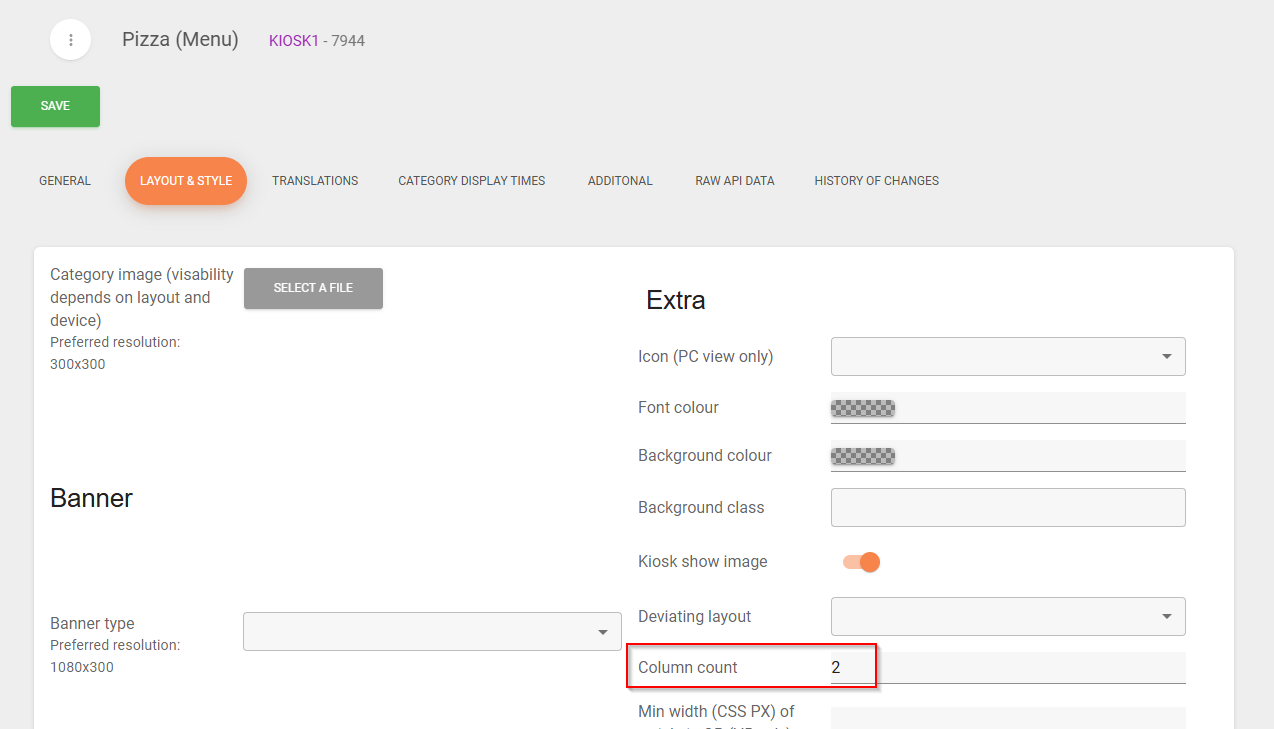
- Edit the Column count property to configure the number of product columns visible on the kiosk screen:
Checking category translations (if used)
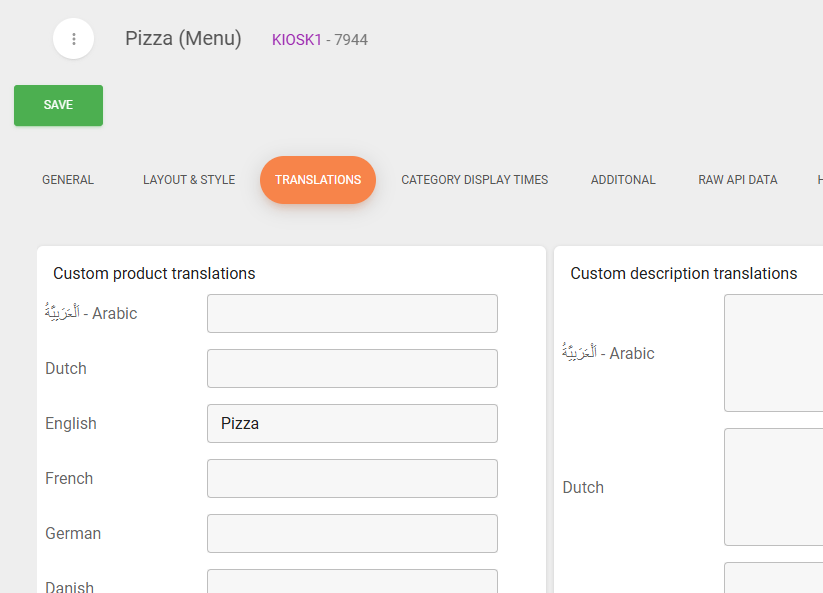
- Switch to TRANSLATIONS tab and check that machine translations are correct:
Configuring product visibility and image
- Navigate to Menu building/Products
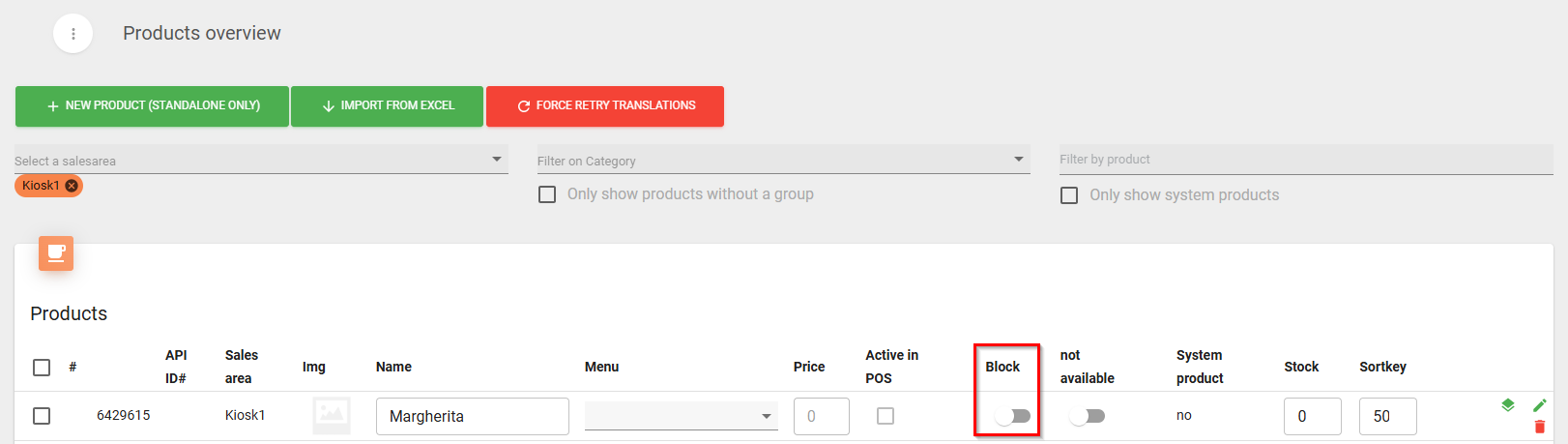
- If desired, disable a product in Jamezz by enabling the Block property on a product:
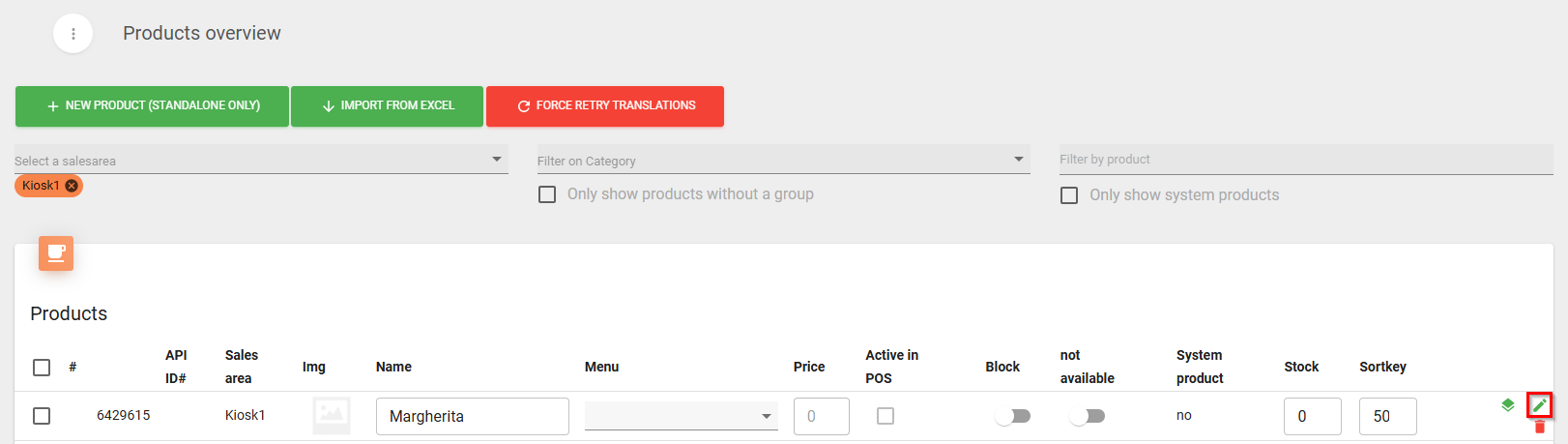
- Select the Edit symbol next to the product:
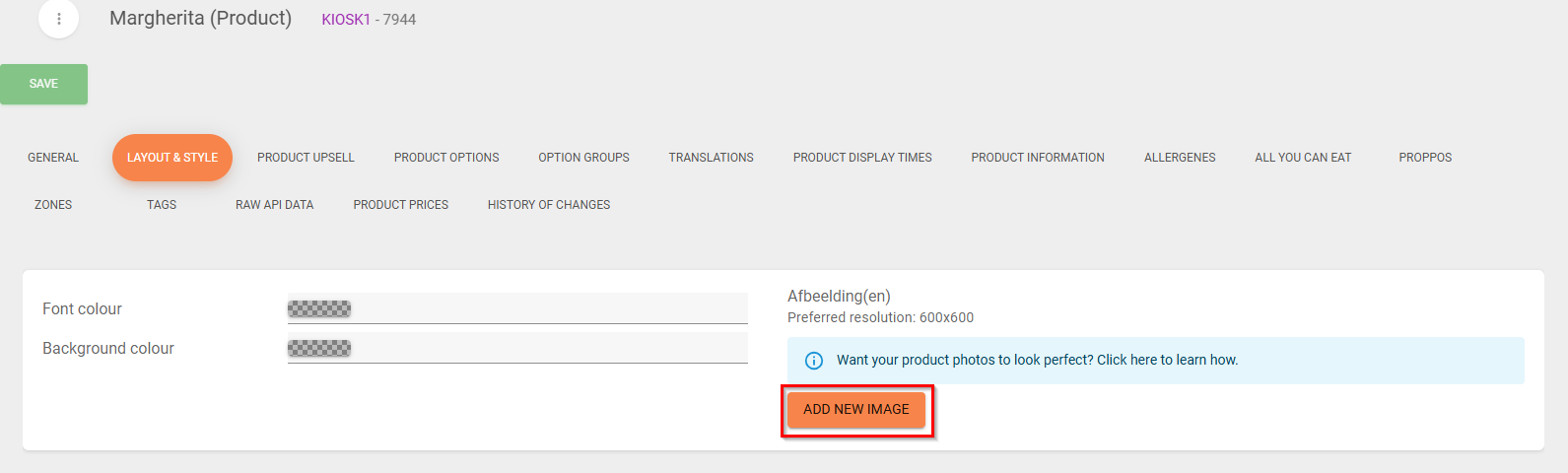
- Switch to LAYOUT & STYLE tab and select SELECT A FILE to upload the product image:
NOTE: Jamezz backoffice can be configured in a way that all newly imported products are disabled by default. That makes sense in case you don't want the products to be visible on the kiosk straight away. For help with configuring this feature, contact Jamezz.
Checking product translations (if used)
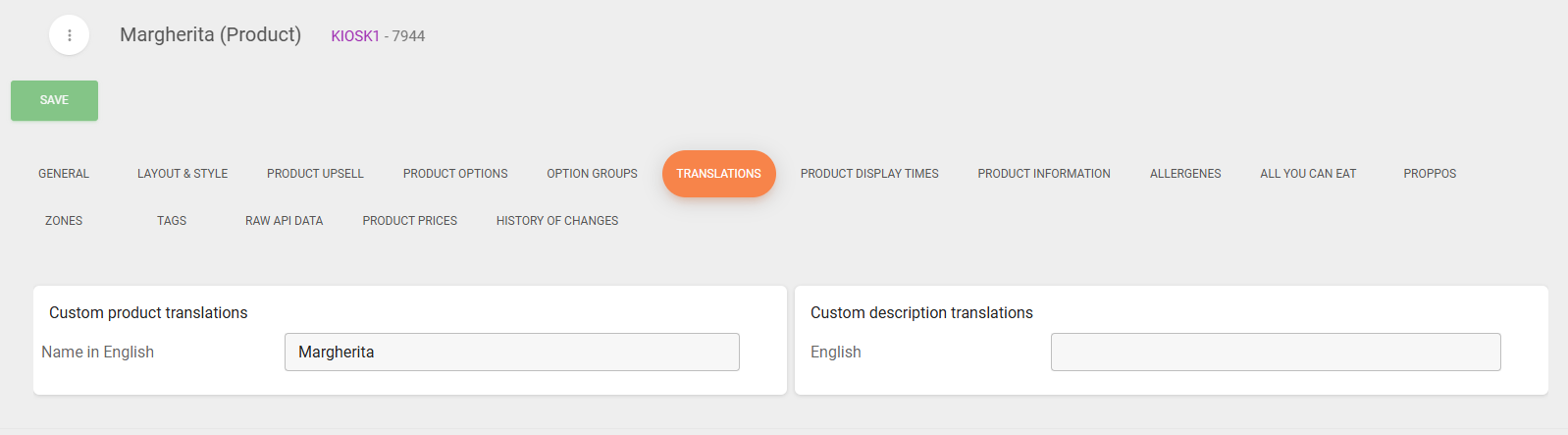
- Switch to TRANSLATIONS tab and check that machine translations are correct:
Additional information
One Jamezz for several resturants
One Jamezz backoffice can be used for several companies, e.g. HQ setups, restaurant chains and similar. Granular access control is possible by selecting which sales ares users have access to.
About profiles
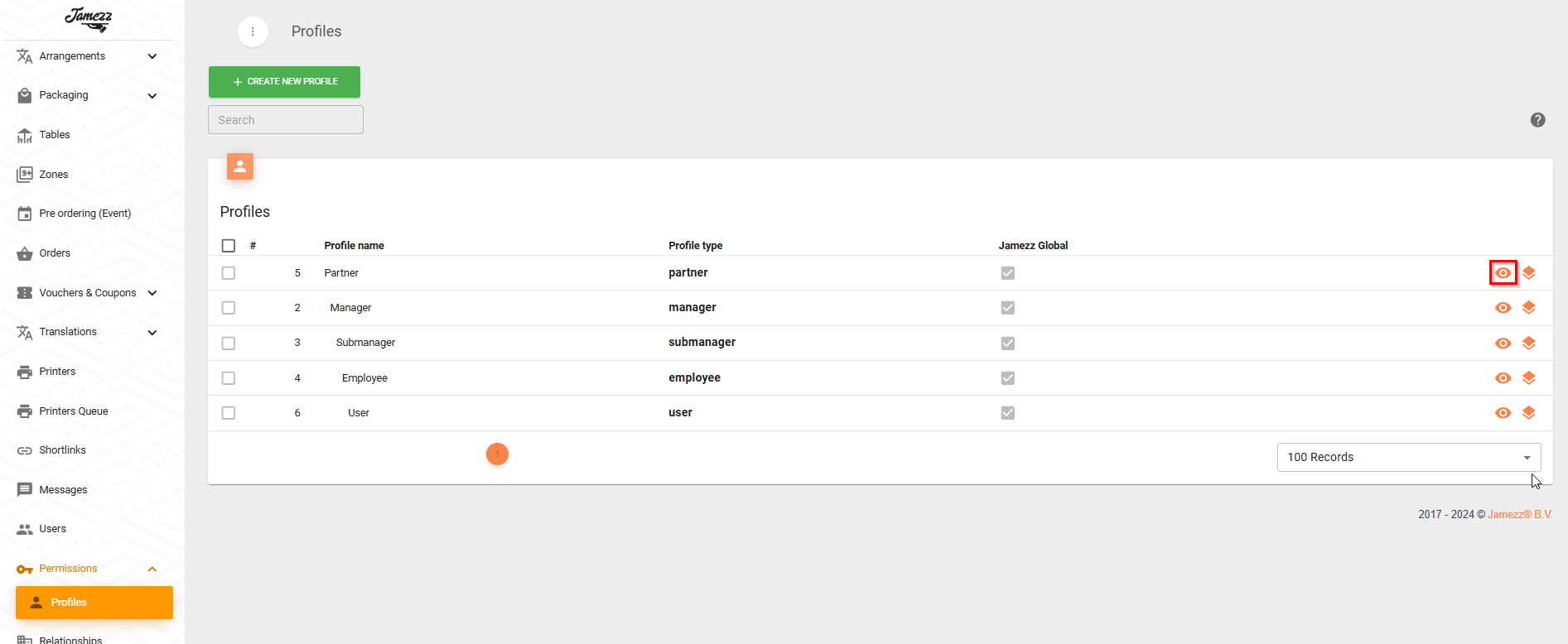
Jamezz Backoffice uses profiles to manage permissions. To see which permission can do what, navigate to Permissions/Profiles on the sidebar menu and select the View symbol:
New product or changes to existing products
Create a product or modify it in Domino and run import in Jamezz using the "Upload data from POS" functionality. This is the Customer's responsibility, and automatic sync can be configured to run once every night. For help with enabling this feature, contact Jamezz.
New/updated visual materials
All images are configured in Jamezz, Follow the Configuring the visuals guide.
Changes to routing and prep groups
No updates are required in Jamezz.
Importing new products as disabled
Jamezz can be configured so that all newly imported products are, by default, disabled. The purpose of this is to avoid making products not intended for kiosk visible on kiosks straight away after import. For help with enabling this feature, contact Jamezz.
Automatic upload of products
Jamezz backoffice can be configured to automatically upload products to Jamezz, for example, once a day at night. For help with enabling this feature, contact Jamezz.
Was this article helpful?
That’s Great!
Thank you for your feedback
Sorry! We couldn't be helpful
Thank you for your feedback
Feedback sent
We appreciate your effort and will try to fix the article