This guides explains how to use C10 and C100+ terminals. If you are unsure which terminal you have, please check out WestPay terminals.
C10 operates in EPAS mode only, while C100+ terminals operate in two modes, EPAS and Pay@Table:
Direct payment (EPAS)
EPAS mode is used when sending a transaction to the terminal from Domino or Handy, supported on both C10 and C100+ terminal.
- In Domino or Handy, enter the payment menu (For info on navigating to payment menu, check out Payment for Handy and Payment for Domino),
- Select the payment method associated with the card terminal (Card1, Card2 / Kort1 , Kort2):
Version 2_0_13 - percentage tip
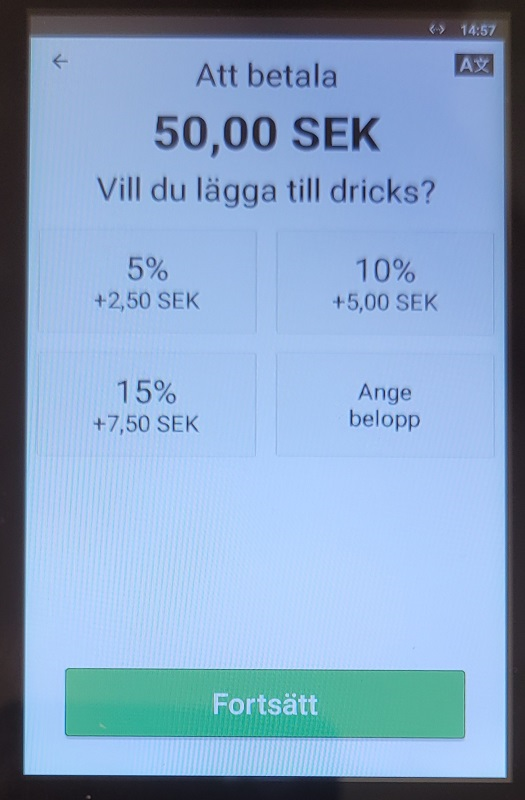
- Select the predetermined tip percentage or select Ange belopp to enter a custom amount of tip.
- Alternatively, select Fortsätt to skip tips.
|
 |
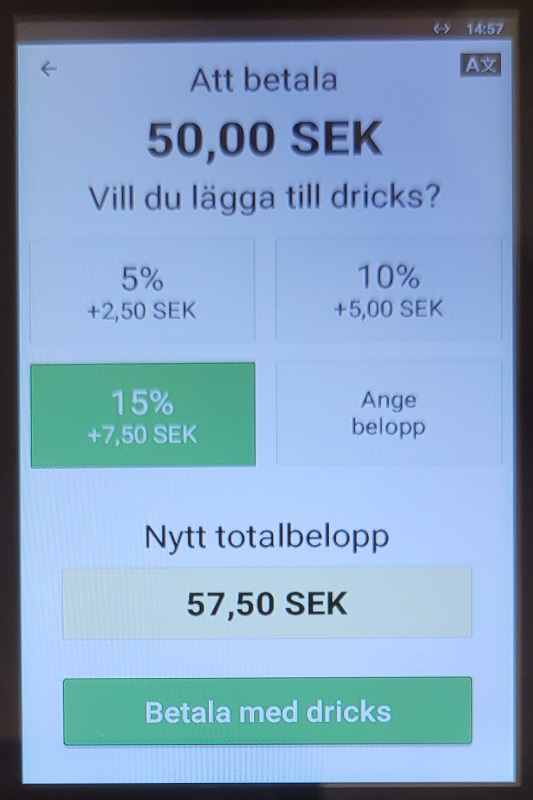
- After selecting a tip percentage, total amount is updated. Confirm with Betala med dricks:
|
 |
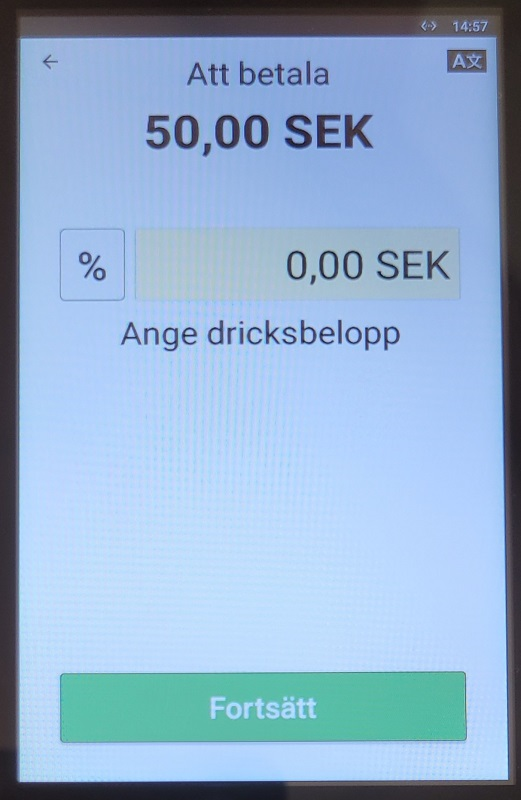
- If you selected Ange belopp, you can enter tip amount manually:
|
 |
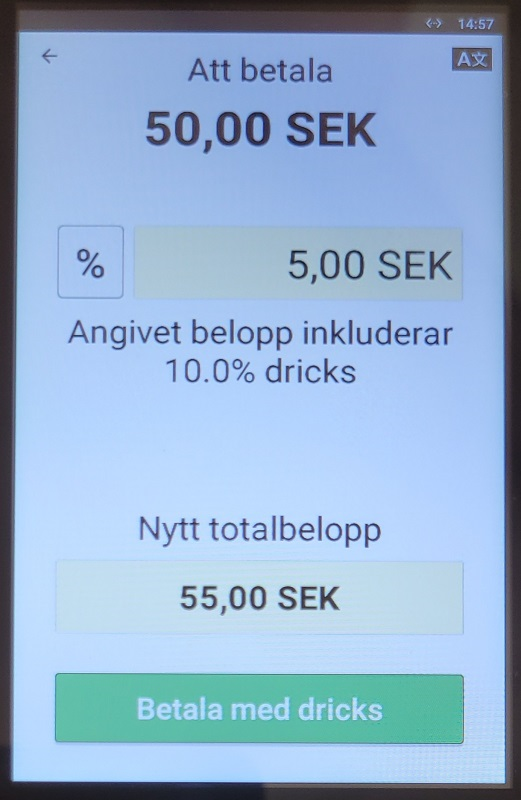
- After entering tip amount, total amount is updated. Confirm with Betala med dricks:
|
 |
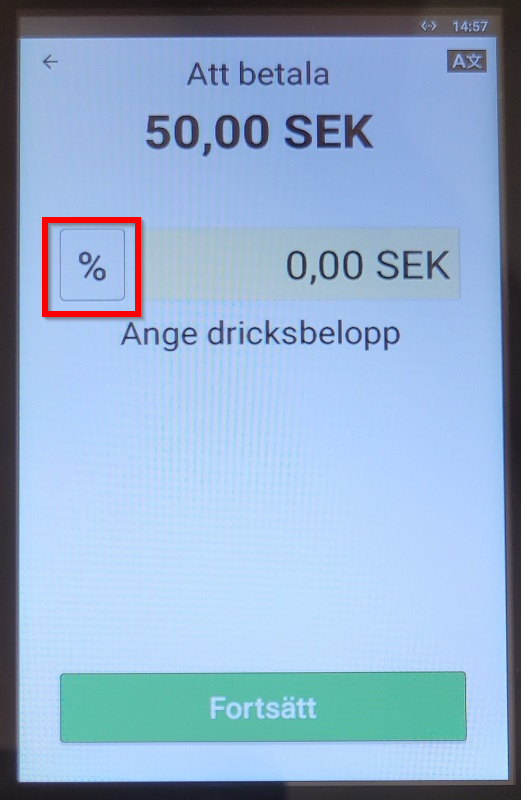
- To select a custom tip percentage, select the % symbol:
|
 |
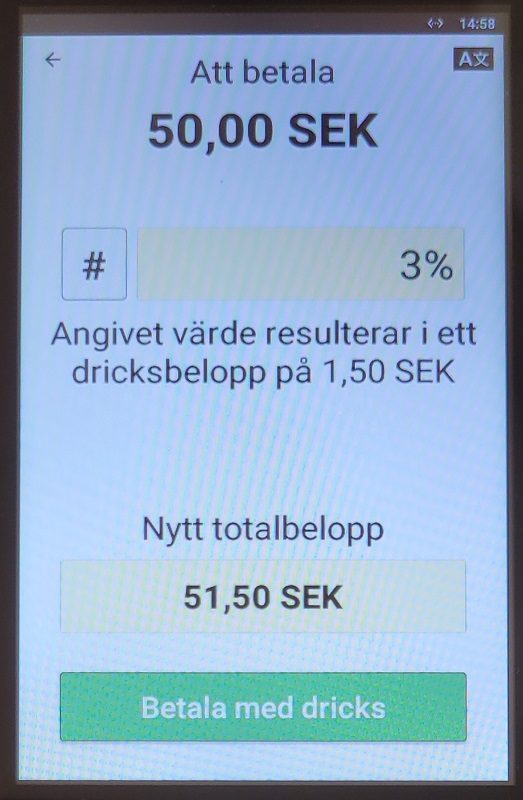
- After entering tip percentage, total amount is updated. Confirm with Betala med dricks:
|
 |
Version 2_0_11_4 - total amount tip
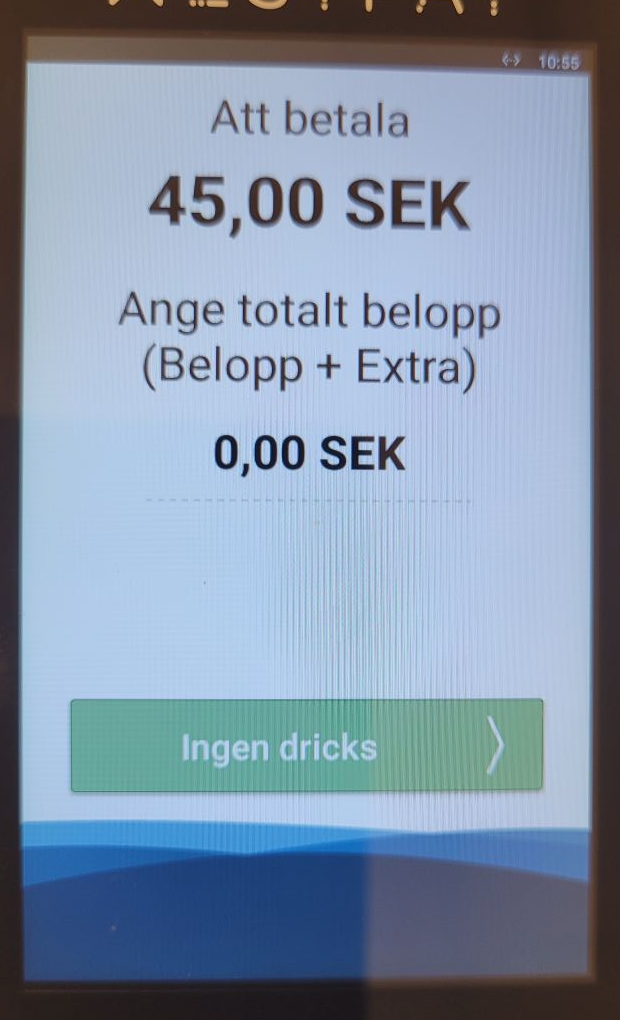
- Follow the instructions on the device:
|
 |
Tableside payment (Pay@Table)
Pay@Table mode is used when fetching a table to complete a payment and is only available on C100+ terminals.
Logging in
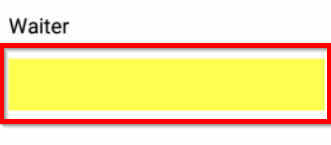
- Log in on the WestPay device by entering your Domino/Handy login key in the yellow Waiter box:
|
 |
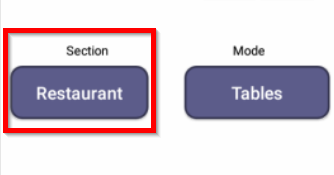
- If several Sections/Centers are configured, select the section/center you would like to use (This can be changed after logging in as well):
|
 |
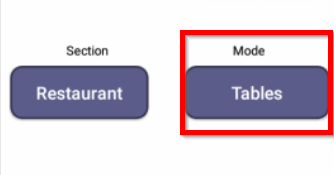
- If several Modes are configured, select the mode you would like to use (Tables, Bar tabs, Queue):
|
 |
- Confirm the selection with OK.
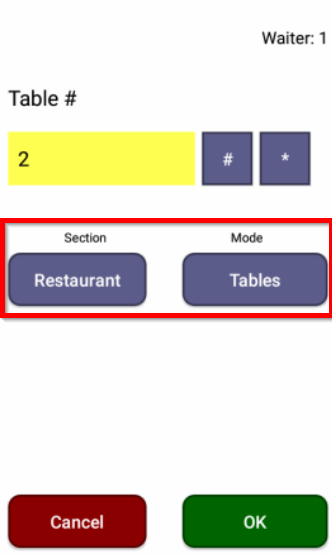
- After logging in, select Section or Mode to switch sections and modes (if configured):
|
 |
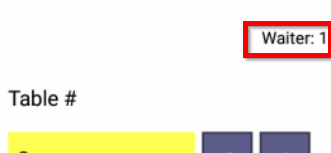
- Logged in user is displayed in the upper right corner:
|
 |
Working with tables
- To search for a table, enter the table number in the yellow search box.
|
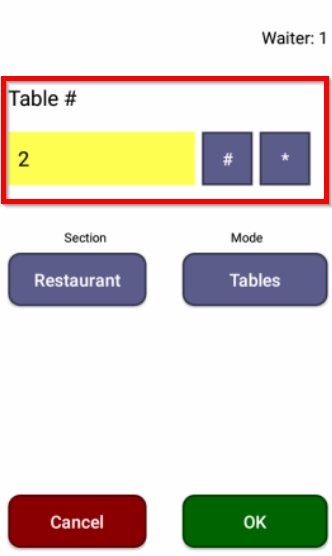 |
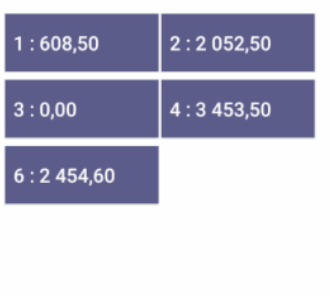
- Device will display all tables containing the number you searched for (e.g. 2, 12, 22).
- To display all tables, leave the search box empty and just select OK:
|
 |
Payment
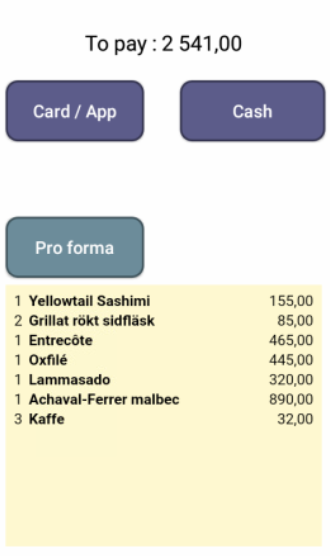
- Select a table to proceed with payment. Table info will display:
|
 |
-
Cash as a payment method is most often disabled, but it can be enabled if requested by the customer.
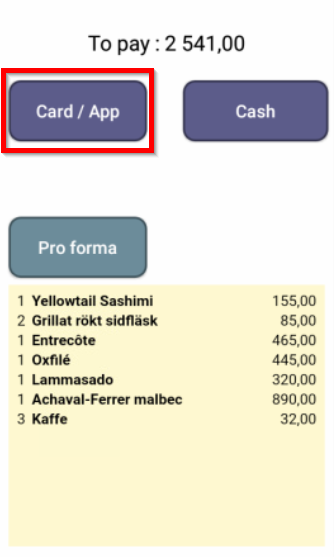
- Select Card to proceed with the card payment:
|
 |
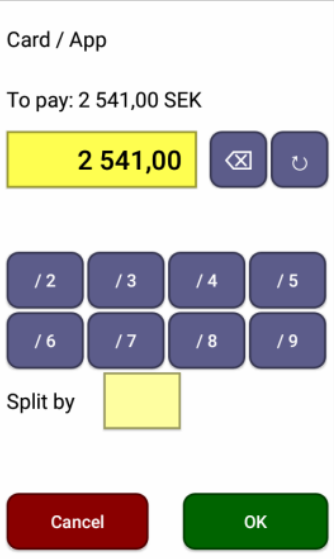
- The total amount is pre-entered. You can delete the sum and enter a custom amount yourself.
|
 |
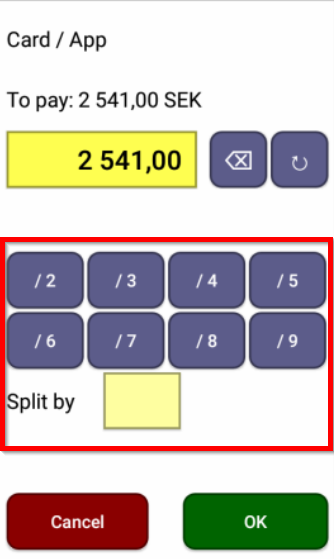
- You can split the amount by using the number to split the order with. You can also enter a custom amount, after which green button on the keypad needs to be pressed to recalculate the amount.
|
 |