This guide explains how to make a sale without placing it on a table (direct sale). This workflow is similar to a bar POS where tables are not used.
Adding products to order
Add a single product to order
- Log into Handy (for info on how to log in, check out Logging in to Handy).
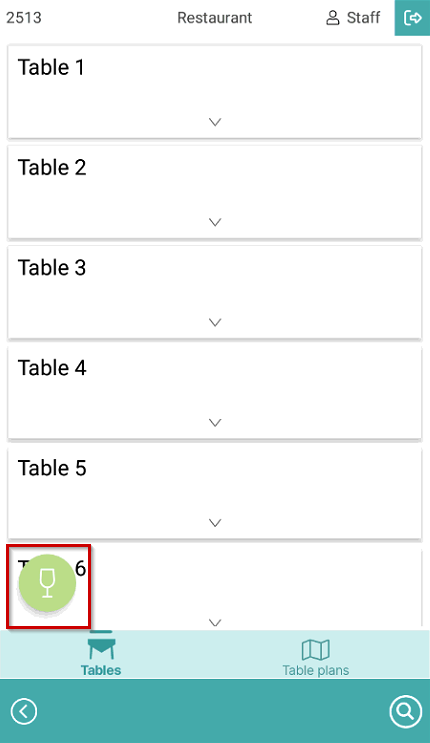
- Select the green Sale icon to enter direct sales mode:
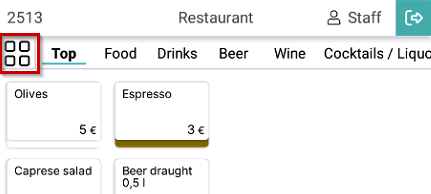
- Swipe left or right to display other product pages, or select the Product page overview symbol:
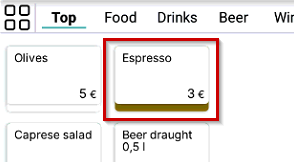
- Select the product you would like to add to the order. You can swipe left and right to navigate the product pages:
Add multiple products to order
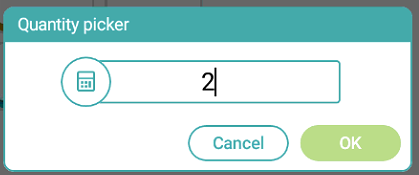
- To add multiple products to order, select the product several times or select the Quantity symbol to open the quantity picker menu:
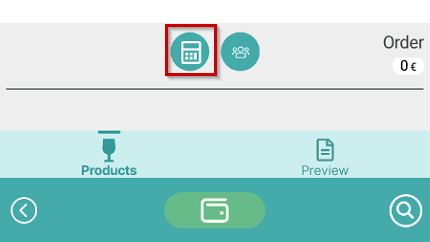
- Enter the product quantity and select OK:
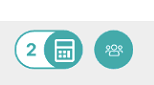
- This will update the quantity to the chosen value:
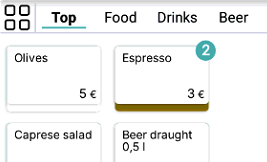
- Next time you select a product, the chosen quantity of products will be added to order:
Closing the order
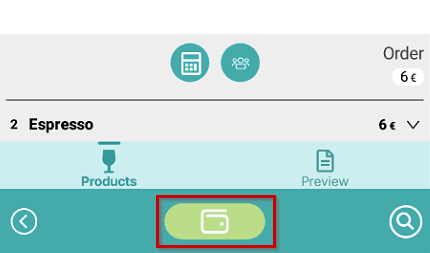
- To close the order select the Payment symbol at the bottom of the screen:
- Select how you want to print the receipt, either Email or Print:
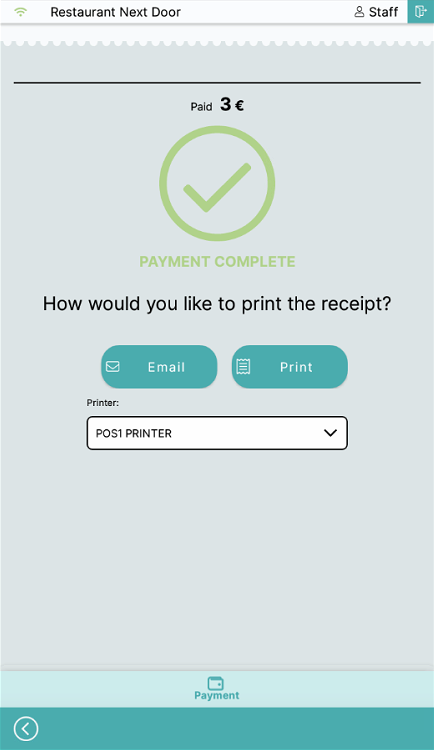
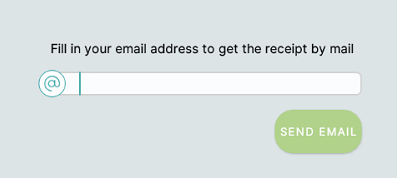
- If you select Email, you will be prompted to enter an email address:
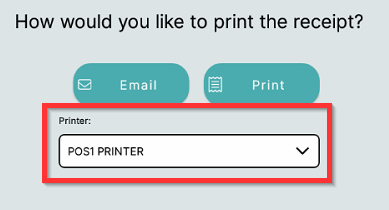
- If you select Printer the receipt will be printed on the chosen printer. To change the printer used select the printer to open the drop-down menu:
- Sale has now been completed.
What's next?
To place an order on a table, check out Placing an order.
To review orders and add or remove products on orders, check out Reviewing orders and modifying amounts
To add memos and info products to orders, check out Adding memos and info products to orders
Was this article helpful?
That’s Great!
Thank you for your feedback
Sorry! We couldn't be helpful
Thank you for your feedback
Feedback sent
We appreciate your effort and will try to fix the article