This guide explains how to manage product pages and their content.
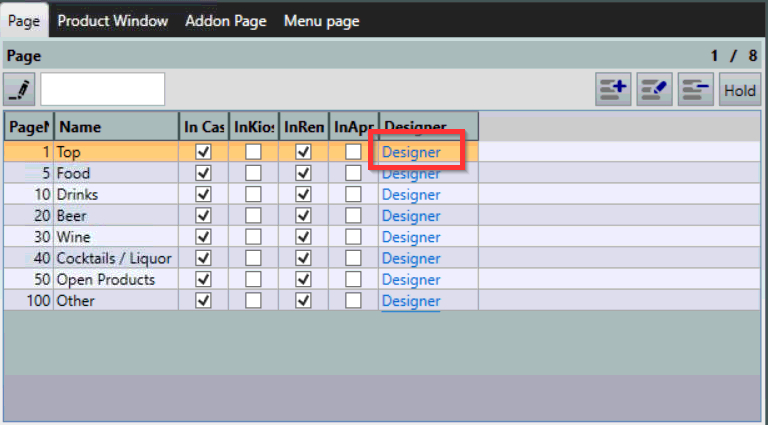
- To display the content of a product page, select the Designer link:
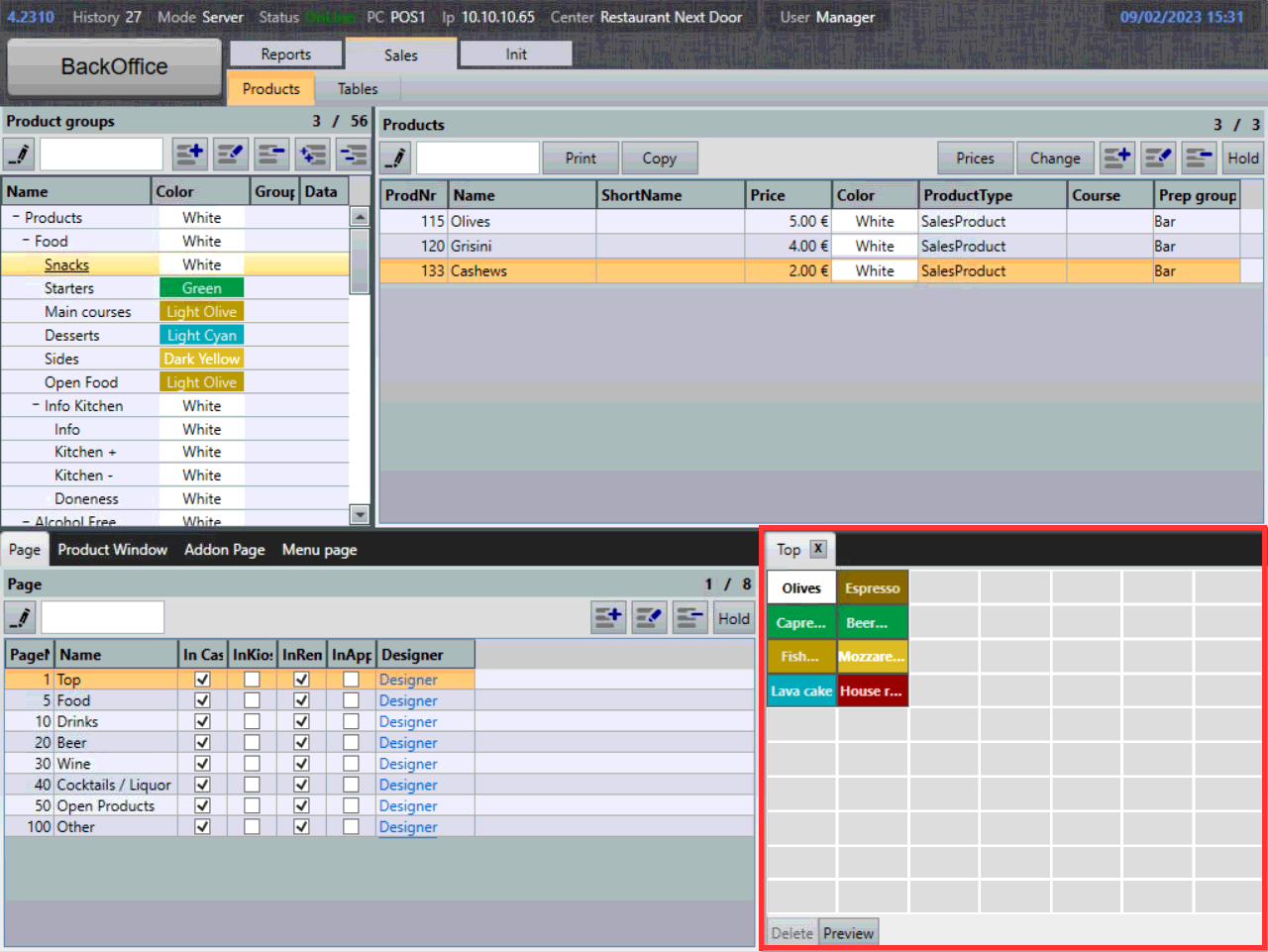
- Page contents will be displayed in the lower right corner of the screen:
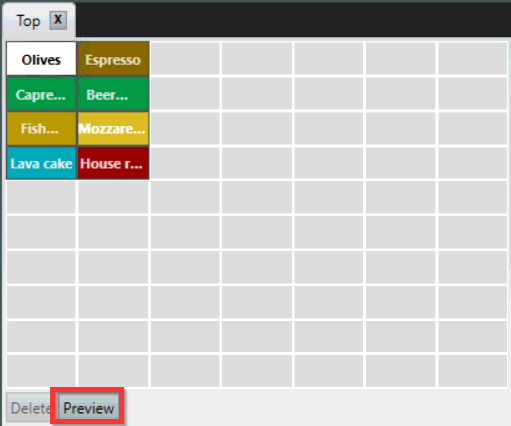
- To preview how the page looks like in the Sales mode, select Preview in the lower end of the window:
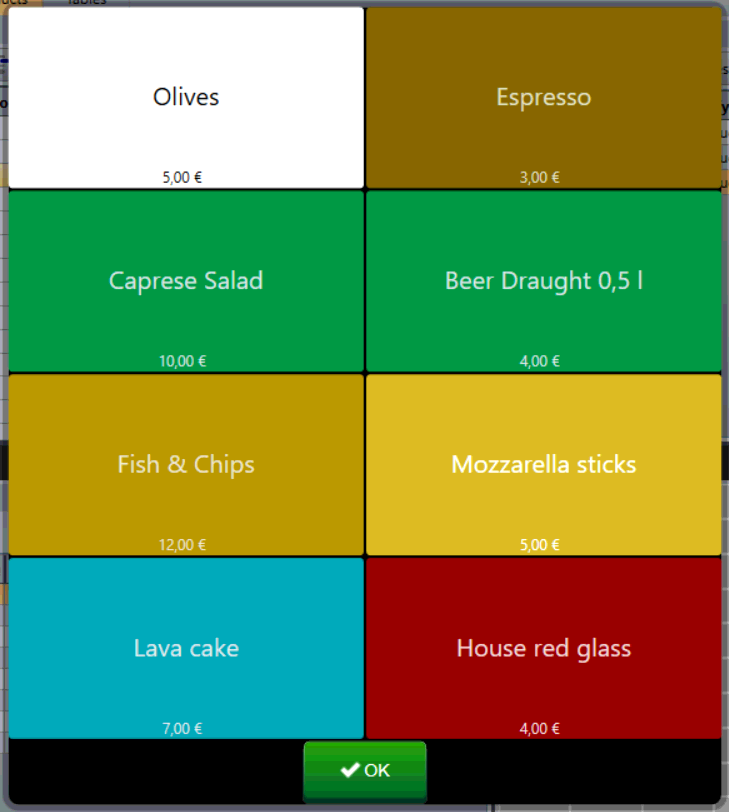
- A preview of the Page will display:
Rearranging products on pages
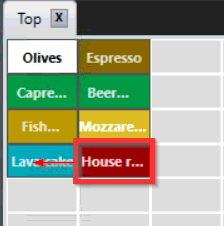
- To rearrange products on pages, left-click, drag and drop the product icons:
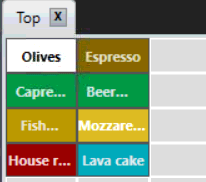
- Product icon has now been relocated on the page:
Removing products from pages
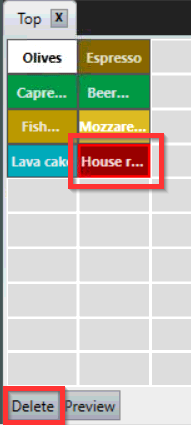
- To remove a product from the page, select the product icon and select Delete:
Adding products to pages
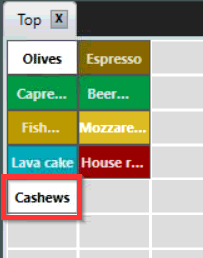
- To add a product to the page, left-click the product, drag and release it on the Product page:
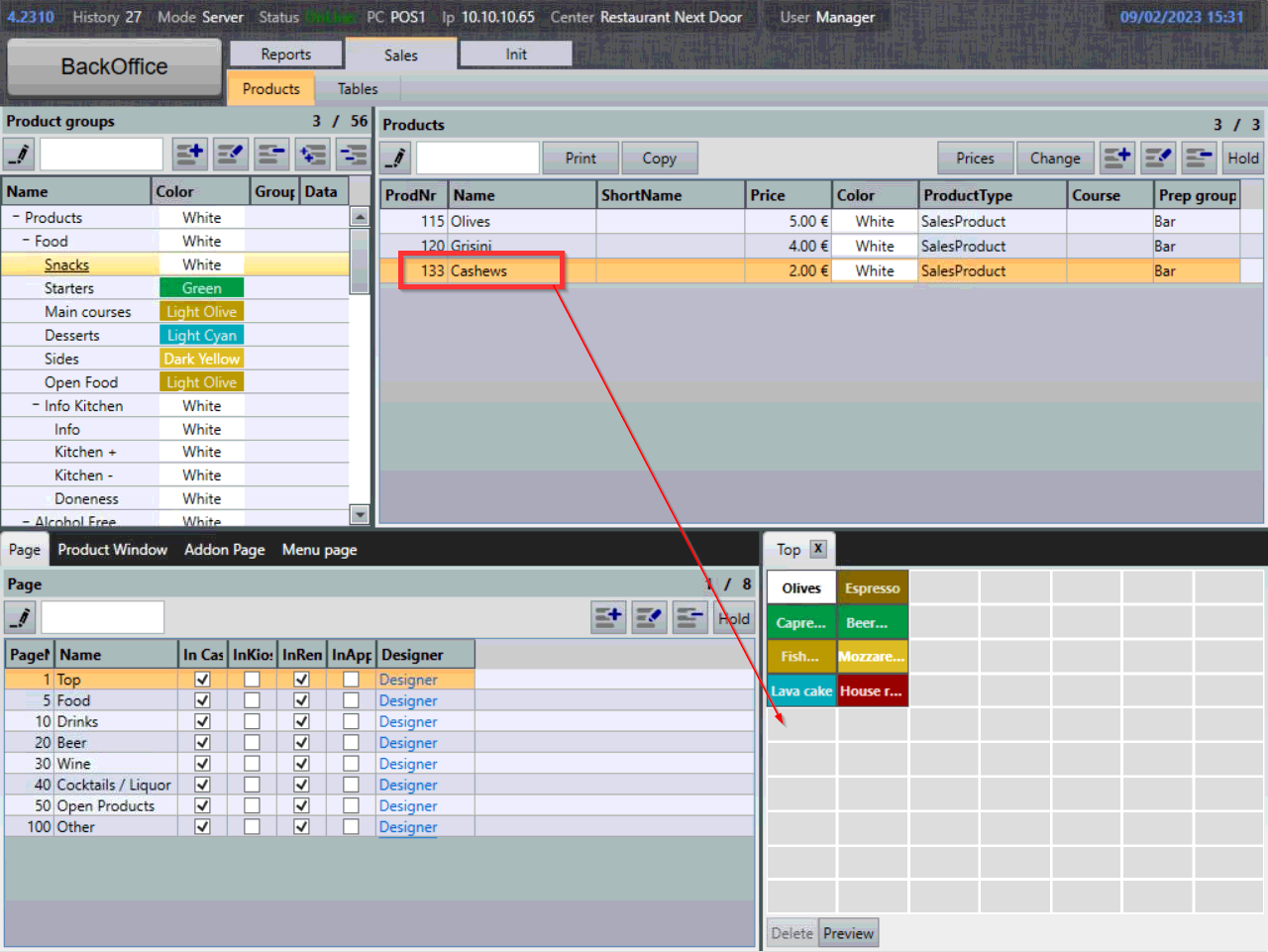
- Product has now been added to the page:
Looking up products from/on pages
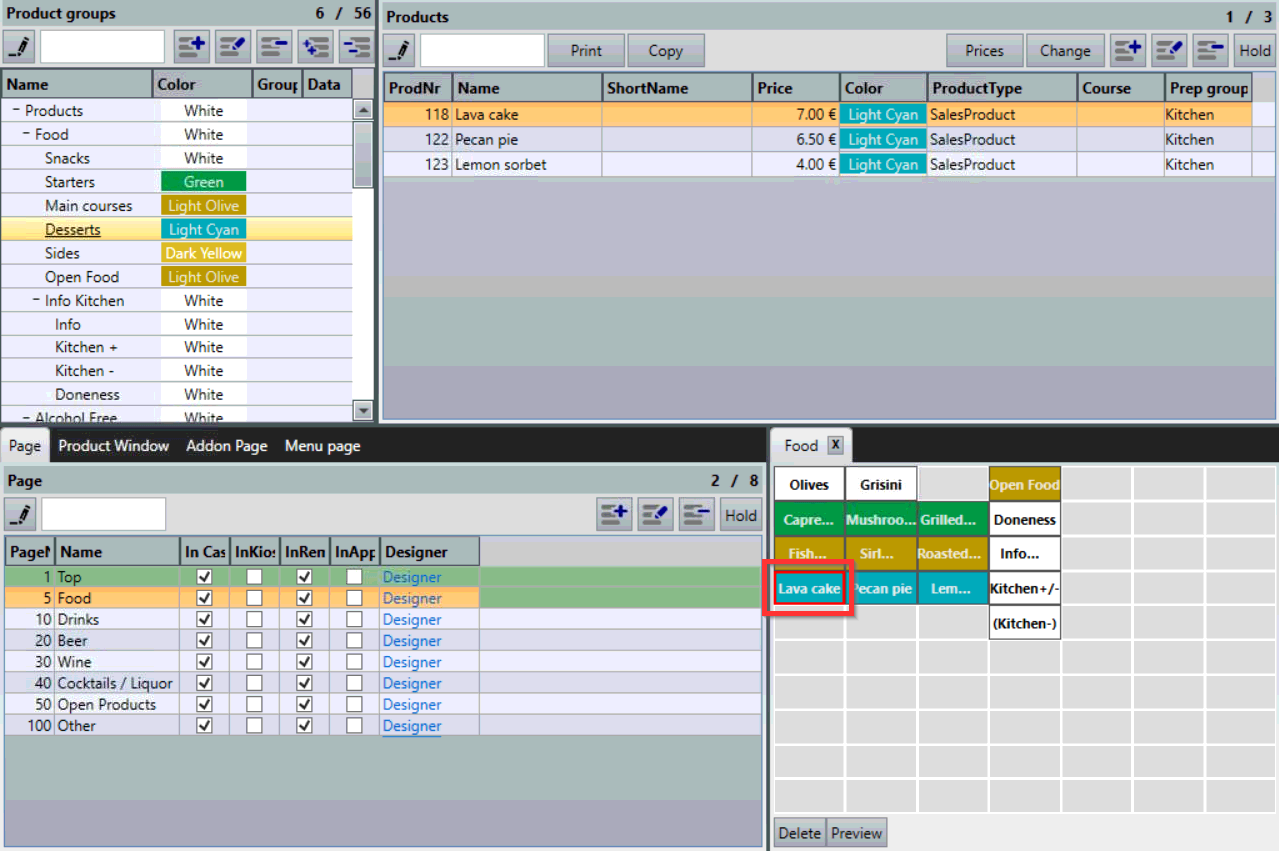
- To find the product that is added to the Page, double-click the product icon, this will display the Product in the Product window and Product group tree:
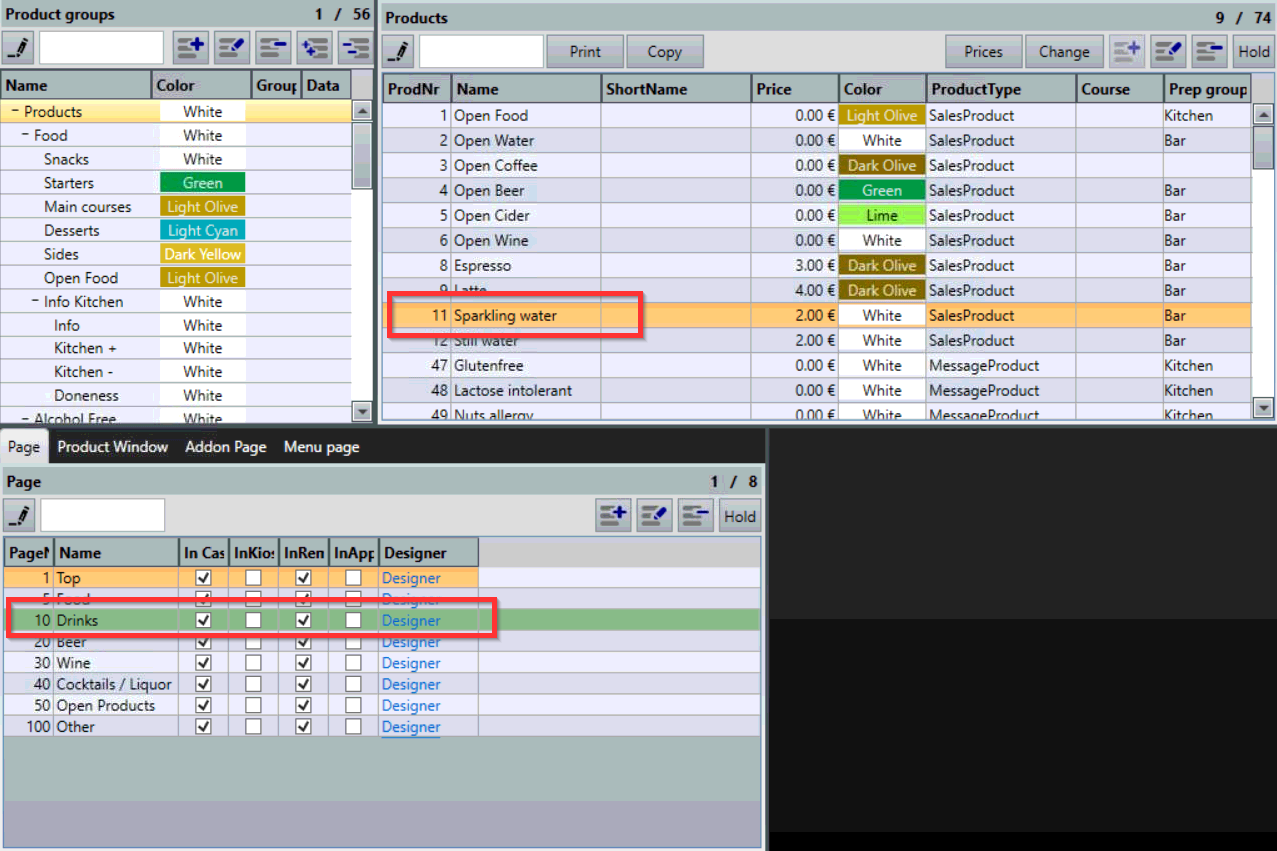
- To find out which page the product is added to, select the product in the Product window and the Page that it is added to will change its color to green:
What's next?
To manage Product Windows, check out Product windows.
To manage Addon pages, check out Addons.
Was this article helpful?
That’s Great!
Thank you for your feedback
Sorry! We couldn't be helpful
Thank you for your feedback
Feedback sent
We appreciate your effort and will try to fix the article