This guide explains how to group and ungroup products in the order line.
Grouping and ungrouping all grouped products
Products added to the order list are grouped by default for better overview.
- To ungroup all grouped products, select the blue C symbol in the lower right end of the screen:
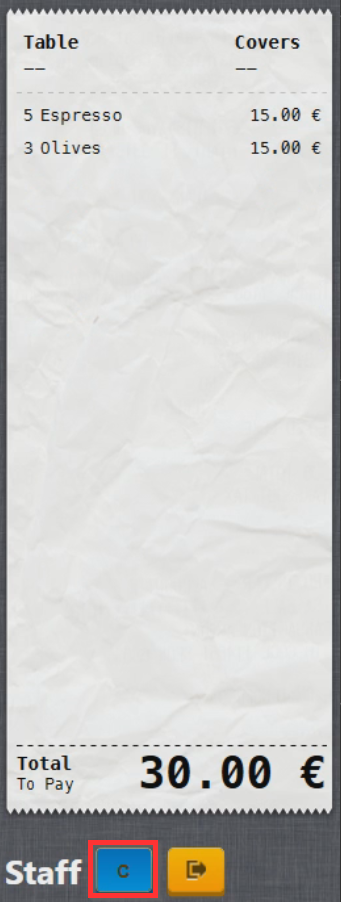
- Selecting it will change the symbol into a yellow T and all the products will ungroup. To group the products again, select the yellow T symbol:
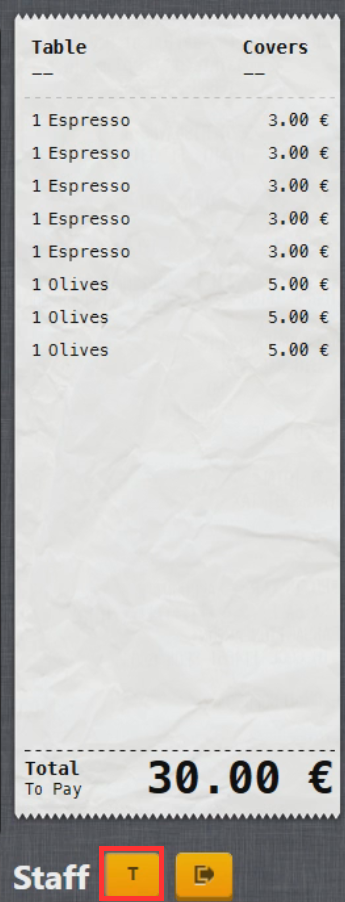
- The symbol will now change into blue C and all the products will group again.
Ungrouping individual grouped products
Sometimes it is necessary to ungroup individual grouped products, for example to add memos or addons to a single product.
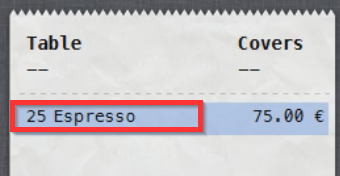
- To split a grouped product into individual products, select the grouped product in the order list to enter Edit Product menu:
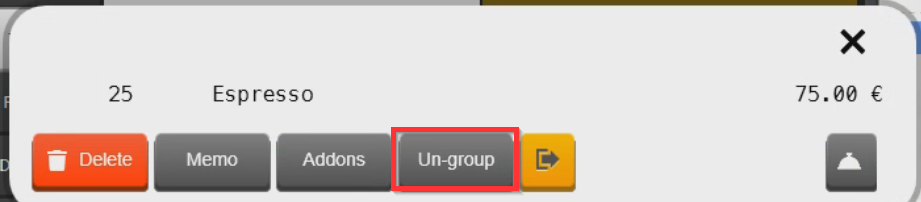
- Select Un-group to split the product:
- Product group has now been split into individual products:
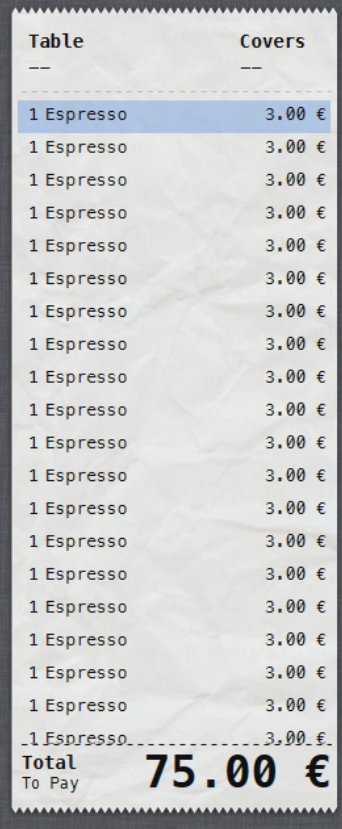
- To group products on the product list again, use the method desribed above for grouping and ungrouping all products.
What's next?
To place an order on a table, check out Placing an order.
Was this article helpful?
That’s Great!
Thank you for your feedback
Sorry! We couldn't be helpful
Thank you for your feedback
Feedback sent
We appreciate your effort and will try to fix the article