The information in this article is limited to only turning off or on the QR-code on the proforma bill, it requires that Buddy or Buddy Pay has been configured allready.
If you want to find out more about the full scale solution Trivec Buddy, check here.
If you want to find out more about Buddy Pay, check here.
If all configuration is done for Buddy Pay, it is possible to easily turn off and on the QR-Code on the proforma bill.
The QR-Code will be visible on the sales ticket also, but when the bill is paid the link of the QR-code will only show the bill information.
Check the checkbox for Buddy Pay
Login with manager level access.
Navigate to BackOffice/Init/Pc
Expand the devices that are on the server till. (if you are on a client make sure you know what PC is server.)

On the left as in the example above we are on the Server till, and to the right we can see the PC-Name.
Select the Buddy device as shown below.
Select the checkbox that says QROnTicket.
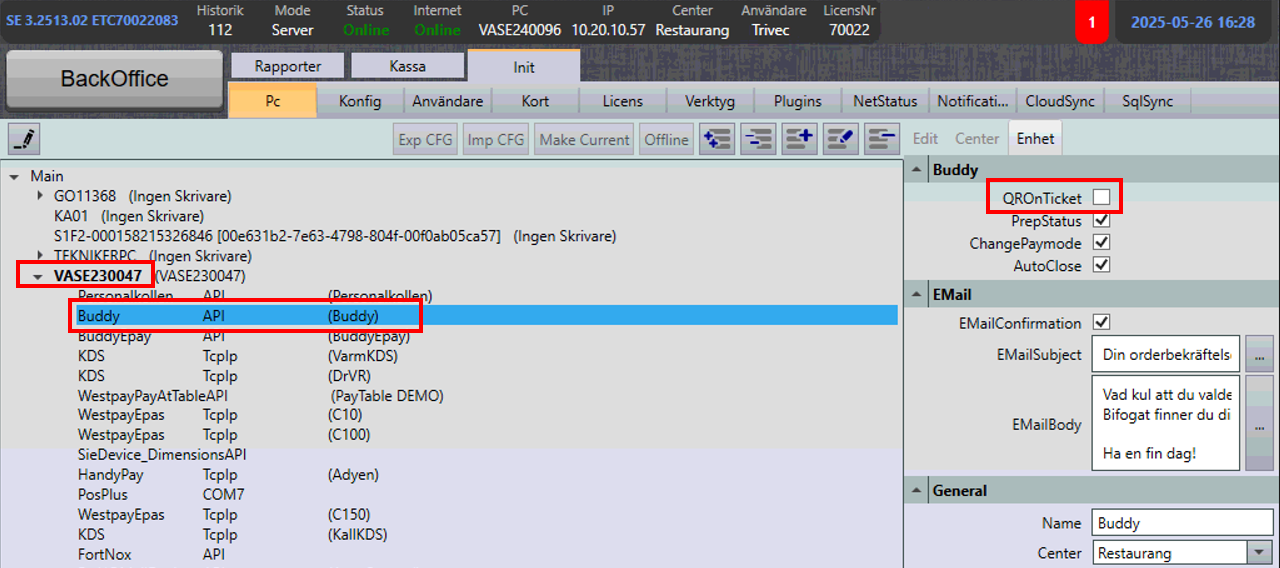
As soon as this checkbox has been checked, QR-codes will be printed on both proforma bills and on sales tickets.
To turn off the QR-Code, uncheck the box in the flow above.
Was this article helpful?
That’s Great!
Thank you for your feedback
Sorry! We couldn't be helpful
Thank you for your feedback
Feedback sent
We appreciate your effort and will try to fix the article