This guide explains how to modify table plans.
Adding tables to table plan
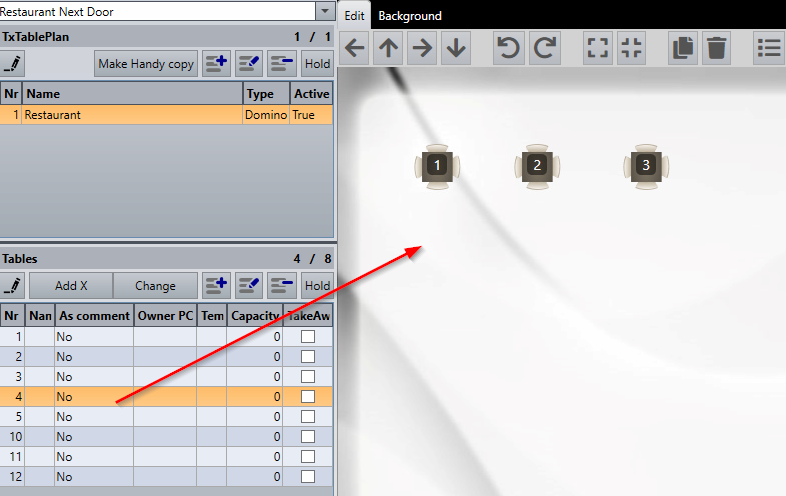
- To add a table to the table plan, left-click a table on the Tables list (on the lower left side of the screen), drag and drop it on the table plan:
Rearranging the tables
To move the tables around, you can either:
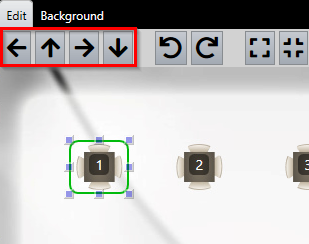
- Click the table to select it and click the arrow keys:
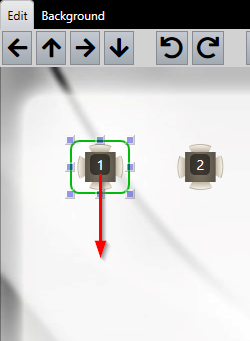
- Alternatively, click the table, drag and drop it elsewhere:
Modifying table icons
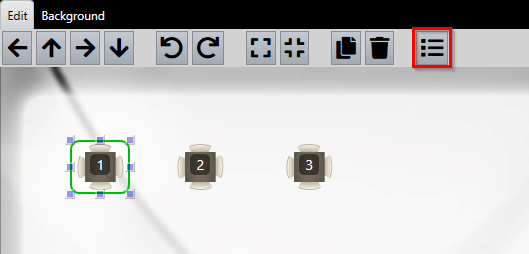
- To modify the table icons, select the table and select the Properties button:
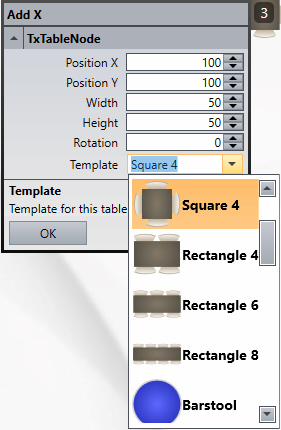
- In the table properties menu, you can configure the following fields:
- Position X: Icon location on the X axis (in pixels)
- Position Y: Icon location on the Y axis (in pixels)
- Width: Icon width (in pixels)
- Height: Icon height (in pixels)
- Rotation: Icon rotation (in degrees)
- Template: Different table icons to choose from
- To change the table icon to a different template, select the Template dropdown menu, select a different icon, and confirm with OK:
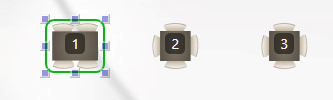
- The table icon has now been changed to a different one:
Resizing the tables
- To increase or decrease a table size, click a table to select it and click the table resize buttons:
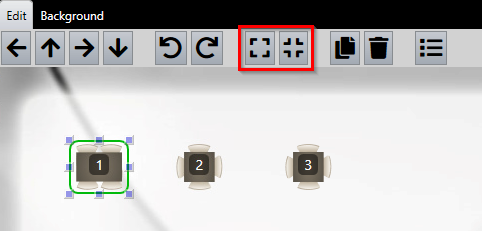
- The left button increases the table size, and the right one decreases it.
- Alternatively, you can use the table properties menu described above in Modifying table icons.
Rotating a table
- To rotate a table, click a table to select it and click the table rotate buttons:
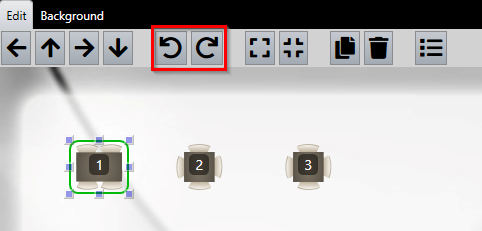
- The left button rotates the table counter-clockwise, the right one clockwise.
- Alternatively, you can use the table properties menu described above in Modifying table icons.
What's next?
To create new table plans or tables, check out Tables: Creating new table plans and tables.
Was this article helpful?
That’s Great!
Thank you for your feedback
Sorry! We couldn't be helpful
Thank you for your feedback
Feedback sent
We appreciate your effort and will try to fix the article