This guide explains how to add memos (info messages) and addons to the product on the order list.
Entering the modify product menu
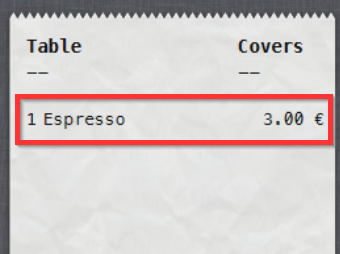
- To modify the product details, select the product on the order list:
Adding a memo to the product
Memo is a message displayed on the prep ticket. Memo content is rarely printed on receipts but that can vary between setups.
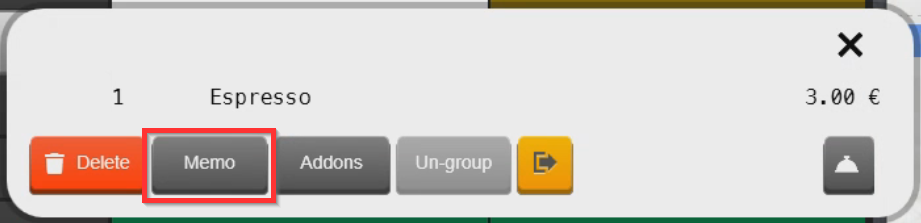
- To add a memo/message to the product, select Memo:
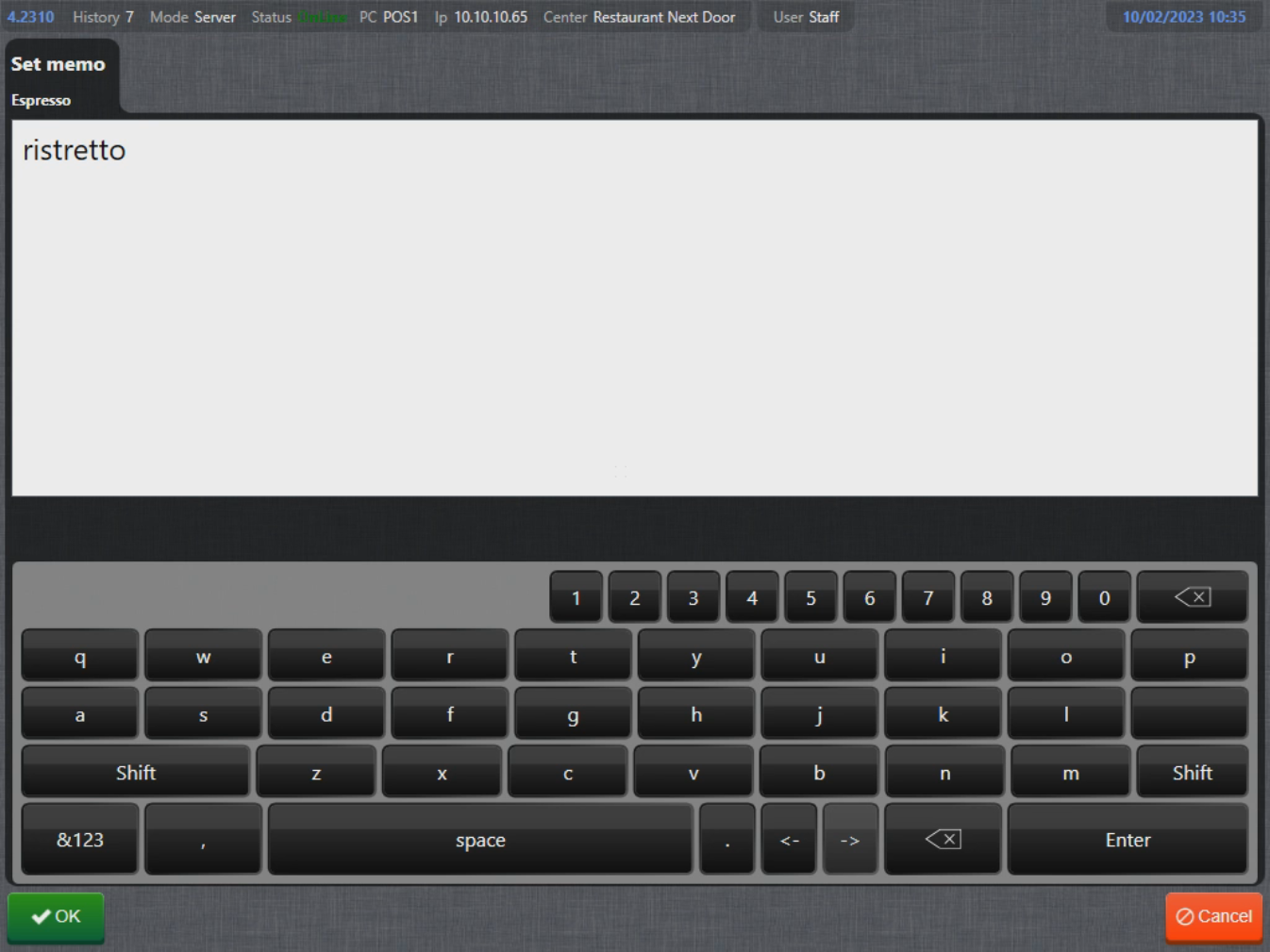
- Enter the Memo content and select OK to confirm:
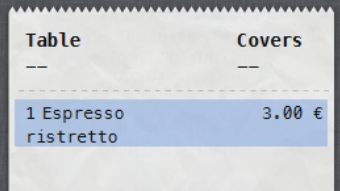
- Memo has now been added to the product:
Adding addons to products
Addon is a message or a product that can be added to the product as its sub-component, for example "No sallad" (without any extra cost) or "Extra burger patty" (with a cost).
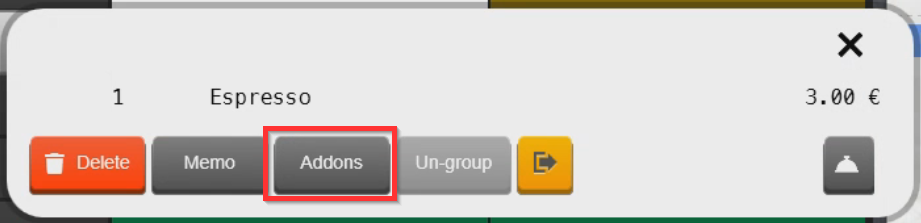
- To add an addon to the product, select Addons:
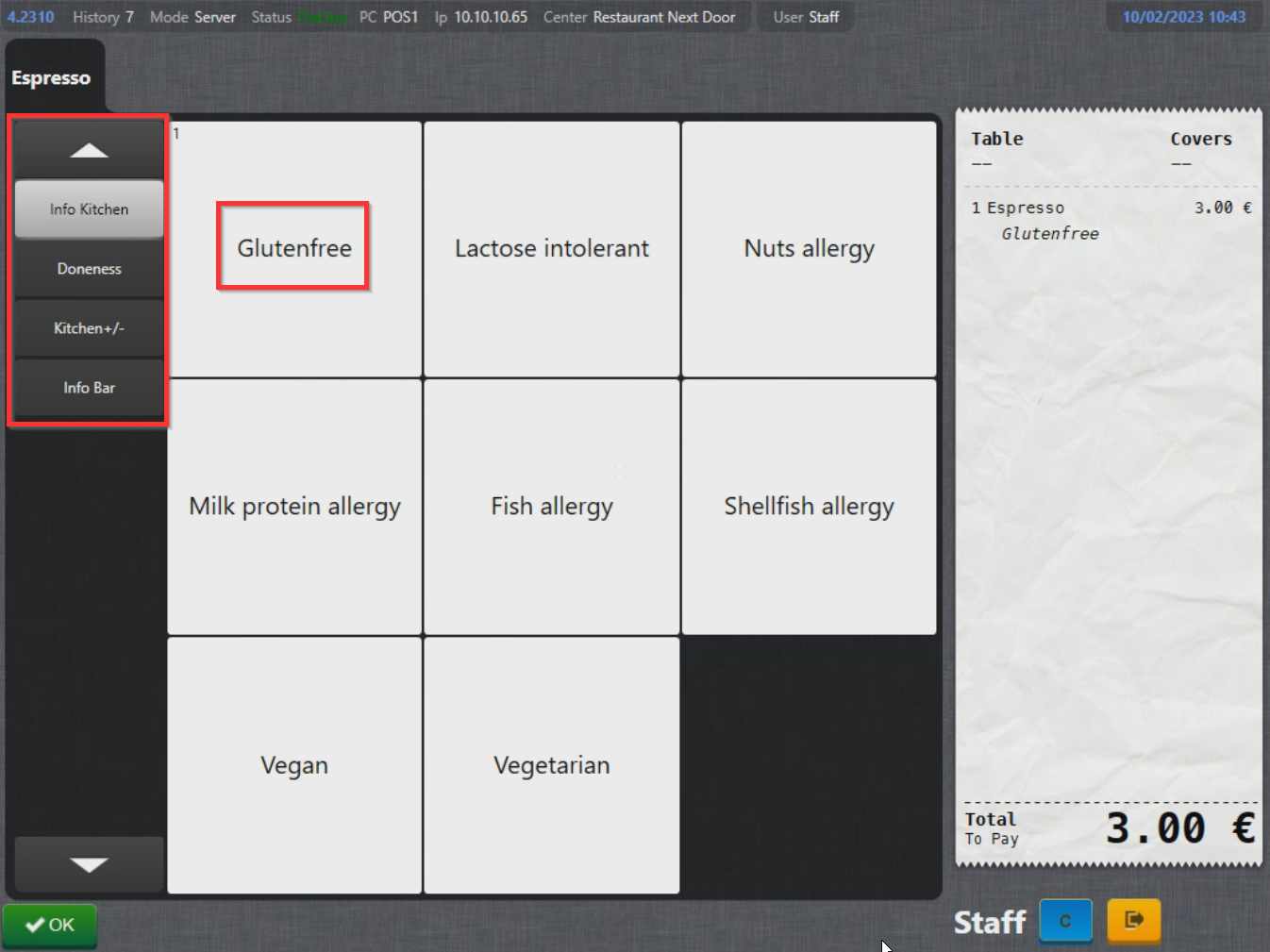
- In the addon menu, navigate the addon pages using the tabs on the left side of the screen, select the addon icon to add it to the product and confirm with OK:
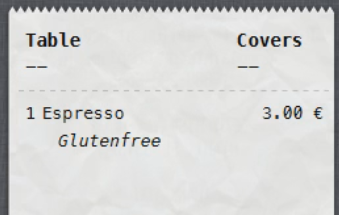
- Addon has now been added to the product:
Label product as TakeAway
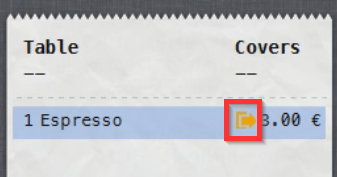
- To label the product as TakeAway, select the TakeAway symbol:
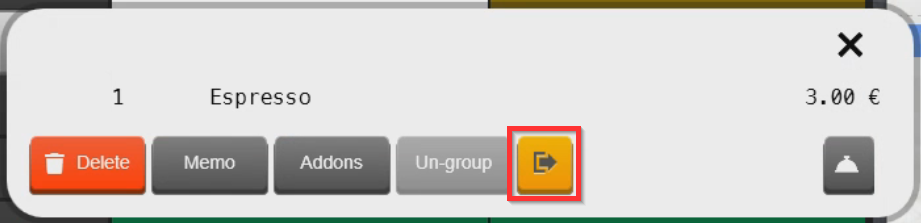
- Product is now labeled as TakeAway and the TakeAway symbol is visible in the order list:
What's next?
To place an order on a table, check out Placing an order.
Was this article helpful?
That’s Great!
Thank you for your feedback
Sorry! We couldn't be helpful
Thank you for your feedback
Feedback sent
We appreciate your effort and will try to fix the article